How to Downgrade iOS 27 Beta to iOS 26: 2026 Guide
Want off iOS 27 beta? Follow the current Apple recovery-mode restore, understand what gets erased, and check which pre-beta backups can be used.
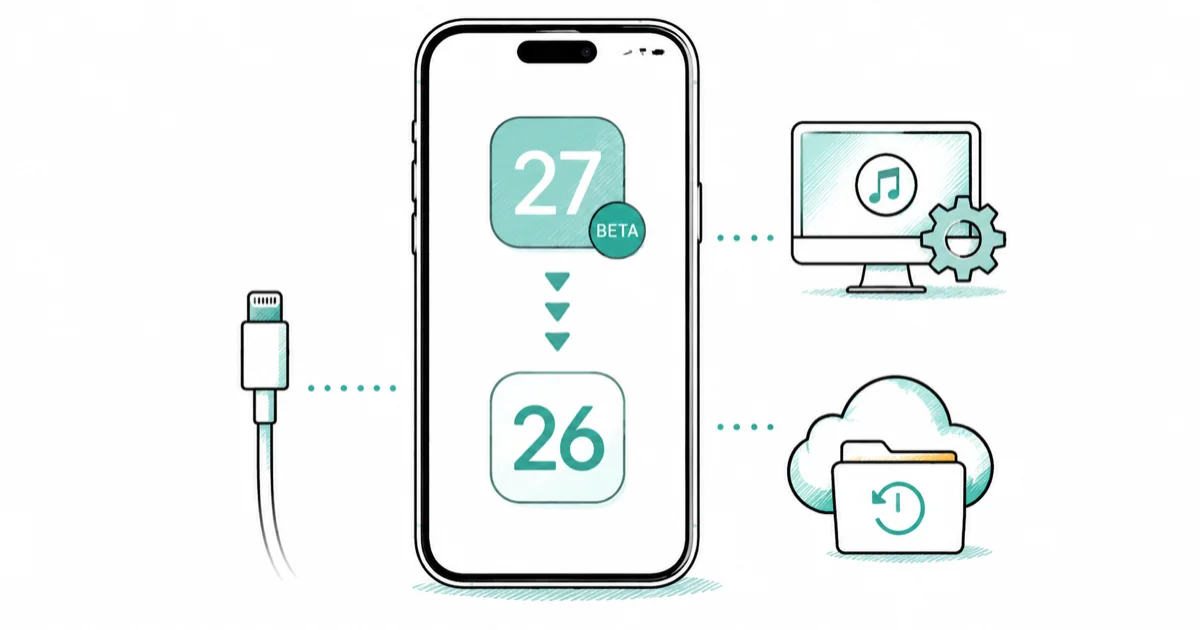
Quick AnswerUse recovery mode and choose Restore on a Mac or PC. Apple installs the current public iOS release and erases the iPhone, so use a backup made before the beta.
If you installed iOS 27 beta on your own iPhone, Apple provides one supported route back to the current public release: erase and restore from a computer. Turning Beta Updates off stops future beta builds but doesn’t replace the version already installed.
Don’t use a restore to erase someone else’s device or bypass Activation Lock. Access without consent may violate privacy law.
- Turning off Beta Updates doesn’t remove the iOS 27 beta already installed
- Apple’s current process uses recovery mode and the Restore option, not a timed DFU sequence
- Restore erases the iPhone and installs the current publicly released iOS version
- A backup made while running beta software may not restore to an earlier iOS version
- Without a compatible pre-beta backup, set up the iPhone again and recover only data that was synced or exported
#What Version Will Apple Restore?
Apple’s computer restore installs the current publicly released version of iOS. While iOS 27 is beta, that public release is iOS 26.
This depends on current product status, not a permanent promise tied to the article title.
Apple doesn’t publish a fixed number of days for an older release to remain installable. The previous citation on this page was a Mac Studio specification sheet, not IPSW signing documentation, so the claimed fixed deadline has been removed.
According to Apple’s beta-removal instructions, removing the beta and returning to the public release requires erasing and restoring the device. That page also supplies the current recovery-mode steps and backup warning used below.
If you’re deciding whether to install a beta rather than trying to remove one, read should you install iOS 27 beta first. The process for trying to return from stable iOS 26 to an older major release is a different situation, covered in the iOS 26 downgrade guide.
#How Do You Return From iOS 27 Beta?
Use a current Mac or Windows PC, and connect the iPhone directly to it.
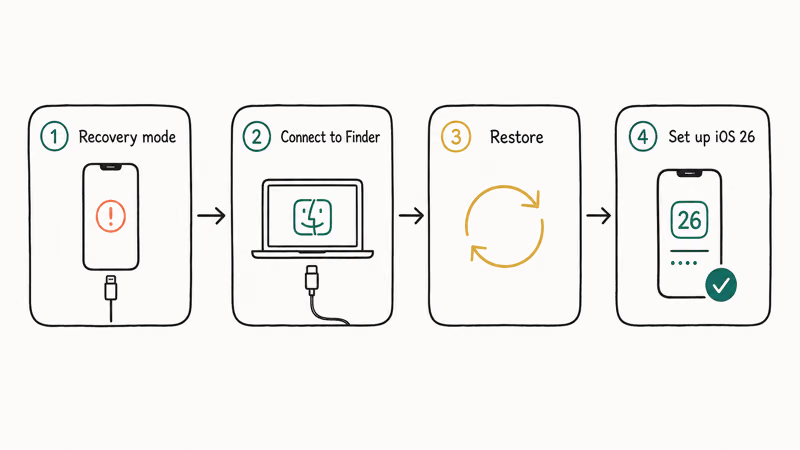
- Confirm what is already synced. Check iCloud Photos, Contacts, Messages, Notes, and any app-specific export you need before erasing the phone.
- Update the computer software. Install current macOS or update the Apple Devices app on Windows.
- Connect the iPhone and enter recovery mode. On iPhone 8 and later, press and quickly release Volume Up, press and quickly release Volume Down, then hold the Side button until the recovery-mode screen appears.
- Choose Restore on the computer. Finder or Apple Devices downloads the current non-beta iOS release, erases the iPhone, and installs that release.
- Complete setup. Restore a compatible archived backup, or set up as new and sign in to the Apple Account that owns the device.
This differs from the old instructions on this page. Apple’s published beta-removal flow confirms that it uses recovery mode, not DFU mode, and it doesn’t tell users to download an IPSW from a third-party index or use Option-click/Shift-click to select one.
Apple’s factory-restore guide confirms that Restore erases the device and installs current software. The Hello screen appears afterward.
For more background, what restoring an iPhone means explains restart, update, reset, and restore.
#Data and Backup Compatibility
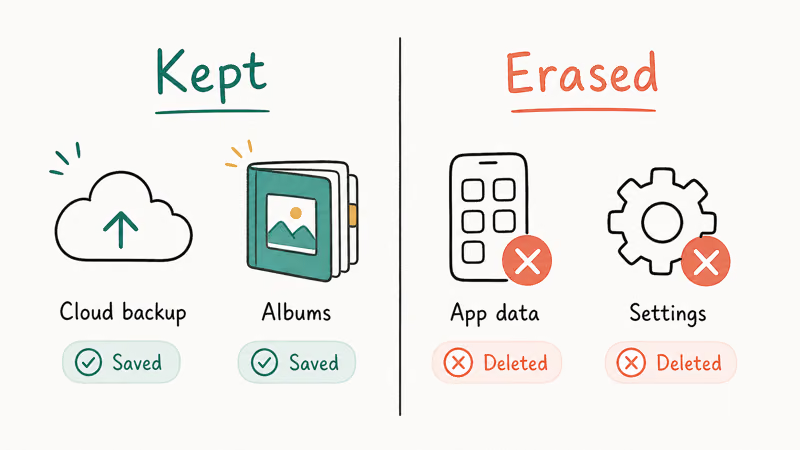
The restore erases local photos, messages, apps, settings, Health data, and other information that hasn’t been synced or exported. A backup determines how much can be put back afterward, but the backup’s software version matters.
| Data source | What to expect |
|---|---|
| Archived backup made before the beta | Use it after Restore when compatible with the public iOS version |
| Backup made on iOS 27 beta | It may not restore to the earlier public iOS version |
| iCloud-synced data | It can download again after sign-in and sync is enabled |
| Data stored only on the beta iPhone | Export it before Restore or it will be erased |
Apple warns that a beta-era backup might not work with an earlier iOS version. Use a backup made before installing the beta.
Don’t edit backup metadata to make a beta backup look older. If a backup is already failing for storage or authentication reasons, fix that first with the iPhone backup failed guide and make a separate archive before changing the phone.
#Pre-Restore Checklist
Work through this list before clicking Restore:
- Verify iCloud sync and exports. Open the relevant iCloud categories and wait for pending uploads to finish. Export Health or app data that doesn’t sync.
- Locate the pre-beta archive. In Finder or Apple Devices, confirm the backup date and keep the computer available for the restore.
- Update the computer. Apple requires current macOS or Apple Devices software for the published beta-removal flow.
- Use a sound direct connection. Avoid a hub, keep the cable connected, and don’t begin if the connection is intermittent.
- Know the Apple Account password. The restore can ask you to sign in to disable Activation Lock during setup.
Turning off Find My before a normal factory restore is part of Apple’s preparation guidance. In recovery mode, follow the prompts you actually see rather than treating an authentication error as proof that the cable or firmware is bad.
#After the Restore
Finish setup with the compatible archive or as a new iPhone. Keep the device on Wi-Fi while previously synced content downloads again.
#Reading Restore Errors
Don’t assign one cause to every error code. Start with the exact message and Apple’s matching page.
Error 14: Apple’s current Error 14 article states that low storage can be involved in an update failure and tells users to try Update again to preserve personal data. It doesn’t identify cable or USB-port faults as Error 14’s universal diagnosis.
A general update or restore error: Apple’s restore-error checklist recommends updating the computer, connecting directly, checking the cable, restarting both devices, reviewing security software, and trying another computer if needed. Those are general checks, not a diagnosis of Error 14 by themselves.
Recovery-mode loop: Stop repeating Restore if the phone never reaches setup. Follow the recovery-mode loop guide and note the exact error shown on the computer.
The public release isn’t the version you expected: The supported process installs the current public release. It doesn’t promise an arbitrary older build or permanent access to iOS 26.
#Bottom Line
To remove iOS 27 beta while iOS 26 is the public release, use Apple’s recovery-mode Restore from a current Mac or Windows PC. The process erases the iPhone, so a compatible archived pre-beta backup is the clean route back to your prior data.
The old page described DFU timing, manual IPSW selection, a fixed signing deadline, download sizes, restore duration, and cable faults as Error 14’s leading cause. Apple doesn’t support those claims on the cited pages, so they have been removed rather than reassigned to another unsupported source.
iOS 26
#Frequently Asked Questions
Can I downgrade iOS 27 beta without losing data?
The restore itself erases the iPhone. You can put compatible data back from an archived pre-beta backup and let synced iCloud data download again, but a beta-era backup may not restore to the earlier public release.
Does turning off Beta Updates downgrade the iPhone?
No. Go to Settings, General, Software Update, Beta Updates, then Off to stop receiving future betas. The installed beta remains until you update normally or erase and restore the device.
Do I need DFU mode to remove the beta?
Apple’s current instructions use recovery mode. On iPhone 8 and later, press and release Volume Up, press and release Volume Down, then hold the Side button until the recovery-mode screen appears.
Do I need to download an IPSW file?
Not for Apple’s published beta-removal procedure. Finder or Apple Devices downloads and installs the current public iOS release when you choose Restore.
What if I don’t have a pre-beta backup?
Set up the iPhone as new after Restore, sign in to iCloud, and recover what had already synced. Data stored only on the beta device must be exported before the erase.
Can I use a Windows PC?
Yes. Update the Apple Devices app, connect the iPhone, enter recovery mode, and choose Restore when the option appears.
Will this always install iOS 26?
No. It installs the current publicly released iOS version. While iOS 27 is beta, that is iOS 26; after product status changes, the same Apple process can install a newer public release.

iOS 26.6.1 Security Update: What Apple Fixed and Who Gets It
Apple released iOS 26.6.1 on August 17 with 29 security fixes, including an IPSec interception bug. See what it patches, who gets it, and how to update.
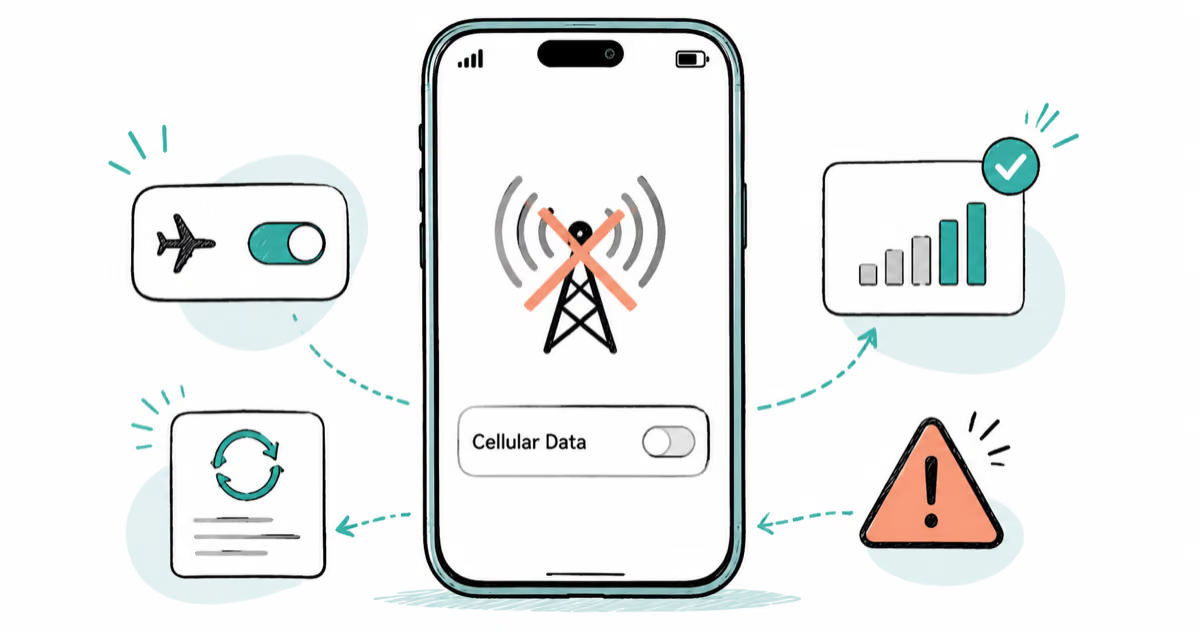
iPhone 17 Cellular Data Not Working on iOS 26? 9 Fixes
iPhone 17 cellular data still dropping on iOS 26? Apple fixed the launch bug in iOS 26.0.1, but recovery failures persist. Here's the fix ladder.

iOS 26 System Data Storage Full: How to Fix It Now
iOS 26 made System Data storage balloon past 50GB for some iPhones. Here is what is safe to clear, what is normal, and the iOS 26.1 storage fix.
How to Disable Liquid Glass in iOS 26: 2026 Settings
iOS 26 will not let you fully turn off Liquid Glass, but five settings reduce the transparency, motion, and brightness so the iPhone feels flat again.