iPhone App Disappeared? Here Is How to Get It Back
Apps vanished from your iPhone? Find missing apps fast using Spotlight search, App Library, Screen Time settings, and the Offload Unused Apps toggle.
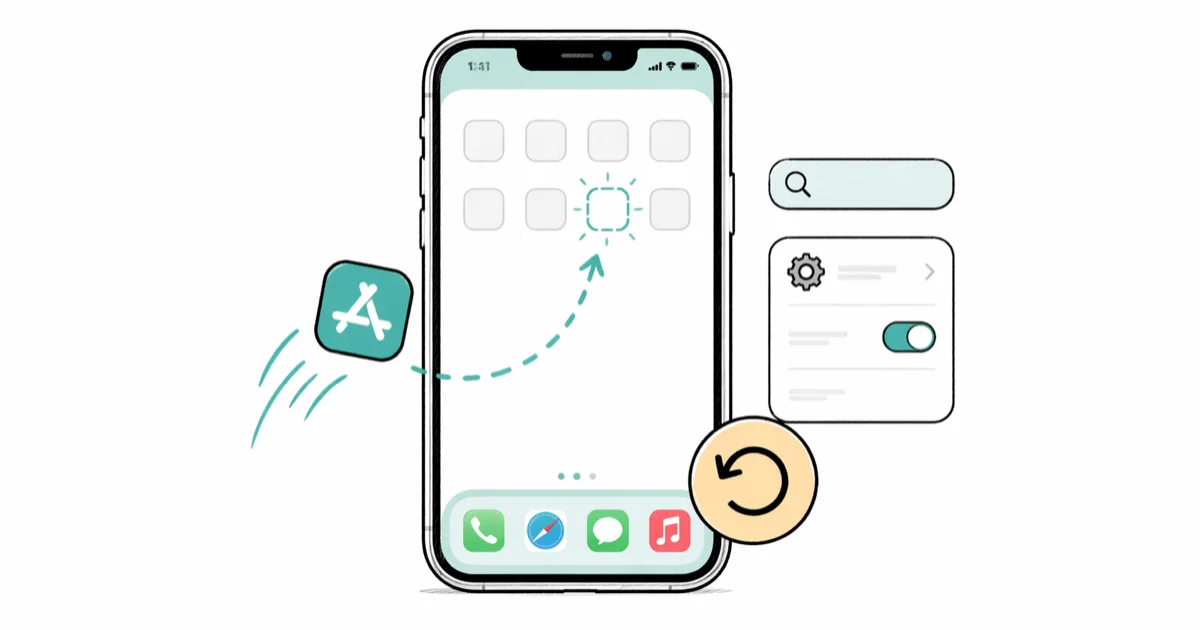
Quick AnswerPull down on your home screen to open Spotlight, then type the app name. If it appears, long-press the result and tap Add to Home Screen. If it doesn't show, check Settings > App Store to see if Offload Unused Apps is enabled.
Your iPhone app disappeared and you can’t find it anywhere. The recovery method that works depends on why the app vanished, and the fix almost always takes under a minute. The app is rarely gone for good.
- Spotlight search finds apps still installed but hidden from your home screen in seconds
- App Library holds every installed app organized by category on the page after your last home screen
- Screen Time restrictions can hide apps completely from every surface on your device
- Offload Unused Apps removes the binary to save space but keeps all your data intact
- Reset Home Screen Layout returns all app icons to their default positions without deleting anything
#Common Reasons iPhone Apps Go Missing
Six causes cover nearly every case. Knowing which one applies to you saves time because each has a completely different fix path.
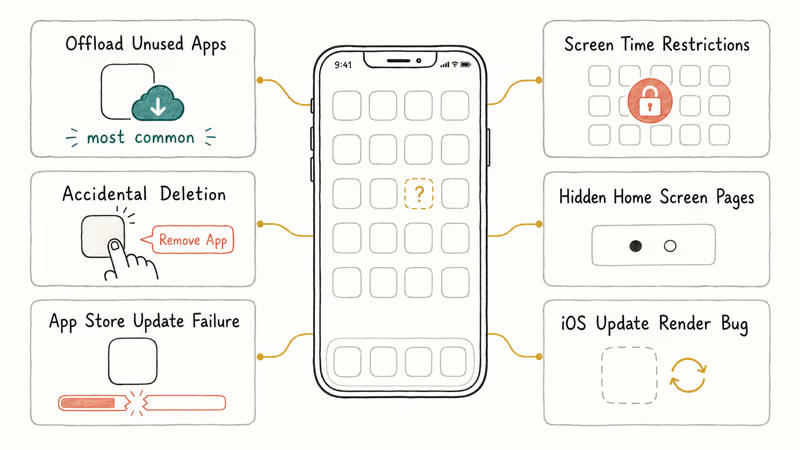
Offload Unused Apps is the most common culprit on 64 GB and 128 GB iPhones. According to Apple’s iPhone Storage support page, this feature automatically removes apps you haven’t used recently while preserving all documents and data. On a storage-constrained iPhone, apps you rarely open can be offloaded within a couple of weeks of enabling the feature. A cloud icon replaces each one.
Screen Time restrictions make apps completely invisible. If Content & Privacy Restrictions are on, entire categories vanish from the home screen, App Library, and Spotlight results without any notification to tell you what happened.
Accidental deletion is easier than you’d think. One stray tap on “Remove App” during a long-press and the app is gone.
Hidden home screen pages trip people up regularly. iOS lets you uncheck entire pages so they don’t appear when you swipe, but the apps on those pages remain fully installed and functional.
App Store update failures can break apps mid-install, leaving a blank space. A restart usually fixes it.
iOS update bugs sometimes cause icons to stop rendering. Force-restarting clears this.
#How to Find a Missing iPhone App
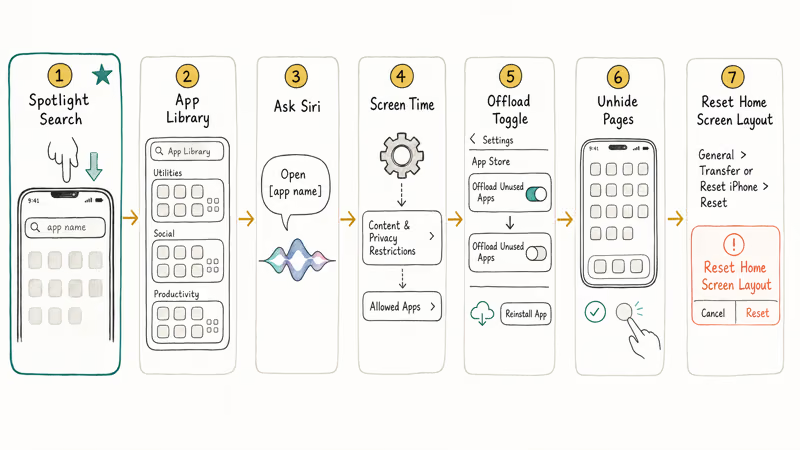
Eight recovery methods cover the common hiding scenarios, and Spotlight search resolves most of them on the first try. Work through these steps in order.
#Use Spotlight Search
Pull down anywhere on your home screen and type the app name. Spotlight can surface apps that the App Library misses after a failed update because it queries the installed-app database directly. Long-press any result and tap Add to Home Screen.
#Check the App Library
Swipe left past your last home screen page to reach the App Library. Type the name in the search bar at the top, long-press the icon, and select Add to Home Screen.
#Ask Siri
Say “Hey Siri, open [app name].” Siri opens it immediately if the app is installed. If Hey Siri isn’t working, hold the Side button instead.
#Check Screen Time Settings
Go to Settings > Screen Time > Content & Privacy Restrictions. If this toggle is on, tap Allowed Apps and confirm the missing app’s category is enabled. Apps in restricted categories don’t appear anywhere on the device until you re-enable them.
Check App Limits too. Hitting a daily time limit grays out an app until midnight. To disable Screen Time entirely, you’ll need the passcode. The Screen Time passcode recovery guide covers every reset option.
#Turn Off Offload Unused Apps
Go to Settings > App Store and toggle off Offload Unused Apps to prevent future offloading. Then open Settings > General > iPhone Storage, scroll to the missing app (look for the cloud icon), and tap Reinstall App. iOS downloads the binary and reconnects it to the data it preserved during offload.
#Unhide Home Screen Pages
Long-press an empty area on your home screen. Tap the page dots at the bottom. Any unchecked page is hidden. Tap it to bring it back.
#Reset Home Screen Layout
Go to Settings > General > Transfer or Reset iPhone > Reset > Reset Home Screen Layout. According to Apple’s reset options support page, this returns all built-in apps to their default positions and arranges downloaded apps alphabetically. You’ll lose your custom folder arrangement, but no apps get deleted.
Is your phone icon missing from the home screen? That specific case has its own dedicated fix.
#How Do You Recover a Fully Deleted App?
If the app was removed entirely, you have three paths back.
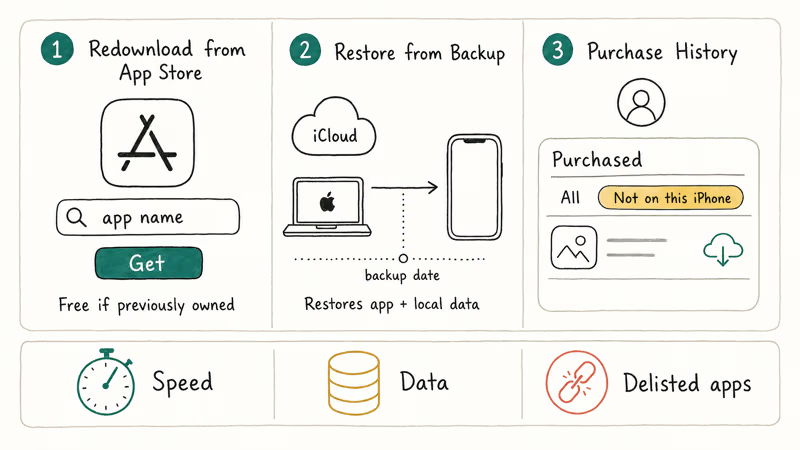
Redownload from the App Store. Search by name and tap Get. Free if you’ve purchased it before. Data restores automatically for apps that sync with iCloud.
Restore from a backup. According to Apple’s backup and restore guide, restoring from iCloud or a Mac/PC backup recovers both app binaries and all local data from the backup date. Not sure what restoring actually does to your phone? We explain what restoring an iPhone means in plain terms.
Use purchase history. Open the App Store, tap your profile, then tap Purchased. According to Apple’s redownload support page, previously purchased apps remain available for reinstallation even after the developer removes them from the store.
#Check Purchase History Step by Step
- Open the App Store app.
- Tap your profile picture in the top-right corner.
- Tap Purchased.
- Switch to Not on this iPhone to filter for apps not currently installed.
- Tap the cloud icon next to the app you want.
For apps that store data on the developer’s servers, sign in after installation and your previous data loads automatically.
#Why Do Apps Vanish After an iOS Update?
Software updates occasionally introduce rendering bugs where the app binary stays intact but the icon doesn’t display. Force-restart your iPhone by pressing Volume Up, then Volume Down, then holding the Side button until the Apple logo appears.
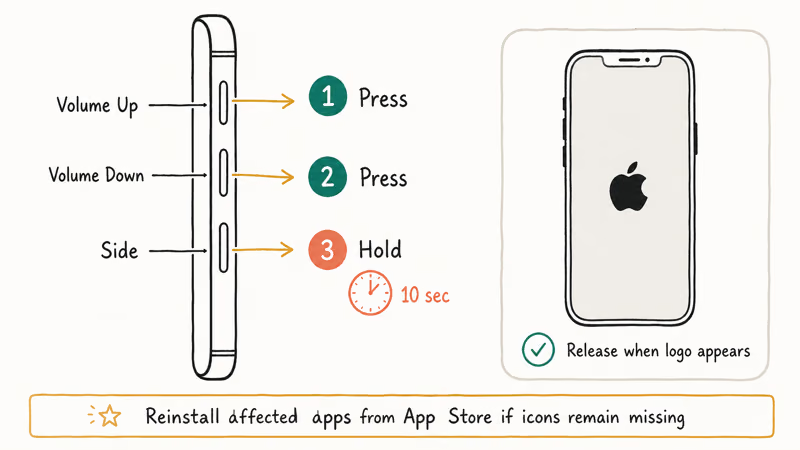
If icons are still missing after the restart, reinstall the affected apps from the App Store. Apple patches display bugs in point releases. If your iPhone is also flickering or restarting on its own, that points to a deeper software issue.
#Preventing Future App Disappearances
Turn off Offload Unused Apps in Settings > App Store. That single toggle eliminates the most common cause.
Review Screen Time settings monthly if you share your device with family members. New restrictions get applied silently, and you won’t realize apps are hidden until you go looking for one that isn’t there anymore.
Back up with iCloud weekly so you always have a recovery option. Go to Settings > [your name] > iCloud > iCloud Backup.
#When to Contact Apple Support
If you’ve tried everything above and the app still won’t appear, contact Apple Support for diagnostics.
This is rare. The overwhelming majority of missing-app cases resolve with Spotlight search, App Library checks, or Screen Time fixes. But if your iPhone is showing other symptoms, like getting stuck on the Apple logo or displaying a white screen, book a support appointment.
#Bottom Line
Start with Spotlight search since it finds hidden apps in seconds. If that doesn’t work, check Screen Time restrictions and the Offload Unused Apps toggle. For fully deleted apps, open your App Store purchase history, where every app you’ve ever downloaded is permanently recorded and free to reinstall. Weekly iCloud backups give you one more safety net for recovering both apps and their local data.
#Frequently Asked Questions
Why did my apps disappear after updating iOS?
iOS updates sometimes introduce display bugs where app icons fail to render even though the apps are still installed. Force-restart by pressing Volume Up, Volume Down, then holding the Side button until the Apple logo shows.
How do I get back an app I accidentally deleted?
Open the App Store and search for the app by name. Tap Get to reinstall it for free if you’ve downloaded it before. Apps that sync with iCloud restore your data automatically after reinstallation. For apps that store data only on the developer’s servers, sign in after installing and your previous account data loads from their end.
Can Screen Time hide apps completely?
Yes. Content & Privacy Restrictions remove affected apps from every surface: home screen, App Library, and Spotlight. Re-enable them at Settings > Screen Time > Content & Privacy Restrictions > Allowed Apps.
What does the cloud icon on an app mean?
The cloud icon means iOS offloaded the app to free up storage. The binary was removed, but all your documents and data stayed on the device. Tap the icon to redownload it, and your data reconnects automatically once the install finishes. This is different from deleting, because offloading preserves everything except the app’s executable code.
Do I lose my data when an app is offloaded?
No. All documents, saved data, and login credentials remain on your iPhone.
How do I stop my iPhone from offloading apps automatically?
Go to Settings > App Store and turn off the Offload Unused Apps toggle. After disabling it, iOS keeps every installed app on your device regardless of how often you use it. This is the single most effective way to prevent apps from disappearing on their own, especially on iPhones with limited storage where iOS aggressively frees space.
What if the app was removed from the App Store entirely?
Go to App Store > your profile > Purchased. Previously downloaded apps still appear there even after the developer pulls them. If reinstallation isn’t available from purchase history, restore from an iCloud or Mac backup made while the app was still on your device.
Can I recover app data after a factory reset?
Only if you have a backup. After a factory reset, all local app data is permanently erased. Restore from an iCloud or Mac backup during iPhone setup to recover both apps and their data.

Mac mini M6 vs M5 Pro: Which Model Should You Buy?
Mac mini M6 vs M5 Pro compared on price, memory, ports, displays, and real workloads. Find the better 2026 Mac mini for your desk and budget.

Apple Siri Settlement: Who Qualifies and How to Claim
Apple's $250 million Siri settlement covers iPhone 15 Pro and iPhone 16 models bought June 2024 to March 2025. See who qualifies and how claims work.

iOS 26.6.1 Security Update: What Apple Fixed and Who Gets It
Apple released iOS 26.6.1 on August 17 with 29 security fixes, including an IPSec interception bug. See what it patches, who gets it, and how to update.

iPhone Adaptive Power: How It Works and When to Use It
Learn how iPhone Adaptive Power works, which models support it, what it changes, and when Low Power Mode is still the better battery-saving choice.