iPhone Keeps Restarting: 7 Fixes for the Boot Loop
Fix an iPhone stuck in a restart loop with seven checks, including force restart, Recovery Mode, a full restore, and when to seek Apple service.
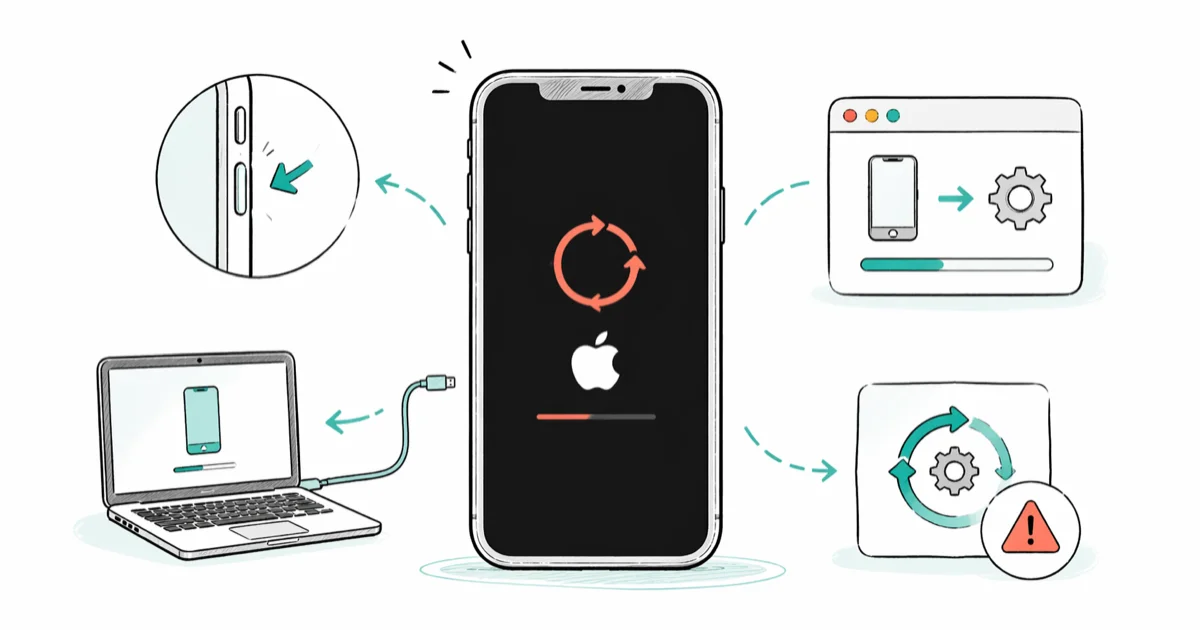
Quick AnswerForce restart your iPhone first. If it keeps rebooting, connect it to a computer and try Update before a recovery-mode Restore; Restore and DFU erase data, so confirm a backup whenever the phone stays accessible.
Your iPhone keeps looping back to the Apple logo before it reaches the lock screen. Possible causes include an interrupted update, an app conflict, low storage, a worn battery, or other hardware trouble. Start with a force restart because it’s non-destructive.
These steps apply to your own device.
- A force restart does not erase the iPhone; hold the buttons until the Apple logo appears instead of timing the press
- An incomplete update or insufficient free storage can stop iOS from installing, but a restart loop can also have an app or hardware cause
- If the computer offers Update and Restore, try Update before the data-erasing Restore option
- A factory restore erases the device and installs the latest compatible iOS version
- A loop that survives a full restore needs Apple service or another qualified hardware diagnosis
#Why Does Your iPhone Keep Restarting?
A boot loop means your iPhone gets partway through loading iOS, hits a fault, and starts the boot process over again. The cycle can repeat dozens of times without ever reaching the lock screen, and the cause sits in either software or hardware.
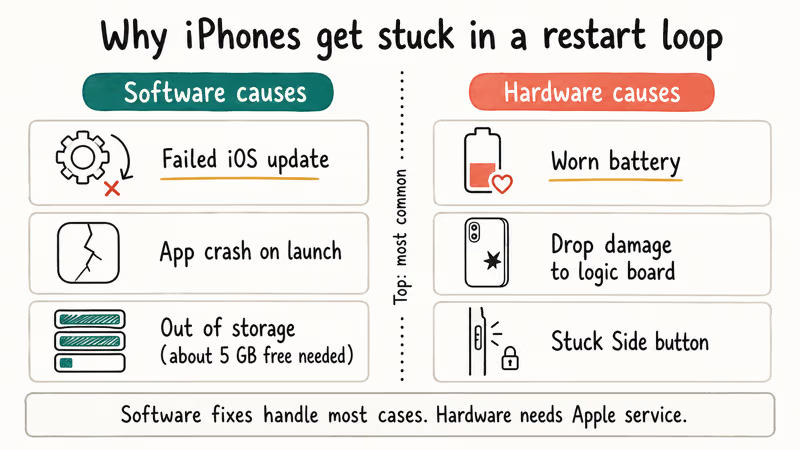
According to Apple’s current update troubleshooting guide, an update needs a compatible device, power, an internet connection, and enough available storage. It lists insufficient storage, a slow download, an unreachable update server, and an update that doesn’t complete as possible failure conditions; it doesn’t publish a universal free-space threshold. If iPhone storage won’t load, resolve that problem before retrying the update.
An app conflict is another possibility, especially if the loop began immediately after an app install or update. Modified system software can also complicate troubleshooting after an iOS update.
Hardware faults can produce the same symptom. A degraded battery that can’t deliver steady current, a damaged logic board after a drop, or a stuck Side button are possibilities. These cases are harder to isolate at home, but the steps below help separate a software path from a device that needs service.
#Force Restart Your iPhone
Try this before anything else. A force restart doesn’t erase data. Follow the button sequence for the model and keep holding until the Apple logo appears rather than releasing after a fixed number of seconds.
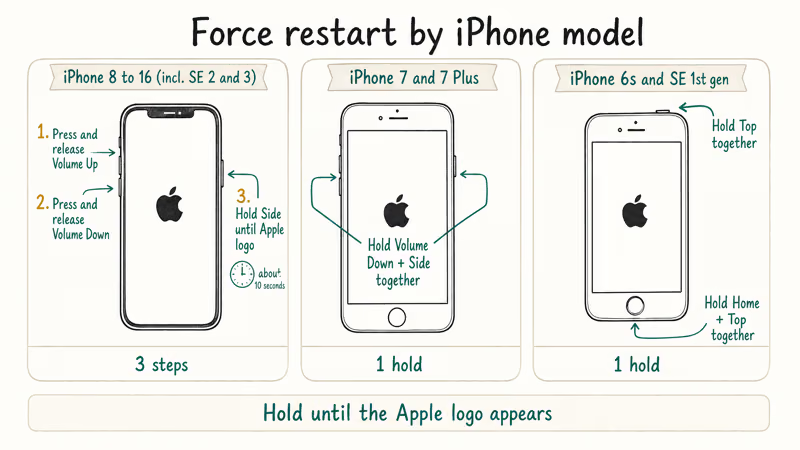
iPhone 8 and later (including SE 2nd/3rd gen): Press and quickly release Volume Up. Press and quickly release Volume Down. Then hold the Side button until the Apple logo appears.
iPhone 7 and 7 Plus: Hold both Volume Down and the Side button together until the Apple logo appears.
iPhone 6s, SE 1st gen, and earlier: Hold the Home button and the Top button together until the Apple logo appears.
A force restart is a non-destructive check for a software boot loop. If your iPhone boots normally afterward, go to Settings > General > Software Update and install any pending update. If the loop began immediately after you installed or updated an app, remove that recent app and watch whether the symptom returns.
#Remove a Recently Changed App After the iPhone Starts
If the restart loop began right after you installed or updated an app, remove that app after the phone starts and see whether the loop returns. Timing alone does not prove that the app caused the problem.
Boot into Recovery Mode using the steps in the next section, but choose Update rather than Restore when your computer prompts. Once iOS finishes the in-place reinstall and your iPhone boots normally, delete the suspect app right away. For confirmation, go to Settings > Privacy & Security > Analytics & Improvements > Analytics Data and look for crash logs that name a specific app.
If you can’t identify the app, remove recent installs one at a time. Reinstall them only after the phone stays stable.
#Use Recovery Mode to Fix a Restart Loop
Recovery Mode lets a computer reinstall iOS when the iPhone won’t start normally. Use Finder on a current Mac or the Apple Devices app on a PC; use iTunes only on a PC without Apple Devices or on macOS Mojave or earlier.
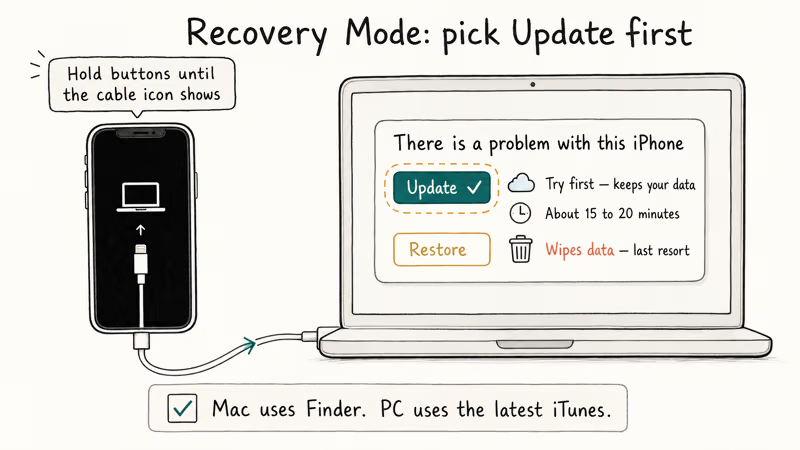
Connect your iPhone to the computer with a USB cable and open Finder or iTunes. Run the force restart sequence for your model, but don’t let go when the Apple logo appears. Keep holding until the Recovery Mode screen shows up, with a cable icon pointing at a computer.
When the computer asks whether to Update or Restore, pick Update the first time.
According to Apple’s error troubleshooting page, a computer reporting error 9, 4005, 4013, or 4014 should use Update, not Restore to reinstall the software and keep personal data.
For other recovery cases, Apple’s current recovery-mode guide recommends trying an update first if you haven’t already done so. Choosing Restore reinstalls iOS and erases all data, and Apple doesn’t give a universal completion time for either path. Our iPhone stuck on the Apple logo walkthrough covers that decision point.
#Factory Reset Your iPhone
A factory reset wipes everything and returns your iPhone to setup state. It can rule out a software or configuration cause, but anything not backed up is gone.
If your iPhone stays on long enough between reboots, go to Settings > General > Transfer or Reset iPhone > Erase All Content and Settings. If it crashes before you can finish, use Recovery Mode from a computer and choose Restore instead.
Back up first if you can. While the phone remains accessible, check Settings > [your name] > iCloud > iCloud Backup for the last successful backup, or make an encrypted computer backup before you wipe it. Don’t assume a current backup exists.
After the reset, you can briefly set up the iPhone as new to see whether the loop returns. If you later decide to restore a full backup, you must erase the phone again and choose that backup during setup; a full-device backup can’t simply be layered onto an already configured iPhone. If your iPhone battery is dying fast after the reset, re-check Battery Health because a worn cell can mimic a software fault.
#What If Recovery Mode Still Fails?
DFU is a lower-level restore approach, but Apple’s current consumer Recovery Mode guide does not publish one universal DFU button-timing procedure. Because the sequence is model-specific and a restore erases data, this guide does not present unsourced second-by-second timing as an Apple-supported fix.
Apple’s recovery guide states that a device that can’t update or restore in recovery mode may need service. Try a known-good cable and another USB port or computer, then contact Apple or a qualified repair provider if the failure continues. Don’t pay for a third-party tool solely because it promises a guaranteed, no-data-loss repair.
#Hardware-Related Restart Loops
Some restart loops come from hardware faults that no software fix can resolve.
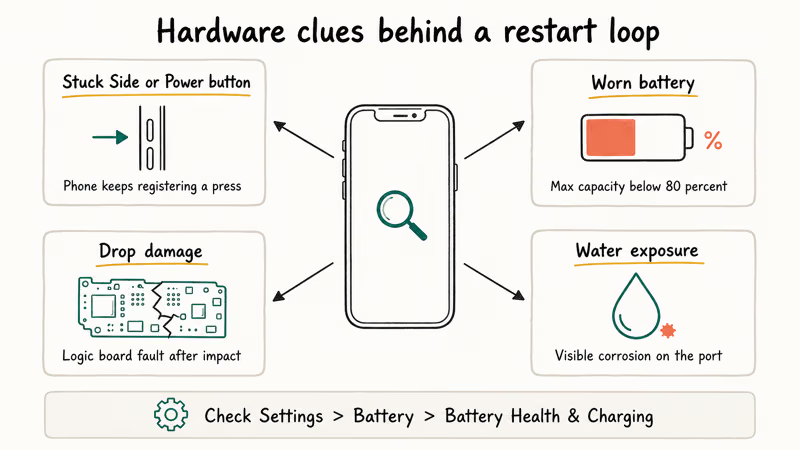
A worn battery is one hardware cause. When the cell can’t deliver steady voltage, the phone can shut down at peak load and restart when power returns. Check your battery state at Settings > Battery > Battery Health & Charging.
Apple’s iPhone battery and performance page states that iPhone 14 and earlier batteries are designed to retain 80 percent of capacity at 500 charge cycles. Past that, a degraded battery should be replaced.
Other hardware triggers include a damaged logic board (often from a drop), a stuck Side or Power button that keeps sending restart signals, and corrosion from water exposure. A phone that boots, restarts, and also shows a flickering iPhone screen or white dots on the display almost always has physical damage rather than a software bug.
#When to Visit Apple for Repair
If the loop continues after the restore choices above, use Apple or an Apple Authorized Service Provider for diagnostics.
Book service through the Apple Support page. Coverage and charges depend on the device, diagnosis, country, and warranty or AppleCare plan, so check the estimate for the specific serial number instead of relying on a universal price. Before the appointment, write down when the loop started and what you were doing so the technician has a reproducible history.
If calls keep dropping or the voicemail icon goes missing once the boot loop is finally fixed, those usually clear after one final restart and don’t need another repair visit.
#Bottom Line
Force restart first. It doesn’t erase data, and the Apple logo, not a stopwatch, tells you when to release the buttons.
If the phone reboots again, plug it into a computer. Try Update before Restore when that option is available, but remember that Apple’s current recovery flow uses Restore after an unsuccessful update and Restore erases the device.
If recovery mode can’t update or restore the phone, book service and have the battery and other hardware checked before paying for an unsupported repair promise.
#Frequently Asked Questions
Why does my iPhone restart every few minutes?
An incomplete iOS update is one possible cause. Low storage, a recently changed app, a worn battery, or other hardware trouble can produce a similar loop, so the symptom alone does not identify one cause.
Will I lose my data if I fix the restart loop?
Not necessarily. A force restart does not erase data, and Apple documents that Update keeps personal data for the restore errors listed above. A factory Restore or DFU restore erases the device, so confirm a recent iCloud or computer backup before either one.
Can a bad app cause my iPhone to keep restarting?
Yes. An app that crashes the moment it launches can drag a background system process down with it and start a reboot loop. If you installed or updated an app shortly before the issue began, boot into Recovery Mode, choose Update, and delete that app the moment your iPhone starts normally. Crash logs at Settings > Privacy & Security > Analytics often name the offender by bundle ID, which makes the choice easier.
How do I know if the problem is hardware or software?
Try the non-destructive checks and Apple’s recovery flow first. If a full factory Restore completes but the loop immediately returns, hardware becomes more plausible, but only diagnostics can confirm it. A swollen enclosure, visible damage, or unusual heat is a reason to stop and seek service.
Does Apple fix restart loops for free?
Coverage depends on the diagnosis and the device’s warranty or AppleCare plan. Check coverage and the service estimate for your serial number; don’t assume that diagnostics, software work, or hardware replacement is free in every region.
Can I fix the restart loop without a computer?
If the phone becomes responsive, you can erase it from Settings > General > Transfer or Reset iPhone without a computer. Recovery Mode and a computer-based Restore require Finder, Apple Devices, or iTunes. If the phone never becomes responsive and you don’t have a computer, contact Apple service.
How long does a Recovery Mode restore take?
Apple does not publish one completion time. Its recovery guide says that if the software download takes more than 15 minutes and the iPhone leaves the Connect to computer screen, let the download finish and then put the phone back into recovery mode. The total time varies with the download and device.
Is jailbreaking my iPhone causing the restart loop?
Modified system files can complicate an update or restore. Returning the phone to Apple’s current software requires an erasing restore, so back up anything accessible first and don’t assume the restore can preserve jailbreak data or tweaks.

Mac mini M6 vs M5 Pro: Which Model Should You Buy?
Mac mini M6 vs M5 Pro compared on price, memory, ports, displays, and real workloads. Find the better 2026 Mac mini for your desk and budget.

Apple Siri Settlement: Who Qualifies and How to Claim
Apple's $250 million Siri settlement covers iPhone 15 Pro and iPhone 16 models bought June 2024 to March 2025. See who qualifies and how claims work.

iOS 26.6.1 Security Update: What Apple Fixed and Who Gets It
Apple released iOS 26.6.1 on August 17 with 29 security fixes, including an IPSec interception bug. See what it patches, who gets it, and how to update.

iPhone Adaptive Power: How It Works and When to Use It
Learn how iPhone Adaptive Power works, which models support it, what it changes, and when Low Power Mode is still the better battery-saving choice.