How to Fix iPhone Screen Flickering: 7 Checks and Fixes
Troubleshoot iPhone screen flickering with restart, accessory, display-setting, software-update, and hardware checks before arranging service.
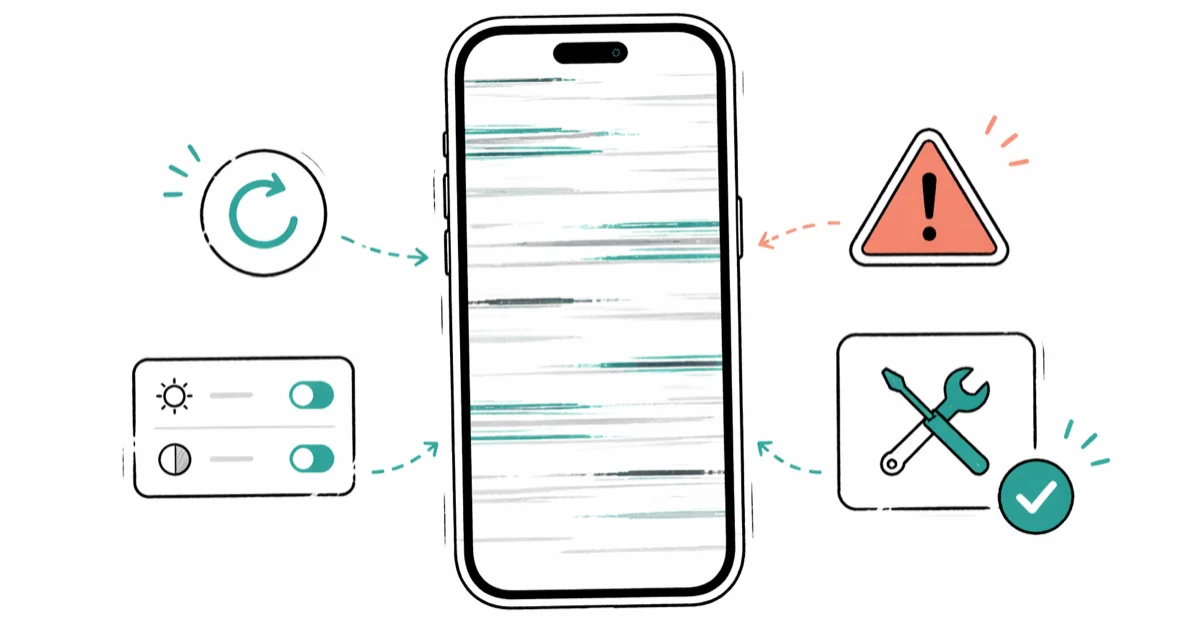
Quick AnswerRestart the iPhone, remove its case and screen protector, disconnect accessories, and install any pending iOS update. If flickering remains in the same part of the screen, arrange display service.
iPhone screen flickering can come from software, an accessory, a display setting, or damaged hardware. Work through the reversible checks below before resetting settings or arranging service.
- Restart first, then disconnect accessories and remove the case or screen protector
- Test Auto-Brightness and True Tone one at a time so you can reverse a change that does not help
- Install any pending iOS update through Apple’s supported update path
- A fixed band, crack, or flicker that remains after basic checks needs professional inspection
- Don’t erase the iPhone just to diagnose flicker; back up and seek service after lighter checks fail
#Why Is Your iPhone Screen Flickering?
Start by noting when the flicker appears: everywhere or in one app, at all brightness levels or only one, and with or without a charger or other accessory. Those observations help separate a settings or accessory issue from a display that needs service.
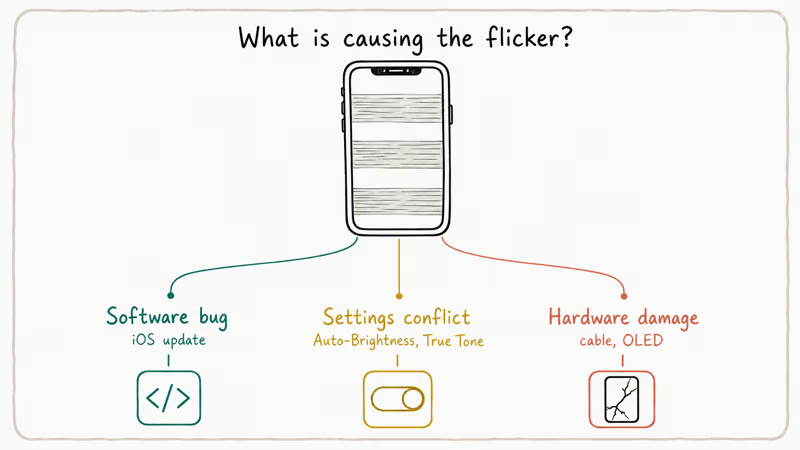
Display settings can change brightness and white balance as the environment changes. Temporarily testing Auto-Brightness and True Tone can show whether one of those adjustments matches what you see.
According to Apple’s screen troubleshooting page, the first checks are a restart, a clean and dry screen, disconnected accessories, and removal of cases or screen protectors. If those checks don’t help, continue through the settings and update checks below.
If your phone shows wider symptoms beyond the screen, the cause may be deeper. Read our guide on why your iPhone is stuck on the Apple logo before running a restore.
#1. Restart the iPhone
A restart is the first reversible check. If the screen is responding, turn the iPhone off normally and turn it back on. If it isn’t responding, follow Apple’s model-specific force-restart instructions.
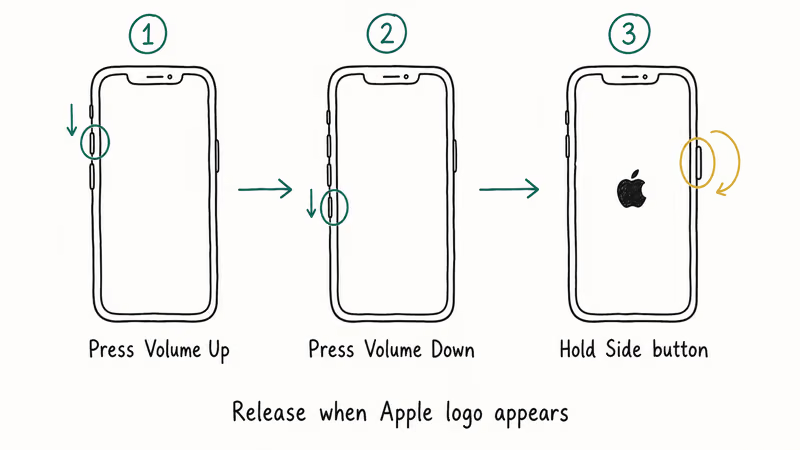
On iPhone 8 and later, press and quickly release Volume Up, press and quickly release Volume Down, then hold the Side button until the Apple logo appears. Older models use different button combinations, so use Apple’s model list rather than this sequence on every iPhone.
After the restart, observe whether the flicker returns and whether it stays in the same area of the screen. If it does, move to Method 2.
Next, disconnect Lightning or USB-C accessories, make sure the screen is clean and dry, and remove the case and screen protector. Retest after each change so you know whether an accessory altered the symptom.
#2. Disable Auto-Brightness Temporarily
Auto-Brightness adjusts the display as ambient light changes. Turn it off temporarily to test whether the visible brightness changes follow that setting.
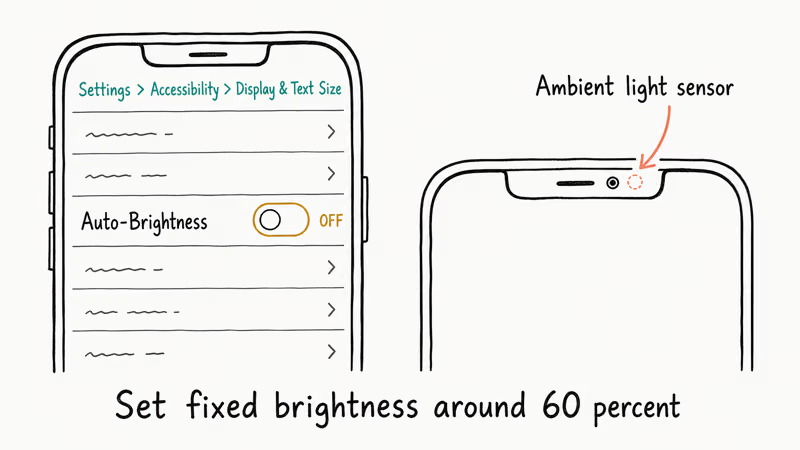
Go to Settings > Accessibility > Display & Text Size and toggle Auto-Brightness off. Then go to Settings > Display & Brightness and choose a comfortable fixed level.
Test in more than one lighting condition. If the symptom is really unexpected iPhone dimming, that guide covers additional brightness controls. Turn Auto-Brightness back on if disabling it makes no difference.
#3. Test Without True Tone
True Tone adjusts color and intensity to match ambient light. A changing color cast can be mistaken for flicker, so test this setting separately from Auto-Brightness.
Open Settings > Display & Brightness and toggle True Tone off. Compare the same screen under the same lighting, then restore the setting if it does not affect the symptom.
If the problem is a scheduled warm color rather than brightness pulsing, also check Night Shift on the same screen. Change one setting at a time so the result is clear.
#4. Update iOS
According to Apple’s current iOS update guide, you can install a pending update in Settings or with a computer. The guide doesn’t promise that a particular release fixes every flicker symptom.
Go to Settings > General > Software Update. Tap Download and Install if a newer build is available and follow the onscreen power and network prompts.
To enable automatic updates, go to Settings > General > Software Update > Automatic Updates and choose the options you want.
#5. Check for Physical Damage
Take off your case and screen protector before you inspect anything. Hold the phone under a bright lamp at a low angle so glass cracks catch the light.
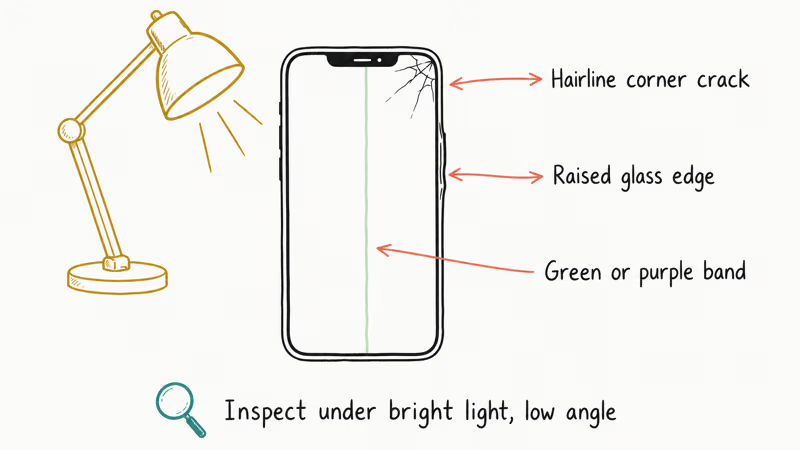
Look for cracks at the corners, raised glass along the edges, or a band that always appears in the same location. Those signs justify a display inspection. If your iPhone shows a green screen along with the flicker, record a short video of the symptom for the technician if another device is available.
If you also see iPhone ghost touch, mention both symptoms when arranging service. The symptoms alone don’t identify which component has failed.
#6. Reset All Settings
Reset All Settings restores every preference to factory defaults without touching photos, apps, or accounts. It’s the safest mid-tier reset, well short of a full restore.
The path is Settings > General > Transfer or Reset iPhone > Reset > Reset All Settings. Apple’s reset guide says this resets settings including network settings, the keyboard dictionary, location and privacy settings, and Apple Pay cards without deleting data or media.
If your iPhone keeps turning on and off as well, troubleshoot the restart loop separately. Reset All Settings restores preferences; it does not repair a damaged display.
#7. Get Display Support
If the flicker remains after the reversible checks, use Apple’s support path for intermittent screen problems to arrange service. Don’t erase the phone merely to prove that a display problem is hardware.
Make a current backup if the screen remains usable. Note whether the flicker appears in screenshots, whether it changes after disconnecting a charger, and whether it stays in one physical area. Those details help the technician reproduce the problem.
#How Much Does iPhone Screen Service Cost?
Screen-service pricing varies by model, region, damage, and coverage. Check Apple’s current estimate for your exact device instead of relying on a fixed figure in an article.
Skip every software step if you see a visible crack or signs of water damage. Trying restores on a phone with a damaged display can introduce new errors. If the touch screen also isn’t working, mention both symptoms when you book the repair.
#Preventing Flickering Long Term
Keep automatic updates enabled if that fits your update policy, or check Software Update regularly.
Use a case that protects the screen edges and replace a cracked protector. No case can guarantee that a drop won’t damage the display.
If the flicker started after installing a case or screen protector, remove it as a diagnostic test. Apple’s screen checklist specifically includes removing those accessories.
#Bottom Line
Start with a restart, a clean and dry screen, disconnected accessories, and removal of the case or screen protector. Then test display settings one at a time and install any pending iOS update.
For cracks, liquid exposure, a fixed band, or flicker that survives the supported checks, book an inspection instead of erasing the phone. If you are also dealing with iPhone battery dying fast, report that as a separate symptom.
#Frequently Asked Questions
Why does my iPhone screen flicker after an iOS update?
The timing suggests software, an app, or a setting, but it does not prove a specific iOS bug. Restart, install any pending update, and test whether the flicker appears outside the app where you first noticed it.
Can a third-party screen replacement cause flickering?
It can. According to Apple’s genuine-display guidance, a nongenuine display may have compatibility or performance issues, including brightness and color behavior. Check Settings > General > About > Parts and Service History on supported models, then ask a qualified provider to inspect the display.
Does low battery cause iPhone screen flickering?
Flicker alone does not establish a battery problem. Check Settings > Battery > Battery Health and Charging for a service message and report any unexpected shutdowns separately.
Will a factory reset fix screen flickering permanently?
Don’t assume a factory reset is required. Apple’s screen checklist moves from restart and accessory checks to support. Back up the phone and arrange an inspection if those steps and an iOS update don’t help.
Can screen protectors cause iPhone flickering?
Not necessarily. Apple recommends removing a case or screen protector as a diagnostic step for intermittent screen behavior, but that doesn’t establish that the protector caused panel flicker. Remove it temporarily and note whether the symptom changes.
What if my iPhone screen flickers only at low brightness?
Note the brightness level and lighting conditions where you see it, then test Auto-Brightness and True Tone separately. If the effect persists at multiple levels or causes discomfort, stop using the display and ask Apple Support to evaluate it.
How do I tell if iPhone flickering is software or hardware?
There is no single home test that proves the cause. Record whether the flicker appears in one app or everywhere, whether disconnecting accessories changes it, and whether a band stays in the same physical location. Persistent symptoms after the basic checks need professional diagnosis.
What if none of these methods fix the flickering?
Book a Genius Bar slot and bring the phone charged if possible. If the flicker appears only in a particular setting or location, bring a video and describe the conditions that reproduce it.

Mac mini M6 vs M5 Pro: Which Model Should You Buy?
Mac mini M6 vs M5 Pro compared on price, memory, ports, displays, and real workloads. Find the better 2026 Mac mini for your desk and budget.

Apple Siri Settlement: Who Qualifies and How to Claim
Apple's $250 million Siri settlement covers iPhone 15 Pro and iPhone 16 models bought June 2024 to March 2025. See who qualifies and how claims work.

iOS 26.6.1 Security Update: What Apple Fixed and Who Gets It
Apple released iOS 26.6.1 on August 17 with 29 security fixes, including an IPSec interception bug. See what it patches, who gets it, and how to update.

iPhone Adaptive Power: How It Works and When to Use It
Learn how iPhone Adaptive Power works, which models support it, what it changes, and when Low Power Mode is still the better battery-saving choice.