Fix iPhone White Screen of Death: 6 Methods (2026)
Fix the iPhone white screen of death in 2026 with six proven methods: force restart, charging, recovery mode, DFU, repair tools, and Apple Store triage.
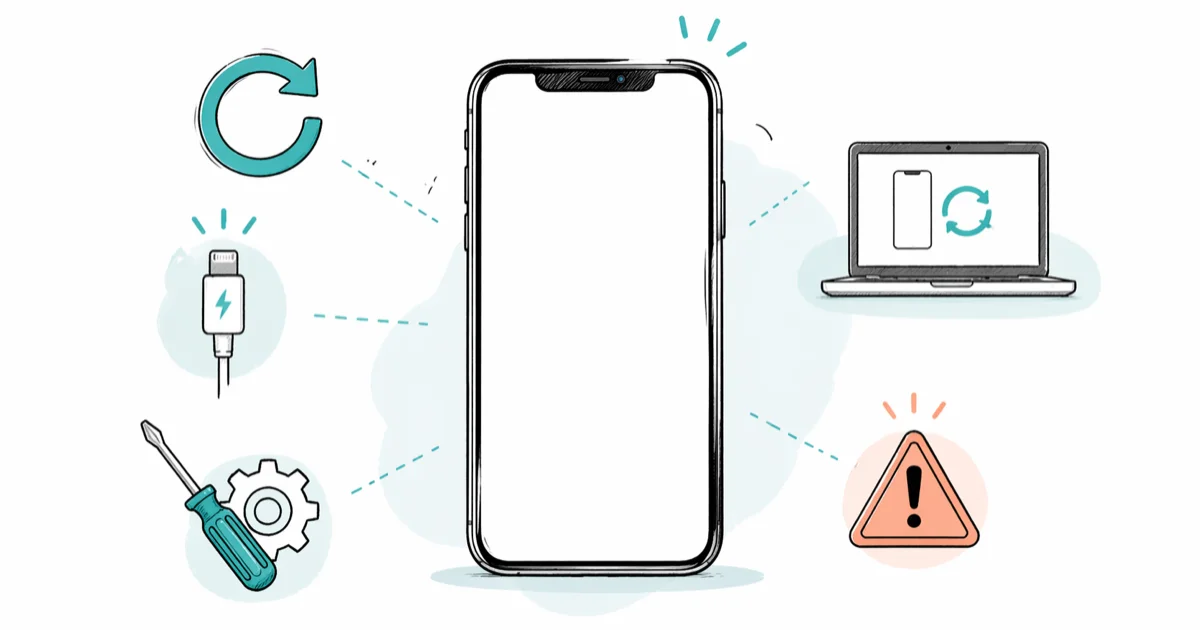
Quick AnswerForce restart your iPhone by quickly pressing Volume Up, then Volume Down, then holding the Side button until the Apple logo appears. This clears most white screen freezes caused by software glitches without touching your data.
Your iPhone is stuck on a blank white display. Nothing responds. The iPhone white screen of death is almost always a stalled boot sequence caused by a crashed update, a corrupted system cache, or a loose display cable. Most cases clear in a 15-second button combo.
Start with the low-risk fixes below: force restart, charging, recovery mode Update, then DFU or repair service only when safer options fail.
- Force restart clears most white screens in under 60 seconds with no data loss
- Recovery mode with the Update option reinstalls iOS while keeping photos, messages, and apps
- DFU mode bypasses the boot loader entirely and always erases the device
- Apple’s troubleshooting page confirms the Side button hold can take longer than 10 seconds
- Visible cracks, recent drops, or liquid exposure point to a hardware fault that needs a technician
#What Causes the iPhone White Screen of Death?
The white screen means the bootloader started but the kernel or SpringBoard (the home screen process) never finished loading. The display has backlight and power, so it glows white, but iOS never paints the lock screen over it.
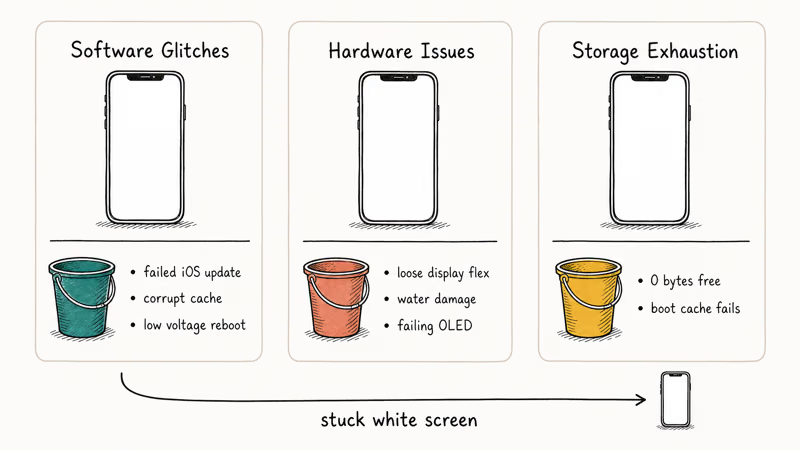
The real-world causes break down into three buckets.
Software glitches come first. A failed iOS update, a corrupted firmware patch, or a rogue launch daemon can stall the boot sequence before the lock screen loads. A battery that drops below a few percent mid-reboot can freeze the phone the same way, since iOS needs stable voltage to complete a cold boot.
Hardware issues come next. A loose display flex cable after a drop, water that reached the logic board, or a failing OLED panel produces a white screen that looks identical to the software version but won’t clear with any software fix.
Storage exhaustion is the sleeper cause. iOS can’t write its boot caches if the drive has zero free bytes, and the boot sequence stalls right after the bootloader hands off.
Apple’s support page for iPhones that won’t turn on or show a black screen confirms the force restart combo can take longer than 10 seconds before the Apple logo appears. It also recommends charging for at least 30 minutes if the first attempt fails. That 30-minute minimum is a useful floor: a depleted battery can’t complete a cold boot on a quick top-up.
If the screen keeps flashing the Apple logo on and off rather than staying white, you’re looking at a boot loop, and our guide on the iPhone flashing Apple logo covers that pattern instead.
#Force Restart Your iPhone
A force restart cuts power to the A-series chip and triggers a clean cold boot. It’s the single most effective white-screen fix because it clears the stuck boot state without asking iOS to cooperate.
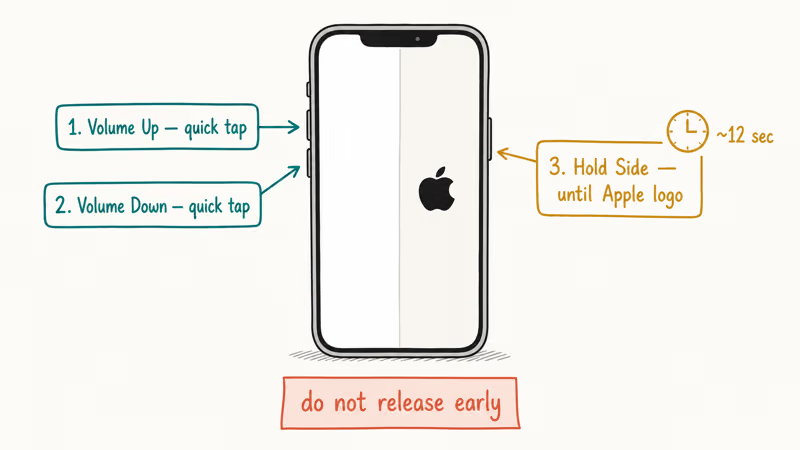
iPhone 8 and later (iPhone X, 11, 12, 13, 14, 15, 16):
- Press and quickly release Volume Up.
- Press and quickly release Volume Down.
- Press and hold the Side button until the Apple logo appears.
iPhone 7 and 7 Plus: Hold Side and Volume Down together until the Apple logo shows up.
iPhone 6s and earlier: Hold Home and Top/Side together until the Apple logo shows up.
According to Apple’s guidance on iPhones that won’t turn on, the Side button hold can take longer than 10 seconds before the logo shows. Don’t let go early; releasing too soon is a common reason the force restart sequence fails.
Stuck on the Apple logo afterward? Our iPhone stuck on Apple logo walkthrough picks up there.
#Charge Your iPhone Before Trying Anything Else
Low battery is a quiet cause of the white screen.
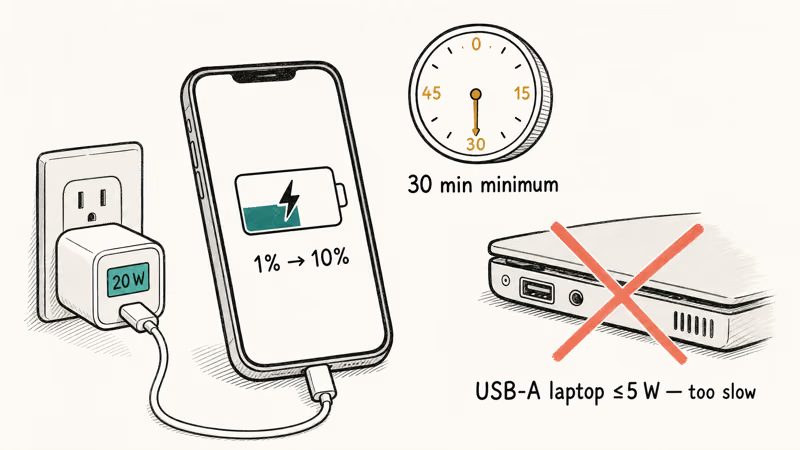
The display can light up just enough to glow white while the SoC lacks the sustained power draw needed to finish booting.
Apple’s iPhone won’t turn on page states that a device stuck on a black or frozen screen should be charged for at least 30 minutes before further troubleshooting. Plug into an Apple-branded or MFi-certified cable and a wall adapter rated 20 W or higher.
USB ports on older laptops can cap output below 5 W, which isn’t enough to pull a drained iPhone out of the red zone quickly. The 30-minute clock only starts counting once real current is flowing, and older batteries that have lost peak performance need the full allotment.
Use a wall charger instead of a weak laptop port when the battery may be deeply drained. Stable power gives the phone enough headroom to finish booting before you move on to software recovery.
No charger handy? Our guide on how to charge an iPhone without a charger covers wireless and battery-pack options. A completely dead iPhone usually needs 15 minutes on power before it responds to anything at all.
#Fix the White Screen Using Recovery Mode
Recovery mode is the next step when a restart and a full charge both fail. It connects your iPhone to a Mac or PC and reinstalls iOS without requiring the device to finish booting on its own.
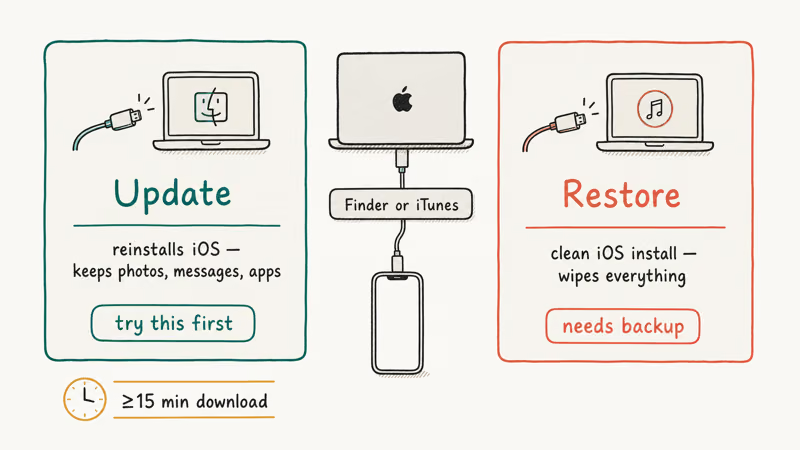
What you need: a Mac running macOS Catalina or later (Finder handles recovery), or a Windows PC with Apple Devices or iTunes installed, plus a Lightning or USB-C cable.
- Plug the iPhone into the computer and open Finder or iTunes.
- Start the force restart combo for your model, but keep holding the Side button past the Apple logo.
- Release only when the recovery mode screen appears (a cable pointing at a computer icon).
- When the computer prompts you, choose Update.
Apple’s recovery mode documentation states that if the download takes longer than 15 minutes and the device exits the recovery screen, you should let the download finish and then redo the button sequence. That 15-minute mark matters: if your internet is slow or the iOS IPSW file is large, a mid-download exit is normal, not a failure.
Update reinstalls the current iOS build and leaves your data intact. Restore wipes the phone and installs a clean iOS from scratch. Always try Update first.
Save Restore for cases where Update finishes but the white screen returns. Confirm you have an iCloud backup before you start. If Restore itself stalls, our fix iPhone that won’t restore guide covers the most common Finder and iTunes error codes. For a plain-English explanation of what each option actually touches, see what does Restore iPhone mean.
#Use DFU Mode When Recovery Mode Fails
DFU (Device Firmware Update) mode writes new firmware directly, bypassing the boot loader. It’s the last software-based option before you accept that the fault is hardware.
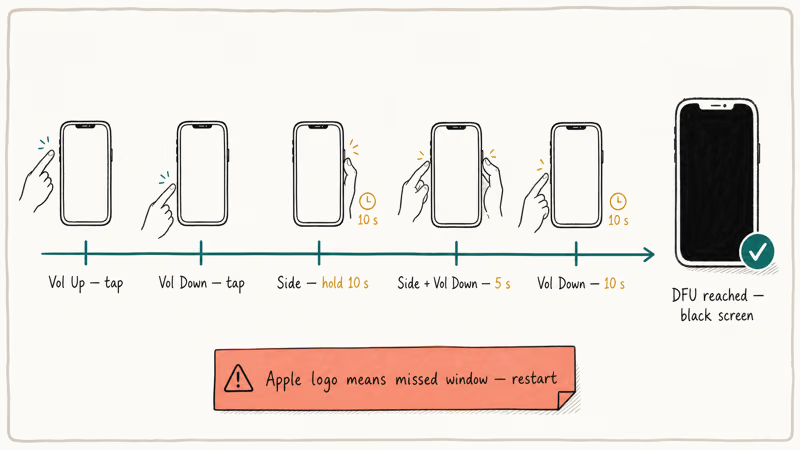
On iPhone 8 and later:
- Connect the iPhone to a computer and open Finder or iTunes.
- Press and quickly release Volume Up, then Volume Down.
- Press and hold the Side button for 10 seconds. The screen should go black.
- Keep holding Side while also pressing Volume Down for 5 seconds.
- Release Side. Keep holding Volume Down for 10 more seconds.
If the screen stays completely black and Finder or iTunes detects a device in recovery mode, you’re in DFU. Any Apple logo, charging icon, or recovery cable image means you missed the window. Release everything and start over.
DFU always erases the device. No Update option exists at this level, so reserve it for cases where both Update and Restore through recovery mode have failed. Back up to iCloud or a computer before you start. There’s no data recovery path after DFU completes.
#Repair iOS with a Desktop Repair Tool
If you want to skip the button-sequence gymnastics, a desktop repair utility handles the same job with a one-click flow.
These tools boot your iPhone into a supervised recovery state, download the matching IPSW, and reinstall iOS without touching your data in Standard mode. The workflow is short.
- Install the tool on your Mac or PC and connect the iPhone over USB.
- Select System Repair, then Standard Repair.
- Let the software download the firmware and reboot the device.
Tenorshare ReiBoot offers a Standard Repair mode intended to reinstall iOS without erasing personal data. Deep Repair wipes the device, so reserve it for cases where Standard fails.
Some links on this page are affiliate links, which means fone.tips may earn a commission at no extra cost to you.
Dr.Fone’s iOS System Repair module does the same job with a similar split between Standard and Advanced modes. Both tools cost less than an out-of-warranty logic-board repair and are worth trying before a Genius Bar appointment.
#When Should You Visit an Apple Store?
Hardware is the likely cause when every software method fails. Certain symptoms tilt the diagnosis toward a repair:
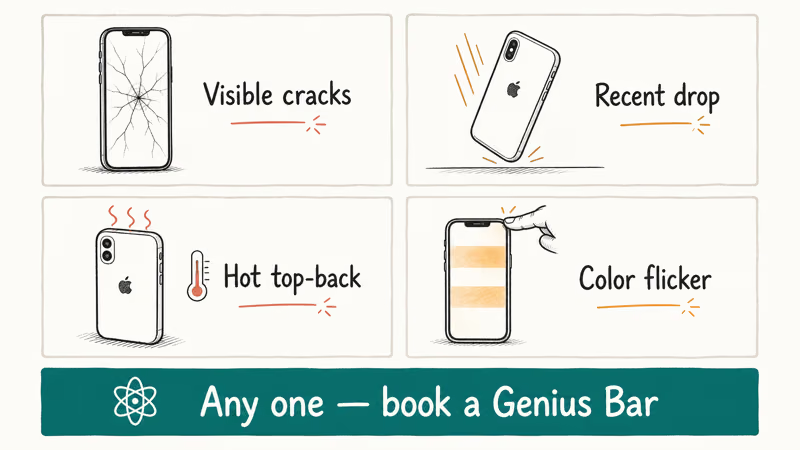
- Visible screen damage, spider cracks, or fresh white dots on the iPhone screen that appeared after a drop.
- The iPhone was dropped, submerged, or exposed to heavy humidity in the last 72 hours.
- The phone feels hot at the top-back even when it isn’t charging or running.
- The screen glitches between white and other colors when you press the top bezel.
A Genius Bar technician can reseat the display flex cable and run Apple Diagnostics in about 15 to 30 minutes.
Check AppleCare+ or standard warranty coverage at Apple’s coverage checker before you book the appointment. Your serial number (Settings > General > About) reveals purchase date, remaining warranty, and AppleCare+ status on a single screen, and that one-minute check can save you a lot of money. Accidental damage service fees through AppleCare+ are flat and usually cheaper than out-of-warranty repair, while a straight out-of-pocket panel swap tends to exceed the economic life of an older iPhone.
If the symptoms overlap with another fault, our guides on why your iPhone won’t turn on and the iPhone purple screen can help you narrow down the actual failure mode before you drive to the store.
#Preventing the White Screen of Death
A handful of habits cuts the odds of seeing this screen again:
- Keep at least 5 GB of free storage. Check Settings > General > iPhone Storage. iOS needs working room to apply updates and write new caches.
- Install iOS updates over Wi-Fi on power. Apple's update your iPhone guide recommends letting the update download fully and confirms the device may temporarily remove apps to free space.
- Back up every week. Turn on iCloud Backup at Settings > [your name] > iCloud > iCloud Backup so a Restore never costs you anything.
- Protect against drops. A case with a raised bezel helps reduce impact on the display connector and front glass.
- Skip jailbreaks. Jailbroken devices crash into white screens that only DFU plus a full restore can clear.
If the next freeze is stuck and dim rather than white, our how to fix an iPhone frozen guide applies instead. Similar button combos, slightly different targets.
#Bottom Line
Force restart first. It solves the bulk of white screen cases and costs fifteen seconds of your time.
If the Apple logo never appears, charge the iPhone on a real 20 W adapter for the full 30 minutes Apple’s support team recommends, then retry the force restart combo. Only move to recovery mode or DFU after those two steps fail on an iPhone that shows at least some charging indicator.
Our specific pick: keep Tenorshare ReiBoot installed on your computer as the middle step between recovery mode and the Genius Bar when you want a guided Standard Repair workflow.
#Frequently Asked Questions
Why did my iPhone suddenly get stuck on a white screen?
A software glitch during boot is usually the culprit. Failed iOS updates, crashed startup apps, corrupted system caches, and low battery can all stop iOS before the lock screen appears.
Can I recover data from an iPhone stuck on a white screen?
If you have an iCloud or Finder backup, the restore path is straightforward. Without a backup, try recovery mode with the Update option first, because Update reinstalls iOS without wiping your data and fixes most white screens on its own.
Third-party tools like ReiBoot can sometimes extract data from unresponsive devices, though results depend on whether the iPhone can still negotiate a USB handshake. If the phone won’t enumerate over USB, a pro data-recovery lab is the remaining path.
Is there a way to fix the white screen without losing data?
Yes. Force restart, a charging reset, recovery mode with Update, and desktop tools running in Standard mode all preserve your photos, apps, and settings.
How long does it take to fix an iPhone white screen?
Under a minute for a force restart, 15 to 30 minutes for recovery mode (depending on your connection and iOS version), and roughly 15 more for DFU on top of the button sequence itself. A Genius Bar appointment usually eats 1 to 3 hours including the wait.
Can water damage cause the white screen of death?
Yes. Moisture on the display connector, the Lightning or USB-C port, or the logic board disrupts the video signal during boot.
Is the iPhone white screen covered under Apple’s warranty?
A white screen caused by a manufacturing defect or software bug is covered under Apple’s standard one-year limited warranty.
Physical damage, liquid damage, and white screens that appear after an unauthorized repair fall outside it. AppleCare+ covers accidental damage with a flat per-incident service fee, and you can verify coverage status at Apple’s coverage checker with just your serial number. The coverage checker also shows remaining AppleCare+ incidents, your purchase date, and eligibility for trade-in on newer iPhones at standard Apple pricing.
What is the difference between recovery mode and DFU mode?
Recovery mode loads the boot loader first and offers a choice between Update (keeps data) and Restore (wipes data). DFU mode skips the boot loader entirely. It gives your computer direct firmware-level access, which always wipes the device, so always try recovery mode first.
Can a full storage cause the white screen?
Storage exhaustion is a real trigger. iOS needs a few gigabytes of working space to complete boot, apply the last update fragment, and rebuild caches, and a zero-byte drive stalls all three. Recovery mode with Update clears it.

Mac mini M6 vs M5 Pro: Which Model Should You Buy?
Mac mini M6 vs M5 Pro compared on price, memory, ports, displays, and real workloads. Find the better 2026 Mac mini for your desk and budget.

Apple Siri Settlement: Who Qualifies and How to Claim
Apple's $250 million Siri settlement covers iPhone 15 Pro and iPhone 16 models bought June 2024 to March 2025. See who qualifies and how claims work.

iOS 26.6.1 Security Update: What Apple Fixed and Who Gets It
Apple released iOS 26.6.1 on August 17 with 29 security fixes, including an IPSec interception bug. See what it patches, who gets it, and how to update.

iPhone Adaptive Power: How It Works and When to Use It
Learn how iPhone Adaptive Power works, which models support it, what it changes, and when Low Power Mode is still the better battery-saving choice.