How to Disable Screen Time Without Passcode on iPhone
Forgot your Screen Time passcode? Use Apple’s current recovery steps, reset a child’s code through Family Sharing, and understand the erase warning.
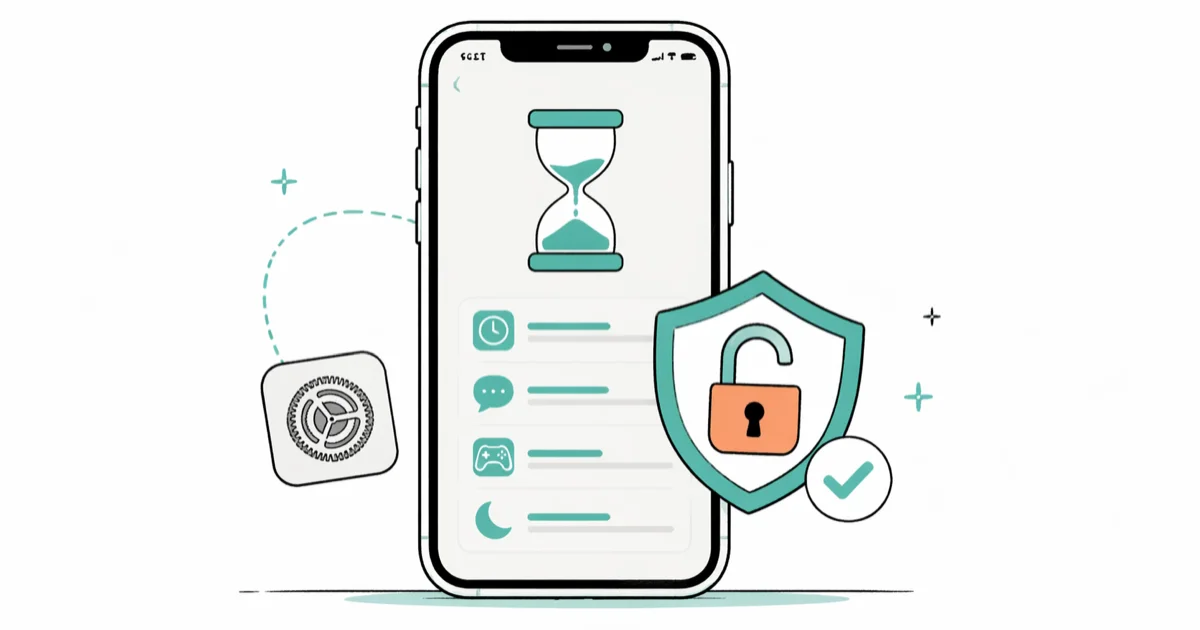
Quick AnswerReset it under Settings > Screen Time > Change Screen Time Passcode with the recovery Apple Account, then turn off App & Website Activity. A Family organizer resets a child's code on the organizer's device.
If you forgot the Screen Time passcode, use the Apple Account selected for recovery. A Family organizer resets a child’s code on the organizer’s device. Start there before considering an erase or third-party software.
Start with the supported recovery path.
- Reset the code under Change Screen Time Passcode with the Apple Account set for recovery.
- The recovery account might differ from the Apple Account currently signed in on the iPhone.
- A Family organizer resets a child’s code from the organizer’s own device.
- Restoring from a device backup won’t remove the Screen Time passcode.
- Third-party unlock tools sit outside Apple’s recovery guidance, and their data claims aren’t guaranteed.
#Why a Forgotten Screen Time Passcode Locks You Out
Screen Time can protect Downtime, App Limits, and Content & Privacy Restrictions with a separate code. Forgetting it doesn’t lock the iPhone.
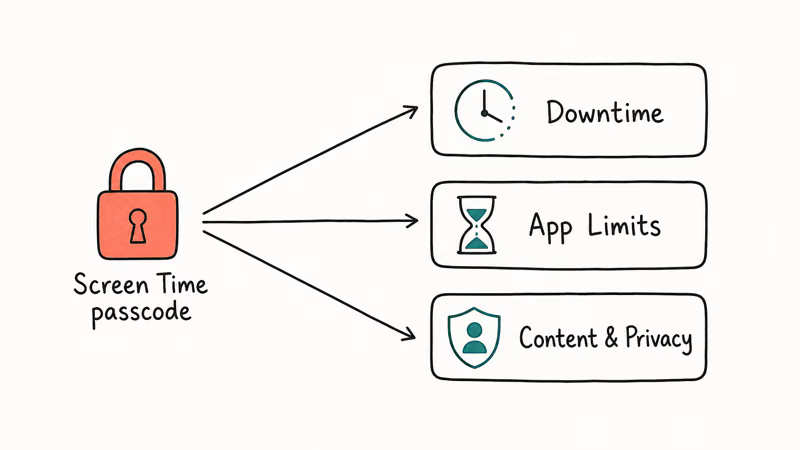
According to Apple’s current Screen Time passcode guidance, the Screen Time passcode isn’t the same as the code used to unlock the device. Face ID or the device passcode therefore doesn’t replace the Screen Time code when changing protected settings.
If a parent or Family Sharing organizer manages the child’s Screen Time, Apple directs the organizer to reset the code on the organizer’s own device. The methods below assume the iPhone and recovery Apple Account belong to you; for a managed device, contact the organizer or administrator.
For sign-out issues caused by Screen Time Content & Privacy Restrictions, see the Sign Out Not Available Due to Restrictions fix.
#Use Your Apple Account to Reset the Passcode
Apple’s current recovery procedure changes the Screen Time passcode without erasing the device. It uses the Apple Account email address and password entered when Screen Time Passcode Recovery was set up.
To run the reset:
- Open Settings, tap Screen Time, then tap Change Screen Time Passcode.
- Tap Change Screen Time Passcode again.
- If asked, enter the Apple Account email address and password used to set up Screen Time Passcode Recovery.
- Enter and confirm a new Screen Time passcode.
If the Apple Account prompt rejects the password, confirm that you’re using the account entered for Screen Time Passcode Recovery. Apple notes that it can differ from the account currently signed in on the device, or belong to a family member. The dedicated Screen Time passcode reset guide covers those account checks.
For a child, the Family organizer opens Settings > Screen Time, selects the child’s name under Family, taps Manage Screen Time, then changes the code. If neither flow works, use Apple’s Get Support suggestions before erasing anything.
#What If the Apple Account Reset Doesn’t Work?
Recheck the recovery Apple Account and whether the iPhone is managed through Family Sharing. If the code still can’t be reset, contact Apple Support. Erasing and third-party software are higher-risk alternatives, not equivalent extensions of Apple’s passcode-recovery steps.
Only change Screen Time on a device you own or manage with permission. Contact the organizer or administrator for managed devices.
A common middle ground is to back up the data you actually care about to iCloud or a Mac first, then run the erase. Photos sync through iCloud Photos, messages move through Messages in iCloud if it’s enabled, and contacts sync through your Apple Account. App data that doesn’t have its own cloud option, like offline game progress, is the part you’ll lose.
Confirm what is independently synced before deciding what can be recovered.
#Erase and Set Up the iPhone as New
Erasing removes the iPhone’s content and settings. Use this route only when you’re prepared to lose local data and set up the device as new.
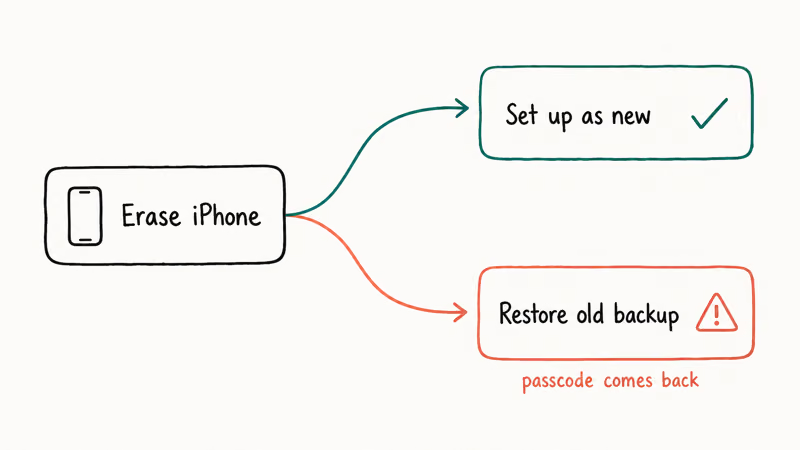
According to Apple’s factory-reset guide, Erase All Content and Settings removes your personal information, content, and settings. Apple explicitly warns that restoring the device from a backup won’t remove a Screen Time passcode. If you’re erasing specifically because account recovery didn’t clear that passcode, set up the iPhone as new instead of restoring the same backup.
If you choose to proceed:
- Confirm which data is synced separately, such as iCloud Photos or Contacts, and save another copy where practical.
- Don’t assume a device backup solves the passcode problem; Apple says restoring one won’t remove it.
- Tap Settings > General > Transfer or Reset iPhone > Erase All Content and Settings.
- Choose whether to keep or delete the eSIM, enter the device passcode and Apple Account password, and wait for the Hello screen.
- Set up the iPhone as new if the purpose of the erase is to remove the Screen Time passcode.
A device-backup restore doesn’t solve the forgotten Screen Time passcode.
#Desktop Unlock Tools and Their Trade-offs
Desktop unlock tools are a vendor route outside Apple’s Screen Time recovery guidance. Their compatibility, data-retention claims, required settings, and side effects can change by product and iOS release.
Some links on this page are affiliate links, which means fone.tips may earn a commission at no extra cost to you.
Vendors including Tenorshare 4uKey – iPhone Backup Unlocker market a Screen Time passcode mode. Treat claims that it preserves data or changes account state as vendor claims until you verify the current documentation for your exact iOS version.
- Use a tool only on a device you own or are authorized to manage.
- Don’t disable Find My or enter an Apple Account password merely because an unverified prompt asks.
- Back up independently first, and assume a failed attempt could still force an erase.
- Stop and use Apple Support if the tool’s current requirements or data handling aren’t clear.
Avoid software that advertises account-lock or Activation Lock bypass. Those claims are unrelated to legitimate Screen Time recovery.
#Can a Third-Party Tool Be Trusted With Your Apple Account?
Marketing can’t prove how a tool handles device data.
Verify the publisher, use its official domain, scan the installer, and read its current privacy terms.
If you suspect credential exposure, change the Apple Account password from a trusted device and review the trusted-device list. That can revoke access, but it can’t undo data a tool may already have copied.
#Turn Off Screen Time After the Passcode Clears
After Apple’s reset flow, you have a new Screen Time passcode. To disable the main Screen Time activity features, open Settings > Screen Time > App & Website Activity, then tap Turn Off App & Website Activity and enter the new code if asked.
Apple’s current iPhone User Guide states that this turns off reporting, Downtime, App Limits, and Always Allowed. It doesn’t remove the Screen Time passcode or switch off Content & Privacy Restrictions.
To remove the remaining lock on your own device, scroll down in Settings > Screen Time, tap Change Screen Time Passcode, then choose Turn Off Screen Time Passcode. That is Apple’s current passcode-removal path. If Content & Privacy Restrictions is on, open it and turn that switch off separately; Apple says doing so pauses the controls configured inside it.
For a child’s account, manage Screen Time from the Family organizer’s device so the organizer can use Apple’s documented reset flow. The parental-control setup guide covers that model, while Android households can compare the Android Screen Time and Digital Wellbeing guide.
The SafeSearch on iPhone guide covers related web-filter settings if you want to keep Screen Time but change only browsing controls.
#Bottom Line
Use Apple’s recovery flow first; a Family organizer resets a child’s code.
If the account check fails, contact Apple Support before erasing. If you deliberately erase to remove the code, set up as new because Apple says restoring from a backup won’t remove the Screen Time passcode.
Treat a third-party tool as an optional, unsupported vendor route, not a guaranteed data-preserving step. Verify its current requirements independently and don’t weaken Find My or share account credentials without understanding the risk.
iPhone tips & tricks
#Frequently Asked Questions
Can I disable Screen Time without losing data?
Yes, if Screen Time Passcode Recovery was set up and you can use that Apple Account. Change the passcode, turn off App & Website Activity, then remove the passcode and turn off Content & Privacy Restrictions separately if you want those protections gone too.
Why doesn’t my unlock passcode work in Screen Time?
The Screen Time passcode isn’t the same as the device unlock passcode. The recovery flow uses the Apple Account selected when Screen Time Passcode Recovery was configured.
Will resetting Screen Time delete my child’s account?
Changing the child’s Screen Time passcode doesn’t delete the child’s Apple Account or remove the child from Family Sharing. The organizer performs the reset from the organizer’s own device.
What if Change Screen Time Passcode doesn’t appear?
Update the iPhone, confirm whether Screen Time is managed through Family Sharing, and check whether the device belongs to a school or employer. If the current Apple menu still isn’t available, use Apple Support rather than assuming an erase is required.
Is it legal to use a third-party tool to remove the passcode?
Use one only on a device you own or are authorized to manage. Laws and organizational policies vary, so this article isn’t legal advice; for a school or work iPhone, contact its administrator instead of using an unlock utility.
Can I re-enable Screen Time later with a new passcode?
Yes. Open Settings > Screen Time > App & Website Activity, turn it on, and configure a new Screen Time passcode and recovery account.
Does restoring from an iCloud backup bring the Screen Time passcode back?
Apple’s factory-reset guide says restoring the device from a backup won’t remove the Screen Time passcode. If the erase is specifically intended to remove that code, set up the iPhone as new instead of using a device-backup restore.

How to Transfer Data to a New iPhone Without iCloud
Move everything to your new iPhone without iCloud: Quick Start device-to-device transfer, wired migration, and encrypted Finder or iTunes backups.
Best Wireless Earbuds for iPhone in 2026: USB-C Era Picks
Best wireless earbuds for iPhone in 2026, comparing AirPods Pro 3, Sony WF-1000XM6, Bose QC Ultra, and Anker Liberty 4 NC on the USB-C iPhone lineup.
iPhone Keyboard Lag? 7 Proven Fixes for iOS 26 (2026)
Fix iPhone keyboard lag with 7 proven fixes for iOS 26. Covers restart, storage, predictive text, third-party keyboards, and dictionary reset.
How to Block Porn on an iPhone: A Guide for Parents
Learn how to block porn on iPhone using Screen Time, DNS filtering, and safe browsers. Step-by-step guide for parents to protect kids' devices.