Phone Icon Missing on iPhone? 6 Fixes to Get It Back
Phone icon missing from iPhone? Check App Library, Screen Time, restart, and home screen reset paths for practical iOS 17 and iOS 18 fixes that work.
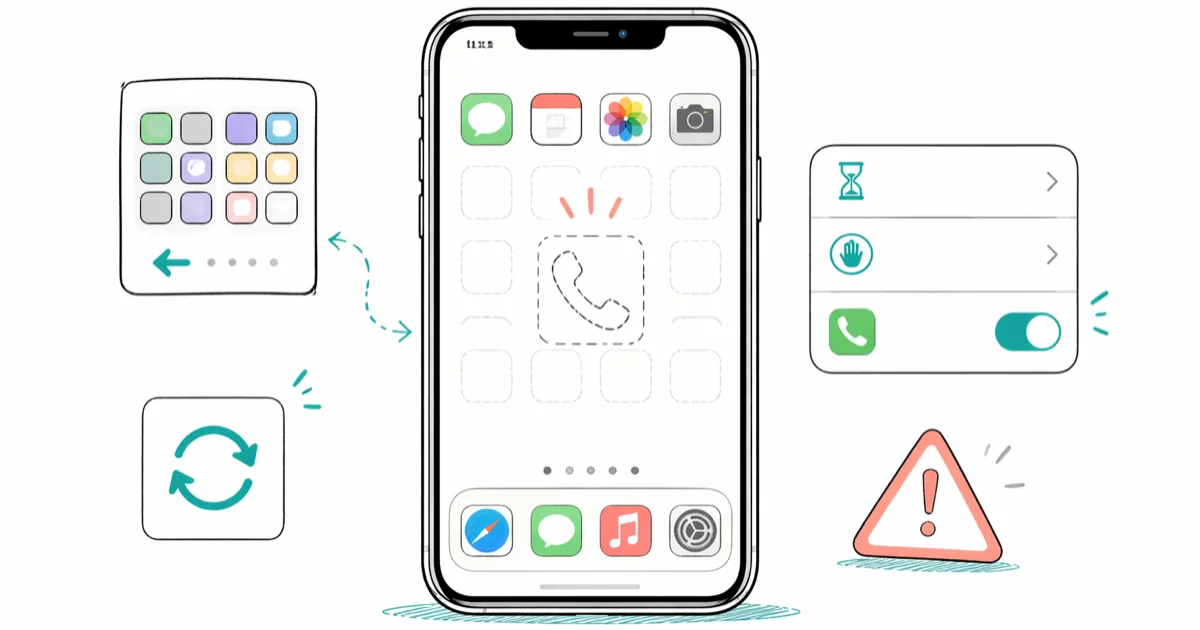
Quick AnswerSwipe left past every home screen page to open the App Library, then drag the Phone icon back. If it isn't there, open Settings, go to Screen Time, then Content and Privacy Restrictions, then Allowed Apps, and turn the Phone toggle on.
The Phone app icon is gone from your iPhone home screen, but the app itself is still on the device. Apple doesn’t let you delete it. The icon is usually hiding in the App Library, blocked by a Screen Time toggle, or knocked out of the dock during a stray drag.
This guide assumes the iPhone in front of you is your own device. Changing Screen Time or reset settings on a phone you don’t own can break account terms or local privacy laws.
Start with the App Library, then check Screen Time and the home screen layout before moving to restart or update steps.
- The Phone app can’t be permanently deleted from any iPhone, since it always lives in the App Library
- Swiping left past every home screen page opens the App Library, where most missing icons land
- Screen Time’s Allowed Apps toggle for Phone hides the icon from both the home screen and the App Library
- Reset Home Screen Layout restores the default dock without touching photos, contacts, or call history
- If all six fixes fail, an iOS update or a Genius Bar visit is the right next step
#Why Did the Phone Icon Disappear?
Three causes account for most reports.
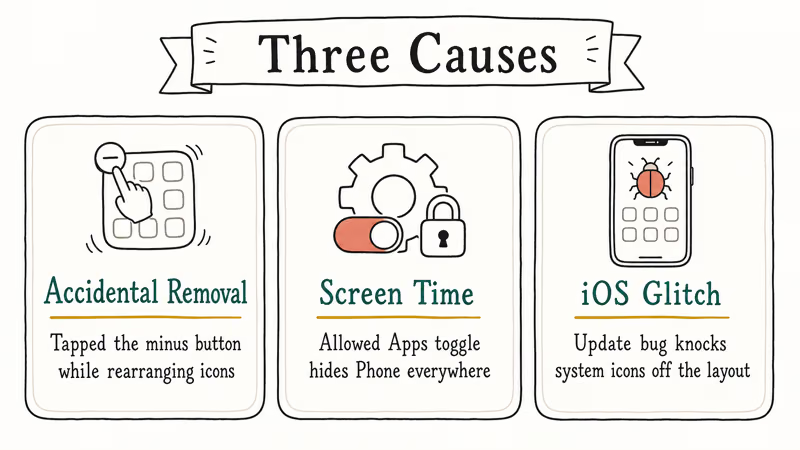
Accidental removal from the home screen. Press and hold any app, and a small minus button appears in the corner. Tap it, choose Remove from Home Screen, and the icon vanishes, though the app stays installed in the App Library. This is easy to do by mistake while rearranging icons one-handed or while a curious toddler is “helping.” Pocket-rearrangement is real.
A Screen Time restriction. Screen Time’s Allowed Apps switch can hide Phone everywhere on the device, including the App Library and Spotlight. School-issued and work-issued iPhones are the most common offenders, but parents sometimes flip this toggle by accident.
A software glitch after an iOS update. Some point releases ship with rendering bugs that knock system icons off the layout. Restart first.
#Fix 1: Check the App Library
Start here. Every app you’ve ever installed lives in the App Library, even when it’s missing from the home screen.
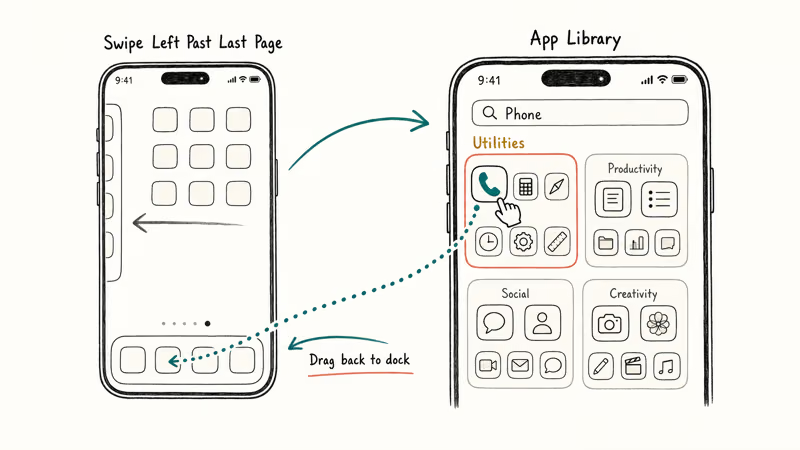
Swipe left across each home screen page until you reach the App Library. Tap the search bar at the top and type Phone. When the result appears, press and hold the icon, then drag it left back onto a home screen page. To put it back in the dock, drag it onto the dock and drop it between the existing icons.
The whole sequence takes under 30 seconds once you know where the App Library is.
According to Apple’s iPhone User Guide, apps in the App Library are auto-organized into categories like Productivity & Finance and Utilities. Phone usually shows up under Utilities if you scroll instead of search.
#Fix 2: Turn the Screen Time Restriction Off
Screen Time’s Allowed Apps screen is one of the trickiest causes. The Phone icon disappears from every surface at once: home screen, App Library, and Spotlight all stop showing it. People can spend a long time searching the App Library, scrolling through Utilities and back, retyping the search, refreshing pages, before they realize a single toggle deep inside Screen Time is suppressing the entire app from the operating system.
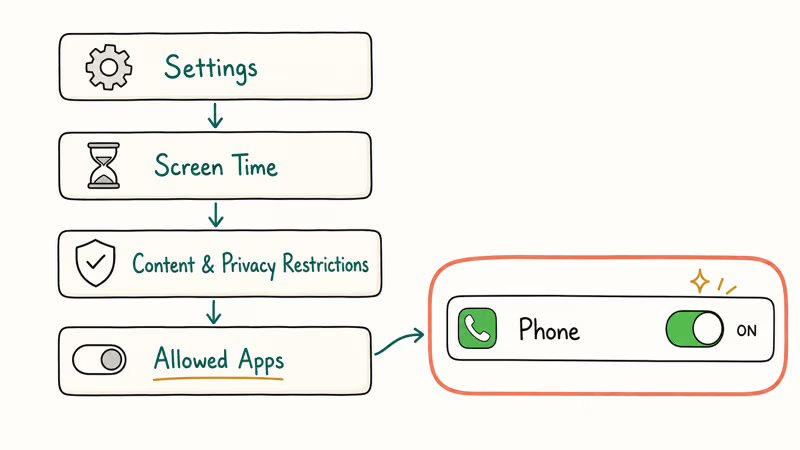
Go to Settings > Screen Time > Content & Privacy Restrictions > Allowed Apps. If Content & Privacy Restrictions is greyed out, the restriction layer is off, and you can skip ahead to Fix 3. Otherwise, scroll to Phone and make sure the toggle is green. The icon should return once iOS applies the setting.
According to Apple’s Screen Time support page, turning Phone off in this screen also removes FaceTime, since the two apps share a system gate. Check FaceTime while you’re here.
Locked out by an unknown passcode? Our Screen Time passcode recovery guide covers iOS 13.4 and later.
#Fix 3: Reset Home Screen Layout
This option restores every Apple app to its factory position, including Phone in the dock. It’s more aggressive than Fix 1 or Fix 2, but it doesn’t delete data.
Go to Settings > General > Transfer or Reset iPhone, tap Reset, then Reset Home Screen Layout. Confirm when prompted. The home screen rebuilds in about three seconds, and Phone reappears in the dock at the bottom of the first page.
Custom folders and your preferred app order are gone, but photos, messages, contacts, and app data stay untouched.
#Are These Fixes Working for You?
Apple’s current missing-app guide tells users to search for the app, check the App Library, unhide Home Screen pages, and check the Hidden folder where supported. Run those checks before treating the missing icon as a software bug.
#Fix 4: Use Spotlight to Drag the Icon Back
Spotlight Search can find Phone even when nothing else can, and it lets you drag the result straight to the home screen on iOS 15 and later.
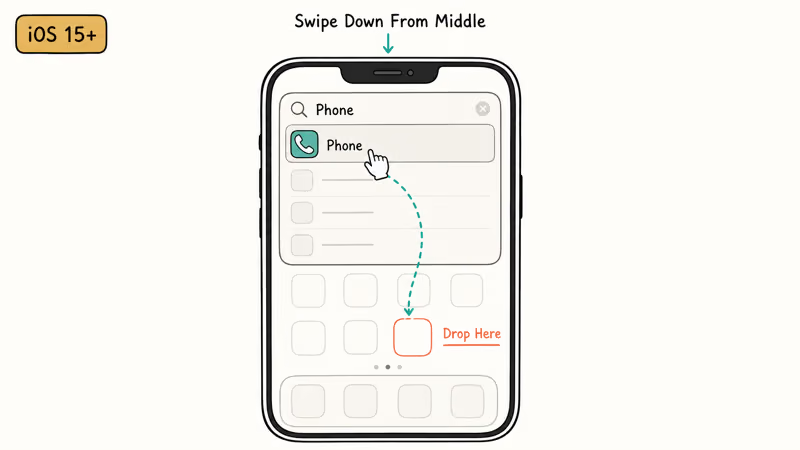
Swipe down from the middle of the home screen to open Spotlight. Type Phone. When the app shows up at the top of the results, press and hold its icon and drag it onto a home screen page. On iOS 14 and older, dragging from Spotlight does not work, so use the App Library route in Fix 1 instead.
#Fix 5: Restart Your iPhone
A restart clears the temporary system state that causes many icon-display glitches.
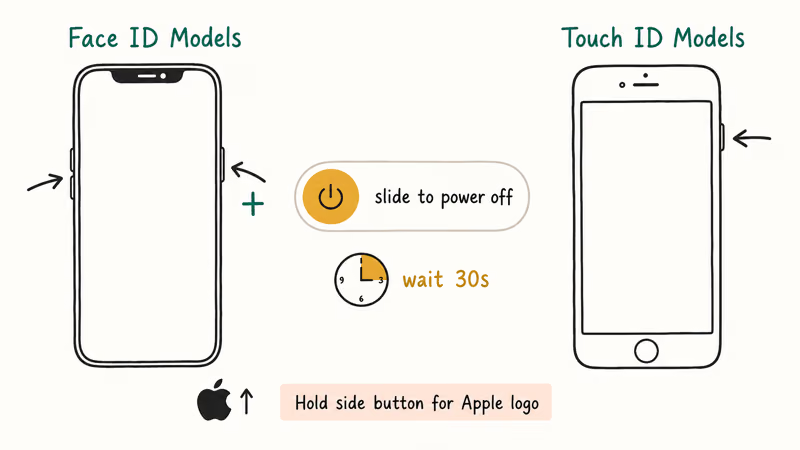
For iPhone X or later (Face ID models): Press and hold the side button and either volume button until the power slider appears. Drag the slider, wait 30 seconds, then press and hold the side button until the Apple logo shows up.
For iPhone SE (Touch ID models): Hold the top or side button, slide to power off, then hold again to restart.
If your iPhone is unresponsive and won’t power down through the slider, our guide on what to do when an iPhone won’t turn off covers the force restart key combinations for every recent model.
#Fix 6: Update to the Latest iOS Version
Several iOS releases in the last three years have shipped with home screen rendering bugs that hide system icons. Apple has typically patched these inside the next point release, and the fix usually takes effect with no action other than installing the update.
According to Apple’s iOS release notes index, point releases like 17.4.1 and 18.1.1 explicitly list home screen and system app fixes among their bundled changes. Go to Settings > General > Software Update and tap Download and Install if a release is available. Make sure you have at least 20% battery and a Wi-Fi connection before you start.
If the update reboots and the Phone icon is still missing, jump to the next section.
#What to Do If Nothing Works
After all six fixes, only a deeper iOS issue or a managed-device profile is left as an explanation. You’ve got two routes.
Try a factory reset. Back up your iPhone first, then go to Settings > General > Transfer or Reset iPhone > Erase All Content and Settings. Our guide on how to factory reset an iPhone covers the full backup and restore flow without losing your data.
Contact Apple Support. Visit support.apple.com or book a Genius Bar appointment.
Apple can run remote diagnostics or inspect the device in person, depending on whether you choose chat support or in-store service.
One important check before you book anything: if the Phone icon comes back briefly and then vanishes again, an MDM (Mobile Device Management) profile is almost always the cause. School and employer profiles can override Screen Time without surfacing in the regular settings UI. Open Settings > General > VPN & Device Management and look for any profile you didn’t install yourself.
For other related display problems, see our guides on what to try when an iPhone is stuck on the Apple logo and when iPhone Reminders is not working.
#Bottom Line
Open the App Library first. That single step solves it for most people in under 30 seconds. If Phone isn’t there, the Screen Time toggle in Fix 2 is the next stop.
#Frequently Asked Questions
Can the Phone app be permanently deleted from an iPhone?
No. Phone is a core system app, and Apple doesn’t let you uninstall it on any iPhone model or iOS version. When the icon disappears, the app is hiding in the App Library or being suppressed by a Screen Time restriction.
Why did the Phone icon disappear right after an iOS update?
Restart first. New iOS builds sometimes ship with a display bug.
Does resetting the home screen layout delete any data?
No. Reset Home Screen Layout only changes which page each app sits on and removes custom folders. Your photos, messages, contacts, call history, and app data stay completely untouched. The reset itself takes about three seconds.
How do I add the Phone app back to the dock at the bottom?
Press and hold the Phone icon until the app icons start jiggling. Drag it down to the dock.
The dock holds up to four apps. If it’s full, drag one existing dock app onto a home screen page first to make room, then drop Phone into the freed slot.
What if Screen Time was set up by a parent or my school?
You’ll need the Screen Time passcode, or your administrator’s help. Our guide on how to disable Screen Time covers the recovery routes that work for personal devices. For a school-managed or work-managed iPhone, contact your IT administrator directly — the profile may block changes even if you know the passcode.
Can a third-party app accidentally hide the Phone icon?
No. Third-party apps can’t modify your home screen layout or hide system icons. The only exception is an MDM (Mobile Device Management) profile installed by a school or employer. Open Settings > General > VPN & Device Management to check what profiles are present.
Will I lose call history if I reset the home screen layout?
No. Call history stays intact.
Contacts and Voicemail are also untouched. The reset only changes the visual position of icons, not the data stored inside any app.
How long does each fix take?
The App Library route takes 20 to 30 seconds. Screen Time takes about 90 seconds. Reset Home Screen Layout finishes in 3 seconds.
A full iOS update takes 10 to 25 minutes depending on your connection. A factory reset and restore can take 30 minutes to several hours, depending on iCloud backup size.

Mac mini M6 vs M5 Pro: Which Model Should You Buy?
Mac mini M6 vs M5 Pro compared on price, memory, ports, displays, and real workloads. Find the better 2026 Mac mini for your desk and budget.

Apple Siri Settlement: Who Qualifies and How to Claim
Apple's $250 million Siri settlement covers iPhone 15 Pro and iPhone 16 models bought June 2024 to March 2025. See who qualifies and how claims work.

iOS 26.6.1 Security Update: What Apple Fixed and Who Gets It
Apple released iOS 26.6.1 on August 17 with 29 security fixes, including an IPSec interception bug. See what it patches, who gets it, and how to update.

iPhone Adaptive Power: How It Works and When to Use It
Learn how iPhone Adaptive Power works, which models support it, what it changes, and when Low Power Mode is still the better battery-saving choice.