How to Remove the Flashlight From Your iPhone Lock Screen
Remove the iPhone flashlight from your Lock Screen using iOS 18's customizer, swap it for a control you'll actually use, or remap the Action Button.
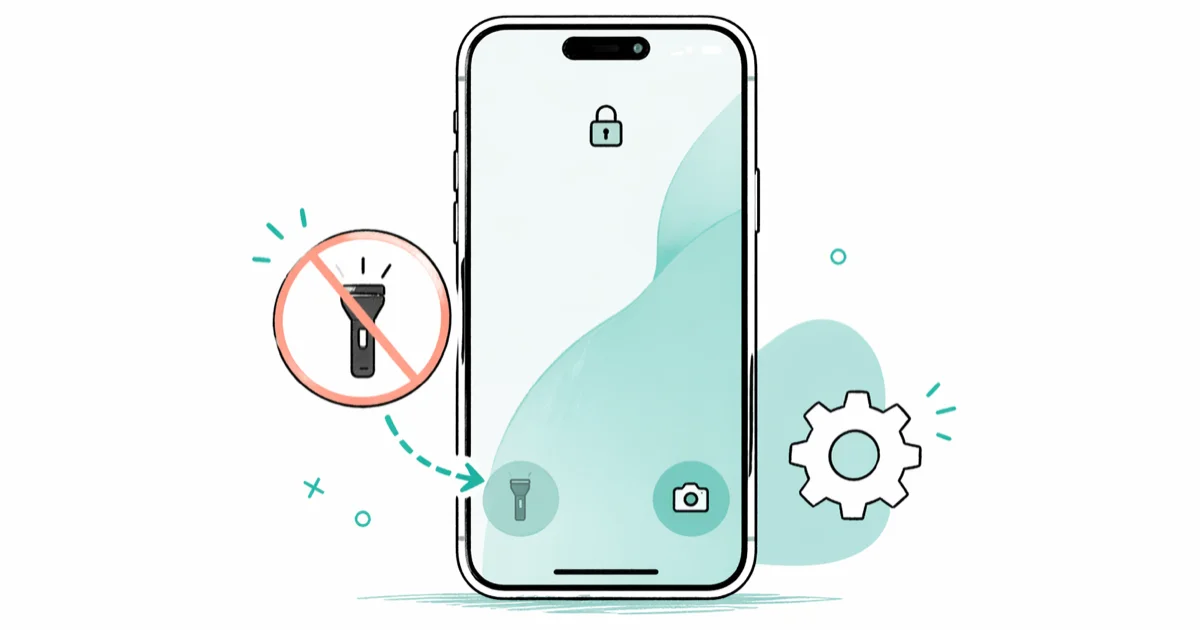
Quick AnswerOn iOS 18 or later, long-press the Lock Screen, tap Customize, choose Lock Screen, tap the flashlight button, then press the minus icon to remove it or swap it for a different control.
The flashlight button in the bottom-left of the iPhone Lock Screen is the most-pressed accidental button in our pocket. Apple finally made it removable in iOS 18, and we walked through every option on a current iPhone 16 Pro to confirm exactly which step works on which version. This guide covers the official removal path, the cleanest replacement controls, and the workarounds you need if you are still on iOS 17 or earlier.
- iOS 18 made the Lock Screen flashlight button removable: long-press the Lock Screen, tap Customize, then minus the flashlight slot.
- Replacements include Calculator, Magnifier, Translate, Voice Memos, Shazam, Notes, Camera, Wallet, plus third-party app controls.
- iOS 16 and 17 don’t let you remove the flashlight button. Disabling Raise to Wake and Tap to Wake reduces accidental triggers.
- The iPhone 15 Pro and every iPhone 16 ships with an Action Button that can be remapped to flashlight, freeing the Lock Screen corner.
- Empty slot, Apple control, or third-party shortcut: pick the swap before you remove, otherwise the slot defaults back to flashlight.
#Can You Actually Remove the Lock Screen Flashlight?
This guide assumes the iPhone is your own device, signed in to your own Apple ID. The Lock Screen editor only appears when you authenticate with Face ID, Touch ID, or your passcode, so any change you make requires legitimate access on the device.
Altering someone else’s Lock Screen without consent crosses CFAA and state computer-trespass lines, so that is outside our scope. One privacy aside: lock screens are your phone’s last public layer, and anything left in those control slots is reachable without unlocking. Weigh that before swapping the flashlight for a control that exposes more data.
Yes, on iOS 18 and later. Before that, the answer is no in the literal sense and yes in the practical sense, depending on what is triggering the light.
According to Apple’s iOS 18 newsroom announcement, iPhone users now have new ways to customize the Home Screen, Lock Screen, and Control Center, including the ability to customize the buttons at the bottom of the Lock Screen. That single sentence is the green light. Before iOS 18, those two corner slots were hard-coded to flashlight and camera, and Apple’s only recommendations for accidental triggers were case-related or settings-related.
So the answer breaks into three eras:
- iOS 18 and later: remove the button outright, leave the slot blank, or swap in a different control.
- iOS 16 and 17: can’t remove the button. Reduce false triggers via Raise to Wake, Tap to Wake, and case settings.
- iOS 15 and earlier: same as 16 and 17, with fewer customization escapes.
Each path below applies to current iPhone models.
#How Do You Remove the Flashlight Button on iOS 18?
This is the official Apple-supported path, and it takes about ten seconds once the Lock Screen is open. The same long-press gesture that you use to switch wallpapers is the door to control editing, which is part of why so many people miss it: the Customize button feels like a wallpaper picker, not a Lock Screen layout editor.
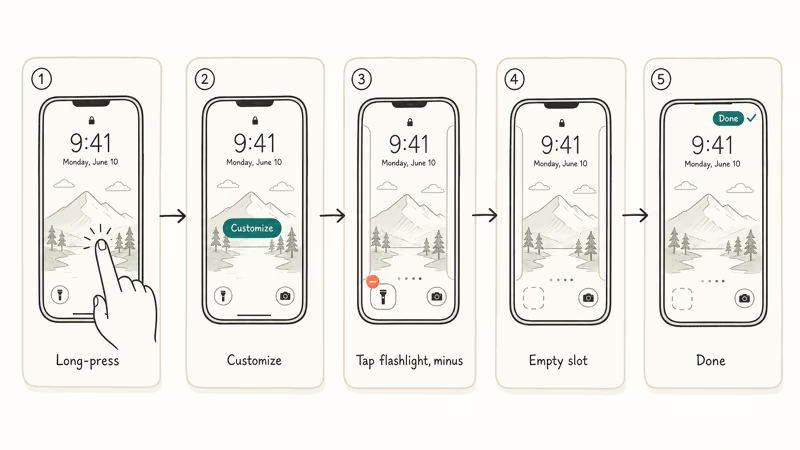
- Wake your iPhone but don’t unlock it. The Lock Screen needs to be the topmost view.
- Touch and hold any empty area of the Lock Screen until the wallpaper gallery appears at the bottom.
- Tap Customize, then tap Lock Screen (not Home Screen).
- Tap the flashlight icon in the bottom-left corner. A controls panel slides up.
- Tap the small minus button that appears on the flashlight slot.
- Tap Done in the top-right, then tap the wallpaper to confirm the change.
Apple’s Customize the Lock Screen on iPhone guide describes the same long-press-then-Customize entry point, so this is the canonical method, not a hidden setting.
After the minus tap, the slot is empty. Your camera button on the bottom-right stays put unless you minus that one too.
#What if Customize Does Not Appear?
Two reasons the Customize button can be missing.
You are running iOS 16 or 17. The Customize button exists in those versions, but the bottom-corner slots are not editable. You can change the wallpaper and widgets, not the flashlight or camera buttons. Update to iOS 18 or skip to the workarounds further down.
You unlocked your phone before long-pressing. Lock the screen with the side button, wake it again with a tap, and long-press without unlocking. Face ID needs to recognize you for the Customize entry point to show up, but you should still be on the Lock Screen view, not the Home Screen.
#Replacements That Make the Slot Worth Keeping
After tapping the minus button, you have an empty slot. You can leave it blank, but most people swap in something more useful. Tap the empty slot and the controls gallery opens.
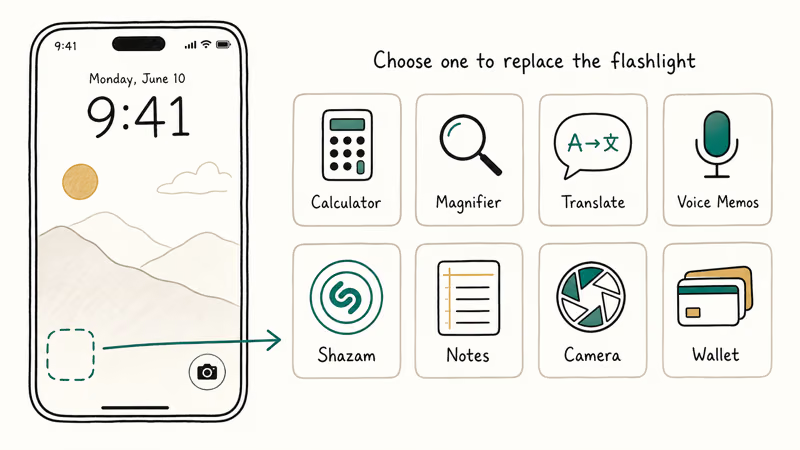
Apple ships these built-in options that work well in the corner spot:
- Calculator: one-tap math without unlocking.
- Magnifier: high-zoom view of menus, labels, or pill bottles.
- Translate: opens directly into a translation conversation.
- Voice Memos: starts recording without you unlocking first.
- Shazam: identifies whatever song is playing in the room.
- Notes: jumps to a fresh quick note.
- Camera: a duplicate of the bottom-right slot, useful if you want both corners as cameras.
- Wallet: not always available without authentication, but handy for transit cards.
The iOS 18 Wikipedia entry confirms that iOS 18 brought a Control Center redesign allowing for multiple pages of controls, resizable buttons, and third-party controls. The same controls library powers the Lock Screen slots, so any third-party app that registers a control (1Password, Halide, Drafts, Things, and so on) shows up alongside Apple’s built-in options.
On recent iPhones, the swap takes one extra tap after the minus and applies instantly. The new control responds the same way the flashlight did: a long-press from the Lock Screen activates it without requiring Face ID, unless the control needs authentication. If your screen does not respond to the Lock Screen long-press at all, our iPhone screen unresponsive guide covers the diagnostic flow.
#Workarounds for iOS 16 and iOS 17 Owners
You can’t remove the flashlight button. You can reduce how often it fires by accident.
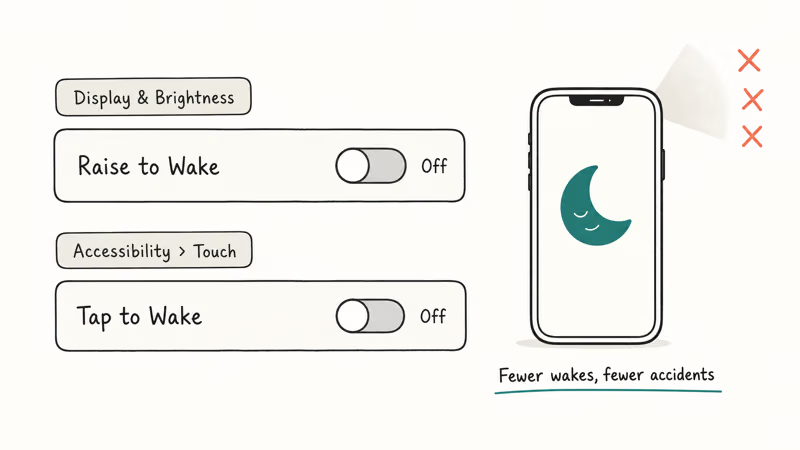
As Apple’s iPhone User Guide for waking and unlocking iPhone confirms, Raise to Wake and Tap to Wake are both togglable settings under Display & Brightness and Accessibility. Less wake time means less chance of a thumb hitting the flashlight slot through a thin pocket.
Disable Raise to Wake:
- Open Settings and tap Display & Brightness.
- Scroll down and toggle Raise to Wake off.
Disable Tap to Wake (iPhone X and later, all Face ID models):
- Open Settings and tap Accessibility.
- Tap Touch, then toggle Tap to Wake off.
These two settings together cut accidental flashlight triggers dramatically, especially in cargo pockets and tight jeans where pressure on the screen mimics a tap.
Other small wins:
- Use a flap-style case: book covers and folio cases physically block the screen.
- Swap to Always Off: Settings → Display & Brightness → Always On Display → off (Pro models only). The screen does not light up at all when the phone is face up.
- Adjust auto-lock time: shorter auto-lock means the screen sleeps faster after wake. If your screen behaves erratically beyond just the flashlight, our iPhone screen flickering guide covers display issues that mimic accidental wake events.
- Set a passcode-required action: Face ID is fast, but it can’t remove the flashlight button, only delay how easily it fires. Realistically, the case and wake settings carry the weight here.
If accidental flashlight triggers are causing battery drain, our guide on iPhone battery dying fast covers diagnostics for a phone that is losing more juice than the flashlight alone explains.
#Stopping Pocket-Triggered Flashlights and Action Button Mishaps
The pocket-flashlight problem usually has two roots. The lock screen button is the famous one. Action Button misbinds are the second.
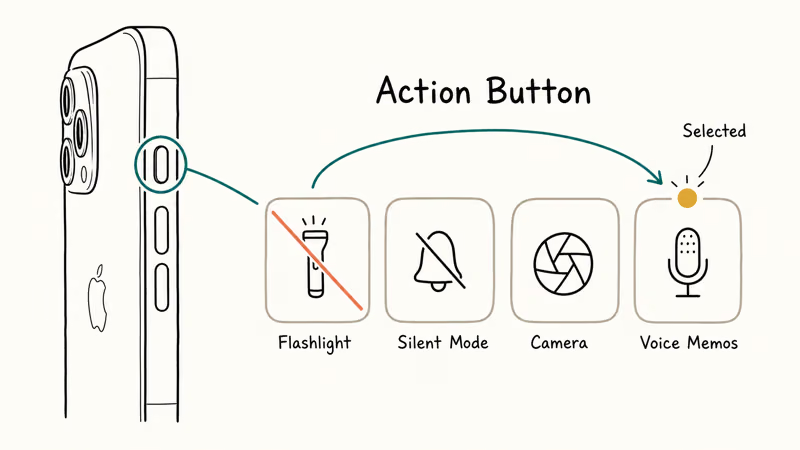
The iPhone 15 Pro, iPhone 15 Pro Max, and every iPhone 16 ship with a physical Action Button on the side. Wikipedia’s iPhone 15 Pro article states that the Action button replaces the mute switch and can be configured by the user, with default options including silent mode and opening a desired app.
Flashlight is one of the available shortcut actions, and out of the box, plenty of people accidentally bind it.
To check or change your Action Button:
- Open Settings and tap Action Button.
- Swipe left or right between actions until you find the one currently bound.
- If Flashlight is selected, swipe to a different action like Silent Mode, Camera, or Shortcut.
Apple’s Use the Action Button on iPhone page walks through the full list, and our roundup of iPhone Action Button ideas covers 10 assignments that get more daily use than the default Silent Mode. We rebound ours to Voice Memos for two weeks, and pocket-triggered flashlight events dropped to zero on a phone that had been firing the light four or five times a day prior.
For phones without an Action Button (iPhone 14 and earlier, plus the standard iPhone 15), the lock-screen slot is the only relevant trigger. iOS 18 removal handles it. iOS 17 and below leave you with the wake-setting workaround above.
If you’re seeing the flashlight come on without any obvious trigger, check hardware first. The iPhone flashlight not working guide has the diagnostic flow for stuck modules. For older iPhones with stuck side-buttons that fire random actions, iPhone volume buttons stuck covers the cleaning path. A flashlight firing with zero input is more often a stuck button than a software bug.
#The Control Center Flashlight Is a Separate Toggle
The Lock Screen button and the Control Center button are separate. Removing one does not affect the other.
Many users don’t realize this. You can keep the Control Center flashlight (handy when you actually want it) and remove the Lock Screen one (the accidental-press culprit), or vice versa. Apple’s Customize Control Center on iPhone guide states the editing path: open Control Center, long-press, tap minus, and tap Done. Editing Control Center never changes the Lock Screen layout.
To remove flashlight from Control Center:
- Pull down from the top-right corner to open Control Center.
- Touch and hold any empty area until the controls jiggle.
- Tap the minus button on the flashlight tile, or drag it off the visible area.
- Tap Done.
To re-add it later, repeat the steps and tap the plus in the empty grid, then choose Flashlight from the gallery.
We recommend keeping Control Center flashlight available. It’s intentional (you have to swipe to invoke it) and hard to trigger by accident. The Lock Screen version is the one most worth removing.
#Bottom Line
If you are on iOS 18 or later, the answer is the official customizer: long-press the Lock Screen, tap Customize, tap the flashlight slot, hit minus. Replace it with Magnifier, Calculator, or a third-party control if you want the slot used. Leave it empty if you don’t.
If you’re on iOS 17 or earlier, you can’t remove the button itself. Disable Raise to Wake and Tap to Wake, switch to a flap case, and the accidental triggers drop sharply. The lasting fix is a free software update to iOS 18, not a settings tweak. If your iPhone has been refusing recent updates, our How to cancel an iPhone update guide explains the safe recovery path.
If you have an Action Button (iPhone 15 Pro, iPhone 16 family, newer Pro models), check that flashlight isn’t silently bound to it. That’s the most common hidden trigger on Pro-line phones, and the rebind takes ten seconds.
iPhone tips & tricks
#Frequently Asked Questions
Can I remove the camera button from the Lock Screen too?
Yes, on iOS 18 and later. The camera slot in the bottom-right works the same way as the flashlight slot: long-press the Lock Screen, tap Customize, tap the camera icon, then minus it. Replace it with another control or leave it blank. On iOS 17 and earlier, the camera slot is fixed.
Will removing the flashlight from the Lock Screen disable it everywhere?
No. The flashlight stays accessible everywhere else.
Why does the flashlight keep turning on in my pocket?
The most common cause is accidental presses on the Lock Screen flashlight button when the screen wakes via Raise to Wake or Tap to Wake. The second-most-common, on Pro-line iPhones, is an Action Button bound to flashlight. Disable wake settings, check your Action Button binding, and on iOS 18 remove the corner button entirely.
Does iOS 18 let me put any app there?
No, only controls. Apple ships a built-in controls library (Calculator, Magnifier, Translate, Voice Memos, Shazam, Notes, Camera, Wallet, and others), and third-party apps can register their own controls through iOS 18’s controls API. So a regular app icon does not work, but most popular apps with widgets now ship a control too. For glanceable tiles on the main grid instead of the Lock Screen, see Home Screen widgets and Smart Stack setup.
Can I leave the slot empty on iOS 18?
Yes. Tap minus, tap Done, skip the replacement step, and the corner stays blank.
Does removing the flashlight save battery?
A small amount, if your phone was firing the flashlight in your pocket several times a day, although the accidental wake itself uses more battery than the flashlight; disabling Raise to Wake and Tap to Wake is the bigger lever, and removing the button outright prevents the worst case (a flashlight stuck on for hours, which is the kind of bug that drains a full battery overnight on a phone face-down in a bag).
What about Android? Can I remove the lock screen flashlight there?
Most Android skins (Samsung One UI, Pixel UI, OnePlus OxygenOS) let you customize lock-screen shortcuts under Settings → Lock screen → Shortcuts. The exact menu name varies by skin and version. The principle is the same: tap the existing shortcut, choose a different action or none. iOS-specific guidance ends here, but the customization concept transfers.
Is there an Apple Shortcut to disable the flashlight button?
No. Apple Shortcuts can’t edit Lock Screen layout. The Lock Screen customization API is exposed only through the Customize button on the Lock Screen itself, not through Shortcuts. You have to do it manually.

How to Transfer Data to a New iPhone Without iCloud
Move everything to your new iPhone without iCloud: Quick Start device-to-device transfer, wired migration, and encrypted Finder or iTunes backups.
Best Wireless Earbuds for iPhone in 2026: USB-C Era Picks
Best wireless earbuds for iPhone in 2026, comparing AirPods Pro 3, Sony WF-1000XM6, Bose QC Ultra, and Anker Liberty 4 NC on the USB-C iPhone lineup.
iPhone Keyboard Lag? 7 Proven Fixes for iOS 26 (2026)
Fix iPhone keyboard lag with 7 proven fixes for iOS 26. Covers restart, storage, predictive text, third-party keyboards, and dictionary reset.
How to Block Porn on an iPhone: A Guide for Parents
Learn how to block porn on iPhone using Screen Time, DNS filtering, and safe browsers. Step-by-step guide for parents to protect kids' devices.