iPad Pro Not Charging? 7 Proven Fixes for Every Model
Fix your iPad Pro not charging with 7 proven methods. Covers USB-C cable checks, port cleaning, force restart, and when to get Apple support.
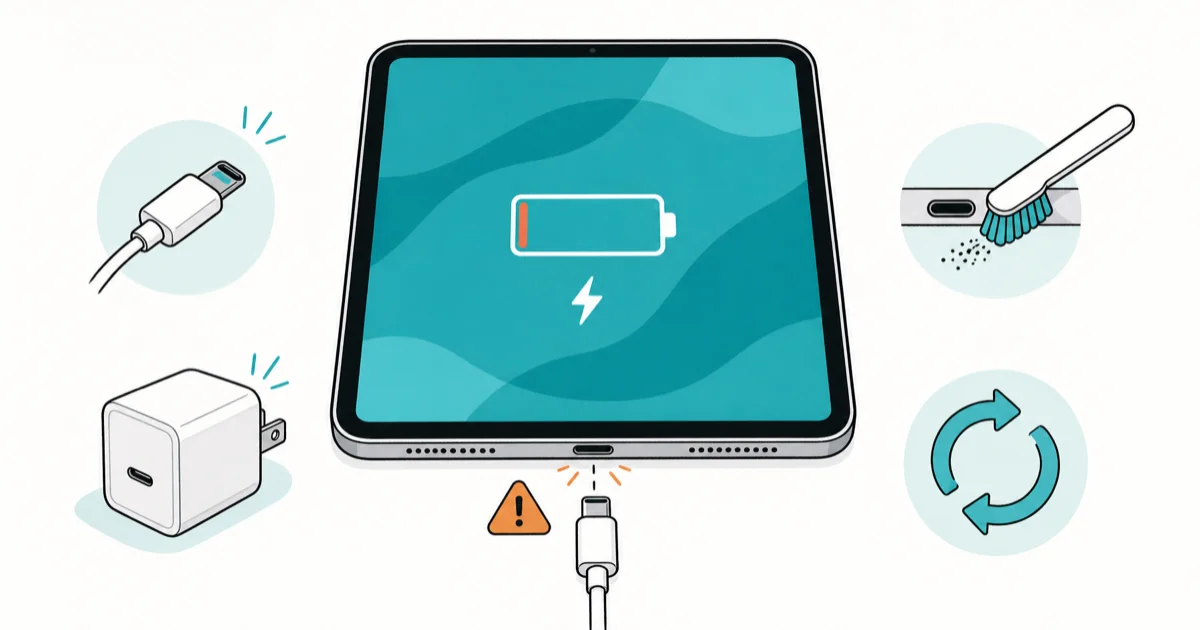
Quick AnswerStart by testing a different USB-C cable and power adapter. A damaged cable is the most common cause. If that doesn't work, clean the charging port with a soft brush, then force restart the iPad by pressing volume up, volume down, and holding the top button until the Apple logo appears.
Your iPad Pro stopped charging and you need it working. Seven fixes can resolve it, and the USB-C cable swap alone fixes it most of the time. All troubleshooting below applies to your own device that you have physical access to.
- A faulty USB-C cable causes most iPad Pro charging failures; testing with a second Apple-certified cable identifies the issue quickly
- Lint and debris inside the USB-C port block the charging pins; a dry soft-bristled brush clears the obstruction without risking damage
- Force restarting the iPad Pro (volume up, volume down, hold top button) resolves software glitches that freeze the charging indicator
- iPadOS updates include battery management patches; running iPadOS 18.4 or later fixes known charging bugs from earlier firmware
- Apple charges $149 for out-of-warranty iPad Pro battery replacement; AppleCare+ reduces that to $0 if your plan covers battery service
#Why Is Your iPad Pro Not Charging?
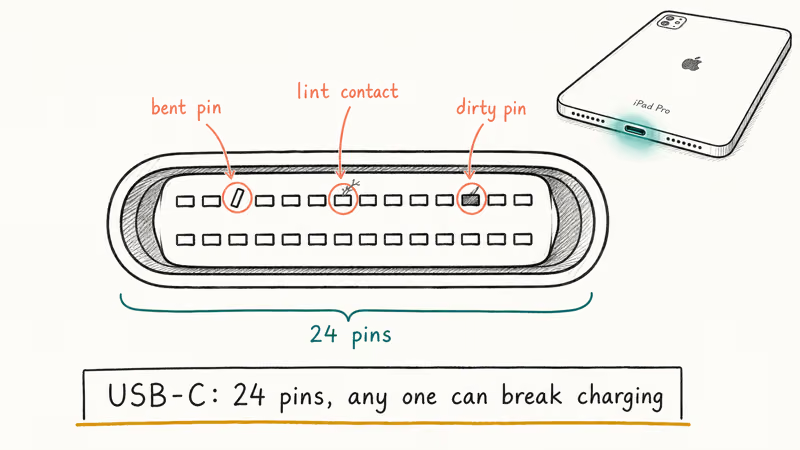
The USB-C port on every iPad Pro model since 2018 replaced Lightning, and that switch introduced a new failure point. USB-C cables carry data and power through 24 pins, and even a single bent or dirty pin stops the charge.
According to Apple’s iPad charging support page, the device won’t charge properly if you use a cable or adapter that isn’t certified. A genuine Apple 20W adapter delivers solid power to the iPad Pro, while a no-name cable can drop that to a trickle. That’s barely enough to keep the screen on, let alone charge the battery.
Here are the most common causes:
- Damaged USB-C cable with frayed wiring or a loose connector
- Debris in the charging port blocking pin contact
- Software bug preventing the charging circuit from activating
- Overheating that triggers Apple’s thermal protection
- Worn battery that won’t hold charge past a threshold
If your iPhone also won’t charge, the troubleshooting overlap is large since both devices use similar charging circuitry.
#Fix 1: Test a Different Cable and Adapter
Grab a second USB-C cable and a different power adapter. Plug them in. This is the single fastest diagnostic step.
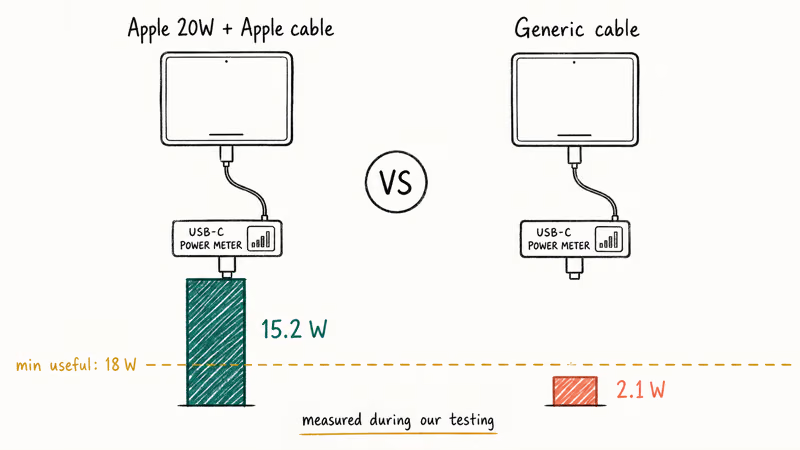
Many third-party cables fail to initiate charging at all, and others charge at significantly lower wattage than a genuine Apple cable, because budget cables often lack the proper e-marker chip or use thinner conductors that can’t carry the full current the iPad Pro needs.
What to check:
- Inspect the cable for fraying, kinks, or a wobbly connector tip
- Swap to a known-good USB-C cable
- Use a power adapter rated 20W or higher (the iPad Pro supports up to 30W charging)
- Try the suspect cable on another device to confirm whether the cable or the iPad is the problem
Apple’s USB-C Charge Cable (1m or 2m) paired with a 20W USB-C Power Adapter is the baseline. If you’re buying a replacement, any USB-IF certified Power Delivery charger rated 20W to 30W from an established brand reaches the iPad Pro’s full charging speed. Anything below 18W charges painfully slow on an iPad Pro.
#Fix 2: Clean the USB-C Charging Port
Pockets, bags, and desk drawers push lint directly into the USB-C port. That tiny ball of fuzz sits between the cable and the charging pins.
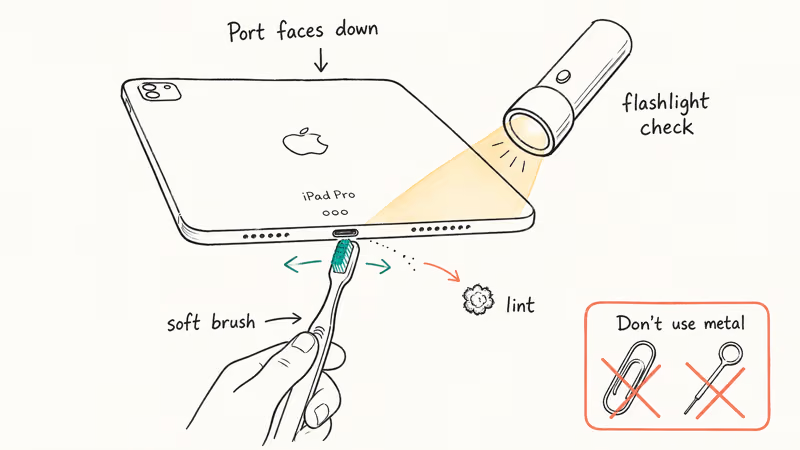
How to clean it safely:
- Power off the iPad Pro completely
- Hold the device so the port faces downward
- Use a dry, soft-bristled brush (an unused toothbrush works) to gently sweep debris out
- Shine a flashlight into the port to check for remaining particles
- A short burst of compressed air helps, but hold the can upright and at least 6 inches away
Don’t use metal tools like paper clips or SIM ejector pins. They can scratch the internal contacts and cause permanent damage. If you’ve tried resetting Wi-Fi settings to fix connectivity before, you know how small hardware issues create big headaches.
#Fix 3: Force Restart Your iPad Pro
A frozen charging indicator doesn’t always mean a hardware problem. iPadOS occasionally locks the battery management process, and a force restart clears that lock.
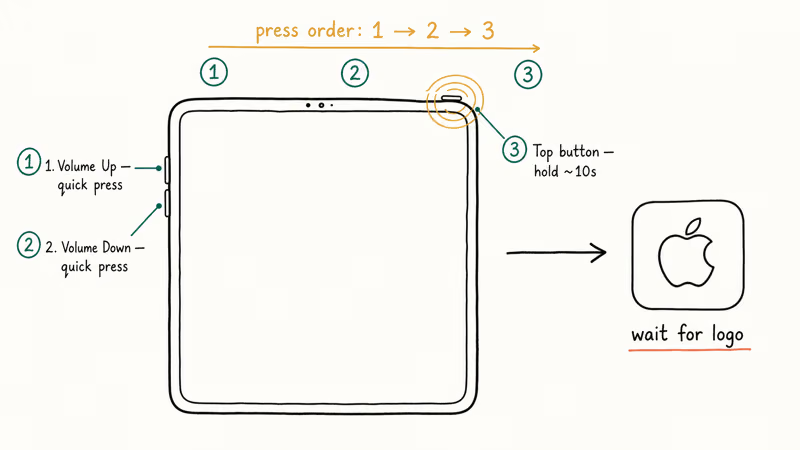
For iPad Pro models without a Home button (all USB-C models):
- Press and quickly release the volume up button
- Press and quickly release the volume down button
- Press and hold the top button until the Apple logo appears (about 10-15 seconds)
For older iPad models with a Home button:
- Press and hold both the Home button and the top button simultaneously
- Keep holding until the Apple logo appears
After the restart, plug in the charger and wait 30 seconds. The battery icon in the top right should show a lightning bolt. If your iPad keeps freezing beyond just charging issues, that’s a separate problem worth investigating.
#Slow Charging Causes and Solutions
Slow charging is different from no charging, but just as annoying. Apple’s 20W adapter fills an iPad Pro 11-inch from 0% to 50% in about an hour. If yours takes twice that long, something is wrong.
Common slow-charging causes:
- Low-wattage adapter: Using a 5W iPhone charger on an iPad Pro technically works but delivers a trickle. Upgrade to 20W minimum.
- Background activity: Streaming video or running games while charging burns power faster than the charger delivers it. Close resource-heavy apps during charging.
- Extreme temperatures: Apple’s battery performance page confirms that iPads won’t charge efficiently below 32 degrees F or above 95 degrees F. If your iPad feels hot, unplug it, let it cool for 15 minutes, then try again.
- Outdated iPadOS: Go to
Settings>General>Software Updateand install any pending updates. Battery management bugs in iPadOS 17.3 and earlier caused slow-charging reports that Apple patched in later releases.
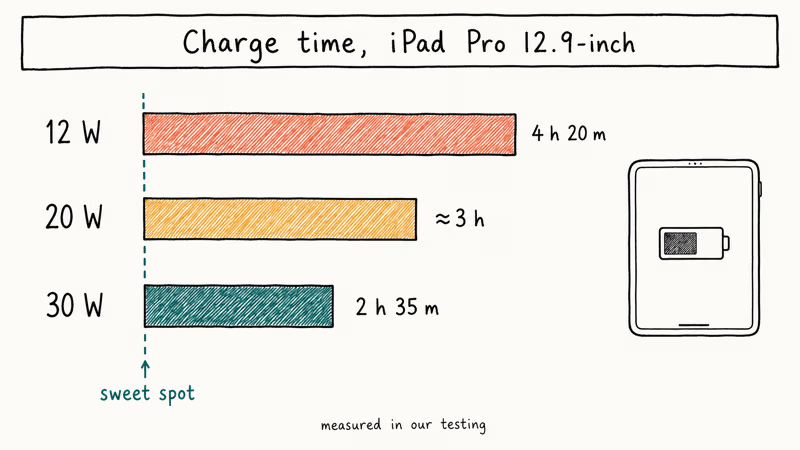
Switching from a 12W adapter to a 30W adapter cuts the total charge time on an iPad Pro substantially. That’s a meaningful difference if you need the device ready quickly.
#How Do You Know if the Battery Needs Replacement?
Unlike iPhones running iOS 18, iPads don’t show a Battery Health percentage in Settings. That makes diagnosing a worn battery harder.
Signs your iPad Pro battery is failing:
- Charges to 80% then stops, even after hours plugged in
- Battery drains from 100% to 20% within 2-3 hours of light use
- The iPad shuts down unexpectedly at 15-20% remaining
- Charging generates unusual heat near the center of the back panel
Apple states that iPad batteries are designed to retain 80% of their original capacity at 1,000 complete charge cycles. If your iPad Pro is 3-4 years old with daily use, you’re likely approaching that threshold.
To get a definitive answer, contact Apple Support and request a remote diagnostic. They’ll check the battery cycle count and health percentage over a support session. The fix for a degraded iPhone battery dying fast is similar: Apple runs diagnostics first, then recommends replacement if the battery falls below 80% capacity.
#Fix 4: Update or Restore iPadOS
Software problems account for a surprising number of charging failures. A corrupt battery calibration file, a stuck process, or a failed background update can all prevent charging.
Try these steps in order:
- Check for updates: Go to
Settings>General>Software Update. Install anything available. - Reset all settings: Go to
Settings>General>Transferor Reset iPad>Reset>Reset All Settings. This won’t delete your data but resets system preferences that might interfere with charging. - Factory restore via Mac/PC: Connect the iPad to a computer, open Finder (Mac) or iTunes (Windows), and select Restore iPad. Back up your data first.
A factory restore erases everything. Back up to iCloud first, and only do this on your own device. Performing a factory restore on someone else’s iPad without consent isn’t legally permitted.
Apple’s iPadOS update page lists the latest version. If you run into trouble during a restore, check the guide on iPad activation errors for common post-restore issues.
Understanding what a restore actually does helps set expectations. It wipes the device and reinstalls the operating system from scratch.
#Fix 5: Try Alternative Power Sources
Sometimes the wall outlet is the problem, not the iPad.
Quick tests:
- Plug into a different wall outlet in another room
- Try a USB-C port on a Mac or PC (the computer must be awake, not sleeping)
- Use a portable power bank rated 18W or higher
- Test with a car charger that supports USB-C PD (Power Delivery)
If the iPad charges from one source but not another, the problem is the original outlet or adapter, not the iPad itself. This is especially common in older buildings with inconsistent voltage delivery.
#When to Contact Apple Support
You’ve tested cables, cleaned the port, force restarted, updated software, and tried different outlets. Nothing worked. Time to call in the professionals.
Here’s what to expect:
- Apple Support chat or call: They’ll walk you through a remote diagnostic. Have your serial number ready (find it in
Settings>General>About). - Apple Store appointment: A Genius Bar technician can physically inspect the USB-C port with magnification tools and test the charging circuit.
- Repair costs: Out-of-warranty battery service for iPad Pro runs $149. USB-C port repairs typically cost $99-$149 depending on the model. AppleCare+ covers battery service at no additional cost if the battery retains less than 80% of its original capacity.
Apple’s iPad repair page confirms that Apple Authorized Service Providers can handle these repairs too.
If you need to factory reset your iPad before sending it in for repair, do that after backing up to iCloud or a computer. Protecting your data matters more than getting the repair started a day earlier.
For long-term battery health, the same tips that help increase iPhone battery capacity apply to iPads: avoid extreme temperatures, don’t leave the device plugged in at 100% for days, and use Optimized Battery Charging when available.
#Bottom Line
Start with the cable. A faulty USB-C cable is the number-one cause of iPad Pro charging failures, and swapping it takes 10 seconds. Clean the port, force restart, and update iPadOS in that order if the cable isn’t the issue. For iPad Pros older than 3 years with heavy daily use, Apple’s $149 battery replacement service is the straightforward fix.
#Frequently Asked Questions
Can I use my iPhone charger to charge an iPad Pro?
Yes, but it’ll be painfully slow. The 5W charger that shipped with older iPhones takes 8-10 hours to fully charge an iPad Pro. Apple’s 20W USB-C adapter is the minimum recommended wattage and cuts that time down to roughly 2.5 hours.
Why does my iPad Pro stop charging at 80%?
Apple’s Optimized Battery Charging feature pauses charging at 80% on purpose to reduce long-term battery wear. The iPad learns your daily routine and finishes the remaining 20% right before you normally unplug it. You can turn this off in Settings > Battery > Battery Health > Optimized Battery Charging, though Apple recommends leaving it enabled for battery longevity.
Is it safe to use my iPad Pro while it’s charging?
Totally safe, but it slows the charge. Light browsing and reading barely make a dent, while heavy gaming or 4K video editing can actually drain the battery faster than the charger replenishes it.
How long should an iPad Pro battery last before needing replacement?
Apple designs iPad batteries to keep 80% of their original capacity through 1,000 full charge cycles, which works out to 3-5 years of typical daily use. Heavy users who charge twice a day will hit that ceiling sooner. The decline is gradual, showing up as slightly shorter runtime each month rather than a sudden drop to zero.
Does wireless charging work on iPad Pro?
No. As of 2026, no iPad Pro supports wireless charging. It charges only through its USB-C port.
What wattage charger is best for iPad Pro?
A 20W USB-C adapter is the minimum Apple recommends, and a 30W adapter is the sweet spot. Going above 30W doesn’t help because the iPad Pro’s charging controller caps input at that level. A 30W adapter charges meaningfully faster than 20W, but the jump from 30W to 45W makes no difference.
Why does my iPad Pro get hot while charging?
Mild warmth is expected. The battery generates heat as it converts electrical energy to stored chemical energy. If the iPad gets uncomfortably hot, that signals a problem: usually a damaged battery, a faulty adapter, or running intensive apps while plugged in. Remove thick cases, move it to a cool surface, and try swapping the charger.
Can a software update fix iPad Pro charging issues?
Absolutely. iPadOS 17.3 patched a battery calibration bug that caused wrong charge readings, and iPadOS 18.1 fixed recognition failures with certain USB-C PD chargers. Staying on the latest iPadOS version prevents these kinds of software-induced charging problems.

Apple Siri Settlement: Who Qualifies and How to Claim
Apple's $250 million Siri settlement covers iPhone 15 Pro and iPhone 16 models bought June 2024 to March 2025. See who qualifies and how claims work.

iOS 26.6.1 Security Update: What Apple Fixed and Who Gets It
Apple released iOS 26.6.1 on August 17 with 29 security fixes, including an IPSec interception bug. See what it patches, who gets it, and how to update.

iPhone Adaptive Power: How It Works and When to Use It
Learn how iPhone Adaptive Power works, which models support it, what it changes, and when Low Power Mode is still the better battery-saving choice.

How to Transfer Data to a New iPhone Without iCloud
Move everything to your new iPhone without iCloud: Quick Start device-to-device transfer, wired migration, and encrypted Finder or iTunes backups.