How to Disable Liquid Glass in iOS 26: 2026 Settings
iOS 26 will not let you fully turn off Liquid Glass, but five settings reduce the transparency, motion, and brightness so the iPhone feels flat again.
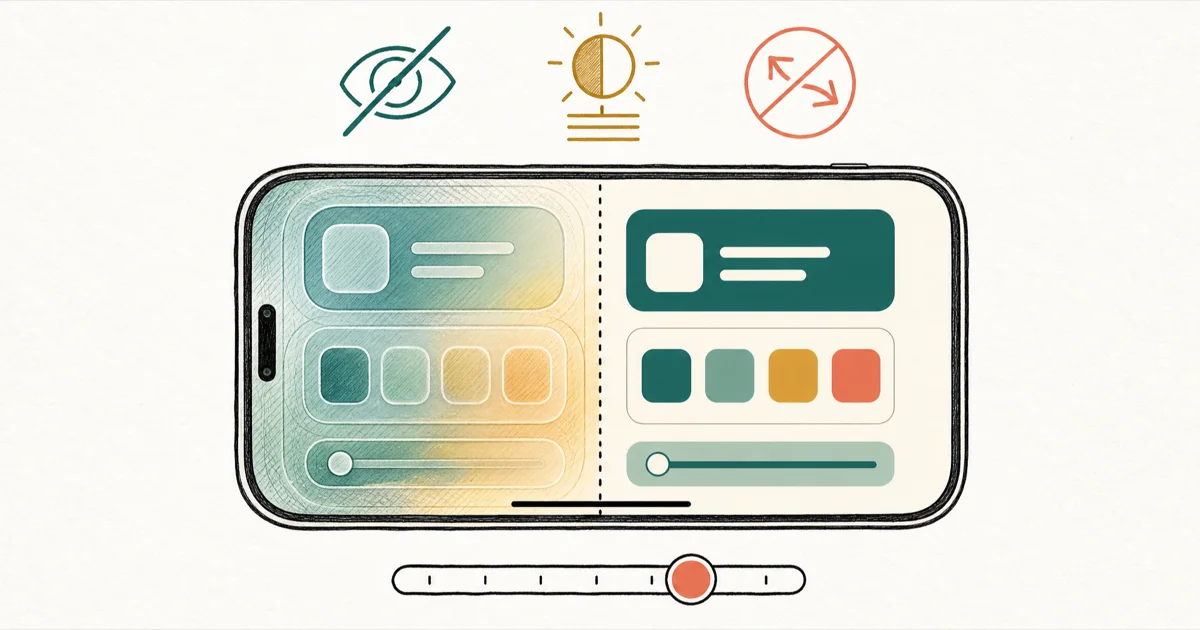
Quick AnsweriOS 26 doesn't allow a full Liquid Glass disable. Combine Reduce Transparency, Increase Contrast, Reduce Motion, and the iOS 26.1 Tinted style to flatten the look.
iOS 26 Liquid Glass disable is the most-searched iOS 26 question this year, and the honest answer is no, not fully. You can stack four Accessibility toggles that flatten the look. This guide covers every Liquid Glass setting from iOS 26.0 to 26.4.
- Apple hasn’t shipped a single off switch for Liquid Glass; the maximum reduction comes from combining four Accessibility settings plus the iOS 26.1 Tinted style
- Reduce Transparency is the most effective single toggle, located at
Settings>Accessibility>Display & Text Size>Reduce Transparency - The Liquid Glass Tinted style at
Settings>Display & Brightness>Liquid Glassis iOS 26.1 or later only, and the toggle is locked unless Reduce Transparency is OFF first - Reduce Bright Effects is an iOS 26.4 addition that targets the new lock-screen and Control Center glow that earlier toggles did not catch
- These settings reduce GPU work and give a small battery side benefit on iPhone 15 Pro and newer, though the change isn’t large enough to fix a serious drain issue
#What Is Liquid Glass and Why Can You Not Fully Disable It?
Liquid Glass is the translucent material Apple introduced in iOS 26 to replace the older Vibrancy effects. It runs across Control Center, Notification Center, the lock screen, the dock, and modal sheets. The panels pick up color from whatever sits behind them, blur the background, and animate during scroll and pull gestures. Apple positions it as the defining visual change of the iOS 26 release.
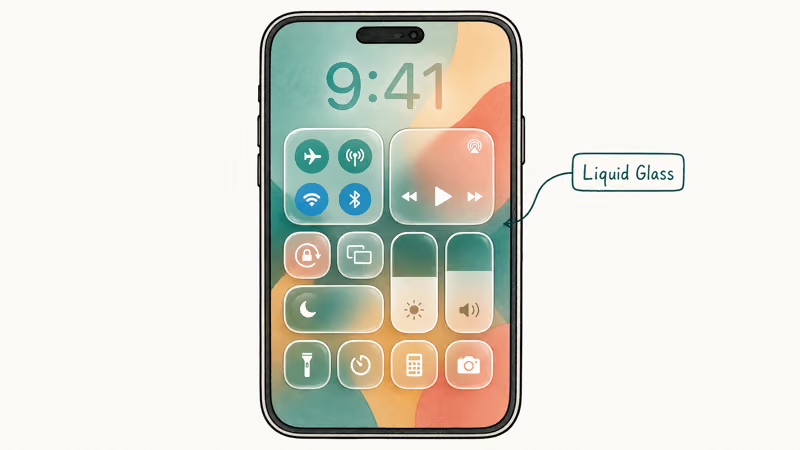
There is no master off switch in Settings. Apple’s design choice was to keep Liquid Glass as the iOS 26 baseline and offer Accessibility settings that reduce its intensity, not eliminate it. Wallpaper-driven translucency on the lock screen and dock will still show through even with every toggle on, and the design’s edge-glow continues to render on modal sheets.
If you want a fully flat iOS, you’d need to roll back to iOS 18, which has its own iOS 26 supported iPhones and downgrade trade-offs to weigh first.
The settings that do exist are framed by Apple as accessibility features for users with motion sensitivity, contrast loss, or post-update eye strain. According to Apple’s iPhone Display & Text Size accessibility guide, Reduce Transparency, Increase Contrast, and Reduce Motion each address a different perceptual issue. Apple recommends combining them rather than picking one, and that recommendation is also the practical answer for users who just dislike the redesign.
#The Five Settings That Reduce Liquid Glass the Most
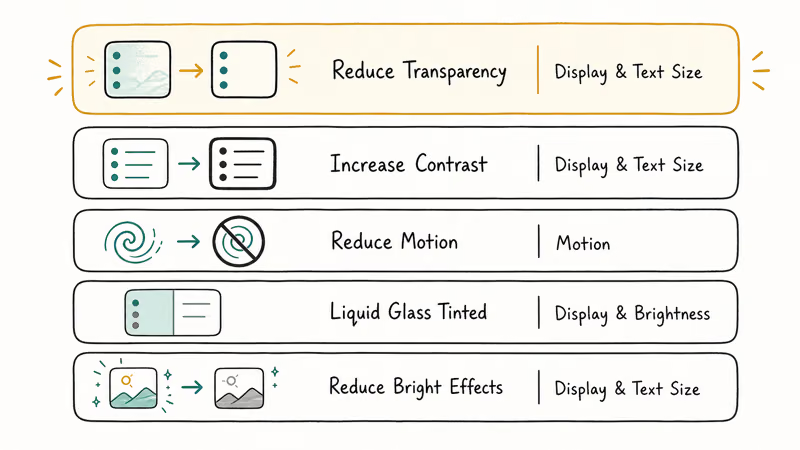
These five settings are the toolkit. Turn them on in this order and check the result after each one. The cumulative effect is easier to judge than a single combined change.
#1. Reduce Transparency
Open Settings, tap Accessibility, tap Display & Text Size, and turn on Reduce Transparency. This is the single most effective toggle. Control Center, Notification Center, and the app switcher all swap their translucent backgrounds for solid panels, and the lock-screen clock loses its color bleed.
On an iPhone 15 Pro running iOS 26.4, Reduce Transparency removes the Control Center color shift entirely. It also makes notification banners legible against a busy wallpaper, which is a common pain point after the iOS 26 install. The toggle takes effect instantly and survives reboots.
#2. Increase Contrast
In the same Display & Text Size menu, turn on Increase Contrast. This thickens the lines between panels and buttons, raises text-to-background contrast across the system, and pairs with Reduce Transparency to make the iOS 26 design feel closer to iOS 17 in low-light rooms.
OSXDaily’s settings walkthrough confirms this combination as the accepted maximum reduction across the iOS 26 community. The order you enable them in doesn’t matter; the end state is the same.
#3. Reduce Motion
Go to Settings, tap Accessibility, tap Motion, and turn on Reduce Motion. This kills the parallax wallpaper effect, the app-launch zoom, the home-screen page transitions, and the Liquid Glass scroll-driven animations that ripple across the Notification Center pull-down. It’s the toggle most likely to fix motion-induced eye strain on the iPhone 14 Pro and newer ProMotion displays.
Reduce Motion doesn’t disable app animations entirely. Third-party apps still animate inside their own UI; the toggle only governs the system-level motion that iOS itself drives. Mail, Messages, and Safari still feel responsive, and the change is most visible at the home-screen and Control Center layer.
#4. Liquid Glass Tinted style (iOS 26.1 or later)
If you are on iOS 26.1 or later and want to keep some of the new design but cut the translucency, go to Settings, tap Display & Brightness, and tap Liquid Glass. The menu offers Default and Tinted. Pick Tinted.
Here is the gotcha that catches most users: the Liquid Glass menu item only appears when Reduce Transparency is OFF. If you turned on Reduce Transparency first and the Liquid Glass option is missing or grayed out, that’s why. The OSXDaily walkthrough above states that the toggle is locked behind Reduce Transparency being off.
The Tinted Liquid Glass option preserves the iOS 26 aesthetic better than full Reduce Transparency. It noticeably cuts down Control Center translucency. For users who want the iOS 26 look without the eye fatigue, this is the sweet spot. If you want the strongest possible reduction instead, leave Tinted off and use Reduce Transparency plus Increase Contrast.
#5. Reduce Bright Effects (iOS 26.4 or later)
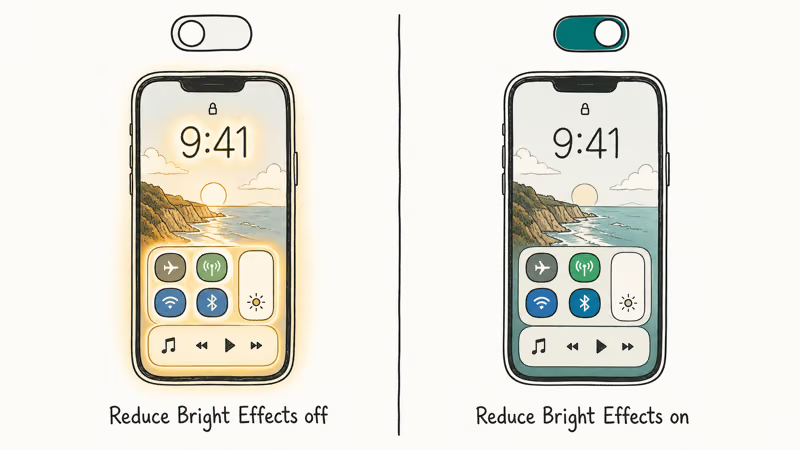
iOS 26.4 added one more toggle. Open Settings, tap Accessibility, tap Display & Text Size, and turn on Reduce Bright Effects. 9to5Mac reported that Apple added this setting in iOS 26.4 in direct response to user feedback about the bloom around bright wallpapers and Control Center icons.
If you’re on iOS 26.3 or earlier this toggle doesn’t exist yet. Users on older iOS 26 builds report the same complaint. The only workaround before 26.4 is the Reduce Transparency plus Increase Contrast combination.
#Does iOS 26.4 Add New Options for Bright Effects?
Yes. iOS 26.4 added Reduce Bright Effects as a dedicated toggle, and it’s the first iOS 26 setting that explicitly targets the new Liquid Glass bloom around bright wallpapers and Control Center icons. The toggle is separate from Reduce Transparency, so you can run them together for the maximum reduction or use Reduce Bright Effects on its own if you want to keep some translucency but lose the glow.
| Setting | iOS version | What it changes | Menu path |
|---|---|---|---|
| Reduce Transparency | iOS 26.0+ | Replaces translucent panels with solid backgrounds | Accessibility > Display & Text Size |
| Increase Contrast | iOS 26.0+ | Thickens panel edges and raises text contrast | Accessibility > Display & Text Size |
| Reduce Motion | iOS 26.0+ | Kills parallax, scroll ripples, app-launch zoom | Accessibility > Motion |
| Liquid Glass Tinted | iOS 26.1+ | Lighter version of Liquid Glass; needs Reduce Transparency OFF | Display & Brightness > Liquid Glass |
| Reduce Bright Effects | iOS 26.4+ | Targets the new lock-screen and Control Center glow | Accessibility > Display & Text Size |
The five Liquid Glass reduction settings across iOS 26.0 to 26.4.
If your iPhone is stuck on iOS 26.3 or earlier and the Liquid Glass menu is missing, the install itself may be the issue. iOS 26 update stuck or failing covers the install-side fixes you need before you can get to 26.4. Once on 26.4, the Reduce Bright Effects toggle takes effect immediately and survives reboots like the others.
MacObserver’s flat-design recovery guide walks through the same five settings with screenshots if you want a visual reference for what each one changes.
#What Liquid Glass Looks Like After All Settings Are Applied
With all five settings on, iOS 26 still looks like iOS 26, just calmer. Control Center is a solid dark panel instead of a wallpaper-tinted blur. Notification Center fades less when you scroll. The lock-screen clock sits on a cleaner background, and the app switcher snaps to and from cards without the squish animation.
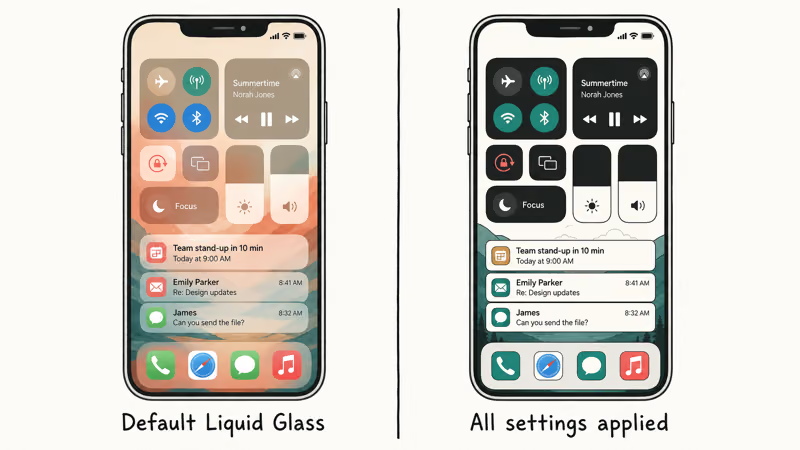
What doesn’t change: the lock-screen wallpaper still bleeds color onto the dock if you use a vivid background. The app icons still have their iOS 26 outline shaping, and modal sheets keep their soft curvature.
Give it a few days before judging the result. The Apple Community discussion on disabling Liquid Glass tracks a common shift in tone among long-term users, from treating the flattened look as a downgrade to reading it as iOS 17 with a fresh coat of paint.
There is a small battery side benefit. Liquid Glass effects use real GPU cycles, and turning the reductions on saves a noticeable but small amount of energy. The saving is most meaningful during the post-update indexing week.
For a full breakdown of post-update battery behavior, see our iOS 26 battery drain fixes. The Liquid Glass change alone isn’t large enough to fix a serious drain issue.
#When the Settings Are Not Enough: Workarounds and Caveats
Some users want more than what the Accessibility menu offers. The honest answer is that there is no safe path past these settings. Third-party Shortcut-based hacks that promised to disable Liquid Glass in iOS 26.2 and 26.3 broke in iOS 26.4, and several were associated with widget rendering failures that required a hard reboot to clear. Skip them.
For users who customize iOS heavily through the Action Button, the Liquid Glass changes don’t affect Action Button menus. You can still program shortcuts and run Shortcuts directly from the button without seeing the new design. Our Action Button ideas for iPhone 15 Pro and newer guide has the patterns that work best on iOS 26.
#Other iOS 26 Visual Issues to Rule Out First
If you’re also dealing with iPhone keyboard lag after iOS 26, that keyboard issue is unrelated to Liquid Glass and lives in a separate Settings menu. Don’t expect the visual reductions to fix typing latency.
If you’re on a Pro-line iPhone and seeing slower text generation in Writing Tools, that’s governed by Apple Intelligence requirements, which is again a separate system.
Two practical caveats apply to everything above. First, every Liquid Glass reduction is reversible. Toggle them back off in the same menu and iOS 26 returns to default in seconds.
Second, an iOS 27 release is expected in September 2026, and Apple hasn’t confirmed whether Liquid Glass continues. Apple’s history suggests the design language usually survives one OS cycle, but that’s expectation, not fact.
#Bottom Line
You can’t fully disable Liquid Glass in iOS 26, but four toggles get you about 80% of the way there. Turn on Reduce Transparency, Increase Contrast, Reduce Motion, and (if you’re on 26.4 or later) Reduce Bright Effects.
If you’re on 26.1 or later and want a middle-ground, leave Reduce Transparency off and pick Tinted under Display & Brightness > Liquid Glass. That gives you Liquid Glass with reduced translucency rather than the full-strength version.
If readability is your issue, Reduce Transparency plus Increase Contrast is the answer. If motion sensitivity is the issue, Reduce Motion is the only one that matters. Skip third-party shortcut hacks; none of them survive iOS updates and several have caused widget rendering failures.
iOS 26
#Frequently Asked Questions
Can I fully turn off Liquid Glass in iOS 26?
No. Apple hasn’t shipped a single off switch and the iOS 26 design keeps Liquid Glass as the baseline material across Control Center, Notification Center, and the lock screen. The maximum reduction comes from combining Reduce Transparency, Increase Contrast, Reduce Motion, and (on iOS 26.4 or later) Reduce Bright Effects. The combination flattens the look enough that the device feels close to iOS 17, but the design language itself doesn’t disappear.
Will turning on Reduce Transparency save iPhone battery?
A little. Liquid Glass rendering uses real GPU work, and turning Reduce Transparency on cuts that cost. The change is most useful during the post-update indexing week when battery is already strained.
Why does Settings > Display & Brightness not show the Liquid Glass option?
Two reasons. First, the Liquid Glass menu item was added in iOS 26.1, so iOS 26.0 devices don’t have it. Second, the toggle is gated by Reduce Transparency. Turn Reduce Transparency off in Accessibility > Display & Text Size and the Liquid Glass option returns to Display & Brightness.
Does Reduce Motion affect app animations on iOS 26?
Only iOS system animations. Reduce Motion turns off parallax wallpaper, the home-screen page-flip animation, the app-launch zoom, and the Notification Center scroll ripple. Third-party apps still animate inside their own UI because they control those transitions independently of the iOS motion APIs.
Is iOS 26.4’s Reduce Bright Effects the same as Reduce Transparency?
No. Reduce Bright Effects targets the new lock-screen and Control Center glow that earlier toggles didn’t catch. You can run it alongside Reduce Transparency for maximum reduction, or use it on its own if you want to keep some translucency but lose the bloom around bright wallpapers and icons.
Will iOS 27 keep Liquid Glass or remove it?
Apple hasn’t stated whether Liquid Glass continues in iOS 27. Based on the iOS 7 to iOS 11 cycle and the iOS 13 dark-mode rollout, Apple typically keeps a design language for at least two major releases and refines it rather than removing it. The realistic expectation is that iOS 27 keeps Liquid Glass with adjustments, not that it returns to iOS 17 styling.
Does disabling Liquid Glass affect the iPhone widgets?
Lightly. Reduce Transparency removes the colored translucent background behind widgets on the lock screen and home screen. Widget content becomes readable on plain colors instead of wallpaper-bleed tinted ones. The widgets themselves still function normally and update on their normal schedules.
Can I undo all the Liquid Glass settings later?
Yes. Each toggle is reversible from the same menu where you enabled it, and turning them back off restores iOS 26’s default Liquid Glass behavior immediately. No reboot is needed, and the five settings are stored as user preferences only.

iOS 26.6.1 Security Update: What Apple Fixed and Who Gets It
Apple released iOS 26.6.1 on August 17 with 29 security fixes, including an IPSec interception bug. See what it patches, who gets it, and how to update.
iPhone 17 Cellular Data Not Working on iOS 26? 9 Fixes
iPhone 17 cellular data still dropping on iOS 26? Apple fixed the launch bug in iOS 26.0.1, but recovery failures persist. Here's the fix ladder.

iOS 26 System Data Storage Full: How to Fix It Now
iOS 26 made System Data storage balloon past 50GB for some iPhones. Here is what is safe to clear, what is normal, and the iOS 26.1 storage fix.
iOS 26 Screen Time Not Working? Confirmed 2026 Fixes
iOS 26 Screen Time has two confirmed bugs in 2026: the One Minute extension locks all apps, and limits trigger on pickup. Here are the fixes that work.