iOS 26 System Data Storage Full: How to Fix It Now
iOS 26 made System Data storage balloon past 50GB for some iPhones. Here is what is safe to clear, what is normal, and the iOS 26.1 storage fix.

Quick AnsweriOS 26 System Data usually balloons for 24 to 48 hours while Spotlight re-indexes and apps rebuild caches, then settles. If it stays huge, update to iOS 26.1, which fixed a known storage bug, and clear Safari and app caches.
After updating to iOS 26, a lot of iPhone owners open Settings and find System Data eating 50GB or more of storage. Some of that is normal post-update behavior, and some is a known bug Apple patched. This guide separates the two so you don’t wipe your phone over something that fixes itself.
- System Data bloat in the first 24 to 48 hours after an iOS 26 update is usually normal, caused by Spotlight re-indexing and apps rebuilding caches
- A real storage bug existed in iOS 26.0 and 26.0.1 and was fixed in iOS 26.1, so updating is often the actual cure
- The biggest safe wins are clearing Safari website data, emptying the Recently Deleted folders in Photos and Messages, then restarting
- Offloading heavy apps like Instagram, TikTok, and YouTube and reinstalling them clears cache counted as System Data without losing your login
- A backup-and-restore is the last resort and the only reliable way to fully reset a System Data figure that refuses to drop after iOS 26.1
#What Is System Data on iPhone, and Why Is It So Big?
System Data is the catch-all bucket in Settings > General > iPhone Storage. It’s where iOS files anything that doesn’t fit a neat category.
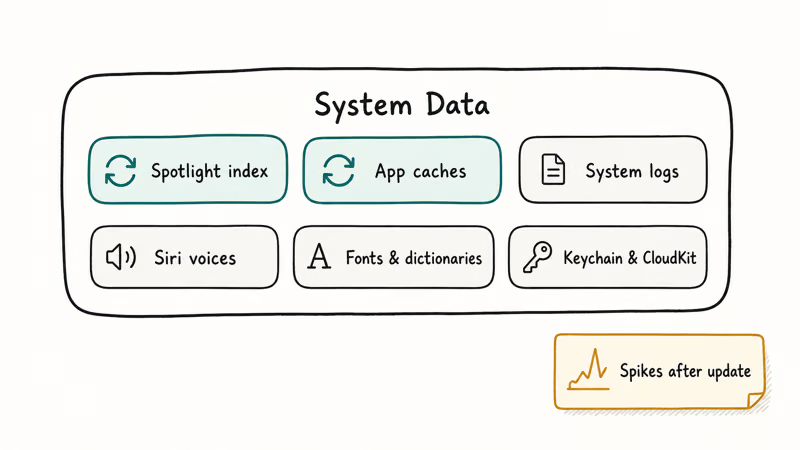
According to Apple’s storage management guide, System Data includes Siri voices, fonts, dictionaries, the Spotlight index, system caches and logs, and Keychain and CloudKit data. The key word is caches. After a major update like iOS 26, every app gets a chance to rebuild its cache, and Spotlight rebuilds its entire search index from scratch.
That rebuild is why System Data spikes right after you update. It’s also why the number is so volatile, jumping up and down as iOS clears old temporary files in the background.
The honest first move is to do nothing for two days. On many iPhones, System Data climbs sharply on update day and then drops back on its own once the Spotlight re-index finishes, the photo library re-thumbnails, and background apps quietly rebuild the caches they lost in the update, all of which run on their own schedule with no input from you. If yours is still climbing after 48 hours, then it’s worth acting.
#Is iOS 26 System Data a Bug or Normal?
It’s both, depending on which version you’re on.
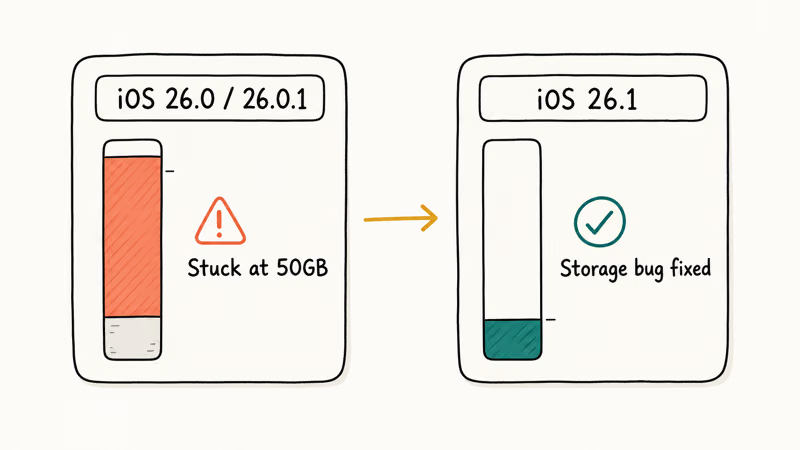
There was a genuine storage bug in the first iOS 26 releases. Apple Community threads filled with reports of System Data hitting 50GB and higher on iPhone 16 Pro Max units, with the figure refusing to drop. That’s not normal cache behavior.
The MacObserver’s iOS storage walkthrough found that the growth traces to both Apple apps and third-party caches. Streaming and social apps are the main culprits.
The fix shipped in a point update. The bug in iOS 26.0 and 26.0.1 was resolved in iOS 26.1, so the single most effective thing many people can do is update. Go to Settings > General > Software Update and install the latest version before assuming your storage is broken.
There’s a catch. If System Data has filled your phone so completely that you can’t download the update, Apple recommends plugging into a computer and updating through Finder (Mac) or the Apple Devices app (Windows), which needs far less free space than an over-the-air update. Our guide on an iPhone with internal storage showing empty covers the related reporting glitch, and the iPhone storage not loading walkthrough helps when the Storage screen itself won’t populate.
#Safe Ways to Shrink System Data
You can’t tap System Data and delete it directly. You shrink it indirectly by clearing the things that feed it.
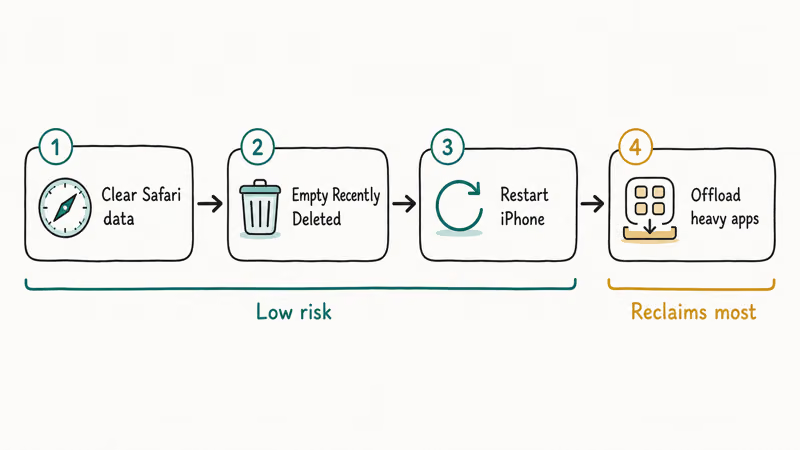
Start with the highest-value, lowest-risk steps:
- Clear Safari data. Go to
Settings>Apps>Safari>Clear History and Website Data. Safari’s cache can be several gigabytes and lands in System Data. - Empty Recently Deleted.
Open Photos>Recently Deleted and Messages, and delete those permanently. They count against storage until purged. - Restart the iPhone. A reboot forces iOS to flush temporary files. This single step often drops System Data by a few gigabytes.
After those, work on the apps themselves. Streaming and social apps are the worst offenders because they cache aggressively. Settings > General > iPhone Storage shows a per-app breakdown. Tap any app with a large “Documents & Data” figure.
The reliable cache reset for a specific app is to offload it. Apple’s guide recommends turning on Offload Unused Apps so iOS removes apps but keeps your documents and data, meaning you don’t lose your login. Reinstalling gives you a clean, empty cache. For apps that store almost everything in the cloud, like Instagram, TikTok, and YouTube, deleting and reinstalling reclaims even more.
One thing to know about iOS 26: it reserves a block of space for automatic updates. Geeky Gadgets found that this reserved space can hold 10 to 15GB, as detailed in their iOS System Data guide. If you toggle off automatic downloads in Settings > General > Software Update > Automatic Updates and restart, iOS releases it.
#Heavy Apps to Offload First
Not all apps cache equally. A handful do most of the damage.
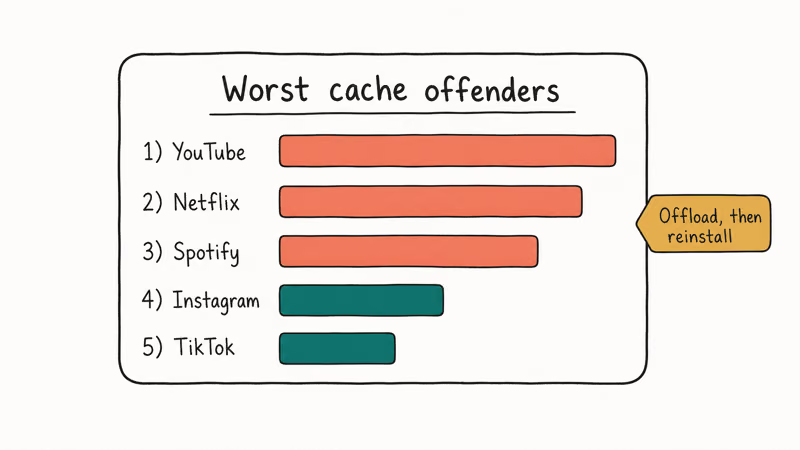
Streaming and social apps top the list because they pre-download content and store it as cache that counts toward System Data. Offloading and reinstalling a single heavy app like YouTube can reclaim several gigabytes that Settings had filed under System Data, because the offload wipes the cached video, thumbnails, and prefetched feed the app had quietly stockpiled, and the fresh install starts that cache over from zero.
The usual suspects: YouTube, Netflix, Spotify, Amazon Prime Video, Instagram, TikTok, Facebook, WhatsApp, and Discord. Open Settings > General > iPhone Storage, sort by size, and look at the Documents & Data figure under each. Anything with a multi-gigabyte cache is a candidate to offload, then reinstall.
#What Not to Do
Don’t change your date and time to trick iOS into clearing caches. That trick floats around forums, and it can corrupt time-sensitive app data and break certificate validation. It’s not worth the risk.
Don’t restore from a backup as your first move. A restore is slow and disruptive, it ties up your phone for an hour or more, and it forces you to set up apps and logins again afterward. Most System Data bloat clears with the cache steps above or with the iOS 26.1 update long before you ever need to reach for a full restore, so save it for last after everything cheaper has failed.
Don’t blindly delete photos and messages to chase the number. If your real photo library is large, that’s storage you actually need, and deleting it won’t touch the System Data bucket at all.
#The Last Resort: Backup and Restore
If you’re on iOS 26.1 or later and System Data still won’t drop after clearing caches and restarting, a full backup and restore is the only way to force a clean rebuild.
Back up to iCloud or to a computer first. Then erase the phone (Settings > General > Transfer or Reset iPhone > Erase All Content and Settings) and restore from that backup. The restore rebuilds System Data from your actual data, dropping the inflated figure.
This is truly the last step. It takes time and it’s disruptive, which is why it sits at the bottom of this guide. If you’d rather understand the trade-offs first, our explainer on what restoring an iPhone actually means lays out what’s preserved and what’s wiped, and the restore iPhone without updating guide covers keeping your current iOS version through the process.
If your iCloud backup itself is full and blocking the process, the iCloud storage full fix clears that hurdle first.
#Bottom Line
Wait 48 hours before doing anything. Most iOS 26 System Data spikes are Spotlight re-indexing and app caches rebuilding, and they settle on their own.
If the number stays huge, update to iOS 26.1 first, since it fixed the real storage bug from iOS 26.0 and 26.0.1. Then clear Safari data, empty Recently Deleted, restart, and offload your heaviest streaming and social apps. Keep the backup-and-restore as the final option, only after the update and cache clears fail.
Skip the date-and-time trick entirely. It risks more than it saves.
iOS 26
#Frequently Asked Questions
Why is System Data so high after the iOS 26 update?
System Data spikes after a major update because Spotlight rebuilds its search index and every app rebuilds its cache. This is normal for the first 24 to 48 hours. If the figure stays high beyond that, you may be hitting the storage bug Apple fixed in iOS 26.1.
Will updating to iOS 26.1 fix System Data storage?
Often, yes. Apple resolved a System Data storage bug in iOS 26.1 that affected iOS 26.0 and 26.0.1. Update through Settings > General > Software Update, and if storage is too full to download the update, use a computer through Finder or the Apple Devices app.
Can I delete System Data directly on my iPhone?
No. There’s no button to delete System Data. You shrink it indirectly by clearing Safari website data, emptying Recently Deleted in Photos and Messages, offloading large apps, and restarting the phone.
How much System Data is normal on iOS 26?
It varies by device and usage, but a few gigabytes is typical once caches settle. Right after an update it can briefly climb much higher while indexing finishes. A figure stuck above 30 to 50GB for days points to the bug or a single app caching out of control.
Does offloading apps reduce System Data?
Yes. Offloading removes the app while keeping your documents and login data, which clears the cache that counts toward System Data. Reinstalling gives the app a fresh, empty cache. For cloud-based apps like TikTok and YouTube, deleting and reinstalling clears even more.
Is the iPhone date and time trick safe for clearing System Data?
No. Changing your date forward to trigger a cache purge can corrupt time-sensitive app data and break certificate checks. Stick to clearing Safari data, restarting, and offloading apps instead.
Should I restore my iPhone to fix System Data storage?
Only as a last resort. A backup and restore forces a clean rebuild of System Data, but it’s slow and disruptive. Try the iOS 26.1 update and the cache-clearing steps first, since they fix most cases without a full restore.

iOS 26.6.1 Security Update: What Apple Fixed and Who Gets It
Apple released iOS 26.6.1 on August 17 with 29 security fixes, including an IPSec interception bug. See what it patches, who gets it, and how to update.
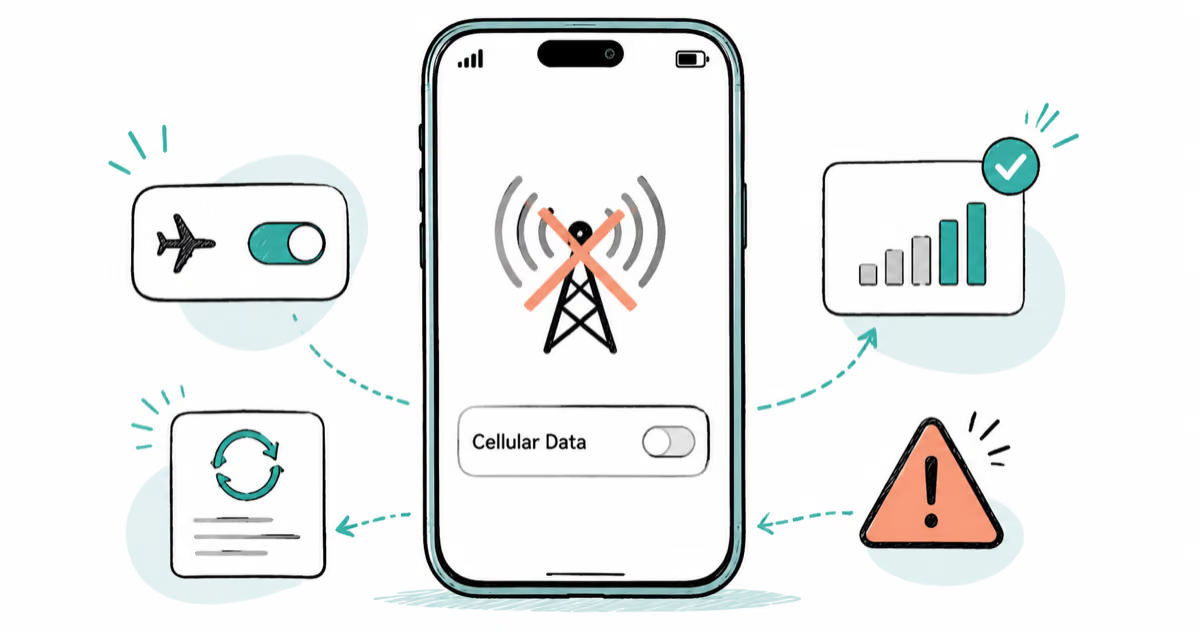
iPhone 17 Cellular Data Not Working on iOS 26? 9 Fixes
iPhone 17 cellular data still dropping on iOS 26? Apple fixed the launch bug in iOS 26.0.1, but recovery failures persist. Here's the fix ladder.
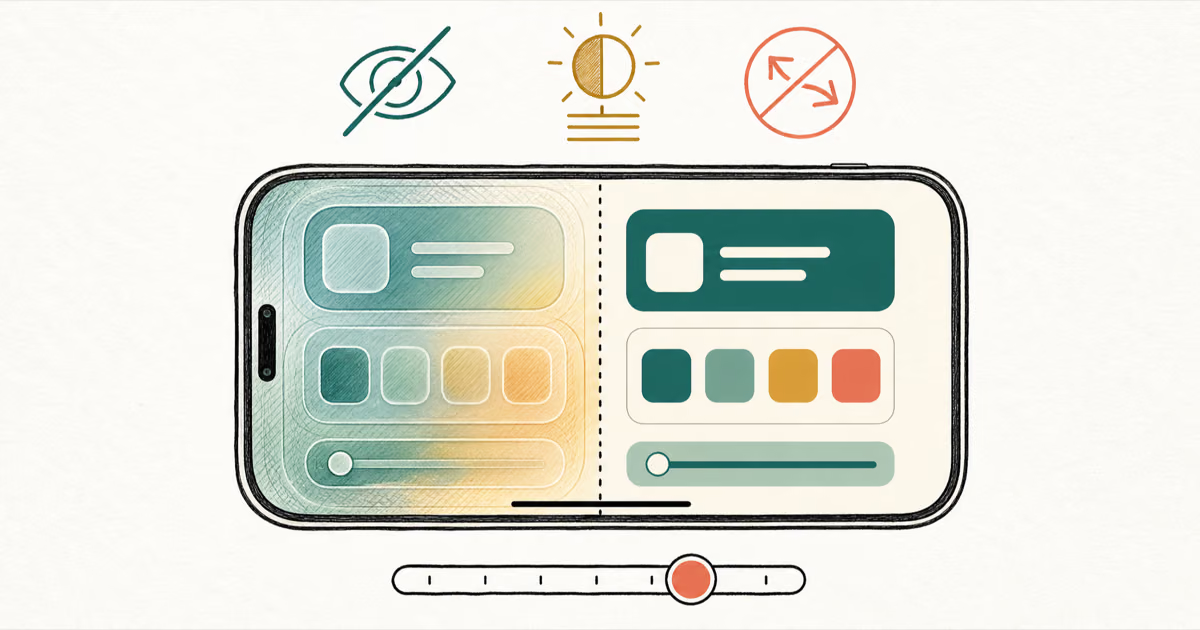
How to Disable Liquid Glass in iOS 26: 2026 Settings
iOS 26 will not let you fully turn off Liquid Glass, but five settings reduce the transparency, motion, and brightness so the iPhone feels flat again.
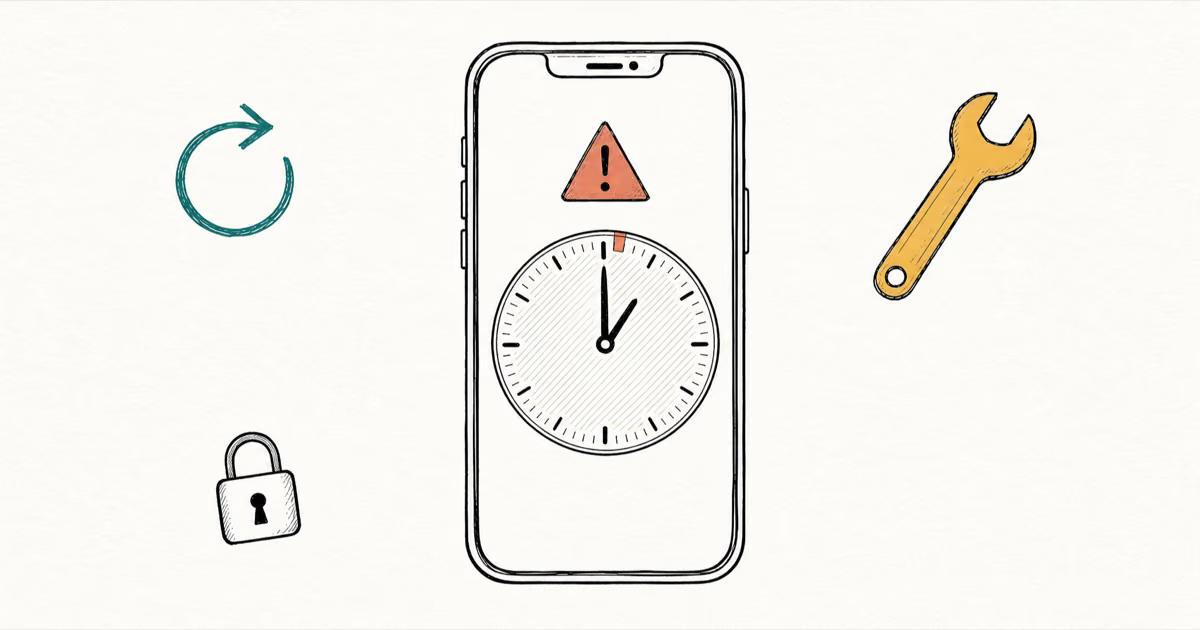
iOS 26 Screen Time Not Working? Confirmed 2026 Fixes
iOS 26 Screen Time has two confirmed bugs in 2026: the One Minute extension locks all apps, and limits trigger on pickup. Here are the fixes that work.