iOS 26 Update Stuck? 8 Fixes That Actually Work in 2026
iOS 26 update stuck on Preparing, Verifying, or Apple logo? Delete the cached file, force restart, or update via Finder. 8 fixes for iPhone 11 to 16.
Quick AnsweriOS 26 update stuck usually means a corrupted download or weak Wi-Fi. Delete the update file in Settings > General > iPhone Storage, force restart, then re-download. If Preparing stalls past 30 minutes, switch to Finder.
Your iPhone’s been stuck on “Preparing Update,” “Verifying Update,” or a frozen Apple logo, and nothing’s moving. This guide walks you through the eight fixes that resolve iOS 26 stuck installs on every iPhone from the 11 through the 16 Pro Max. Every step here applies to your own device or phone, signed in with your own Apple ID.
- Preparing Update normally takes 5 to 15 minutes; consider it stuck only after the 30 minute mark
- Deleting the cached update file from
Settings>General> iPhone Storage clears most stuck installs on the first try - Apple’s support article 102317 states the Apple logo progress bar can pause for up to one hour before you should intervene
- iOS 26 needs extra free storage beyond the download itself, so clear space before retrying a stuck install
- Force restart is your second line of defense, not your first, because it can corrupt the install if triggered during the firmware write phase
#Why Is iOS 26 Update Stuck on My iPhone?
iOS 26 update stuck is almost never a bricked phone. In most cases the install is waiting on one of four things: a corrupted download, a weak Wi-Fi handshake with Apple’s servers, a storage shortfall during staging, or a release day server queue. Each cause maps to a different fix, and matching symptom to cause saves you from running every method blindly.
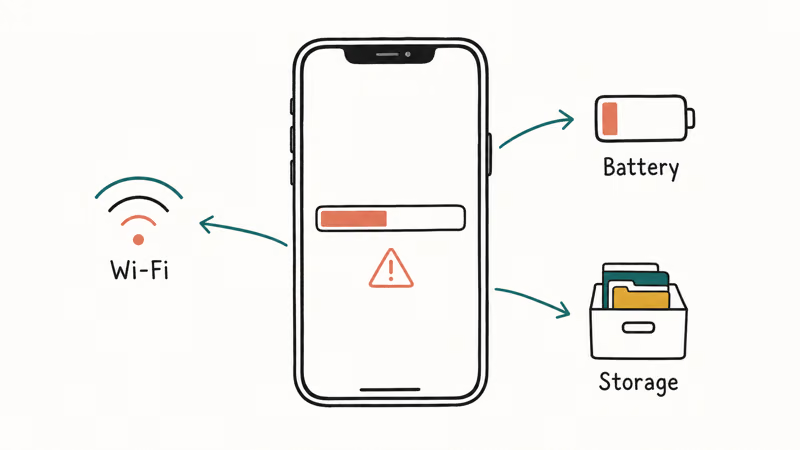
So the first thing to do is check whether the install is truly stuck or just slow.
Most iOS update stalls fall into recognizable phases, so use the screen you’re stuck on to choose the next step.
| Phase | Normal duration | Stuck threshold | Most common cause |
|---|---|---|---|
| Preparing Update | 5 to 15 minutes | 30 minutes | Corrupted download or low storage |
| Verifying Update | 2 to 5 minutes | 15 minutes | Weak Wi-Fi to Apple’s servers |
| Apple logo after install | up to 60 minutes | over 60 minutes | Firmware write in progress |
| Frozen progress bar | continuous movement expected | no change for 20 minutes | Background process hang |
Use the stuck threshold to decide when to stop waiting.
A second pattern matters: server queues.
The first 48 hours after any iOS 26 point release ship, Apple’s servers absorb a wave of update traffic. According to 9to5Mac’s iOS 26 release coverage, iOS 26 launched on September 15, 2025, and that release Tuesday produced the highest Update Requested stall rates of the year. If you’re reading this within a day of a point release going live, server load is the most likely culprit and patience is the simplest fix.
Storage matters too on Apple Intelligence iPhones.
The iPhone 15 Pro and iPhone 16 family stage extra Apple Intelligence assets during install. Keep more free storage than the download size itself, and Apple’s guide for an iPhone that won’t update says to clear space when the install stalls.
#iOS 26.6: Why This Stuck Update Is Worth Fixing
Apple released iOS 26.6 on July 27, 2026, and it’s a security release worth pushing through a stalled install. According to MacRumors’ breakdown of the security content, iOS 26.6 and iPadOS 26.6 patch almost 90 vulnerabilities across the kernel, WebKit, Wi-Fi, and image processing, and none are known to have been actively exploited so far. The update also adds stronger screening against scam messages and rebuilds the Spotlight index in preparation for iOS 27.
Two practical notes for this specific release:
- Expect server queues for the first couple of days after any point release. If you tapped update shortly after July 27 and Preparing Update crawled, that was release-week load, not a broken phone. The stuck thresholds in the table above still apply.
- Don’t skip it because the last stall annoyed you. Once Apple documents the fixed vulnerabilities, they become public knowledge, and phones that haven’t updated are the easier target. Push through with the delete-and-redownload fix or a Finder update below.
Every fix in this guide applies to iOS 26.6 exactly as it does to earlier iOS 26 point releases, and to iOS 26.6.1 from August 17, 2026. That one is security-only, with 29 fixes, so a stalled install is worth pushing through for the same reason. If you want to know which holes you are leaving open while it stalls, we walk through the 26.6.1 advisory in detail.
#iOS 26 Update Stuck on Preparing Update
Preparing Update is the staging step. Your iPhone is verifying the downloaded file, checking the storage math, and writing the firmware image to the install partition. Any one of those substeps can hang.
The cure is almost always to delete the cached file and start the download over. Go to Settings > General > iPhone Storage, scroll down until you see the iOS 26 line item, tap it, then tap Delete Update. Return to Settings > General > Software Update and tap Download and Install again.
Low storage can make Preparing Update fail repeatedly. Free up space, delete the cached update, and retry from a stable network.
If Preparing Update sticks again after a fresh download, the issue is upstream of your phone. Switch to a different Wi-Fi network or temporarily tether to a phone hotspot, then retry. For the full deep dive on this single phase, see the guide to iPhone stuck on Preparing Update, which covers the rare hardware-side causes when storage and network aren’t the problem.
#iOS 26 Update Stuck on Verifying Update
Verifying Update is a handshake with Apple’s servers. Your iPhone is sending a hash of the downloaded build to Apple to confirm it matches the official release. The whole step normally takes two to five minutes, so anything past fifteen is properly stuck.
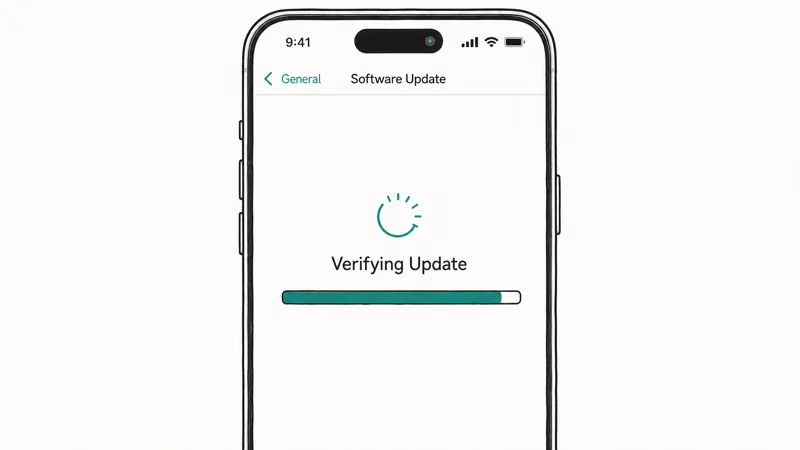
The fix sequence here is shorter than for Preparing Update.
First, leave the iPhone alone for ten more minutes. Apple’s verification servers sometimes throttle during release weeks. If it hasn’t moved after that wait, turn Airplane Mode on for ten seconds and back off, which drops and re-establishes the connection to Apple’s servers without touching the install.
If the handshake still fails, reset network settings. Go to Settings > General > Transfer or Reset iPhone > Reset > Reset Network Settings. This clears saved network state that can interfere with the verification handshake, and you’ll need to re-enter your Wi-Fi password afterward.
The deeper troubleshooting for this phase lives in the companion guide on the iPhone stuck on Verifying Update flow, including the rare cases where a router-level DNS block is the culprit.
#iOS 26 Update Stuck on Apple Logo or Install Screen
After the install screen finishes, your iPhone reboots and shows the Apple logo with a progress bar.
This is the firmware write step, and it’s the one phase where you must be patient. Apple’s support article 102317 states that the progress bar can pause for up to one hour during this stage on slower iPhone models. Force-restarting during the firmware write can corrupt the install.
The decision tree here is narrow.
If the progress bar has moved at all in the last hour, even by a single pixel, keep waiting. If the bar hasn’t moved for over an hour, plug the iPhone into a wall charger with the original Lightning or USB-C cable and wait another fifteen minutes before intervening. The install can draw more power than a low-output USB port can supply.
When the hour-plus threshold is truly crossed, force restart is the next step. The button combination depends on your iPhone model and is documented on Apple’s force restart support page. For any Face ID iPhone, tap Volume Up, tap Volume Down, then hold the Side button until the Apple logo appears.
The iPhone will boot back into iOS 26 most of the time. If it doesn’t, the underlying symptom is closer to a generic iPhone stuck on Apple logo situation, which has its own escalation path.
Boots fine but mobile data died afterward? See the fixes for iPhone 17 cellular problems on iOS 26.
#How Do I Force Quit an iOS 26 Update That Won’t Move?
There’s no official cancel button once an iOS 26 update has reached the Verifying or installing stage. Force restart is the equivalent, and it’s safe in three specific windows: during Preparing Update if it’s hung past 30 minutes, during Verifying Update if it’s hung past 15 minutes, and during the Apple logo progress bar only after the full hour Apple specifies has elapsed.
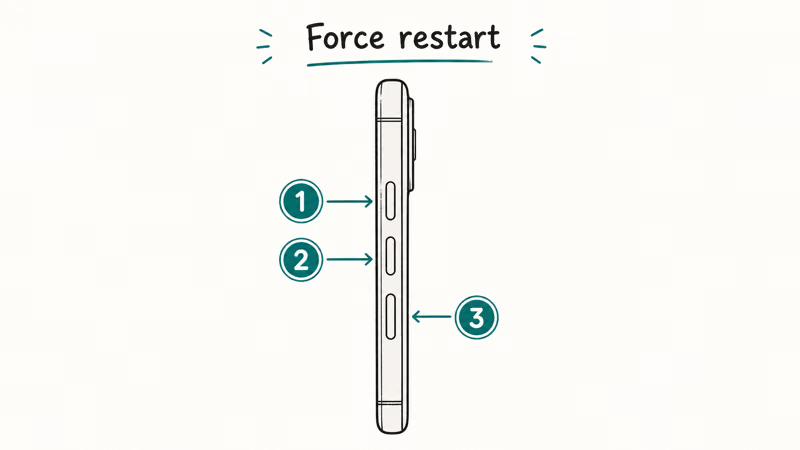
The force restart sequence is the same regardless of which stuck phase you’re in.
- iPhone 8 or later, including every Face ID model and the SE 2nd and 3rd generation: Press and release Volume Up, press and release Volume Down, then hold the Side button until the Apple logo appears, about 10 seconds.
- iPhone 7 and 7 Plus: Hold Volume Down and the Sleep/Wake button together until the Apple logo appears.
- iPhone 6s and the SE 1st generation: Hold the Home button and the Sleep/Wake button together until the Apple logo appears.
Don’t yank the cable or pull the SIM tray mid-install.
Pulling the cable during the firmware write phase can put an iPhone into a recovery loop that requires a Mac to escape. The how to cancel an iPhone update workflow only applies cleanly before you’ve tapped Install Now in the first place. If your screen is fully frozen with no touch response at any point, see the general how to fix a frozen iPhone playbook for the full reset escalation chain.
#When to Update iOS 26 Through Finder Instead
If you’ve tried the delete-cache fix and one force restart, and the over-the-air install still hangs, switch to a computer. Updating iOS 26 through Finder on macOS Catalina or later (or iTunes on Windows and older macOS) sidesteps the over-the-air download queue that backs up on high-traffic release days. The build is still verified with Apple, just through your computer’s connection instead.
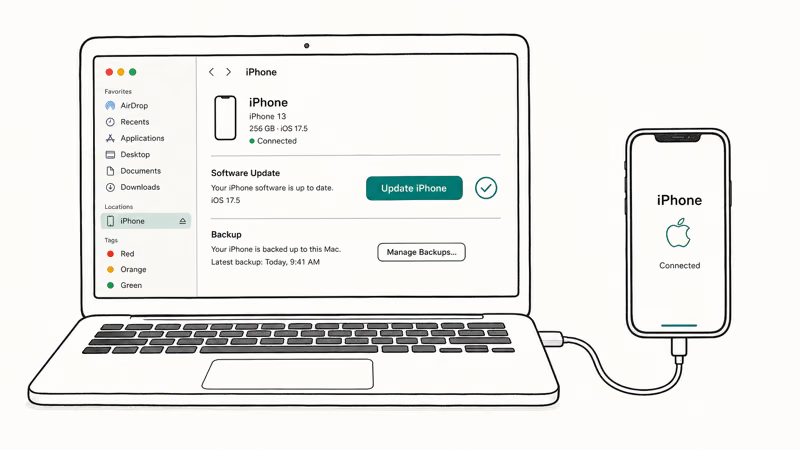
The setup takes about five minutes.
- Connect the iPhone to the Mac with a known-good Lightning or USB-C cable.
- Open Finder and click the iPhone in the sidebar.
- Click Check for Update, then click Update.
Finder will download the full iOS 26 build directly from Apple and stream it to the iPhone over the cable. This avoids the OTA queue entirely and is the right fallback when repeated over-the-air attempts keep stalling.
Two cases where Finder won’t be enough.
If the iPhone is already in recovery mode with the cable-and-laptop icon on screen, you need the dedicated iPhone stuck in recovery mode playbook. If iOS 26 has installed but a critical app like your banking client refuses to launch, the cleaner path is to restore your iPhone without updating to a working state, then sideload iOS 26 through Finder rather than through OTA.
If a fresh download, force restart, and Finder update all fail, AnyFix is another software-repair option to check before booking hardware service.
Some links on this page are affiliate links, which means fone.tips may earn a commission at no extra cost to you.
#Bottom Line
Start with the delete-and-redownload step before anything else. That single fix clears most stuck installs because the cause is usually a corrupted download, not a damaged phone, and it costs you nothing except a few extra minutes of re-downloading the build over Wi-Fi.
If Preparing Update has been frozen for more than 30 minutes after the fresh download, skip straight to a Finder update on a Mac rather than trying additional OTA retries. The cable connection bypasses the over-the-air verification queue that hangs on Apple’s servers during the first 48 hours of any iOS 26.x release.
Force restart is your second-line tool, not your first, because triggering it during the firmware write phase can leave the install in a corrupted state.
Recovery mode is the last resort. You only need it if the Apple logo loops for more than an hour after the install screen finishes.
iOS 26
#Frequently Asked Questions
How long should the iOS 26 update take on an iPhone?
End-to-end install time runs 25 to 40 minutes on a current-generation iPhone with a stable Wi-Fi 6 connection. Older models like the iPhone 11 or 12 can take up to 60 minutes total, with most of that spent on the Apple logo progress bar after install.
Will I lose my data if iOS 26 update is stuck?
Usually not. A stalled over-the-air install leaves your data in place because the update runs in a staging partition that doesn’t touch your apps, photos, or messages. The exception is the escalation path: a recovery-mode Restore or DFU restore erases the iPhone, so confirm you have an iCloud or computer backup before moving to computer-based recovery.
Can I cancel an iOS 26 update that is stuck on Preparing?
There’s no cancel button during Preparing Update, but you can effectively cancel by deleting the cached file. Go to Settings > General > iPhone Storage, tap the iOS 26 entry, then tap Delete Update. The install stops immediately, and you can start it again later on your own schedule.
Why does the Apple logo keep flashing after iOS 26 install?
A flashing Apple logo after install means the firmware write completed but the boot sequence can’t reach the home screen. This points to either a half-installed build that needs to finish through Finder, or a deeper boot loop that requires recovery mode.
Should I plug my iPhone into a charger during the update?
Yes. Apple recommends keeping the iPhone on a charger throughout the install, and Apple’s official force restart and update guidance assumes the device has at least 50 percent battery. The install can draw enough power that an unplugged iPhone may shut down mid-write on older models with degraded batteries. A wall charger is safer than a low-output USB port on a hub.
What is the iOS 26 update size for iPhone 11?
The exact iOS 26 update size varies by build, region, and whether you’re installing a full release or a smaller point update. Check the listed download size in Settings, then leave extra free space before starting.
Does iOS 26 need more storage than older versions?
Yes, on devices that support Apple Intelligence. The iPhone 15 Pro and the iPhone 16 family stage an extra payload during install that adds roughly 1.5 GB to the on-device footprint compared with the same build on an iPhone 13 or 14.
Is it safe to force restart during an iOS 26 update?
It depends on the phase. Force restart is safe during Preparing Update after 30 minutes of no progress, and safe during Verifying Update after 15 minutes of no progress. It isn’t safe during the Apple logo progress bar phase until Apple’s documented one-hour threshold has passed, because the firmware write can corrupt if interrupted. If the install gets corrupted, the recovery path is to downgrade iOS without iTunes using a Mac and DFU mode.

iOS 26.6.1 Security Update: What Apple Fixed and Who Gets It
Apple released iOS 26.6.1 on August 17 with 29 security fixes, including an IPSec interception bug. See what it patches, who gets it, and how to update.
iPhone 17 Cellular Data Not Working on iOS 26? 9 Fixes
iPhone 17 cellular data still dropping on iOS 26? Apple fixed the launch bug in iOS 26.0.1, but recovery failures persist. Here's the fix ladder.

iOS 26 System Data Storage Full: How to Fix It Now
iOS 26 made System Data storage balloon past 50GB for some iPhones. Here is what is safe to clear, what is normal, and the iOS 26.1 storage fix.
How to Disable Liquid Glass in iOS 26: 2026 Settings
iOS 26 will not let you fully turn off Liquid Glass, but five settings reduce the transparency, motion, and brightness so the iPhone feels flat again.