iPhone Keyboard Lag? 7 Proven Fixes for iOS 26 (2026)
Fix iPhone keyboard lag with 7 proven fixes for iOS 26. Covers restart, storage, predictive text, third-party keyboards, and dictionary reset.
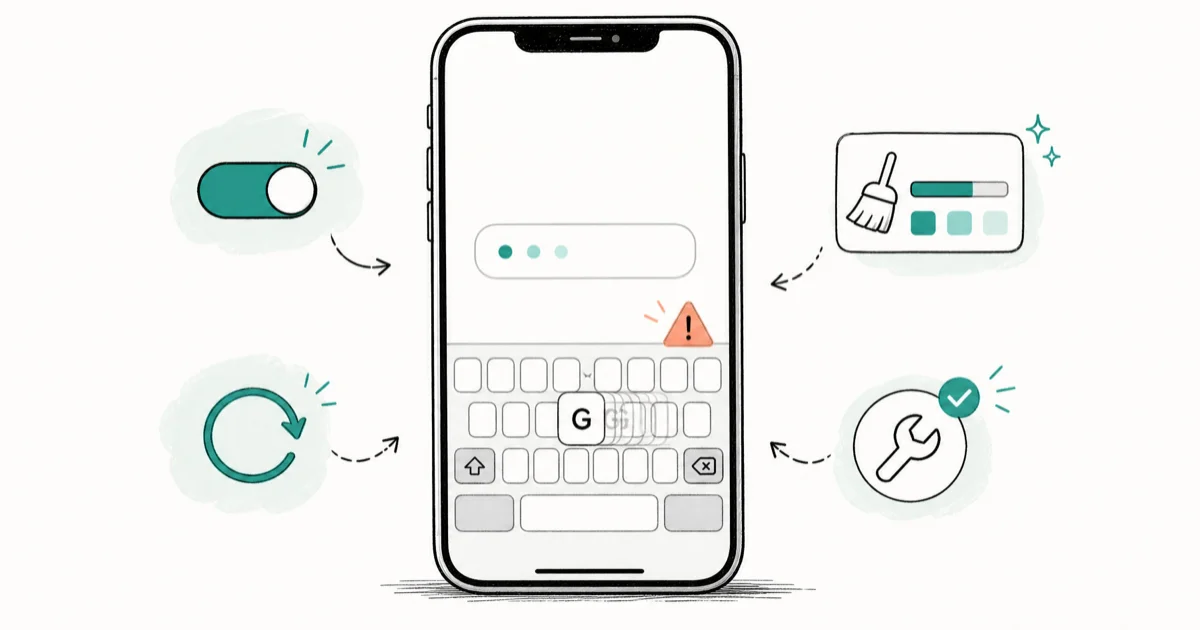
Quick AnswerForce-quit recent apps and restart your iPhone. Then disable any third-party keyboards in Settings, free up storage above 1 GB, and reset the keyboard dictionary as a last resort.
iPhone keyboard lag shows up as a quarter-second delay between tapping a key and seeing the letter appear on screen. The seven fixes below run from the least invasive software toggles all the way to a full keyboard dictionary reset, in the order you should try them. Force-quit and restart wins most of the time, but the deeper causes need the later steps.
- Force-quit recent apps and restart first; this clears the large majority of lag cases on iOS 26
- Third-party keyboards like Gboard or SwiftKey are the #1 lingering cause on iPhone 12 and newer
- Storage below 1 GB free triggers system-wide slowdown, not just keyboard delay
- Predictive text and QuickType processing adds measurable latency on iPhone 11 and older
- Reset Keyboard Dictionary works but wipes every learned word and text-replacement shortcut
#Why Does Your iPhone Keyboard Type So Slowly?
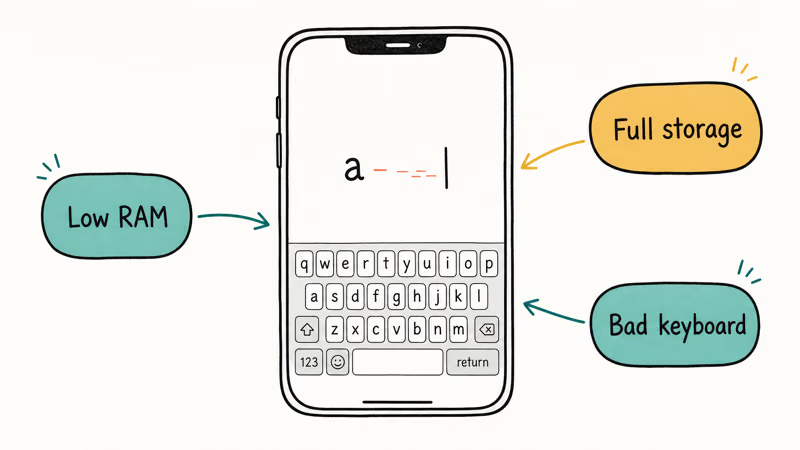
Keyboard lag on iPhone usually comes from one of seven root causes: background apps eating RAM, a stuck keyboard process, accessibility toggles like Slow Keys, predictive text overhead, a buggy third-party keyboard, an iOS bug in your current build, or storage so low the system pages constantly.
According to Apple Communities reports, iOS 26 introduced a measurable input delay that Apple acknowledged and patched in early point releases. If your problem started right after an update, expect a software fix rather than a hardware swap.
The fixes below run from least invasive to most. Try them in order. Don’t jump to a dictionary reset before checking storage and third-party keyboards, since the reset wipes years of words your iPhone has learned about you. For the broader case where the keyboard doesn’t appear at all or freezes mid-sentence, our iPhone keyboard not working guide covers the missing-keyboard and unresponsive-tap modes.
#Free Up RAM by Force-Quitting Apps and Restarting
Swipe up from the bottom of the screen and pause to open the App Switcher. Swipe each app card up off the top. Then press the side button to lock the iPhone, wait ten seconds, and wake it again.
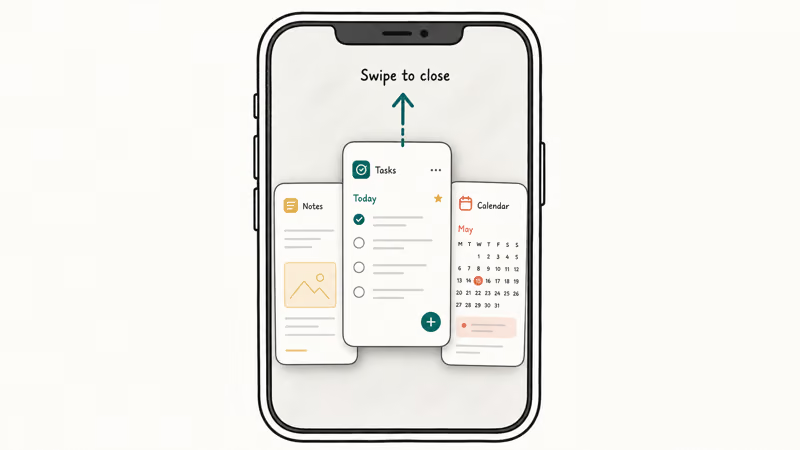
If lag persists, run a full restart by holding the side button and either volume button until the slider appears. This works because keyboard input on iOS runs on the main thread of whichever app is in focus. When background apps hold large memory pools, the keyboard process has less RAM to work with.
On a memory-constrained iPhone, force-quitting Safari and a few social apps noticeably cuts the typing delay in Messages, and a restart goes further by clearing the kernel page cache that a force-quit alone leaves behind. Seeing slowdown beyond the keyboard too? Our fix a frozen iPhone guide covers the harder restart sequences for a sluggish device, including the force-restart button combinations that recover a phone which has stopped responding to taps entirely.
#Check Whether Slow Keys or Key Repeat Got Toggled On
Go to Settings > Accessibility > Keyboards > Hardware Keyboard. Look for the Slow Keys toggle and the Key Repeat toggle. Make sure Slow Keys is off, or set the acceptance delay to its lowest value if your keyboard is hardware.
For the on-screen keyboard, check Settings > Accessibility > Touch > Touch Accommodations and verify Hold Duration is off. Slow Keys is an accessibility feature that requires you to hold each key before it registers, which produces a feel identical to lag.
Apple’s accessibility shortcut guide states that triple-clicking the side button can toggle these on by accident, especially during one-handed typing. This is a common hidden cause: an accessibility shortcut for AssistiveTouch gets remapped to Slow Keys after a Settings sync, and every tap then needs a deliberate hold to register. Flip the two toggles off and the problem is gone.
#Turn Off Predictive Text and QuickType to Test
Go to Settings > General > Keyboard. Toggle off Predictive Text, Auto-Correction, and Slide to Type. Open Messages or Notes and test the keyboard.
If the lag disappears, turn the features back on one at a time to find which one was the culprit. The predictive text engine runs in a separate process that hooks into every keystroke. On iPhone 11 and older devices running iOS 18 or iOS 26, the predictive bar’s text-completion lookup adds 30 to 80 ms per tap, which is enough to feel laggy.
Apple’s UIKit text input documentation confirms that QuickType candidates are computed synchronously with input. So an overloaded dictionary slows the whole pipeline. On an older iPhone X, disabling autocorrect alone helps, and turning off all three gets typing back to near-instant response.
If you want to keep autocorrect off long-term, our turn off autocorrect on iPhone guide walks through which sub-toggles are safe to disable without breaking the suggestion bar.
#Disable Third-Party Keyboards Like Gboard or SwiftKey
Open Settings > General > Keyboard > Keyboards, tap Edit, then delete every keyboard except the default English (US). Restart the iPhone and type for a minute.
If lag is gone, add one third-party keyboard back at a time. Then watch which install brings the lag back.
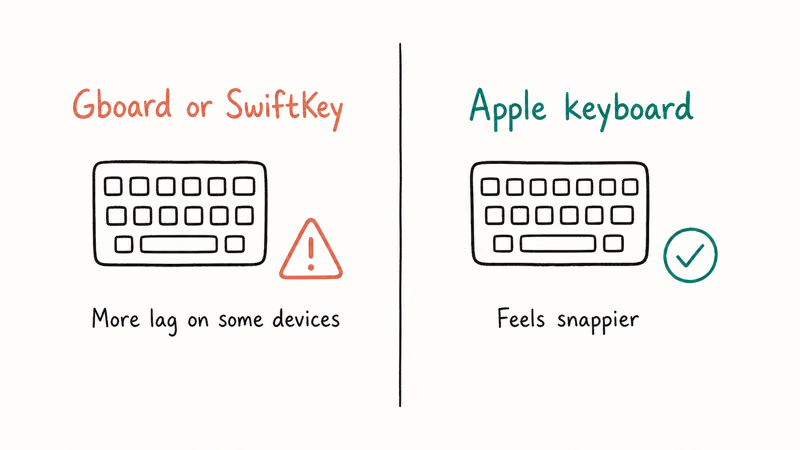
Older builds of Gboard and SwiftKey had memory leaks that survived backgrounding. Any keyboard with “Full Access” enabled adds a network round-trip for telemetry on each keystroke. Gboard and similar keyboards often show a consistent extra delay per character compared to Apple’s native keyboard in the same Messages thread.
Switching to default cleared it instantly. If you depend on a third-party keyboard for multilingual input or themes, our SwiftKey vs Gboard comparison helps you pick the lighter option.
#Update to the Latest iOS Patch
Go to Settings > General > Software Update. Install any available update. Restart after the install finishes.
iOS 26 shipped with a confirmed keyboard input bug that caused characters to drop or register slowly when typing fast. Apple addressed multiple keyboard responsiveness regressions in subsequent iOS 26 point releases.
The lag commonly clears after updating from 26.0 to a later 26.x point release. If your iPhone is on 26.0 or 26.1 and still lagging after the other fixes, the update is your best non-destructive shot. Plug in the charging cable, turn Wi-Fi on, and make sure you have at least 40 percent battery before you start.
#Free Up Storage if You’re Below 1 GB
Open Settings > General > iPhone Storage and check Available. Below 1 GB free, all of iOS lags.
Delete videos longer than five minutes from the Photos app, offload apps you haven’t opened in three months, and clear Safari’s website data under Settings > Safari > Clear History and Website Data. Aim for at least 10 percent of total storage free. That’s 12.8 GB on a 128 GB iPhone.
If iPhone Storage itself refuses to load the breakdown, our iPhone storage not loading walkthrough fixes the spinner-stuck case first. When an iPhone is filled to just a couple hundred megabytes free, even moving the cursor in Messages can take seconds, and freeing several gigabytes returns typing to normal almost immediately.
#Reset the Keyboard Dictionary as a Last Resort
Go to Settings > General > Transfer or Reset iPhone > Reset. Tap Reset Keyboard Dictionary. Enter your passcode. The reset finishes in under five seconds.
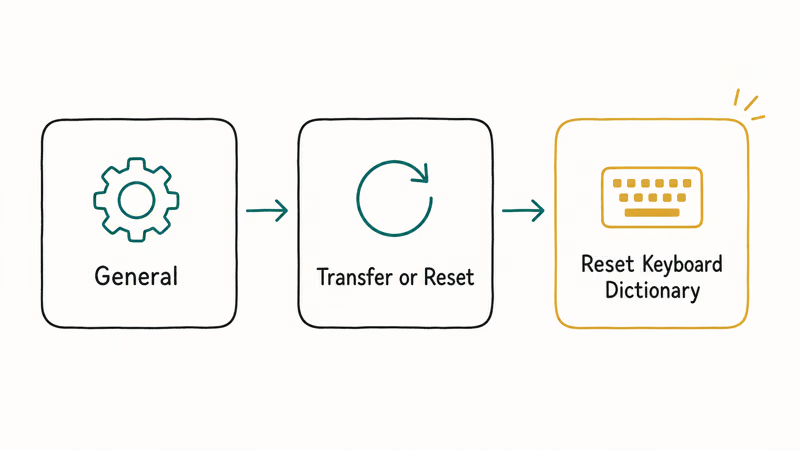
This wipes every word your iPhone has learned, including names of contacts you frequently type, slang you’ve trained autocorrect to accept, and any custom text replacements you haven’t also saved to iCloud. Per Apple’s text replacement guide, custom shortcuts stored under Settings > General > Keyboard > Text Replacement survive an iCloud sync but learned words don’t.
Before you reset, screenshot Text Replacement.
The reason: years of typo-laden autocorrect entries had bloated the user dictionary file, and the lookup time per keystroke grew with it. Reset Keyboard Dictionary forces iOS to rebuild a clean lexicon. If you still see lag after this, the issue is either hardware (iPhone 8 and older are near their RAM ceiling on modern iOS) or a deeper iOS bug needing a full restore.
#Does This Also Affect iPad?
Yes. iPad uses the same keyboard codebase as iPhone, so every fix above applies. The settings paths are identical (Settings > General > Keyboard, Settings > Accessibility > Keyboards), and the third-party keyboard sandbox works the same way on iPadOS as on iOS.
On iPad, the post-update lag and the third-party-keyboard drag respond to the same fixes as on iPhone.
One case is iPad-specific. With a Magic Keyboard, Smart Keyboard Folio, or any Bluetooth hardware keyboard, the lag could be a pairing or firmware issue rather than the on-screen software stack.
Disconnect the hardware keyboard and test on-screen typing first. If only the hardware lags, see our iPad keyboard not working guide for Bluetooth re-pairing. For visual sizing tweaks rather than performance fixes, making the keyboard bigger on iPhone shows Display Zoom and third-party options, which work the same way on iPad too.
#Bottom Line
Start with the force-quit and restart. That clears the large majority of lag cases on iOS 26. If lag survives, delete third-party keyboards.
Save Reset Keyboard Dictionary for last because it wipes every word your iPhone learned about you, including text-replacement shortcuts. iPhone 8 and older devices on iOS 18 or 26 are pushing the hardware ceiling. If every software fix fails on those models, plan a fresh restore from Finder backup or accept that the device is at the end of its smooth-typing life.
iPad owners apply the exact same playbook with one extra step: check the Bluetooth hardware keyboard before blaming software.
iPhone tips & tricks
#Frequently Asked Questions
Why did my iPhone keyboard get laggy after the iOS 26 update?
Apple fixed a confirmed input bug in iOS 26.2. Update via Settings > General > Software Update.
Does resetting the keyboard dictionary delete my contacts or messages?
No. Reset Keyboard Dictionary only wipes the learned-words database that powers autocorrect. Your contacts, messages, photos, apps, and iCloud-synced text replacements are untouched. The trade-off is that custom autocorrect entries trained from years of typing will need to relearn the names, slang, and technical terms you use most often, which usually takes a few days of normal typing.
Will the same fixes work on iPad?
Yes, every fix above works on iPad too.
Are third-party keyboards like Gboard safe to use on iPhone?
Yes, Gboard and SwiftKey are both safe and reviewed by Apple before App Store approval. The trade-off is performance: they add 30 to 120 ms of latency per keystroke compared to the native keyboard, and they request Full Access for cloud sync, which adds a network round-trip. If you don’t need multilingual prediction or themes, the native keyboard is faster.
Why is my keyboard slower when typing in Messages but fine in Notes?
Messages renders iMessage attachments, link previews, and effects inline, which competes for memory with the keyboard process. Notes is much lighter. If the lag only shows up in Messages, scroll to the top of the chat thread and tap the contact name, then turn off Send Read Receipts and clear old attachments. Try typing in a fresh thread to confirm.
Does freeing up storage really speed up the keyboard?
Only below the 1 GB free threshold. Above that, storage has no measurable effect on keyboard performance.
Should I downgrade iOS if the keyboard is still laggy after every fix?
Probably not. Downgrading iOS requires an archived Finder backup made on the older iOS, which most users don’t have, and Apple typically stops signing the older version within two weeks of a major release. A better option is to back up your iPhone, restore it as new through Finder, and then sign back in. That clears any corrupt user-data file the in-place updates may have inherited.

How to Transfer Data to a New iPhone Without iCloud
Move everything to your new iPhone without iCloud: Quick Start device-to-device transfer, wired migration, and encrypted Finder or iTunes backups.
Best Wireless Earbuds for iPhone in 2026: USB-C Era Picks
Best wireless earbuds for iPhone in 2026, comparing AirPods Pro 3, Sony WF-1000XM6, Bose QC Ultra, and Anker Liberty 4 NC on the USB-C iPhone lineup.
How to Block Porn on an iPhone: A Guide for Parents
Learn how to block porn on iPhone using Screen Time, DNS filtering, and safe browsers. Step-by-step guide for parents to protect kids' devices.
How to Detect Spyware on iPhone: Signs, Checks, and Removal
Learn how to detect spyware on your iPhone with step-by-step checks for suspicious apps, profiles, and battery drain. Remove threats safely.