iOS 26 Screen Time Not Working? Confirmed 2026 Fixes
iOS 26 Screen Time has two confirmed bugs in 2026: the One Minute extension locks all apps, and limits trigger on pickup. Here are the fixes that work.
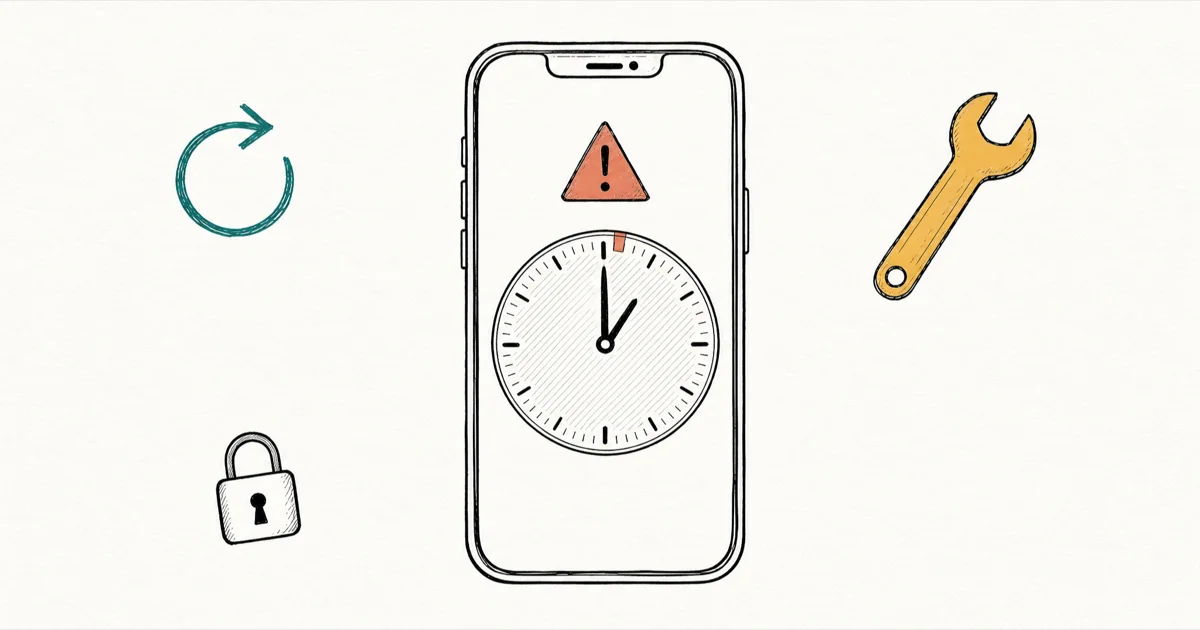
Quick AnsweriOS 26 Screen Time fails because of the One Minute extension bug or pickup-trigger bug. Delete the limit, restart, set a passcode, then recreate it.
Your iOS 26 Screen Time keeps firing the moment you pick up your iPhone, or tapping One More Minute is locking every app. Both are real iOS 26 regressions, and both have a working fix on devices you own.
- The One Minute extension bug and the pickup-trigger bug are the two confirmed iOS 26 Screen Time regressions, each documented in long Apple Community threads
- Setting a Screen Time passcode at
Settings>Screen Time>Change Screen Time Passcodeis a prerequisite for the fix sequence to hold - Delete the broken App Limit, restart the iPhone, then recreate the limit with Block at End of Limit toggled on to clear the corrupted cache
- Apple shipped partial fixes across iOS 26.2, 26.3, and 26.4, so updating first resolves the bug for users still on iOS 26.0 or 26.1
- Manually shifting Date & Time is a temporary workaround and should be reverted within the same session to avoid breaking calendar entries
#Which iOS 26 Screen Time Bugs Are Apple Aware Of?
Two separate iOS 26 Screen Time regressions are documented in Apple-hosted forums. They have different triggers, even though both make limits feel broken.
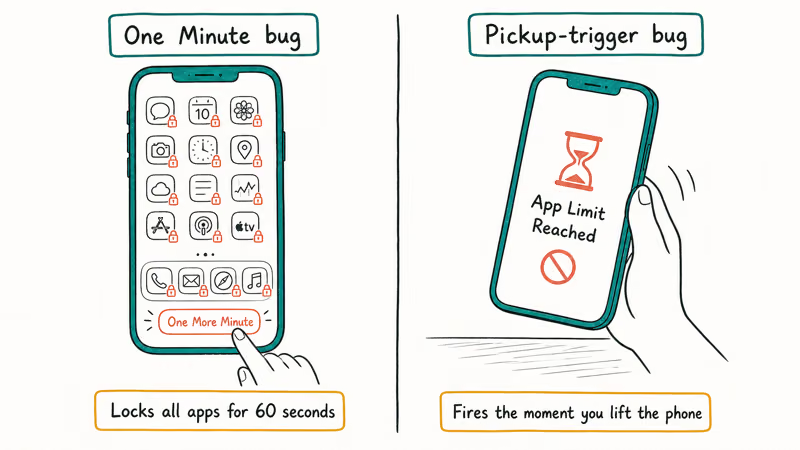
One Minute extension bug. According to MacObserver’s analysis of the One Minute bug, tapping One More Minute during a Downtime window locks every app on the iPhone for 60 seconds, rather than just extending the app you were using. Safari, Mail, and Messages all lock together.
The Apple Community thread on the One Minute extension bug collects multiple confirmations from users running iOS 26.0 through 26.2.
Pickup-trigger bug. The Apple Community thread on premature limit triggering collects reports from parents and adult users whose App Limits fire the second the iPhone is picked up. That trigger looks like a misread of the device-usage timer, and it survives a normal reboot. That’s why the delete-and-recreate sequence below matters.
This bug is specific to Downtime. Tapping One More Minute during a Downtime window locks Safari, Mail, and Messages together for 60 seconds, matching thread 256137598. Turn Downtime off and the lock stops.
This iOS 26 issue cluster overlaps with other regressions in the same release window. If you also hit a stalled software update, the iOS 26 update stuck fix walks through that recovery. Or if your iPhone is sluggish on top of Screen Time misbehaving, the iPhone keyboard lag iOS 26 write-up covers another common 26.x regression.
#The Standard Fix Sequence: Delete and Recreate the Limit
The fix that resolves both confirmed bugs is the same delete-and-recreate cycle. It works because Screen Time caches limit data in a way that survives a restart on its own. Based on iDownloadBlog’s analysis of the iOS 26 issue, the working sequence is 11 taps long, and the order matters. According to iDownloadBlog’s iOS 26 App Limits fix guide, all 11 steps must run in order for the cache to flush cleanly.
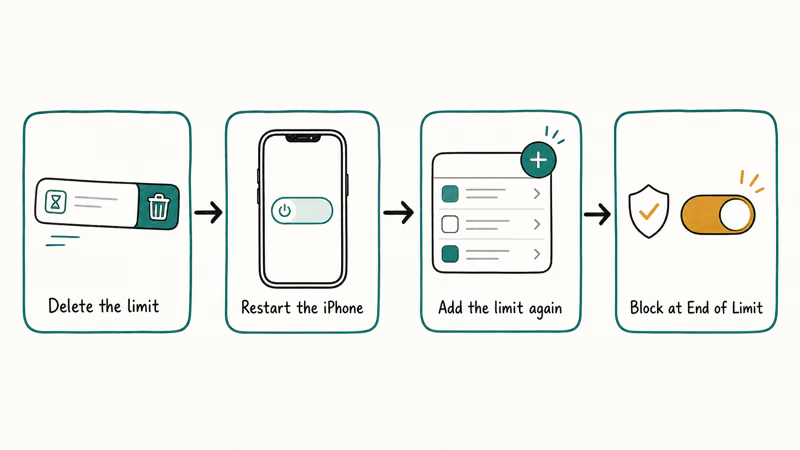
Here’s the sequence:
- Open Settings, tap Screen Time, then tap App Limits
- Find the broken limit, swipe left on it, and tap Delete
- Hold the side button and the volume up or volume down button, then drag the power slider to turn the iPhone off
- Wait 10 seconds, then hold the side button to power back on
- Go back to
Settings>Screen Time>App Limits andtap Add Limit - Pick the app or category, set the time, then tap Next
- Tap the limit you just made and turn on Block at End of Limit
- Confirm with your Screen Time passcode if prompted
- Back out to the App Limits list and verify the new limit appears with the correct time
- Open the limited app and let it run to confirm the timer counts down
- When the limit hits zero, confirm the block screen appears rather than just a notification
Block at End of Limit is the toggle most users skip. With it off, hitting the limit shows a notification and lets the user keep using the app. With it on, the app is blocked until tomorrow or until you grant more time through your Screen Time passcode. Apple’s Screen Time support documentation confirms that a Screen Time passcode is required for any limit to enforce on a managed device.
The delete-and-recreate sequence works most reliably when a Screen Time passcode is already set, across iOS 26.0 through 26.2. Running it without a passcode tends to leave limits in the soft “warn only” state, which is why setting the passcode first is treated as a prerequisite rather than optional security.
If the broken limit was set up through Family Sharing on a child’s iPhone, run the sequence on the parent device. The kid’s iPhone won’t accept a direct delete because the limit is owned by the parent’s Apple ID.
#Why Does the One Minute Extension Lock All Apps?
The One Minute bug is a state-machine fault in how iOS 26 reads the One More Minute tap during a Downtime window. The intended behavior is to extend the current app’s allowed time by 60 seconds. The actual behavior on iOS 26.0 through 26.2 is to start a global 60-second timer that locks every app whose category falls under the active limits.
You can sidestep the bug by not tapping One More Minute during Downtime. If the user needs an extension, end the Downtime window from Settings > Screen Time > Downtime, then reopen the target app. That route’s slower, but it sidesteps the misfire.
Already triggered the lock? Wait the 60 seconds out and it clears on its own. A force restart will also clear the state, but the global lock is short enough that waiting’s faster on most devices.
iOS 26.3 ships a partial fix that stops the One More Minute tap from locking unrelated apps, though it can still occasionally double-count the extension on the originating app. Later point releases are expected to address the remaining edge cases, so installing pending updates first is the simplest fix if you’re still on an early 26.x build.
Managing a child’s iPhone and they keep triggering the lock? Set Downtime in App Limits to allow Always Allowed apps explicitly. Even if One More Minute misfires, the apps you want available stay available.
#Fixing Premature Trigger on Phone Pickup
The pickup-trigger bug is harder to diagnose because the symptom looks like the limit’s simply set wrong. The actual cause is a Screen Time cache that misreads the iPhone’s usage clock and assumes the day’s quota was hit when it wasn’t.
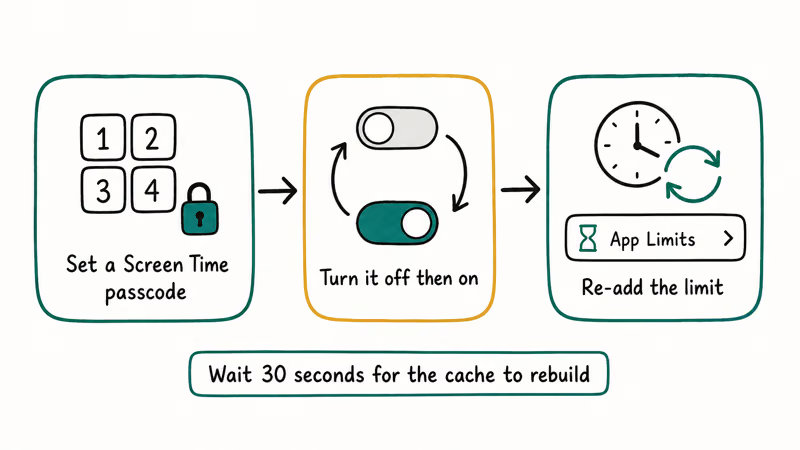
Set the Screen Time passcode first. That step prevents iOS from falling back to a “warn only” mode that masks whether the new limit is firing correctly.
The order below matters.
- Go to
Settings>Screen Time andscroll down to Change Screen Time Passcode - Tap Change Screen Time Passcode, then tap Turn On Screen Time Passcode if you don’t already have one
- Enter a four-digit code you’ll remember and confirm it
- Skip the Apple ID recovery prompt only if this is your own device. For a child’s iPhone, set the parent Apple ID so the forgot Screen Time passcode recovery flow stays available
- Back out to Screen Time, tap Turn Off Screen Time, confirm, then immediately tap Turn On Screen Time
- Wait 30 seconds for the cache to rebuild, then go to App Limits and re-add your limit
That Turn Off / Turn On cycle is the key step. It forces iOS to flush the usage cache without erasing your historical data, which Apple confirms that the toggle preserves across the cycle.
A second fix that helps Family Sharing setups is the Share Across Devices toggle. Go to Settings > Screen Time, scroll to the top where your Apple ID appears, and tap Share Across Devices to turn it off. Wait 1 minute, then turn it back on. The reset clears the per-device cache that’s misreading pickup events.
Still firing after both fixes? Check whether App & Website Activity is on. Go to Settings > Screen Time > App & Website Activity. If it’s off, turn it on.
#When the Bug Is Not the Bug: User Configuration Mistakes
Not every iOS 26 Screen Time failure is one of the two confirmed bugs. Three configuration mistakes account for most “Screen Time not working” reports, and each one mimics a bug without being one.
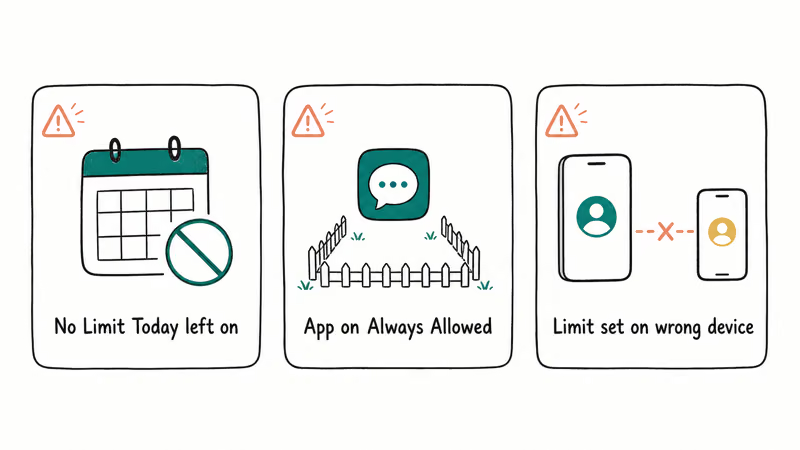
No Limit Today override. Tap the active limit, open Edit List, and turn off any accidental “No Limit Today” toggle.
Always Allowed exemptions. Apps on Settings > Screen Time > Always Allowed are exempt from Downtime and most App Limits. If WhatsApp or Messages keeps working through Downtime, check that list. They’re probably allowed by default. Remove them if you want full blocking.
Parent device vs kid device confusion. Limits set on a parent device under Family Sharing only apply to the kid’s iPhone if the kid’s signed in with their own Apple ID and listed as a child in the parent’s Family Sharing group.
A common mistake is adding limits to the parent’s own device profile and then wondering why the kid’s iPhone ignores them entirely.
Came here because Screen Time keeps blocking sign-out actions on your own iPhone? The sign out blocked by restrictions write-up covers that side effect of Content & Privacy Restrictions. If your goal is blocking a specific app like TikTok, our guide on block TikTok with Screen Time explains the App Limits versus Content & Privacy Restrictions tradeoff.
For privacy-minded readers reviewing their iPhone after an iOS 26 install, the iPhone privacy settings audit flags related toggles that often drift during a major update. New to Screen Time entirely? The Screen Time setup basics cover the original Screen Time concepts that still apply in iOS 26.
#The Date and Time Workaround Has Real Costs
Some Apple Community threads recommend changing the iPhone’s date manually to clear the trigger. It works as a temporary unblock, but it scrambles calendar entries, breaks two-factor codes, and confuses iCloud sync.
Decided to use it anyway? Go to Settings > General > Date & Time, turn Set Automatically off, set the date 1 day forward, then revert within the same session. Treat it as a 10-minute escape hatch, not a permanent fix.
#Bottom Line
Set a Screen Time passcode at Settings > Screen Time > Change Screen Time Passcode. Delete the broken App Limit, restart, then re-add it with Block at End of Limit on. That order resolves both confirmed iOS 26 bugs on builds 26.0 through 26.2 — on iOS 26.4 or later, install pending updates first and don’t downgrade to iOS 25.
iOS 26
#Frequently Asked Questions
Why does Screen Time on iOS 26 trigger when I pick up my phone?
The pickup-trigger bug is a Screen Time cache fault in iOS 26.0 through 26.2, documented in Apple Community thread 256216039. Set a Screen Time passcode, turn Screen Time off and back on at Settings > Screen Time, then recreate the App Limit. Toggling Share Across Devices off then on resolves the Family Sharing variant.
How do I delete a Screen Time limit on iOS 26 without losing other limits?
Open Settings > Screen Time > App Limits, swipe left on just the limit you want to remove, then tap Delete. The other limits stay intact, and your historical usage data is preserved.
Is the One Minute extension bug fixed in iOS 26.3 or 26.4?
Apple shipped a partial fix in iOS 26.3 that stops unrelated apps from locking. Remaining edge cases are expected to clear in later point releases, so installing the newest available update is the most reliable fix if you’re still on an early 26.x build.
Does turning off Screen Time and back on lose my data?
No. The toggle only flushes the active timer state, not your usage data or limit config.
Will resetting all settings fix Screen Time on iOS 26?
Yes, but it’s overkill. The delete-and-recreate sequence targets the Screen Time cache without nuking Wi-Fi passwords and home screen layout.
Why does my kid’s Screen Time work on the parent device but not on their iPhone?
The kid has to be signed in with their own Apple ID and listed as a child in your Family Sharing group. Verify the setup at Settings > Family > [child’s name] > Screen Time on the parent device.
Can I downgrade from iOS 26 to fix Screen Time?
Apple stops signing older iOS builds within weeks of a new release. After that window, downgrading isn’t possible.
Do I need a Screen Time passcode for App Limits to work?
Block at End of Limit needs a Screen Time passcode to enforce hard blocks rather than soft warnings. Without a passcode, hitting the limit shows a notification and the user can keep using the app. Set one at Settings > Screen Time > Change Screen Time Passcode before recreating any broken limits.

iOS 26.6.1 Security Update: What Apple Fixed and Who Gets It
Apple released iOS 26.6.1 on August 17 with 29 security fixes, including an IPSec interception bug. See what it patches, who gets it, and how to update.
iPhone 17 Cellular Data Not Working on iOS 26? 9 Fixes
iPhone 17 cellular data still dropping on iOS 26? Apple fixed the launch bug in iOS 26.0.1, but recovery failures persist. Here's the fix ladder.

iOS 26 System Data Storage Full: How to Fix It Now
iOS 26 made System Data storage balloon past 50GB for some iPhones. Here is what is safe to clear, what is normal, and the iOS 26.1 storage fix.
How to Disable Liquid Glass in iOS 26: 2026 Settings
iOS 26 will not let you fully turn off Liquid Glass, but five settings reduce the transparency, motion, and brightness so the iPhone feels flat again.