How to Use Quick Share: Android, iPhone, and Windows
Learn how to use Quick Share to send files between Android phones, the new iPhone bridge, and Windows PCs, plus fixes for when a device will not show up.
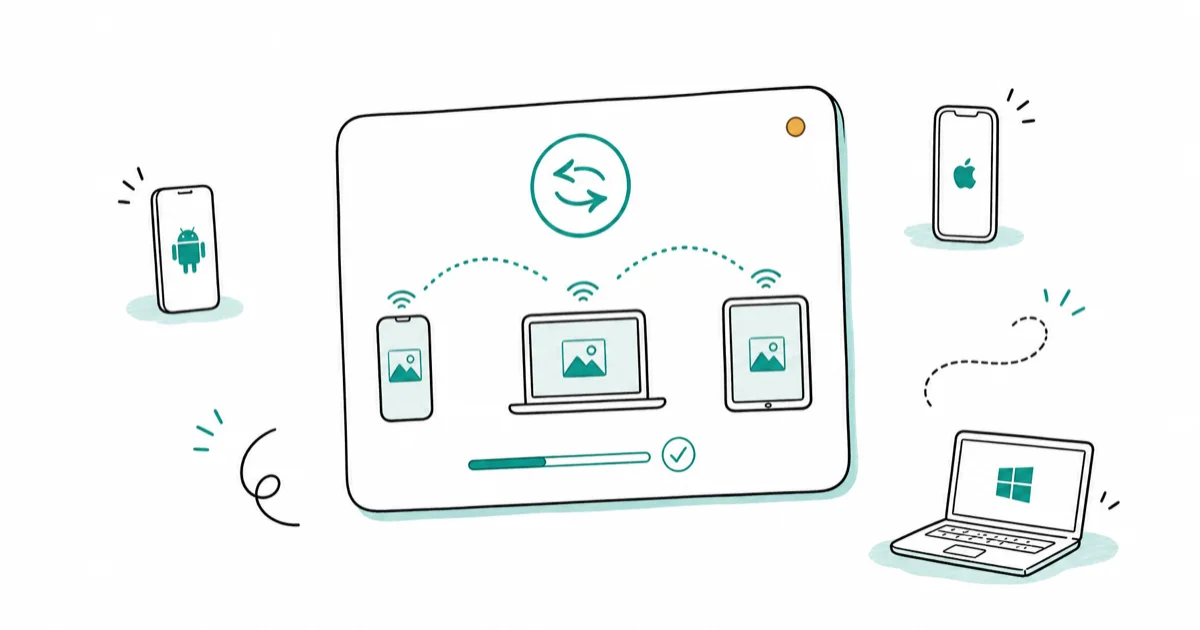
Quick AnswerQuick Share is Android's built-in file sharing. Turn it on from Quick Settings, set visibility to Everyone for 10 Minutes, then tap Share and pick a nearby device.
Quick Share is Android’s answer to AirDrop, and as of May 2026 it reaches iPhones and Windows PCs too. Here’s how to use every lane, plus fixes for a device that won’t appear.
- Quick Share moves files peer-to-peer using Bluetooth to discover devices and Wi-Fi to transfer the data, with no server in the middle
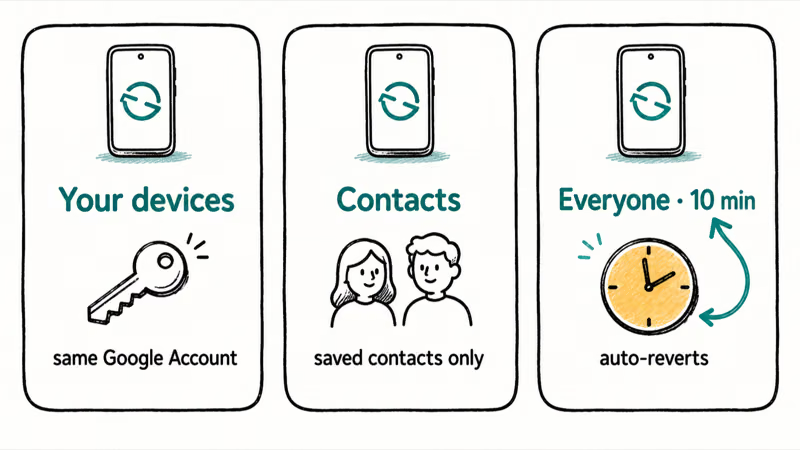
- It offers three visibility levels: Your devices, Contacts, and Everyone for 10 Minutes, which reverts automatically for privacy
- Since May 12, 2026, Quick Share reaches iPhones two ways: AirDrop interop on supported phones, or a QR code that works on every Android
- The Windows Quick Share app needs Windows 10 64-bit or newer, both devices within 16 feet, and the same Wi-Fi network
- When a device won’t appear, the cause is almost always Bluetooth off, visibility set too narrow, or two different Wi-Fi networks
#What Is Quick Share and How Does It Work?
Quick Share is the file-sharing system built into Android. You pick a photo, video, or document, tap Share, and send it to a nearby device in seconds without email, a cable, or a chat app. If you remember the name Nearby Share, that’s the same feature; Google renamed it and merged it with Samsung’s identically named tool into one system in 2024.
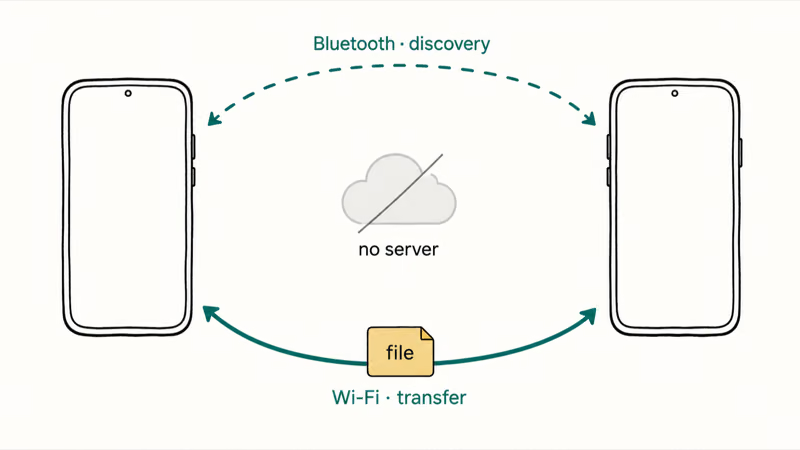
The connection is peer-to-peer, which means your photos don’t pass through a Google server. That’s the same model behind Samsung Wi-Fi Direct, the older protocol Quick Share replaced.
The result is a single sharing layer that now spans Android phones, tablets, Chromebooks, Windows PCs, and, for the first time, iPhones. That cross-platform reach is brand new, and it’s the reason Quick Share is suddenly worth relearning even if you’ve used Nearby Share for years. The rest of this guide covers each of those lanes in turn, starting with the basics and ending with the fixes you’ll reach for when something stops appearing.
#How to Turn On Quick Share and Set Visibility
Quick Share is already installed on Android, so there’s nothing to download. You just need to make sure it’s switched on and that you’re visible to the people you want to receive from.
Pull down the Quick Settings panel and tap the Quick Share tile. If you don’t see the tile, open Settings, search for Quick Share, and open it from there. Confirm Bluetooth is on, because Quick Share can’t discover anything without it.
Next, set your visibility. Tap Who can share with you and pick one of three options:
- Your devices keeps you visible only to gadgets signed in to the same Google Account, even when the screen is off.
- Contacts makes you visible to nearby people in your contacts while your screen is on and unlocked.
- Everyone for 10 Minutes opens you up to any nearby device, then automatically switches back to your previous setting after 10 minutes.
According to Google’s Quick Share help page, that 10-minute auto-revert is deliberate: Google removed the old permanent Everyone mode so a phone can’t sit broadcasting to strangers all day. For one-off receiving from a friend who isn’t in your contacts, Everyone for 10 Minutes is the option you want.
#How to Send and Receive Files Between Android Phones
Sending between two Android phones is the simplest case, and it’s the one most people use daily. Both phones need Bluetooth on, Wi-Fi on, and Quick Share visibility set so the other device can see them.
To send, open the file, tap the Share icon, choose Quick Share, and pick the receiving phone from the list of nearby devices. The other phone gets a pop-up naming who’s sharing and what’s coming, and the owner taps Accept. If both phones are signed in to the same Google Account, the transfer accepts automatically with no prompt.
To receive, the other phone just needs to be discoverable. Open Quick Share, switch it to Receive mode, and wait for the request. Small photo batches usually finish in seconds when both phones are nearby and the Wi-Fi link is clean.
A few things trip people up here. Quick Share only shows devices that are physically close, so a phone in another room may not appear. And if you’re moving an entire phone’s worth of data rather than a few files, a full migration tool is faster, the same way you’d move data to a new Android device with a dedicated transfer app rather than sharing files one at a time.
#How Do You Use Quick Share Between Android and iPhone?
This is the big change. On May 12, 2026, Google announced that Quick Share now bridges to iPhones, closing a gap that made cross-platform sharing painful for years. MacRumors reported that there are 2 methods, and which one you use depends on your Android phone.
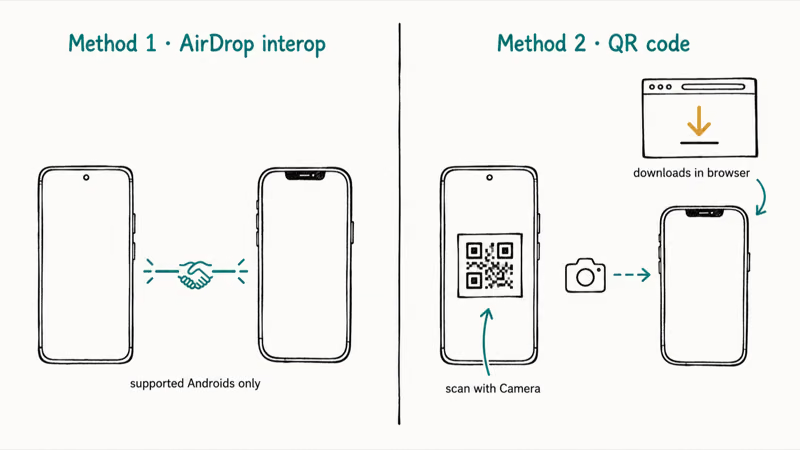
The first method is direct AirDrop interoperability. On supported phones, Quick Share talks straight to Apple’s AirDrop. An iPhone shows up in your Quick Share list, and your Android shows up in the iPhone’s AirDrop sheet, just like two Apple devices would.
MacRumors notes the interop is expanding to Samsung, OPPO, OnePlus, Vivo, Xiaomi, and HONOR devices through 2026, so not every Android has it yet. On a Galaxy phone you also have to turn on Share with Apple devices inside Quick Share settings. According to Android’s Quick Share with iPhone page, the iPhone owner needs to set AirDrop to Everyone for 10 Minutes for the prompt to appear.
The second method is a QR code. This one works on every Android phone right now, regardless of brand. You tap Use QR code, a code appears, and the iPhone owner scans it with the Camera app. A Quick Share webpage opens in their browser, and the file downloads automatically.
With the QR method, the file arrives through the iPhone’s browser without either device installing anything.
If you’re an iPhone owner trying to receive from an Android friend and AirDrop won’t cooperate, the problem is usually on the Apple side, so our AirDrop troubleshooting guide covers those fixes. Only need to swap contact cards rather than files? It’s faster to share contacts between iPhone and Android directly. Google has also said WhatsApp will get Quick Share support in the near future, though that integration hasn’t shipped yet.
#Using Quick Share Between Android and Windows
Quick Share works with Windows through a free desktop app. Download the Quick Share app from Google’s website, or, if you’re on a Samsung Galaxy Book, grab Samsung’s version from the Microsoft Store.
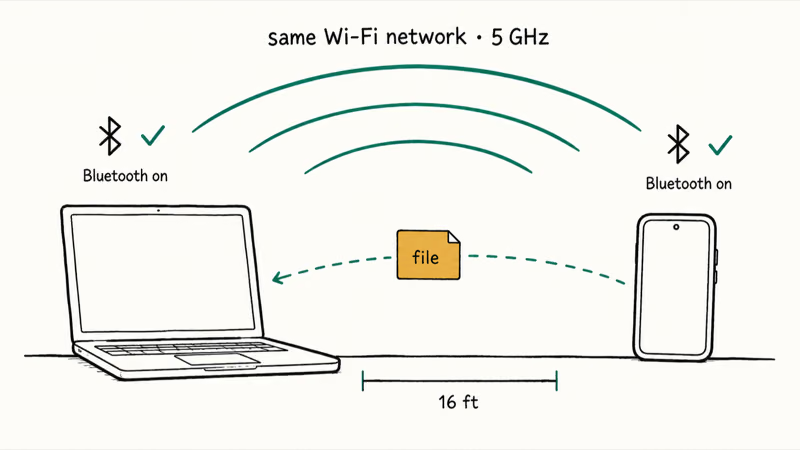
The requirements are specific. Google’s Quick Share for Windows setup page states that you need a 64-bit version of Windows 10 or newer, plus an Android phone running Android 6.0 or later. Both devices also need Bluetooth on and have to sit on the same Wi-Fi or Ethernet network within 16 feet of each other.
To send from the PC, open the app, drag a file into the window or right-click a file and choose Send with Quick Share, pick your phone, confirm the PIN if asked, and click Share. To send from the phone to the PC, share the file as usual and pick the computer from the device list. Files you receive land in a Quick Share folder inside your Downloads.
The laptop appears only when both devices share the same Wi-Fi or Ethernet network. On separate networks, the PC may not show up even when it’s physically close. That one requirement explains most “it can’t see my computer” complaints.
#Quick Share Not Working? Common Fixes
When a device refuses to appear or a transfer stalls, run through these in order. Most failures clear up at step one or two.
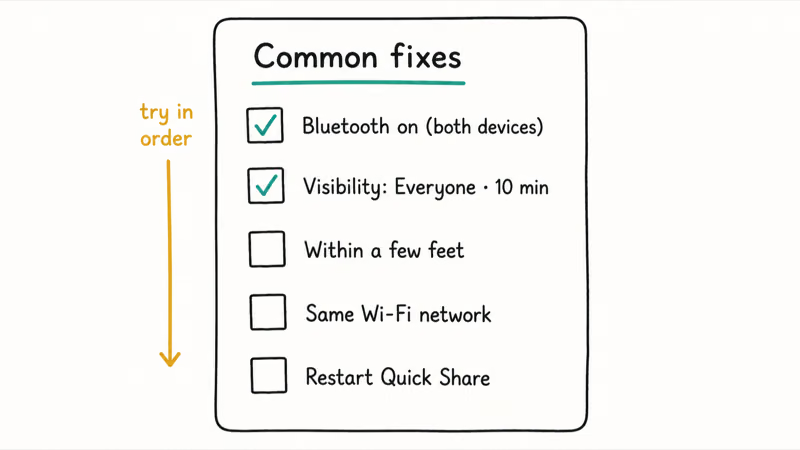
- Turn Bluetooth on for both devices. Quick Share uses Bluetooth for discovery, so a phone with Bluetooth off is invisible. If Bluetooth is on but flaky, our Bluetooth not working on Android guide has deeper fixes.
- Widen your visibility. If the sender can’t see you, set the receiver to Everyone for 10 Minutes and keep the screen unlocked. Contacts-only visibility hides you from anyone not saved in your contacts.
- Get closer. Both phones should be within a few feet, and PC transfers need both devices within 16 feet on the same network.
- Match the Wi-Fi network. This is the top cause of PC failures. Put the phone and computer on the same router, ideally the same band.
- Restart Quick Share. Toggle it off and back on, or restart the phone if the device list stays empty.
If the file you’re trying to send is a photo and you’ve been fighting picture messaging instead, that’s a different transport entirely. When your phone won’t send pictures over text, Quick Share sidesteps the whole MMS size limit by moving the file directly.
For the iPhone bridge specifically, remember that AirDrop interop is still rolling out. If your Android isn’t on the supported list yet, the direct method simply won’t appear, and the QR-code fallback is your reliable path.
#Bottom Line
For Android-to-Android transfers, set visibility to Everyone for 10 Minutes, keep both screens unlocked, and you’ll move a folder of photos in seconds with nothing to install. To reach an iPhone, first check whether your phone is in the AirDrop-interop rollout. If it isn’t there yet, use the QR-code method, which works on every Android today and needs nothing on the iPhone but a camera and a browser.
For Windows, install the Quick Share app from Google and keep both devices on the same Wi-Fi network within 16 feet. When a device won’t appear, the cause is almost always Bluetooth being off, visibility set too narrow, or the two devices being on different Wi-Fi networks, in that order.
#Frequently Asked Questions
Is Quick Share the same as Nearby Share?
Yes. Nearby Share was the original Google name; it became Quick Share after the 2024 merge with Samsung’s tool. A menu that still says Nearby Share is the same thing.
Can I use Quick Share to send files to an iPhone?
Yes, as of May 12, 2026. Supported Android phones can use AirDrop interoperability so the iPhone appears directly in your share list, and every other Android can fall back to a QR code that the iPhone owner scans with the Camera app to download the file in a browser. The QR method needs nothing installed on the iPhone.
Why is Quick Share not finding the other device?
The three usual causes, in order, are Bluetooth being off, visibility set too narrowly, and the two devices sitting on different Wi-Fi networks. Turn Bluetooth on for both, since Quick Share uses it for discovery and a phone with it off is invisible. Set the receiver to Everyone for 10 Minutes and keep the screen unlocked. For PC transfers, the same-network rule is the single most common culprit.
Does Quick Share work without an internet connection?
For Android-to-Android and Android-to-Windows transfers, yes. Quick Share uses Bluetooth and a direct Wi-Fi link between the two devices, so the files never touch the internet. The one exception is the QR-code method for iPhones, which routes through the cloud and does need a connection.
How do I use Quick Share on a Windows PC?
Install the free Quick Share app from Google’s website, then make sure both the PC and your phone have Bluetooth on and sit on the same Wi-Fi network within 16 feet. Drag a file into the app window or right-click and choose Send with Quick Share, pick the device, confirm the PIN if prompted, and click Share. Received files save to a Quick Share folder in Downloads.
Is Quick Share safe to use with strangers nearby?
It’s reasonably safe because every incoming transfer requires you to tap Accept before anything downloads, and the connection is encrypted peer-to-peer. The bigger privacy step is visibility: use Everyone for 10 Minutes only when you’re actively expecting a file, since it auto-reverts after ten minutes, and keep your default on Contacts or Your devices the rest of the time.
What happened to Samsung’s separate Quick Share?
Samsung used to run its own Quick Share alongside Google’s Nearby Share, and the matching names caused real confusion. The two merged in 2024, so Galaxy phones now use one unified system that also reaches Pixels, other brands, PCs, and iPhones.

Pixel 11 vs Pixel 10: What Changed and Who Should Upgrade
Pixel 11 vs Pixel 10: same screen and camera resolution, new Tensor G6, 25W wireless, and Gemini Intelligence. Here is who should actually upgrade.

Verizon Not Receiving Texts? How to Fix It in 9 Steps
Verizon not receiving texts? Fix it in 9 steps: check Message Blocking in My Verizon, reset network settings, deregister iMessage, and call support.

Pixel Battery Drain: What Google's July Fix Really Covers
Google marked the Pixel idle battery drain bug fixed in July, but only some phones got the patch. Here is who is covered, who is not, and what to try.

iPhone Stuck on EDGE? How to Get 5G or LTE Back (2026)
iPhone stuck on EDGE with crawling data? Here's why the E icon appears, which settings force 5G or LTE back, and when the problem is your carrier.