How to Send GIFs on Android: Gboard, Native Apps, and More
Send GIFs on Android using Gboard, Google Messages, or Samsung Messages. Step-by-step guide with fixes for GIFs not loading or sending correctly.
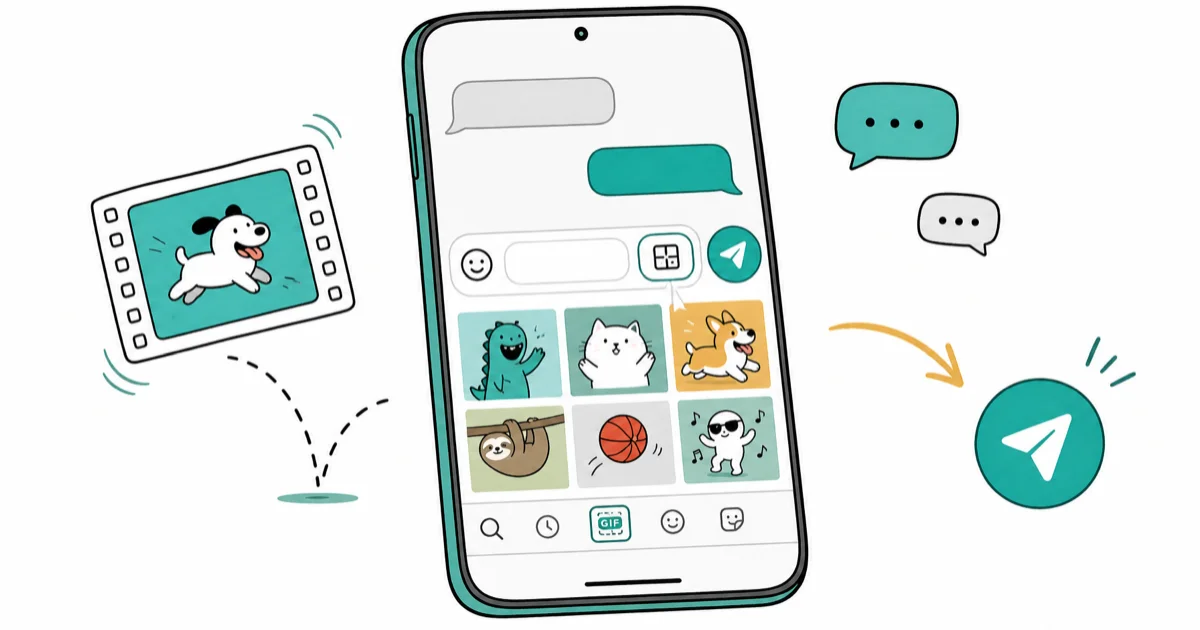
Quick AnswerTo send GIFs on Android, open any messaging app, tap the text field to bring up Gboard, then tap the GIF icon next to the emoji button. Search or browse for a GIF and tap it to send.
Android makes it easy to send GIFs from several places: Gboard (Google’s keyboard), Google Messages, Samsung Messages, and dedicated apps like GIPHY. Gboard is the most universal option because it works inside nearly every messaging app.
- Gboard, Google’s free keyboard app, is the easiest way to send GIFs on Android because its GIF button is built directly into the keyboard and works in nearly every messaging app.
- Google Messages and Samsung Messages both have native GIF search built into the attachment menu, so you don’t need a third-party keyboard for those apps.
- GIF files are typically larger than static images, so sending GIFs over mobile data can consume noticeably more data than regular photo messages.
- Most messaging apps accept GIFs under 10 MB; if a GIF fails to send, search for a smaller version of the same clip or use a compressed alternative.
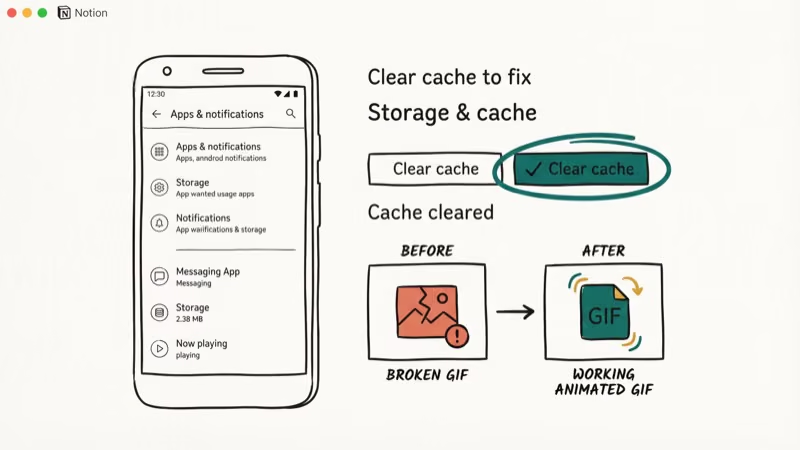
- Clearing the cache of your messaging app (
Settings>Apps> [App] >Storage>Clear Cache) fixes the majority of cases where GIFs load as broken images.
#How to Send GIFs Using Gboard
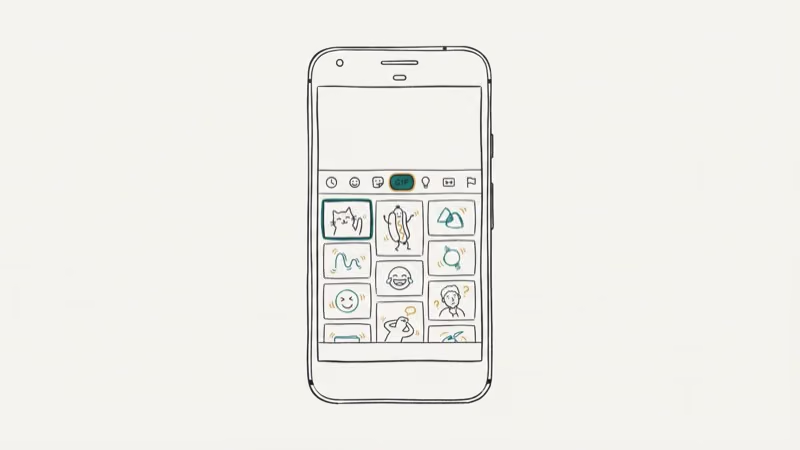
Gboard is the fastest way to access GIFs in any messaging app on Android. Here’s how to use it:
- Open any messaging app (WhatsApp, Telegram, Messages, etc.) and tap the text input field to open your keyboard.
- Tap the emoji/sticker icon on the left of the spacebar (it looks like a smiley face).
- Tap the GIF button at the top of the emoji panel.
- Search for a specific GIF or browse trending options.
- Tap any GIF to insert it directly into your message.
- Tap Send.
GIF search usually returns results quickly when Gboard is installed and set as the default keyboard. If you don’t see a GIF button, go to Settings > System > Languages & input > Default keyboard to set it.
If Gboard isn’t installed, download it from the Google Play Store. Google’s Play Store listing confirms that Gboard has over 5 billion installs, making it the most widely installed keyboard app on Android. It works across all Android messaging apps and supports GIF search in every major chat platform.
#How to Send GIFs in Google Messages
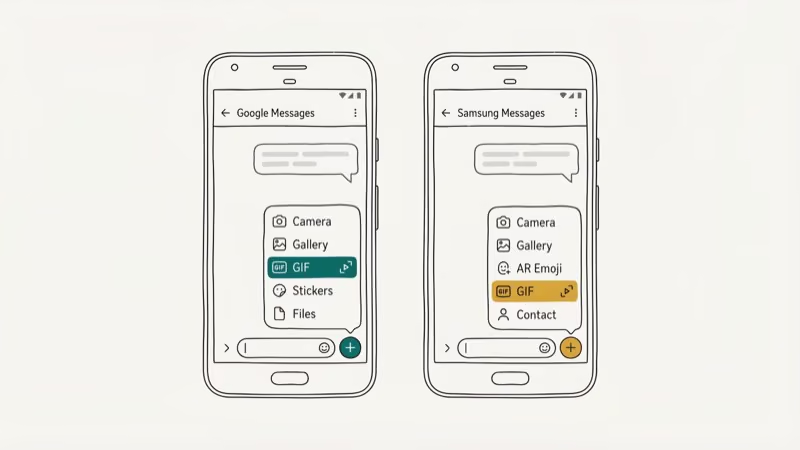
Google Messages has built-in GIF search that doesn’t require Gboard:
- Open Google Messages and start or open a conversation.
- Tap the ”+” (plus) icon next to the text field.
- Select “GIF.”
- Search or browse the GIF library.
- Tap a GIF to add it to your message, then tap Send.
This method requires an RCS-enabled conversation or MMS support. Google’s Messages support page states that RCS supports file transfers up to 100 MB per message, while traditional SMS/MMS caps attachments at 300 KB to 1 MB depending on your carrier. This means RCS allows full-quality GIF sharing, while SMS/MMS will compress or reject most GIFs larger than 1 MB.
#How to Send GIFs in Samsung Messages
Samsung’s messaging app also supports GIFs:
- Open Samsung Messages and tap a conversation.
- Tap the ”+” icon next to the text field.
- Select “GIF” from the menu.
- Browse Samsung’s GIF library or use the search bar.
- Tap a GIF to insert it, then tap Send.
Samsung Messages pulls from its own GIF library powered by GIPHY. According to Samsung’s One UI 6 documentation, this feature is available by default on all Galaxy devices running Android 14 or later.
#Why Isn’t My GIF Sending?
These four issues account for most GIF sending failures on Android:
File too large. Most messaging apps reject GIFs over 10 MB. Search for a shorter or lower-resolution version of the same GIF.
No internet connection. GIFs require data to load and send. Switch from Wi-Fi to mobile data (or vice versa) to test if the connection is the issue.
Outdated messaging app. Update Google Messages or Samsung Messages via the Play Store.
Corrupted app cache. This is a common cause of GIFs appearing as broken images. Clear the cache at Settings > Apps > [Your Messaging App] > Storage > Clear Cache, then restart the app. If you’re having broader connectivity issues, check our Android Bluetooth not working guide for related wireless troubleshooting steps.
#Is It Safe to Use GIPHY for GIFs on Android?
GIPHY is a legitimate third-party GIF platform. GIPHY’s press page reports that the service delivers over 10 billion pieces of content daily to more than 1 billion people. The Android app is free and integrates with most messaging apps:
- Install the GIPHY app from the Google Play Store.
- Search or browse GIFs within the app.
- Tap Share, then choose your messaging app.
- The GIF is inserted into your message.
GIPHY’s library is significantly larger than Gboard’s built-in search, making it better for finding niche or specific GIFs. The app is safe but does collect analytics data per their privacy policy.
#How to Create Your Own GIFs on Android
Several Android devices have a built-in GIF creation mode in their camera apps:
- Open your Camera app.
- Swipe to find a “GIF,” “Motion,” or “Animation” mode.
- Record a short clip (typically 1 to 3 seconds).
- Save and send the GIF from your Gallery.
For more advanced creation, apps like GIF Maker and GIPHY let you create GIFs from existing videos or burst photos. You can also turn any screen recording into a GIF using these apps. If you want to send large media files instead, see our guide on how to send large videos on WhatsApp for attachment size limits across different apps.
#Bottom Line
Use Gboard for the most universal GIF experience. It works in every major messaging app. Google Messages and Samsung Messages both have native GIF buttons if you prefer not to use Gboard. If GIFs aren’t sending, clear the app cache first.
For Snapchat users, see how to send a picture as a snap for a similar media-sharing workflow. If Samsung Messages crashes when sending GIFs, our guide on fixing the Samsung keyboard stopped issue has relevant troubleshooting steps.
#Frequently Asked Questions
Can I send GIFs in all messaging apps on Android?
Most modern messaging apps support GIFs. Some older or specialized apps may not. WhatsApp, Telegram, Google Messages, Samsung Messages, and Discord all support GIF sending natively.
Do GIFs use more mobile data than regular images?
Yes. GIFs are animated files and significantly larger than static images. A typical GIF ranges from 1 to 8 MB. On a 4G LTE connection, that’s fast to send, but it adds up if you send many GIFs over mobile data.
Can I save GIFs to my Android device?
Yes. Long-press a GIF in Gboard or a messaging app to save it to your gallery. Some apps have a dedicated save button.
Are there size limits for sending GIFs?
Most apps accept GIFs under 10 MB. WhatsApp has a 16 MB media limit. Google Messages over RCS supports larger files than SMS/MMS.
Can I edit GIFs on Android?
Yes. Apps like GIF Maker on the Play Store let you trim, resize, and add text to existing GIFs. For simple edits, GIPHY’s app has basic editing tools built in.
What if GIFs appear as static images after sending?
This usually means the receiving app didn’t support animated playback. The GIF was likely converted to a still image during compression. Try sending via RCS instead of SMS, or use a sharing link from GIPHY rather than attaching the file.

Pixel 11 vs Pixel 10: What Changed and Who Should Upgrade
Pixel 11 vs Pixel 10: same screen and camera resolution, new Tensor G6, 25W wireless, and Gemini Intelligence. Here is who should actually upgrade.

Verizon Not Receiving Texts? How to Fix It in 9 Steps
Verizon not receiving texts? Fix it in 9 steps: check Message Blocking in My Verizon, reset network settings, deregister iMessage, and call support.

Pixel Battery Drain: What Google's July Fix Really Covers
Google marked the Pixel idle battery drain bug fixed in July, but only some phones got the patch. Here is who is covered, who is not, and what to try.

iPhone Stuck on EDGE? How to Get 5G or LTE Back (2026)
iPhone stuck on EDGE with crawling data? Here's why the E icon appears, which settings force 5G or LTE back, and when the problem is your carrier.