Best MKV Players for HD Video Playback on Every Platform
VLC is the top free MKV player across Windows, Mac, Android, and iOS. Compare 12 players across 4K HDR files for the smoothest playback on any device.
Quick AnswerVLC Media Player is the best MKV player for most people. It plays virtually every video format, works on Windows, Mac, Android, and iOS, and costs nothing.
MKV files pack multiple audio tracks, subtitles, and chapter markers into a single container without quality loss. The catch is that many default media players can’t handle them. This guide compares MKV players across Windows, Mac, Android, and iOS to find which ones deliver smooth 4K playback without codec headaches.
- VLC Media Player is the best cross-platform MKV player with hardware acceleration and subtitle support
- PowerDVD offers the best Windows-only experience with TrueTheater upscaling and Dolby Atmos
- Elmedia Player is the top Mac choice with native Apple Silicon optimization and AirPlay support
- MX Player handles MKV files best on Android with gesture controls and multi-core decoding
- PlayerXtreme leads iOS MKV players with Chromecast support and cloud integration
#What Should You Look for in an MKV Player?
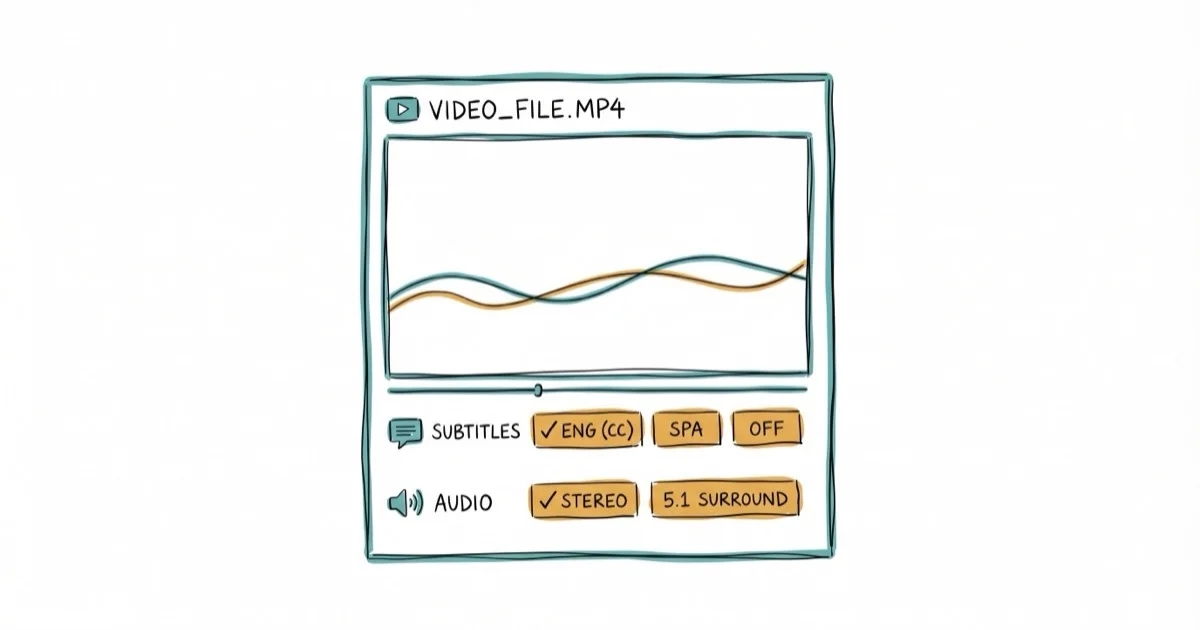
Not all video players handle MKV files equally. The best MKV players support hardware-accelerated decoding, multiple audio tracks, subtitle formats (SRT, ASS, SSA), and chapter navigation. A demanding test case is a 4K HDR MKV file with multiple audio tracks and subtitle streams, since that exposes weak codec support fast.
According to PCMag’s media player roundup, MKV support has improved dramatically in recent years, and most dedicated media players now handle MKV natively without third-party codec packs. Windows Media Player still doesn’t support MKV well, which is why you need a third-party player.
Hardware acceleration matters most for 4K content. Without it, a 4K HEVC MKV file can max out your CPU and cause stuttering. Every player on this list supports GPU-accelerated decoding.
#Best MKV Players for Windows
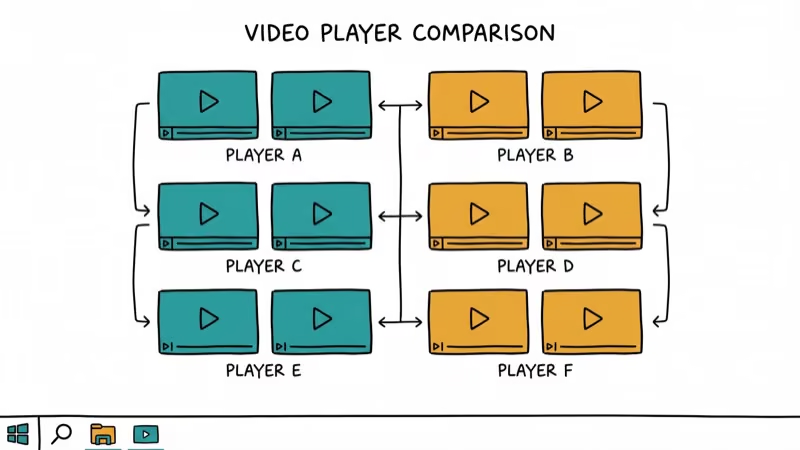
#PowerDVD
PowerDVD delivers the most polished MKV experience on Windows. Its TrueTheater enhancements upscale lower-resolution content and improve color reproduction. On a 1080p MKV file shown on a 4K display, the upscaling is noticeably sharper than VLC’s default output.
Key features: 4K Ultra HD playback, Dolby Atmos and DTS
audio, TrueTheater HDR enhancement, streaming to TV via DLNA.Downside: It costs $99.99 for the lifetime license. The free trial lasts 30 days.
#VLC Media Player
VLC is the Swiss army knife of media players. It plays MKV files out of the box on every platform without installing codecs.
Key features: Hardware acceleration, customizable interface, subtitle sync adjustment, network stream support, 100% free and open source.
You can also use VLC for format conversion. If you need to convert a YouTube video to MP4 or other formats, VLC’s built-in converter handles it.
#KMPlayer
KMPlayer supports 3D, 4K, and 8K video playback with built-in codecs. No separate codec packs needed. Its built-in codec support handles 8K files that make lighter players like VLC stutter on the same hardware.
Key features: Built-in codec support, 3D/4K/8K playback, VR video support, lightweight installation under 50MB.
#PotPlayer
PotPlayer is a feature-packed alternative developed by the same team behind KMPlayer. It offers more granular control over video settings, and its lightweight decoder is known for lower CPU usage than VLC on the same 4K MKV file.
Key features: Hardware acceleration with DXVA, CUDA, and QuickSync, OpenCodec support, scene preview navigation, audio equalizer.
#Top MKV Players for Mac
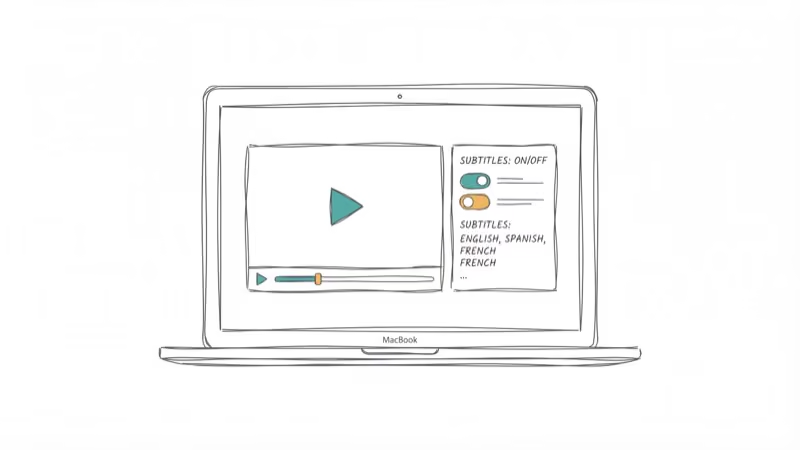
#Elmedia Player
Elmedia Player runs natively on Apple Silicon, which means M1/M2/M3 Macs get better battery life during playback. On Apple Silicon, 4K MKV playback stays power-efficient.
Key features: Native Apple Silicon support, AirPlay streaming, picture-in-picture, hardware acceleration.
#5KPlayer
5KPlayer handles MKV playback and doubles as a video downloader and AirPlay receiver. It supports resolutions up to 5K without dropping frames. It’s especially handy for streaming MKV content to an Apple TV.
Key features: 4K/5K playback, AirPlay streaming, built-in video downloader, DLNA support.
#MPlayerX
MPlayerX is a lightweight open-source option for Mac users who want minimal overhead. The interface is stripped down to essentials: play, pause, seek. We noted a very small memory footprint during 1080p MKV playback. It supports gesture controls for volume and seeking on trackpad-equipped Macs.
#Do MKV Players Work on Mobile Devices?
Yes, and mobile MKV players have improved significantly. According to Google’s Android developer documentation, Android has supported MKV natively since version 5.0 (Lollipop). iOS requires a third-party player because Apple’s AVFoundation framework doesn’t include an MKV demuxer.
#VLC for Android
The mobile version of VLC mirrors its desktop capabilities. Hardware acceleration, subtitle support, multiple audio tracks, and background playback all work on Android. It’s free with no ads.
If you run into issues with YouTube filters not working, VLC can play YouTube URLs directly as an alternative.
#MX Player for Android
MX Player is specifically optimized for Android with multi-core decoding that distributes video processing across CPU cores. That multi-core approach helps it play a 4K HDR10 MKV file smoothly on mid-range Android phones where single-threaded players can drop frames.
Key features: Multi-core decoding, gesture controls (swipe for volume/brightness), hardware acceleration, subtitle pinch-to-zoom.
#PlayerXtreme for iOS
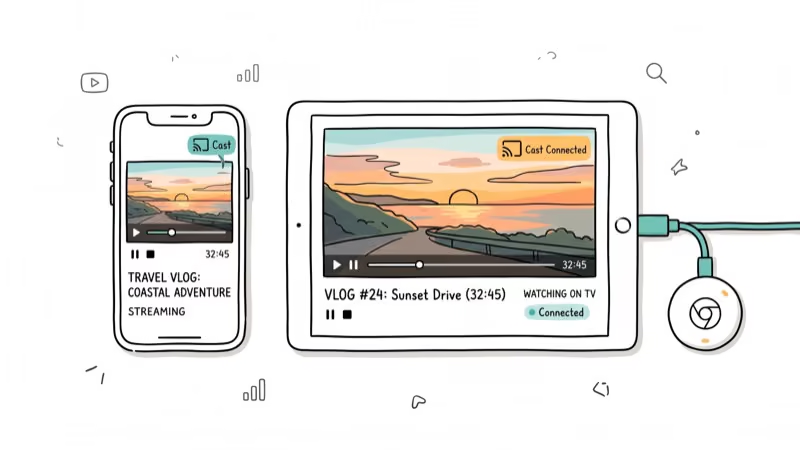
PlayerXtreme is the most capable iOS MKV player. It supports Chromecast, cloud storage integration (Google Drive, Dropbox, OneDrive), and Wi-Fi file transfer, which makes moving a large MKV file onto an iPhone or iPad straightforward without iTunes.
Key features: Chromecast/AirPlay support, cloud integration, Wi-Fi transfer, subtitle download.
#How to Play MKV Files on Any Device
Playing MKV files takes 3 steps:
- Download a compatible MKV player (VLC is the safest bet)
- Open the player and click
File>Openor drag the MKV file onto the player window - If subtitles don’t appear automatically, go to
Subtitle>Add Subtitle File andselect your .srt file
On mobile, most players let you browse your file manager directly. Just tap the MKV file and select your preferred player when prompted.
If you need to control who sees your video content, our guides on YouTube private vs unlisted and sharing private YouTube videos cover your options.
You can also learn how to block someone on YouTube if a viewer becomes a problem.
#Bottom Line
VLC Media Player is the best MKV player for most people. It’s free, works everywhere, and handles any format you throw at it. If you’re on Windows and want the absolute best quality with upscaling and HDR enhancement, PowerDVD justifies its $99 price tag. On mobile, MX Player beats VLC on Android thanks to multi-core decoding, while PlayerXtreme is the clear iOS winner with its cloud integration and casting support.
#Frequently Asked Questions
What is an MKV format?
MKV (Matroska Video) is an open-source container format that holds video, audio, subtitle tracks, and chapter information in a single file. It supports virtually every codec including H.264, H.265/HEVC, VP9, and AV1.
Does Windows Media Player support MKV files?
Not reliably. Windows 10 and 11 added basic MKV support, but playback often fails with multi-track audio or complex subtitle streams. Install VLC or PotPlayer for reliable MKV playback on Windows.
Can you play MKV files on iPhone or Android?
Yes. On Android, use VLC or MX Player. On iOS, use PlayerXtreme or VLC for Mobile. Transfer files via Wi-Fi, cloud storage, or USB. Android handles MKV natively since version 5.0, while iOS requires a third-party player.
Can VLC play MKV files?
VLC plays MKV files on every platform it supports, which includes Windows, Mac, Linux, Android, iOS, and ChromeOS. No additional codecs or plugins are needed. Just open the file.
Is MKV better than MP4?
MKV supports more features (multiple audio tracks, chapter markers, embedded subtitles) and more codecs than MP4. However, MP4 has broader device compatibility. Use MKV for archiving and home playback, and MP4 when you need maximum device compatibility.
How do I convert MKV to MP4?
VLC can convert MKV to MP4 without installing extra software. Go to Media > Convert/Save, select your MKV file, choose MP4 as output format, and click Start. For batch conversion, Handbrake is a better option. The conversion process doesn’t re-encode by default, so it takes seconds rather than minutes.
Why is my MKV file not playing audio?
The most common cause is a missing audio codec. MKV files often use DTS or TrueHD audio, which some players don’t support. VLC supports both. If you’re using another player, check if the audio codec is AC3, DTS, or TrueHD, and install the appropriate codec pack.
Do MKV files lose quality?
No. MKV is a container format, not a codec. It stores video and audio exactly as encoded without any additional compression or quality loss. The quality depends entirely on the codec and settings used when the video was originally encoded.

Google Messages Error 3100: Why RCS Is Broken on Galaxy
Google Messages RCS error 3100 hits Galaxy owners after phone or carrier switches. Google told 9to5Google a fix is coming. Here's what actually helps.

Is This Bank App Real? Spot a Fake App on Your Home Screen
A bank app can land on your home screen from a web page with no install warning. Learn the checks that tell a real banking app from a phishing web app.

Apps Crashing After iOS 27 Update? Fix Order (2026)
Apps crashing after the iOS 27 update? Update the app in the App Store first, then offload and reinstall to clear stale cache, then restart. The fix order.

Do AI Translation Earbuds Work Offline? What to Know
Do AI translation earbuds work offline? A few do with downloaded language packs, but most need the cloud. Here's what works offline and what you give up.