How to Extract Subtitles from MKV Files (3 Methods)
Extract subtitles from MKV files using MKVToolNix, VLC, or Subtitle Edit. Step-by-step guide for Windows and Mac. Works with SRT, ASS, and PGS formats.
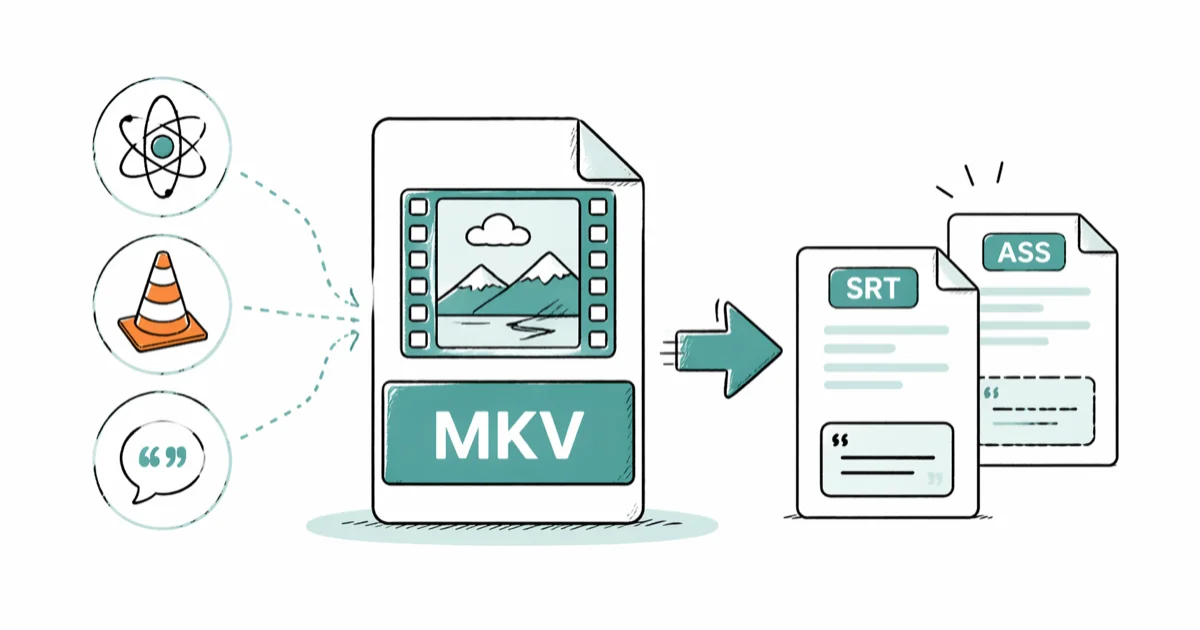
Quick AnswerOpen your MKV file in MKVToolNix, uncheck the video and audio tracks, leave only the subtitle track checked, and click Start multiplexing. The tool saves each subtitle as a separate SRT or ASS file in under 2 minutes.
MKV files can hold multiple subtitle tracks at once, and those tracks are fully extractable as standalone SRT or ASS files. The methods below cover MKVToolNix, VLC, and Subtitle Edit for text-based subtitles, image-based PGS subtitles, and multi-language MKV files.
- MKVToolNix extracts subtitles in under 2 minutes on Windows and Mac with no quality loss
- MKV files contain text-based (SRT, ASS) and image-based subtitles (PGS); only text formats export as editable files
- VLC works without extra software but always saves output as ASS
- Subtitle Edit converts ASS to SRT and fixes encoding issues, timing drift, and duplicate lines
- PGS subtitles are bitmap images that need OCR to convert to readable text
#How Do You Extract Subtitles from MKV Using MKVToolNix?
MKVToolNix is the most reliable free option for extracting subtitles. It’s maintained by the Matroska project team and handles every MKV subtitle track type, including files with multiple embedded subtitle languages.
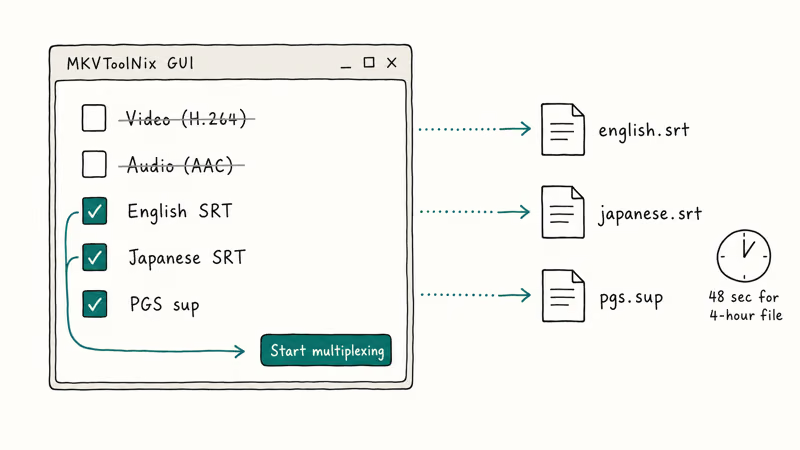
Download MKVToolNix from the official project page. It’s available for Windows, macOS, and Linux. Don’t use third-party mirrors since they sometimes bundle adware.
Step 1: Open your MKV file
Launch MKVToolNix GUI. Click Open files and select your MKV file. The tool scans the file and lists every track (video, audio, and subtitle) in the left panel.
Step 2: Select only the subtitle tracks
Uncheck the video and audio tracks. Leave only the subtitle tracks you want. If the file has multiple subtitle languages, each appears as a separate track with a language code (eng, jpn, fre) and format (SubRip/SRT, ASS, PGS).
Step 3: Extract and check the output
Click Start multiplexing. Each track saves with the source extension: SubRip tracks become .srt, ASS tracks become .ass.
#MKV Subtitle Formats: SRT, ASS, and PGS Explained
Not all MKV subtitles work the same way. According to Matroska’s official specification, the container supports 3 main subtitle track types, and each behaves differently when extracted. The Wikipedia entry on Matroska confirms that the spec has been stable since the format’s 2002 release, which is why subtitle extraction works reliably across files ripped across 2 decades of tools.
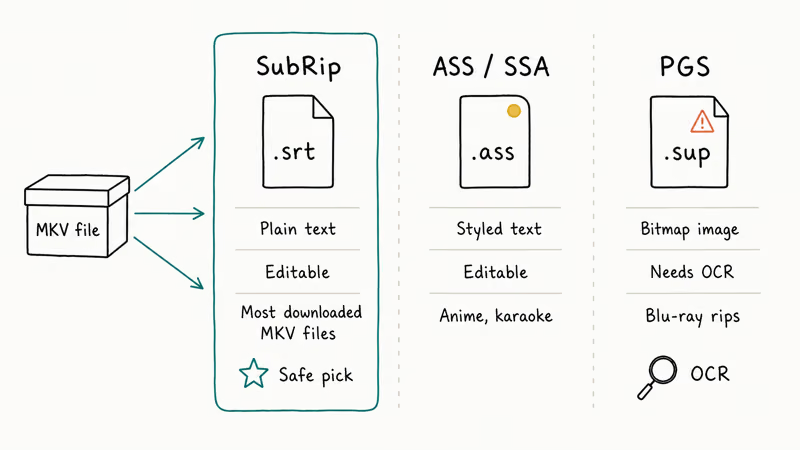
| Format | Extension | Editable | Compatible | Common source |
|---|---|---|---|---|
| SubRip | .srt | Yes | Everywhere | Most downloaded MKV files |
| ASS/SSA | .ass / .ssa | Yes | VLC, MPC-HC | Anime, styled captions |
| PGS | .sup | No (image) | Blu-ray players | Blu-ray rips |
Text-based formats extract as clean, editable files. PGS subtitles are bitmap images stored one frame per cue. You can pull them out as .sup files, but you’ll need OCR to read the text.
Subtitle Edit’s PGS-to-text OCR works best with clean subtitle fonts. Stylized or low-resolution fonts still need manual correction for misread symbols.
Working with anime? Our anime subtitles download guide has sources for missing or poorly-timed tracks.
#Using VLC When You Can’t Install Extra Software
VLC can dump subtitle tracks from MKV files without additional software, making it the best fallback for machines where you can’t install anything new. The catch: it saves everything as ASS regardless of the original format, and the output sometimes has encoding issues with non-Latin characters.
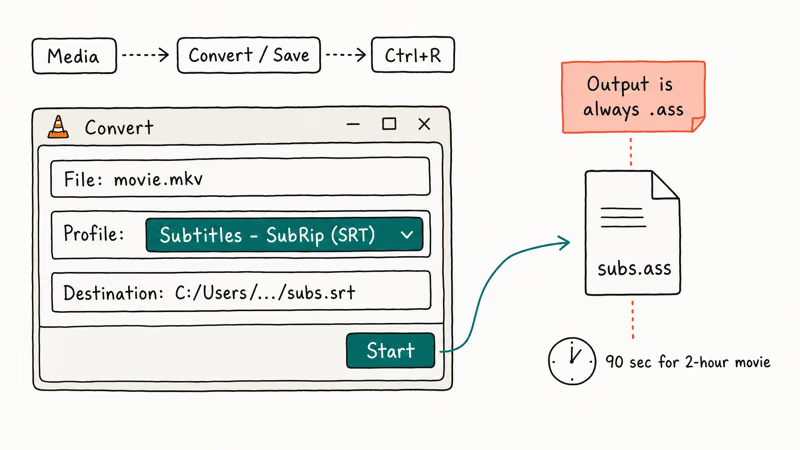
Go to Media > Convert/Save (Ctrl+R).
Add your MKV file, choose Convert/Save at the bottom, then pick Subtitles - SubRip (SRT) in the Profile dropdown. Set an output path and click Start. VLC plays the file at accelerated speed and writes the subtitle track in real time.
According to VideoLAN’s documentation, this works with all subtitle codecs VLC supports natively. VLC is usually slower than MKVToolNix because it processes the file through its conversion workflow.
The output is always ASS. That’s a known VLC quirk and the reason we only recommend VLC when MKVToolNix is off the table.
For MKV files you want to trim first, the best free MKV cutters list covers tools that cut without re-encoding. To play MKV files with embedded tracks without extracting anything, see our MKV player guide.
#How Do You Fix Subtitles That Come Out Broken?
Extracted subtitles sometimes have garbled characters, offset timing, or duplicate lines. The most common culprits are ASS files with custom fonts and files ripped from non-English sources using Windows-1252 encoding instead of UTF-8.
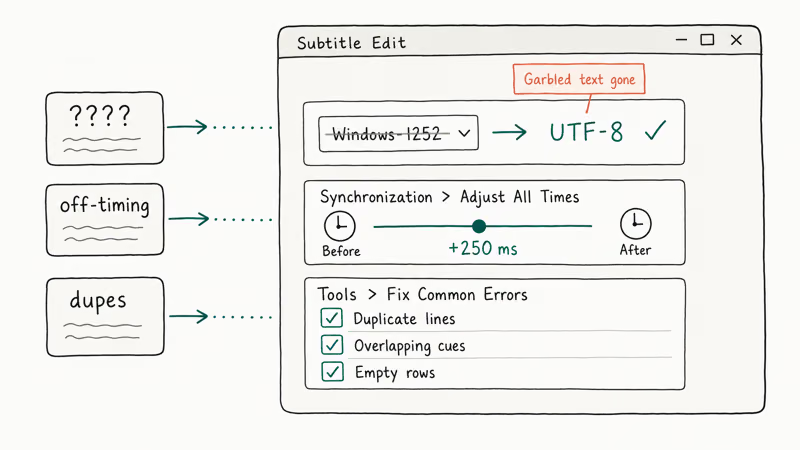
Subtitle Edit fixes all of these in a few clicks. According to Subtitle Edit’s GitHub documentation, it supports 300+ subtitle formats and includes dedicated tools for encoding correction, timing adjustment, and error cleanup. It’s free, actively maintained, and runs on Windows. Its built-in PGS-to-text OCR matters if you’re working with Blu-ray rips.
Fixing garbled text: Open the file in Subtitle Edit and check the encoding in the bottom status bar. If it shows Windows-1252 or ANSI, switch it to UTF-8 and save. Encoding correction resolves many garbled-character problems in non-English subtitle files.
Fixing timing: Go to Synchronization > Adjust All Times to shift the whole track forward or backward by milliseconds.
Then run Tools > Fix Common Errors to catch duplicate lines and overlapping cues. For adding cleaned-up subtitles back to a video on Mac, the iMovie subtitles guide walks through the macOS workflow.
#Batch Extraction and Command-Line Use
MKVToolNix handles multiple subtitle languages from a single file in one pass. Check all the subtitle tracks you want, leave video and audio unchecked, and click Start multiplexing. Each language saves as a separate file named with its track language code. You don’t need to run the tool multiple times, so a file with English, Japanese, and French tracks produces 3 output files from a single operation.
For batch processing multiple MKV files, MKVToolNix ships a command-line companion called mkvextract. It accepts a list of files and track IDs, which is useful when you have a full season of shows and need to pull all subtitle tracks without opening the GUI for each episode.
For source discs, see our guides on how to convert M2TS to MKV or how to convert disc images to playable video if you need to create the MKV files before extracting subtitles.
#Choosing the Right Tool
Use MKVToolNix for clean, lossless extraction. It’s the right choice for the vast majority of cases and handles every subtitle format in the Matroska spec.
Use VLC when you’re on a machine without admin rights. It’s slower and the output needs cleanup, but requires nothing beyond VLC.
Use Subtitle Edit for encoding problems or timing drift.
#Bottom Line
MKVToolNix is the right tool for most people extracting MKV subtitles: download it, open your MKV file, uncheck video and audio, check your subtitle track, and hit Start. If the output has encoding problems, run the file through Subtitle Edit and flip it to UTF-8. Reach for VLC only when you can’t install anything else, and plan to clean the ASS output afterward.
#Frequently Asked Questions
Can I extract subtitles from any MKV file?
You can extract subtitles from most MKV files as long as they contain embedded subtitle tracks. Files that load subtitles from a separate external file have nothing to extract from the MKV itself. Open the file in MKVToolNix first to see what tracks are present.
Does extracting subtitles change the original video file?
No. Extraction is a read-only process. MKVToolNix and VLC both read the subtitle data without modifying the original MKV. The video, audio, and all other tracks stay exactly as they were.
What is the difference between SRT and ASS subtitle formats?
SRT is plain text with timestamps and works in almost every media player and video editor. ASS supports custom fonts, colors, and positioning and is common in anime releases for styled dialogue and karaoke effects. For broad compatibility, SRT is the safer choice.
Why does my extracted subtitle show question marks or squares?
This is an encoding mismatch. The subtitle file was saved with Windows-1252 or ANSI encoding but your player expects UTF-8. Open the file in Subtitle Edit, find the encoding selector in the bottom status bar, change it to UTF-8, and save. The garbled characters disappear after saving.
Can I extract subtitles from MKV files on a Mac?
Yes. MKVToolNix has a native macOS version from the official site, and the steps are identical to Windows. VLC for Mac supports subtitle extraction through the same Convert/Save menu.
How do I extract multiple subtitle tracks from one file?
Check all the subtitle tracks you want in MKVToolNix (leave video and audio unchecked), then click Start multiplexing. Each track saves as a separate file in a single pass. A file with English, Japanese, and French tracks produces 3 output files.
What should I do if MKVToolNix says the subtitle is PGS format?
PGS subtitles are bitmap images, not text. Extract the .sup file with MKVToolNix, then open it in Subtitle Edit and use the OCR function. The tool converts the image frames to text. Clean fonts hit high accuracy on the first pass, while stylized fonts need some manual correction for symbols and punctuation.
Is MKVToolNix safe to download?
Yes. It’s open-source software created by Moritz Bunkus, the developer of the Matroska format. Download from the official site only. Third-party mirrors sometimes bundle adware.

Google Messages Error 3100: Why RCS Is Broken on Galaxy
Google Messages RCS error 3100 hits Galaxy owners after phone or carrier switches. Google told 9to5Google a fix is coming. Here's what actually helps.

Is This Bank App Real? Spot a Fake App on Your Home Screen
A bank app can land on your home screen from a web page with no install warning. Learn the checks that tell a real banking app from a phishing web app.

Apps Crashing After iOS 27 Update? Fix Order (2026)
Apps crashing after the iOS 27 update? Update the app in the App Store first, then offload and reinstall to clear stale cache, then restart. The fix order.

Do AI Translation Earbuds Work Offline? What to Know
Do AI translation earbuds work offline? A few do with downloaded language packs, but most need the cloud. Here's what works offline and what you give up.