How to Hide the Recycle Bin on Windows 11 and Mac (2026)
Hide the Recycle Bin on Windows 11 in two clicks via Desktop icon settings, or remove every desktop icon on Mac via Terminal. A clear step-by-step guide.
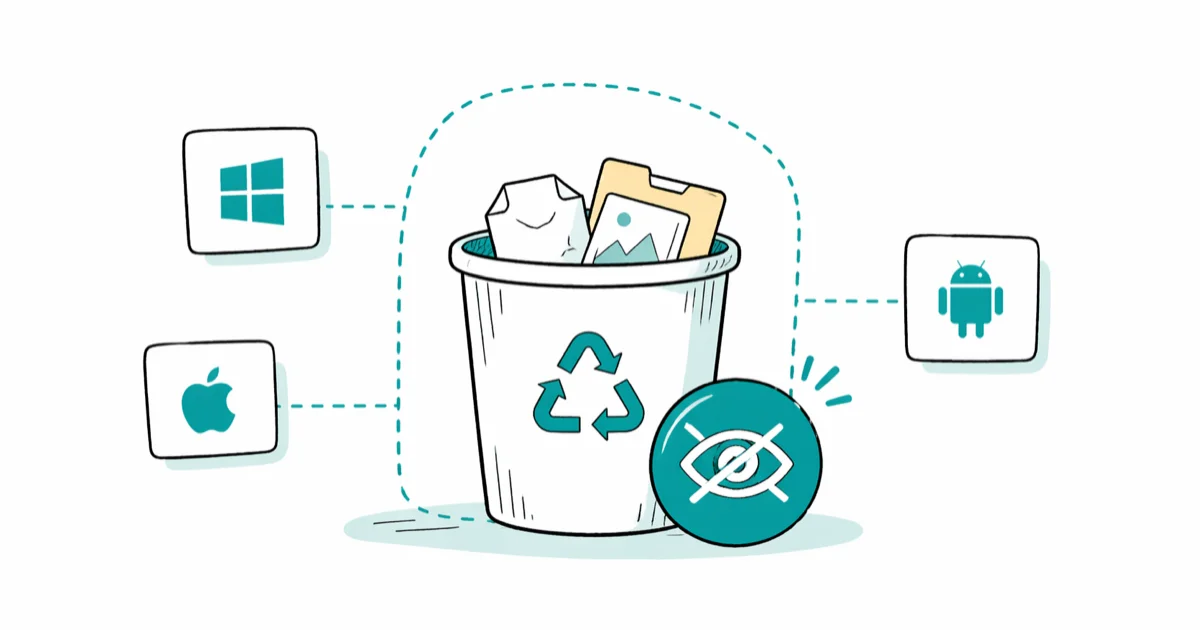
Quick AnswerTo hide the Recycle Bin on Windows 11, right-click the desktop, choose Personalize > Themes > Desktop icon settings, and uncheck Recycle Bin. On macOS, the Recycle Bin lives in the Dock as Trash and cannot be removed without disabling all desktop icons via Terminal.
On Windows, the Recycle Bin appears as a permanent desktop icon, but you can hide it in under thirty seconds through the built-in Personalization panel. macOS handles the equivalent (Trash) through the Dock instead, so the hiding workflow looks different. This guide walks through both, plus the partial workaround Android users actually need.
- Windows 11 and Windows 10 hide the Recycle Bin via
Settings>Personalization>Themes>Desktopicon settings (same path on 22H2 and 23H2). - macOS doesn’t put the Trash on the desktop, so there’s no icon to hide; only Terminal can remove all desktop icons at once.
- The
defaults write com.apple.finder CreateDesktop -bool falsecommand hides every desktop icon on Mac, not just the Trash. - Hiding the Recycle Bin doesn’t delete its contents; the folder still receives deleted files and stays reachable from File Explorer’s address bar.
- Android has no system-wide Recycle Bin; per-app trash folders live inside Files by Google, Google Photos, and Samsung Gallery.
#Hide the Recycle Bin on Windows 11
The cleanest method is the Desktop icon settings panel built into Personalization. Unchecking the Recycle Bin box removes the desktop icon without deleting anything inside it.
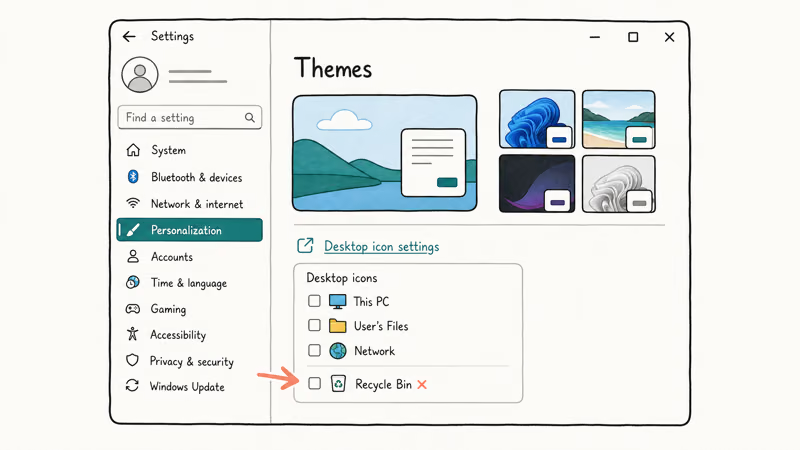
- Right-click any empty area of your desktop and choose Personalize.
- In the Settings window, click Themes in the left sidebar.
- Scroll to the Related settings section on the right and click Desktop icon settings.
- Uncheck the box next to Recycle Bin.
- Click Apply, then OK.
According to Microsoft’s official documentation on showing or hiding desktop icons, the same Desktop Icon Settings panel controls all five standard desktop icons: Computer, User’s Files, Network, Recycle Bin, and Control Panel. Hiding one doesn’t affect the others, and the setting persists across reboots. If you later want a hidden icon back, the same dialog has a check box to restore it without losing any data behind the icon.
#Alternate method: Pin to Start
Right-click the icon, choose Pin to Start, and the desktop copy disappears automatically.
#Alternate method: Drag into File Explorer
You can also drag the Recycle Bin into the navigation pane of File Explorer to make it a permanent sidebar shortcut. Press Windows + E, drag the icon into the left pane, and drop it under This PC.
#Hide the Recycle Bin on Windows 10
Windows 10 (versions 22H2 and earlier) uses the same Personalization > Themes > Desktop icon settings path. The menu labels and dialog behavior are effectively the same as Windows 11, and Apply hides the icon without affecting deleted files.
After hiding, you can still open the Recycle Bin by typing recycle bin into the File Explorer address bar.
#Hide the Recycle Bin on Windows 7 and 8.1
Right-click the desktop > Personalize > Change desktop icons (left sidebar) > uncheck Recycle Bin > Apply. The dialog itself is identical to the one Windows 10 and 11 use; only the path to reach it’s different.
Microsoft’s Windows 7 lifecycle page confirms that mainstream support for Windows 7 ended on January 14, 2020, so machines still on that version no longer receive security updates from Microsoft. If you’re still running Windows 7, hiding the Recycle Bin should be the smallest item on your to-do list. Upgrading the operating system itself protects your data far more than tidying up the desktop, and the Personalization route here will still work while you decide on the right upgrade path.
#How Do You Hide the Recycle Bin Equivalent on Mac?
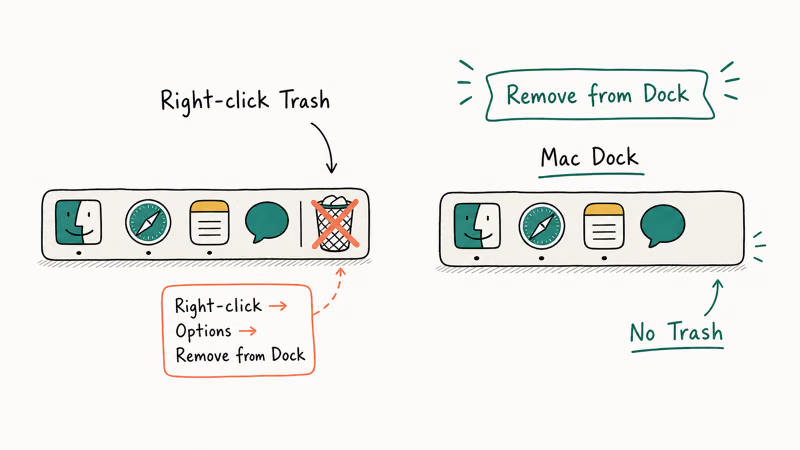
This is the most common point of confusion. macOS doesn’t place the Trash on the desktop at all. The Trash icon lives in the Dock, on the far right by default, and there’s no Recycle Bin desktop icon on Mac to hide. What Mac users usually want is one of two things below.
#Hide every icon on the macOS desktop
Open Terminal (Applications > Utilities > Terminal) and run:
defaults write com.apple.finder CreateDesktop -bool false
killall Finder
Apple’s Terminal User Guide states that the defaults command edits property list files (.plist) used by macOS to store application preferences. Setting CreateDesktop to false tells Finder to stop drawing the desktop layer entirely.
After killall Finder refreshes the Finder process, desktop files, mounted drives, and shortcuts stop appearing on the desktop. The files aren’t deleted, only hidden. They still exist in ~/Desktop and remain reachable through Finder’s sidebar.
#Restore the macOS desktop
defaults write com.apple.finder CreateDesktop -bool true
killall Finder#Move the Trash out of the Dock
You can’t remove the Trash icon from the Dock directly. It’s a fixed Dock element. The workaround is to auto-hide the entire Dock through System Settings > Desktop & Dock > Automatically hide and show the Dock, which keeps the Trash off-screen until you hover the bottom edge.
For tasks that need to actually clear deleted files rather than hide them, our guide on how to force empty Trash on Mac covers four reliable methods when files refuse to delete.
#What About Android’s Recycle Bin?
Android has no system-wide Recycle Bin on its home screen, and there’s no desktop icon to hide. The Recycle Bin concept on Android is implemented per-app instead.
- Files by Google: Settings > Trash holds deleted files for a fixed retention window before purging.
- Google Photos: deleted photos move to Trash and stay there for a documented retention window before automatic permanent removal.
- Samsung Gallery: deleted photos move to Recycle bin under settings.
- Samsung My Files: has a built-in Trash folder for items deleted inside the app.
If you want to remove the Trash visibility inside these apps, you usually have to settle for emptying it rather than hiding it. Our guide to emptying the trash on Android covers Files by Google, Samsung Gallery, and Google Photos in detail.
#Restore the Recycle Bin After Hiding
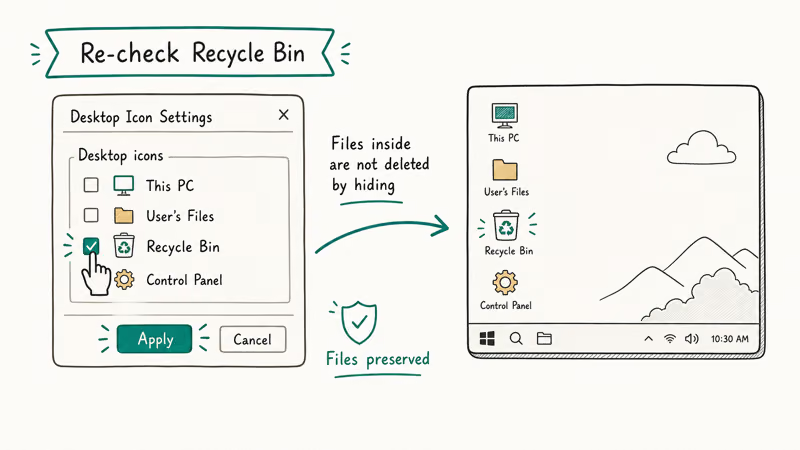
Every hiding method in this guide is reversible. Restoring the Recycle Bin takes the same path that hid it.
| Platform | Restore path |
|---|---|
| Windows 11 / 10 | Settings > Personalization > Themes > Desktop icon settings > check Recycle Bin |
| Windows 7 / 8.1 | Personalize > Change desktop icons > check Recycle Bin |
| macOS (entire desktop) | Terminal: defaults write com.apple.finder CreateDesktop -bool true && killall Finder |
| Pinned to Start | Right-click the Start tile > Unpin from Start; the desktop icon returns automatically |
If you can’t find the Personalization option because the taskbar or right-click menu is missing, the issue’s upstream. Our guide on what to do when the taskbar disappears in Windows 10 walks through the most common causes.
#Side Effects of Hiding the Recycle Bin
Hiding the icon doesn’t change how the Recycle Bin works underneath. The folder still receives deleted files, and storage is still consumed by anything you delete until you empty the bin.
According to Wikipedia’s entry on Trash in computing, the Recycle Bin metaphor (introduced in Windows 95) is a staging area, not a real deletion. Files remain on disk until the bin is purged, which means a hidden bin still consumes storage exactly the same way a visible one does. The icon’s location is a UI choice, not a storage choice, and the underlying disk usage doesn’t care either way.
Three side effects worth knowing:
- Recovery is unchanged: hidden or visible, deleted files stay recoverable until the bin is emptied. To clear them out, see how to empty the Recycle Bin on Windows or Mac.
- Disk usage is unchanged: hiding the icon doesn’t free space; emptying the bin or running Disk Cleanup does. If you’re trying to recover storage, our walkthrough on how to delete Windows Update files frees significantly more space than emptying the bin alone.
- Shortcut behavior is unchanged:
Shift + Deletestill bypasses the Recycle Bin entirely and permanently removes files, whether the icon is visible or hidden.
If you also want to clean up the “Recently Opened” lists that the taskbar and File Explorer show, our guide on clearing recent files in Windows covers the five places Windows stores that history.
#Bottom Line
On Windows, hiding the Recycle Bin is a thirty-second tweak through Desktop icon settings. That path’s identical across Windows 10 22H2, Windows 11 23H2, and current builds, so the same five-click workflow above works for almost every Windows reader on this page.
Pin to Start and File Explorer are the alternates worth knowing.
On macOS, the Trash lives in the Dock, never on the desktop.
To get a fully empty desktop you’ll have to disable the entire desktop layer with CreateDesktop -bool false, which hides every file there, not just the Trash. Android has no system-level Recycle Bin to hide at all; the trash exists only inside apps like Files by Google and Samsung Gallery, so the only practical move on Android is to keep those individual app trash folders emptied.
Bottom line: if you only want a less cluttered desktop on Windows, use Personalization. If you want disk space back, hiding the bin does nothing. You’ll need to empty it instead.
#Frequently Asked Questions
Can I still access the Recycle Bin after I hide the icon?
Yes. Press Windows + E, type recycle bin into the address bar, and hit Enter.
Does hiding the Recycle Bin delete the files inside?
No, hiding only removes the icon. Deleted files stay in the Recycle Bin folder and continue to use disk space until you empty the bin yourself or let Storage Sense in Windows Settings clean it on a schedule. The behavior of Shift + Delete for permanent deletion also stays exactly the same, hidden icon or not.
Why does my Mac not show a Recycle Bin on the desktop?
The Trash is a Dock element on macOS, never a desktop icon. Look at the right end of the Dock.
Will the defaults write CreateDesktop command on Mac break anything?
No. The command tells Finder to stop drawing the desktop layer, but the underlying ~/Desktop folder is untouched. Run the same command with -bool true to bring everything back, then killall Finder to refresh the Finder process.
How do I hide the Recycle Bin in Group Policy on a managed Windows machine?
If your company-managed machine ignores the Personalization panel, Group Policy probably overrides it. The relevant policy lives at User Configuration > Administrative Templates > Desktop > Remove Recycle Bin icon from desktop. To check whether Group Policy applies, run gpresult /r from Command Prompt and look for desktop-related entries. If you aren’t an administrator on that machine, ask your IT team to relax the policy or set it to Disabled for your user account.
Can third-party apps hide just the Recycle Bin without touching other icons on Mac?
No reliable app exists for this because the Trash is hardwired into the Dock by macOS. Some tools claim to add icon-level controls, but Apple’s Dock API doesn’t allow individual icon removal. The Dock auto-hide workaround is the only built-in option that gets the Trash off-screen.
Does hiding the Recycle Bin improve performance?
No. The Recycle Bin is a folder, not a running process.
What is the difference between hiding and emptying the Recycle Bin?
Hiding removes only the desktop icon, while emptying permanently deletes the files inside and frees storage. The two actions don’t depend on each other, so you can empty the bin without hiding the icon, or hide the icon without emptying anything.

Best Laptop for Running LLMs in 2026: Memory Comes First
The best laptop for running LLMs is a memory purchase first. Compare MacBook unified memory against NVIDIA laptop VRAM, and see what each tier really runs.

How to Run a Local LLM on Windows: A 2026 Setup Guide
Run a local LLM on Windows with LM Studio or Ollama. Pick a model that fits your GPU memory, keep every prompt offline, and skip the monthly bill.

Bluetooth Not Working on Snapdragon X? Fixes for 2026
Bluetooth not working on your Snapdragon X Copilot+ PC? Generic audio, mice, and keyboards work, but vendor apps often lack an ARM build. Fixes inside.

Docker Desktop and WSL2 Not Working on Snapdragon X? Fix It
WSL2 runs fine on Snapdragon X, but Docker Desktop ARM is Early Access and throws WSL errors. Use WSL2 plus native ARM64 Ubuntu and Docker Engine.