How to Clear Recent Files in Windows 10 (5 Methods)
Clear Recent Files in Windows 10 using File Explorer, Settings, Run command, Group Policy, or Registry. Step-by-step for each method with privacy tips.
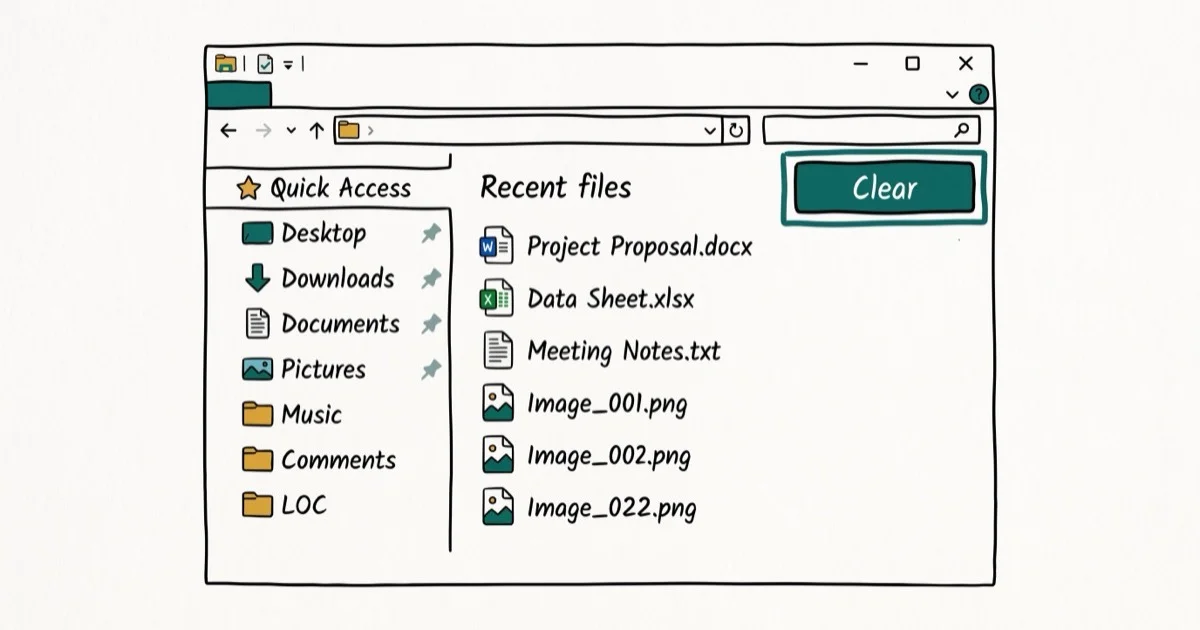
Quick AnswerOpen File Explorer, click View > Options, and under Privacy click Clear. This removes all Recent Files entries immediately. For a permanent fix, uncheck both Privacy options in the same panel to stop Windows from tracking files going forward.
Windows 10 stores a list of every file you’ve recently opened in File Explorer’s Quick Access panel. The 5 methods below clear shortcut history without deleting your actual documents.
- File Explorer’s Clear button under
View>Options>Privacyis the fastest one-click method - The Run command (%AppData%\Microsoft\Windows\Recent) lets you delete specific individual entries
- Group Policy Editor can force Windows to clear Recent Files automatically on every shutdown
- Disabling the feature in
Settings>Personalizationstops Windows from tracking files going forward - Clearing Recent Files never deletes your actual documents, only the .lnk shortcut entries
#Why Does Windows 10 Track Recent Files?
Windows 10 logs recently opened files and folders to make them accessible in File Explorer’s Quick Access view and in Jump Lists when you right-click taskbar icons. The feature is designed for convenience but creates a privacy issue on shared computers.
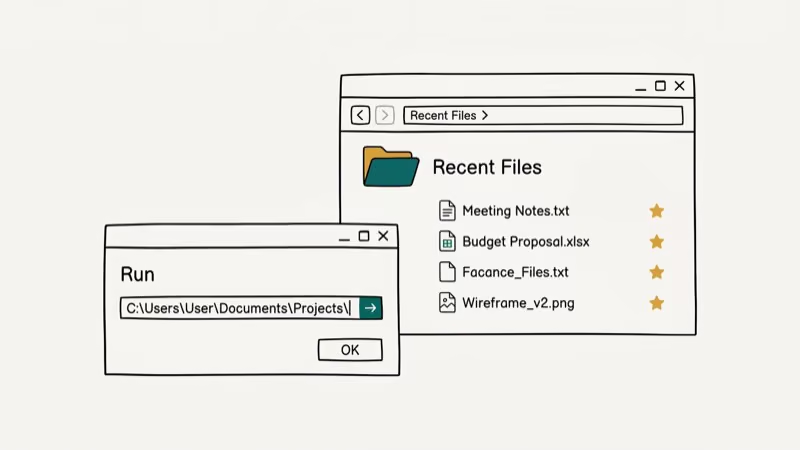
Anyone who sits at your PC can see your recent files. On a shared household machine, the Recent Files list can reveal recently opened documents, spreadsheets, and downloads without any prompts.
According to Microsoft’s Windows 10 privacy documentation, Windows stores recent file history locally in your user profile. It does not upload this history to Microsoft servers by default, and it persists until you manually clear it or disable the feature.
The storage location is %AppData%\Microsoft\Windows\Recent. Hundreds of .lnk shortcut entries accumulate there over months.
#Method 1: Clear Recent Files Through File Explorer
This is the fastest method. Open File Explorer with Windows key + E, click View in the top menu, then click Options on the far right.
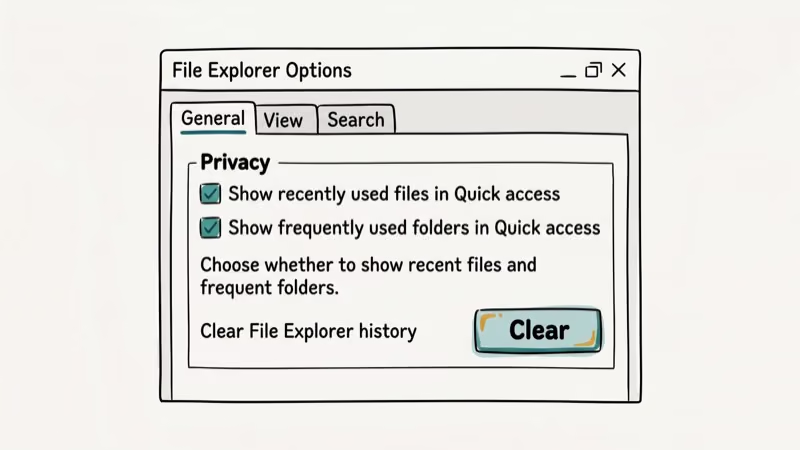
In the Folder Options window, look at the Privacy section near the bottom. Click Clear to remove all recent file and folder history immediately.
To prevent future tracking, uncheck both boxes: “Show recently used files in Quick access” and “Show frequently used folders in Quick access.” Click Apply, then OK.
The Clear button removes the Recent Files list immediately.
#Method 2: Manually Delete Files with Run Command
This method gives you fine-grained control. Press Windows key + R to open the Run dialog, type %AppData%\Microsoft\Windows\Recent, and press Enter.
A File Explorer window opens showing every shortcut in your Recent Files list. Select all with Ctrl+A, then press Delete. Confirm the deletion when prompted.
This lets you delete individual items if you only want to remove specific files from the list. Right-click any single shortcut and choose Delete to remove just that entry without clearing the entire history.
Note: deleting these .lnk shortcuts doesn’t affect your actual documents. The files remain intact in their original locations.
#Disabling Recent Files Through Windows Settings
Yes. Go to Settings (Windows key + I), then Personalization > Start. Find the toggle labeled Show recently opened items in Jump Lists on Start or the taskbar and turn it off.
This stops Windows from adding new items to Jump Lists going forward, but it doesn’t clear your existing Recent Files history. Use it in combination with Method 1 for a complete cleanup.
On Windows 11, Microsoft moved this setting to Settings > Personalization > Start > Show recently opened items in Start, Jump Lists, and File Explorer. The behavior is the same.
#Method 3: Clear Recent Files with a Batch Script
For users who want to automate the process, a short batch script handles it without any manual clicking. Open Notepad, paste this line, save the file as ClearRecent.bat, and double-click it whenever you want to clear:
del /q /f "%APPDATA%\Microsoft\Windows\Recent\*.*"To run this automatically on every Windows startup, press Windows key + R, type shell:startup, and press Enter. Copy your ClearRecent.bat file into the Startup folder that opens. Windows will run it silently on every login.
This approach targets only the .lnk files in the Recent folder, so your actual documents are never affected.
#Method 4: Use Group Policy Editor (Windows 10 Pro and Enterprise)
Group Policy Editor is available only on Windows 10 Pro and Enterprise editions. Press Windows key + R, type gpedit.msc, and press Enter.
Go to User Configuration > Administrative Templates > Start Menu and Taskbar. Find the policy called Clear history of recently opened documents on exit, double-click it, select Enabled, and click OK.
Windows will automatically clear your Recent Files list every time you log out or shut down. According to Microsoft’s Group Policy documentation, this policy applies to all recent document history including Start menu Jump Lists, giving you fully automatic cleanup without manual effort.
If you’re on Windows 10 Home, skip to Method 5 since Group Policy Editor isn’t included.
#Method 5: Disable Recent Files Tracking via Registry (All Editions)
The Registry method works on all Windows 10 editions including Home. Press Windows key + R, type regedit, and press Enter. Accept the UAC prompt.
Go to HKEY_CURRENT_USER\Software\Microsoft\Windows\CurrentVersion\Explorer\Advanced. Right-click in the right panel, select New > DWORD (32-bit) Value, name it Start_TrackDocs, and set its value to 0.
Restart your PC for the change to take effect. Windows will no longer track recently opened documents. To re-enable tracking, change the value back to 1 or delete the registry entry.
Always export a registry backup before editing. Press File > Export in Registry Editor and save the file somewhere safe before making changes.
#Performance Impact of Clearing Recent Files
The performance benefit is usually minor. Clearing Recent Files is mainly a privacy and organization step, though very large shortcut lists can add clutter to Quick Access.
The bigger benefit is privacy and organization. If your PC feels sluggish after clearing Recent Files, the slowdown has a different cause. Check our guide on fixing a slow Windows 10 PC for a broader set of solutions. For cases where File Explorer itself behaves oddly, clearing recent history is one of multiple steps to repair Windows 10 without reinstalling.
#What about Third-Party Cleaning Tools?
Apps like CCleaner and BleachBit include Recent Files cleanup as part of their broader system cleaning routines. They’re worth using if you also want to clear browser history, temp files, and registry junk in one pass.
That said, Windows’ built-in tools (Methods 1-5 above) handle Recent Files perfectly well without installing additional software. According to PCMag’s guide to Windows privacy, using 3 or more of the built-in cleanup tools (Recent Files, Temp folder, Recycle Bin) as a monthly routine is enough for most home users. Third-party tools make more sense for comprehensive maintenance, not just clearing Recent Files.
#Bottom Line
The File Explorer method (Method 1) handles 90% of use cases in under 10 seconds. Use the Group Policy or Registry approach if you want automatic cleanup on every shutdown. For privacy on a shared PC, disable the tracking feature entirely through File Explorer Options or Settings > Personalization. Clearing Recent Files never deletes your actual documents, so there’s no risk in doing it regularly.
For broader Windows privacy and maintenance, see our guides on hiding the Recycle Bin and recording your screen in Windows 10 for a cleaner desktop setup.
If your taskbar misbehaves after these tweaks, our walkthrough on fixing a disappeared taskbar covers the common causes.
#Frequently Asked Questions
Does clearing Recent Files delete my actual documents?
No. Clearing Recent Files removes only the shortcut entries (.lnk files) that point to your documents. Your actual files stay in their original locations completely untouched. You can still find them through File Explorer or the folder they’re saved in.
How do I clear Recent Files in File Explorer on Windows 10?
Open File Explorer, click View in the top menu bar, then click Options on the right side. In the Privacy section of the Folder Options window, click Clear. This removes all recent file and folder history from Quick Access immediately.
Why do Recent Files keep coming back after I clear them?
Windows re-populates the list every time you open a file. To stop this permanently, go to File Explorer > View > Options and uncheck both boxes under Privacy: “Show recently used files in Quick access” and “Show frequently used folders in Quick access.” Click Apply and OK. No new items will appear after that.
Can I remove individual items from Recent Files instead of all of them?
Yes. Press Windows key + R, type %AppData%\Microsoft\Windows\Recent, and press Enter. Right-click any individual .lnk file in the folder and choose Delete to remove that specific entry. Your actual document remains untouched.
Does Windows 10 Recent Files show up in search results?
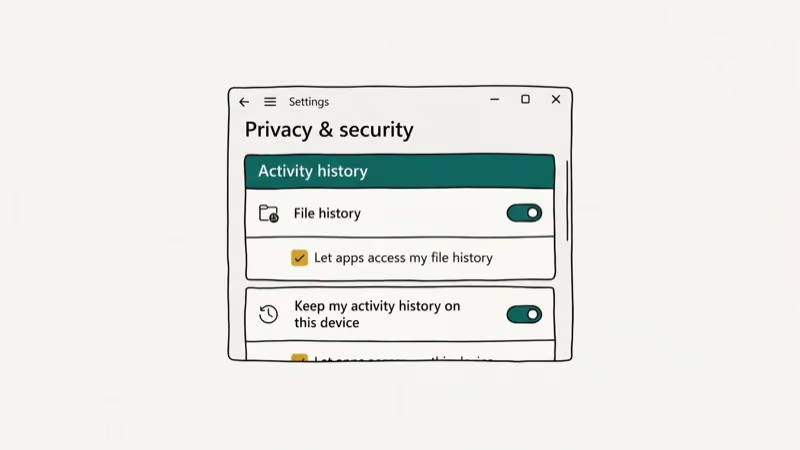
Windows Search indexes your recent activity separately from the Recent Files folder. Clearing Recent Files through File Explorer Options doesn’t affect Windows Search history. To clear search history, go to Settings > Privacy > Activity History and click Clear.
Is it safe to delete everything in the Recent folder manually?
Yes. The %AppData%\Microsoft\Windows\Recent folder contains only shortcut files (.lnk). Deleting them removes your recent file history without affecting any real documents or system files. Windows recreates the folder automatically after your next login if it’s missing.

Best Laptop for Running LLMs in 2026: Memory Comes First
The best laptop for running LLMs is a memory purchase first. Compare MacBook unified memory against NVIDIA laptop VRAM, and see what each tier really runs.

How to Run a Local LLM on Windows: A 2026 Setup Guide
Run a local LLM on Windows with LM Studio or Ollama. Pick a model that fits your GPU memory, keep every prompt offline, and skip the monthly bill.

Bluetooth Not Working on Snapdragon X? Fixes for 2026
Bluetooth not working on your Snapdragon X Copilot+ PC? Generic audio, mice, and keyboards work, but vendor apps often lack an ARM build. Fixes inside.

Docker Desktop and WSL2 Not Working on Snapdragon X? Fix It
WSL2 runs fine on Snapdragon X, but Docker Desktop ARM is Early Access and throws WSL errors. Use WSL2 plus native ARM64 Ubuntu and Docker Engine.