WhatsApp Not Sending Messages? 8 Fixes for iPhone & Android
WhatsApp messages stuck on one tick or not sending? Decode the ticks, check your connection, clear the cache, and free storage with 8 proven fixes.
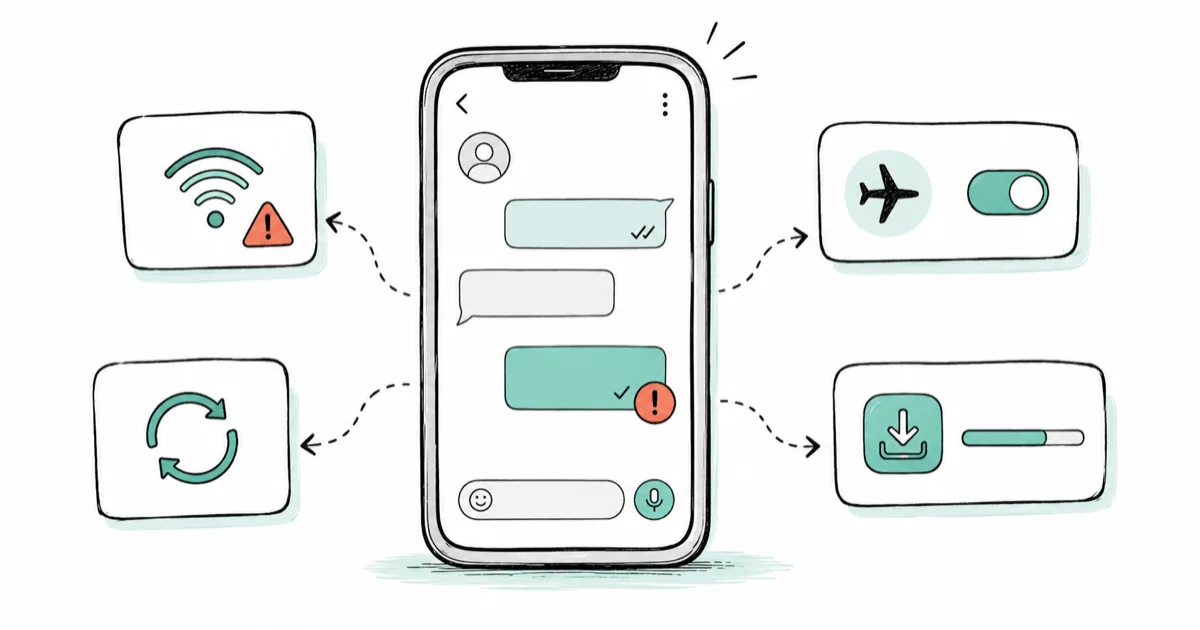
Quick AnswerWhatsApp not sending messages usually means a weak connection, an outdated app, or full storage on your side. Read the ticks first, then toggle airplane mode and update WhatsApp.
WhatsApp not sending messages is almost always a connection or app problem, not a sign that the recipient vanished. Before you panic, look at the ticks next to your message. A single gray tick, a spinning clock, or a “not delivered” warning each point to a different cause.
- Read the ticks first: one gray tick means the message left your phone but has not reached the recipient, which points to their side or a block, not yours.
- A spinning clock icon means the message has not even left your device yet, so the problem is your connection or the app.
- Toggle airplane mode on for 10 seconds, then off, and switch between Wi-Fi and mobile data to force WhatsApp to reconnect.
- On Android you can clear the WhatsApp cache in Settings without losing chats, but iPhone gives you no cache option, so a reinstall is the equivalent fix.
- If everyone’s messages are stuck at once, it’s a server outage, and no local fix will help until WhatsApp restores service.
#Why Won’t WhatsApp Send Your Messages?
When a WhatsApp message refuses to send, the cause is one of a short list: a weak connection, an outdated app build, full storage, a corrupted cache, a server outage, or the recipient being offline. Don’t guess and toggle random settings. Look at the status icon beside the message instead, because it tells you which of those causes you are dealing with before you change anything.
Start with the icon. A spinning clock means the message is still queued on your phone and hasn’t left at all. A single gray tick means it left your device but hasn’t reached the recipient yet.
Each icon points down a different path. Reading it first saves you from trying fixes that were never going to help.
A spinning clock means WhatsApp hasn’t sent the message from your phone yet. When the connection returns, the status can move to one gray tick, so treat the clock as a local-connection signal.
#Decode the Tick System Before You Troubleshoot
WhatsApp’s tick system tells you exactly where a message is stuck. Learn it before touching any settings.
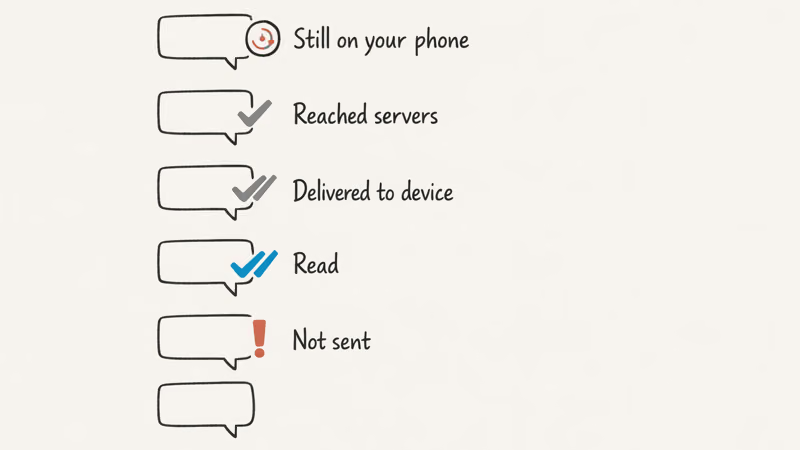
One gray tick means the message reached WhatsApp’s servers but not the recipient’s phone. Two gray ticks mean it was delivered to their device. Two blue ticks mean they opened and read it, unless read receipts are switched off on their end. If your message sits on one gray tick for a long time, the recipient’s phone is almost certainly offline, switched off, or out of coverage, and that is not something you can fix from your side.
The icon to actually worry about is the spinning clock or a red “Message not sent” exclamation. Those mean the message never left your phone, which is where the real troubleshooting starts.
#Check Your Connection and Update WhatsApp
A flaky connection causes most send failures, so reset it first. Turn airplane mode on, wait about 10 seconds, then turn it off. If that does nothing, switch from Wi-Fi to mobile data or back, since WhatsApp may be on a network with no working internet behind it.
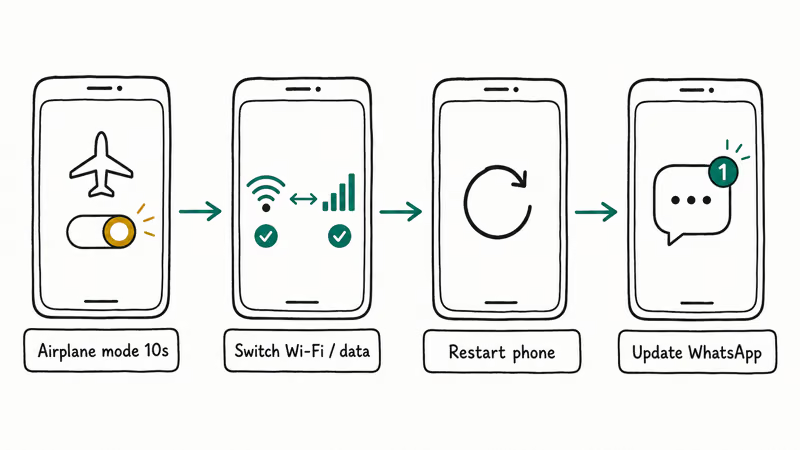
Next, restart your phone. A reboot clears the temporary network and app states that quietly break background connections, and it takes under a minute. According to WhatsApp’s can’t-send-or-receive help, connection problems are the leading reason messages fail to go through, and WhatsApp’s connection-issues guide confirms that a phone showing signal can still lack a working data path.
Won’t WhatsApp connect at all? Our guide on WhatsApp not connecting digs into that exact state.
Then update the app. Outdated builds lose compatibility with WhatsApp’s servers and start dropping messages, so open the App Store on iPhone or the Play Store on Android, search WhatsApp, and tap Update if it appears. A stale build can leave outgoing messages stuck until the update finishes installing.
#Clear the Cache and Free Up Storage
A corrupted cache can jam the sending queue on Android. Go to Settings > Apps > WhatsApp > Storage and tap Clear Cache. This removes only temporary files, not your chats or media, and it often unsticks a frozen send queue right away.
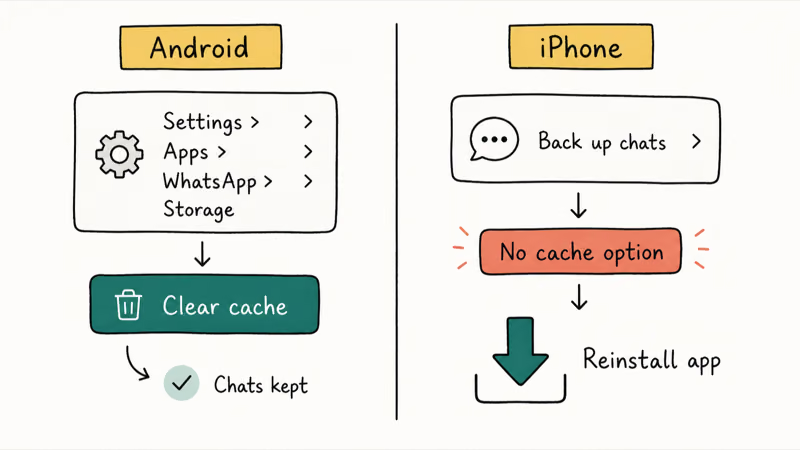
iPhone is different. iOS gives you no way to clear an individual app’s cache. The equivalent fix is to delete and reinstall WhatsApp instead.
Back up your chats first under WhatsApp Settings > Chats > Chat Backup, then remove the app and download it fresh from the App Store. The reinstall rebuilds the cache from scratch.
Full storage is another silent culprit. A phone with almost no room left can’t queue outgoing media, so WhatsApp chokes. Apple’s guide to check and manage iPhone storage recommends offloading unused apps to reclaim space without losing your data.
Aim for at least a gigabyte free. Clear out old downloads, photos, or apps you no longer open.
#Is the Recipient Offline or Have You Been Blocked?
Sometimes only one person is affected. If a single message to one specific contact stays on one gray tick while everyone else gets two, the issue is on their side. Their phone may be off, in airplane mode, or without signal, and the tick updates to two gray the moment they reconnect.
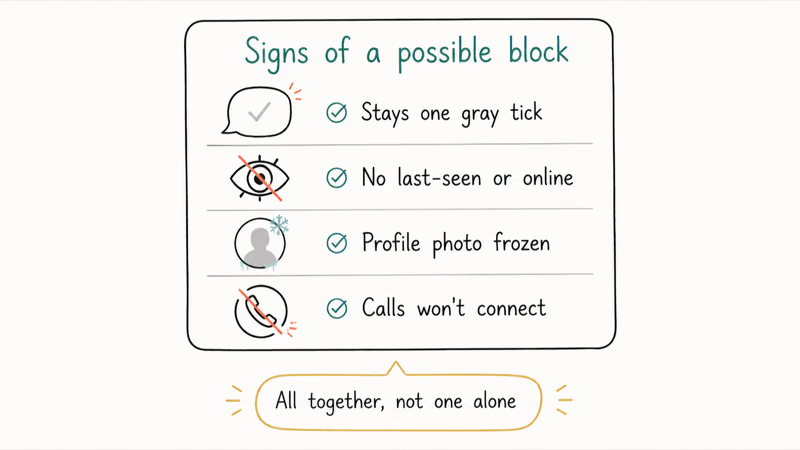
Being blocked looks similar but has extra signs. A blocked contact’s messages stay on one gray tick permanently, you stop seeing their last-seen and online status, their profile photo may freeze or disappear, and calls fail to connect.
No single one of these confirms a block. All of them together strongly suggest it, since WhatsApp deliberately never tells you outright.
Compare it against another contact to be sure. If your messages to other people deliver normally and only this one person stays stuck, then the problem is specific to that chat and not your connection at all. For a related messaging symptom, see RCS messages not sending, and if your WhatsApp calls fail too, see WhatsApp video call not working.
Meta’s chat app has a parallel checklist for Messenger chats that fail to send.
#Reset Network Settings and Check Server Status
If messages still won’t send to anyone, reset your network settings. On iPhone, go to Settings > General > Transfer or Reset iPhone > Reset > Reset Network Settings. On Android, it’s usually Settings > System > Reset options > Reset Wi-Fi, mobile and Bluetooth.
This wipes saved Wi-Fi passwords, but it clears corrupted network configurations that quietly block app traffic.
Before anything drastic, confirm WhatsApp itself is up. If your messages and everyone else’s are stuck at once, it’s an outage, so check a status tracker like Downdetector or search “is WhatsApp down” to confirm. During a confirmed outage there’s no local fix, and the only move is to wait, often less than an hour, because the failure lives on WhatsApp’s side and not on your phone at all.
Still stuck on the desktop client? Our walkthrough on WhatsApp Web not working handles that separately, and for backup failures see WhatsApp backup not working.
#Bottom Line
Read the ticks before you blame your phone. A single gray tick means the message left your device but hasn’t reached the recipient, which usually points to their phone being offline or to a block. If messages won’t send at all, toggle airplane mode, switch between Wi-Fi and data, and update the app.
Clearing the cache fixes Android glitches, but iPhone users must reinstall because iOS won’t let you clear it. If everyone’s messages are stuck at once, check the server status and wait, because no local fix helps during an outage.
#Frequently Asked Questions
What does one gray tick on WhatsApp mean?
One gray tick means your message was sent and reached WhatsApp’s servers, but it hasn’t reached the recipient’s device yet. Their phone is most likely off or out of signal.
How do I know if someone blocked me on WhatsApp?
WhatsApp never tells you outright, so look for a cluster of signs at once: your messages stay on one gray tick forever, you can no longer see their last-seen or online status, their profile photo freezes or disappears, and your calls never connect. Any single sign can have an innocent cause. All of them together strongly suggest a block.
Why won’t my message send even with good signal?
A strong signal bar doesn’t always mean working internet. Toggle airplane mode, switch between Wi-Fi and mobile data, and try again.
How do I clear the WhatsApp cache on iPhone?
You can’t. iOS doesn’t expose a per-app cache-clearing option the way Android does. The equivalent fix is to back up your chats under WhatsApp Settings > Chats > Chat Backup, delete the app, and reinstall it from the App Store. The fresh install rebuilds the cache cleanly.
Is WhatsApp down right now?
If your messages and other people’s are all stuck at the same time, it’s likely a server outage. Confirm it with a status tracker like Downdetector or a quick “is WhatsApp down” search. During a real outage, nothing on your phone will help, because the problem sits on WhatsApp’s servers and not your device. Service usually returns within an hour, so the only sensible move is to wait it out rather than reinstalling or resetting anything.
Does full storage stop WhatsApp from sending?
Yes. WhatsApp needs free space to queue outgoing messages and media, and a phone with almost no storage left can fail to send. Clear old downloads, photos, or unused apps until you have at least a gigabyte free, then try sending again.

Is This Bank App Real? Spot a Fake App on Your Home Screen
A bank app can land on your home screen from a web page with no install warning. Learn the checks that tell a real banking app from a phishing web app.

Apps Crashing After iOS 27 Update? Fix Order (2026)
Apps crashing after the iOS 27 update? Update the app in the App Store first, then offload and reinstall to clear stale cache, then restart. The fix order.

Do AI Translation Earbuds Work Offline? What to Know
Do AI translation earbuds work offline? A few do with downloaded language packs, but most need the cloud. Here's what works offline and what you give up.

How to Set Up Translation Earbuds (Pairing and Modes)
How to set up translation earbuds: charge, install the app, pair over Bluetooth, pick two languages, and choose a mode. A step-by-step first-use guide.