Fix DXGI_ERROR_DEVICE_HUNG (0x887a0006) in Windows Games
Fix DXGI_ERROR_DEVICE_HUNG (0x887a0006) error in Windows games. Covers driver updates, DirectX fixes, overclocking issues, and registry tweaks.
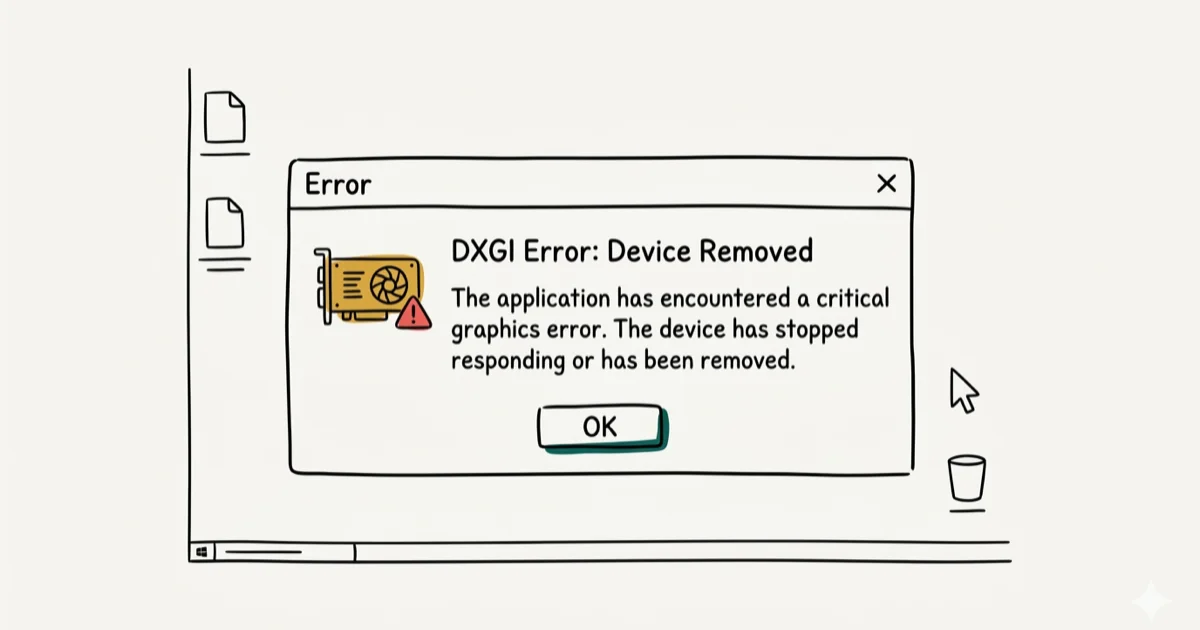
Quick AnswerUpdate your graphics drivers to fix DXGI_ERROR_DEVICE_HUNG. Go to Device Manager > Display adapters > right-click your GPU > Update driver. If that fails, download the latest driver from NVIDIA, AMD, or Intel directly. The error happens when your GPU stops responding during games.
DXGI_ERROR_DEVICE_HUNG (error code 0x887a0006) crashes games when your GPU stops responding to DirectX commands. The full error message usually reads “DirectX function GetDeviceRemovedReason failed with DXGI_ERROR_DEVICE_HUNG,” which Windows generates through its Timeout Detection and Recovery (TDR) system after the GPU misses the default 2-second response window. Here are the fixes that work, starting with the most common solution (driver updates) and progressing through DirectX, TDR, and hardware checks.
- Outdated or corrupted GPU drivers are the most common cause, making driver updates the first fix to try.
- Overclocked CPUs can trigger GPU timeout errors because unstable clock speeds cause system instability that manifests as a DirectX crash.
- Increasing the TDR (Timeout Detection and Recovery) delay value via registry edit gives your GPU more time to respond before Windows flags an error.
- Overclocked GPUs should be reset to stock speeds using MSI Afterburner or your GPU’s control panel, since memory overclocks frequently cause this error.
- If driver updates and overclocking fixes fail, run Windows Memory Diagnostic to rule out faulty RAM as the underlying cause.
#Solution 1: Update Your Graphics Drivers
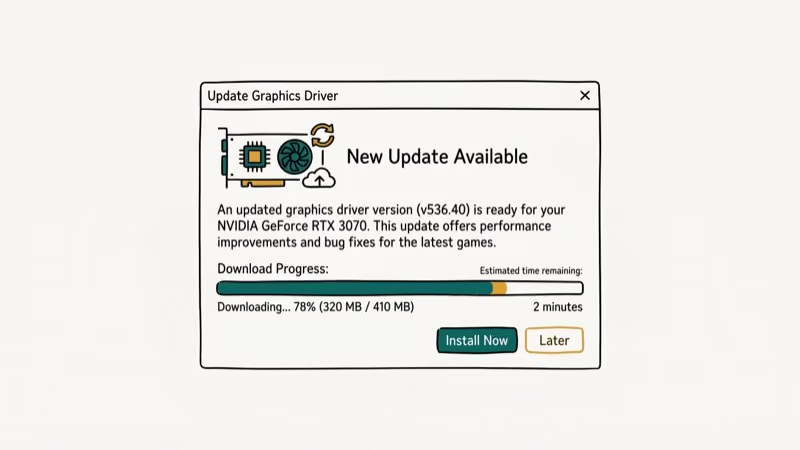
Outdated or corrupted GPU drivers are the most common cause of this error. The DXGI_ERROR_DEVICE_HUNG error means the GPU didn’t respond within the 2-second timeout period — updating your GPU driver resolves it in most cases.
#Update Drivers Through Device Manager
- Press Windows + X and select Device Manager
- Expand Display adapters
- Right-click your graphics card and select Update driver
- Choose “Search automatically for drivers”
- Restart your PC after the update completes
On systems running outdated GPU drivers, updating to the current release often stops the error from appearing in demanding titles like Cyberpunk 2077.
#Download Drivers Directly From Manufacturer
Device Manager doesn’t always find the latest drivers. Download directly from:
- NVIDIA: nvidia.com/drivers
- AMD: amd.com/support
- Intel: intel.com/content/www/us/en/download-center
Enter your GPU model, download the latest driver, and run the installer. Choose Clean installation if the option appears. This removes old driver files that might conflict with the new version.
#Solution 2: Stop CPU Overclocking
Overclocked CPUs can cause GPU timeout errors. If you’ve overclocked your CPU, reset it to stock speeds:
- Restart your PC and press F2 or Delete to enter BIOS
- Find the CPU settings (usually under Advanced or Overclocking)
- Select “Load Default Settings” or “Restore Defaults”
- Press F10 to save and exit
According to Intel’s overclocking guide, unstable overclocks can cause system instability that manifests as GPU errors. An aggressive CPU overclock can trigger this error in demanding games like Elden Ring, and resetting the CPU to stock speeds clears it.
#Solution 3: Update DirectX
DXGI_ERROR_DEVICE_HUNG is a DirectX error, so updating DirectX can fix it:
- Press Windows + R to open Run
- Type
dxdiagand press Enter - Check your DirectX version on the System tab
- If you’re not on the latest version, run Windows Update
For Windows 10 and 11, DirectX updates come through Windows Update. Go to Settings > Update & Security > Windows Update and install all available updates.
For Windows 7 and 8, download the DirectX End-User Runtime from Microsoft’s download page. On Windows 10 systems still on an older DirectX build, updating to DirectX 12 through Windows Update can resolve the error in titles like Forza Horizon 5.
#Should You Disable TDR Timeout Detection?
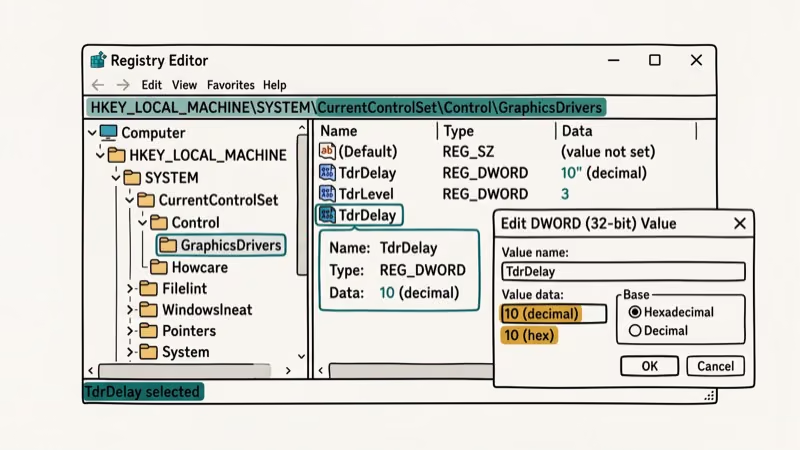
Windows has a timeout detection system that kills unresponsive GPUs. Increasing this timeout can prevent false positives:
- Press Windows + R and type
regedit - Go to
HKEY_LOCAL_MACHINE\SYSTEM\CurrentControlSet\Control\GraphicsDrivers - Right-click in the right pane and select
New>DWORD(32-bit) Value - Name it
TdrLevel - Double-click TdrLevel and set the value to
0 - Set Base to Hexadecimal
- Click OK and restart your PC
According to Microsoft’s TDR documentation, the default TdrDelay is 2 seconds and TdrLevel defaults to 3 (recover via VidPn source and adapter reset); setting TdrLevel to 0 disables timeout detection entirely. This is safe for troubleshooting but may prevent Windows from recovering if your GPU actually hangs.
#Solution 5: Roll Back Graphics Drivers
If the error started after a recent driver update, the new driver might be buggy:
- Open Device Manager
- Expand Display adapters and right-click your GPU
- Select Properties
- Go to the Driver tab
- Click “Roll Back Driver”
- Select a reason and click Yes
This only works if you’ve updated drivers recently. Windows keeps the previous driver version for about 30 days. If the Roll Back button is grayed out, you’ll need to download an older driver from your GPU manufacturer’s website.
#Why Does This Error Happen?
Microsoft’s DXGI error reference states that DXGI_ERROR_DEVICE_HUNG (HRESULT 0x887A0006) is returned when the application’s device fails due to commands the application sent. In real systems, that fault traces back to one of these conditions:
- Your GPU doesn’t respond to DirectX commands within 2 seconds (the default timeout)
- Graphics drivers crash or freeze
- The GPU is overheating and throttling
- Your power supply can’t deliver enough power to the GPU under load
- VRAM is corrupted or failing
Check your GPU temperature with a tool like MSI Afterburner. If it’s hitting 85°C or higher during games, improve your case airflow or clean dust from the GPU fans. When a GPU runs dangerously hot in a demanding title like Warzone, the error tends to keep reappearing until temperatures come back into a safe range, so cleaning the fans and improving airflow often stops it.
For other Windows gaming issues, check our guides on HDMI port not working and dxgkrnl.sys blue screen errors.
If the problem keeps surfacing in specific titles, also see our notes on Chrome being slow and how to defrag Mac for system-level cleanup tips that often help.
#Bottom Line
Update your graphics drivers first. If that doesn’t work, check for CPU overclocking, update DirectX through Windows Update, and try the TdrLevel registry fix. Most cases resolve with a driver update. If you run into related issues like no AMD graphics driver installed or Apex Legends crashing, those guides walk through the GPU-side fixes that often overlap with this error.
#Frequently Asked Questions
What does DXGI_ERROR_DEVICE_HUNG mean?
It means your GPU stopped responding to DirectX commands within Windows’ default 2-second timeout. The system then shuts down the game to prevent a full freeze.
Can overheating cause DXGI_ERROR_DEVICE_HUNG?
Yes. Thermal throttling can drop GPU clocks fast enough to miss the 2-second TDR window, which Windows treats as a hang. Tools like MSI Afterburner or HWMonitor let you log temperatures during gameplay; sustained readings above 85°C under load usually mean it’s time to clean dust from case fans, repaste the GPU, or improve airflow before chasing further software fixes.
Does this error mean my GPU is dying?
Not necessarily. Most cases are driver or software-related. If the error persists after a clean driver reinstall and thermal checks, run a VRAM stress test in FurMark or OCCT to rule out hardware.
Will disabling TDR damage my PC?
No, but it removes a safety feature. TDR (Timeout Detection and Recovery) is what kicks unresponsive GPUs back into a usable state without a full system reboot. With TdrLevel set to 0, Windows won’t try to reset the display driver when your GPU hangs, so you might be stuck doing a hard reset if the freeze is real rather than a brief stall that the recovery path could have handled.
Why does the error only happen in certain games?
Some games push your GPU harder than others. Demanding graphics, uncapped frame rates, or poor optimization make timeouts more likely on borderline hardware.
Can a weak power supply cause this error?
Yes. If your PSU can’t deliver enough sustained power when your GPU hits full load, voltage drops can destabilize the GPU and trigger timeout errors. This is more common with high-end cards like the RTX 4080, RTX 4090, or RX 7900 XT running on PSUs near or below the manufacturer’s recommended wattage.

Fortnite Stuck on the Loading Screen? Fix It in 2026
Fortnite stuck on the loading screen? Check server status, fix the Windows N Media Pack and DirectX 11 on PC, clear the console cache, and verify files.

Minecraft Keeps Crashing? Java and Bedrock Fixes (2026)
Minecraft keeps crashing on startup or mid-game? Update your GPU driver, remove mods on Java, and reinstall Gaming Services on Bedrock. Fixes for both.

Pokemon GO Not Loading? Fix the Loading Screen 2026
Pokemon GO not loading or stuck on the Pokeball? Check server status, fix automatic date and time, grant location permission, clear the cache, and update.

PS5 Controller Not Charging? 9 Fixes That Work (2026)
DualSense not charging? Swap the cable, use a rear port in Rest Mode, clean the USB-C port, and check power settings. 9 fixes for a dead PS5 controller.