How to Fix Apex Legends Crashing on Your PC: 8 Methods
Fix Apex Legends crashing on PC with 8 proven methods. Covers GPU drivers, game file repair, overlays, and more. Works on Windows 10 and 11.

Quick AnswerUpdate your GPU driver and verify game files through Steam or the EA app. If the problem continues, disable overlays, undo overclocking, and check minimum system requirements.
Apex Legends crashing mid-match is one of the most common complaints on gaming forums. The usual culprits are outdated GPU drivers, corrupted game files, software conflicts, unstable overclocks, or hardware that falls below the game’s requirements.
- Outdated or corrupted GPU drivers cause most Apex Legends crashes on PC
- Verifying game files through Steam or the EA app takes about 3 minutes
- Overlays from Discord, GeForce Experience, and MSI Afterburner are common crash triggers
- Apex Legends needs at least a GTX 950, 6 GB RAM, and 75 GB of storage
- Undoing CPU or GPU overclocks fixes instability-related crashes
#Why Does Apex Legends Keep Crashing on PC?
Apex Legends crashes happen for a handful of specific reasons. Knowing which one applies to you saves time.
GPU driver issues are the number one cause. NVIDIA and AMD release driver updates that sometimes break compatibility with specific games. According to EA’s troubleshooting guide, updating or rolling back your graphics driver is the first recommended step.
Corrupted game files rank second. A failed update or hard drive error can damage the files Apex needs to run.
Software conflicts come third. Overlays from Discord, Steam, GeForce Experience, and MSI Afterburner can all interfere with the game’s rendering pipeline and with Easy Anti-Cheat.
Other causes include overclocking instability, insufficient system resources, and corrupted Easy Anti-Cheat files.
#Update Your GPU Driver
Start here. This single fix resolves the crash for the largest number of players.
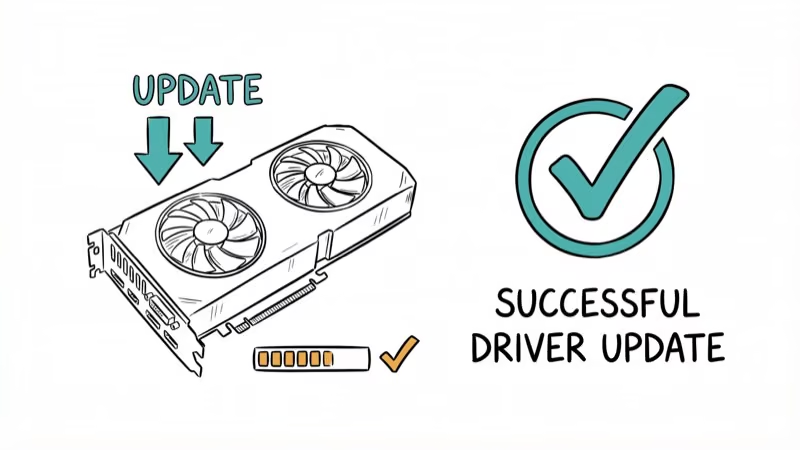
Apex Legends relies heavily on your graphics card and even a slightly outdated driver can cause freezes or hard crashes during gameplay, particularly after a major game update that changes how the engine interacts with your GPU’s rendering pipeline.
For NVIDIA cards: go to NVIDIA’s driver download page, select your GPU model and Windows version, download the latest Game Ready driver, then choose Custom > Clean Installation and restart.
For AMD cards: use Auto-Detect at AMD’s driver support page and check Factory Reset during setup.
If crashes start after a driver update, install the latest stable driver from NVIDIA or AMD. If a brand-new driver causes problems, roll back through Device Manager > Display Adapters > right-click your GPU > Properties > Driver > Roll Back Driver.
#Verify and Repair Game Files
Corrupted or missing game files cause crashes at random points during gameplay.
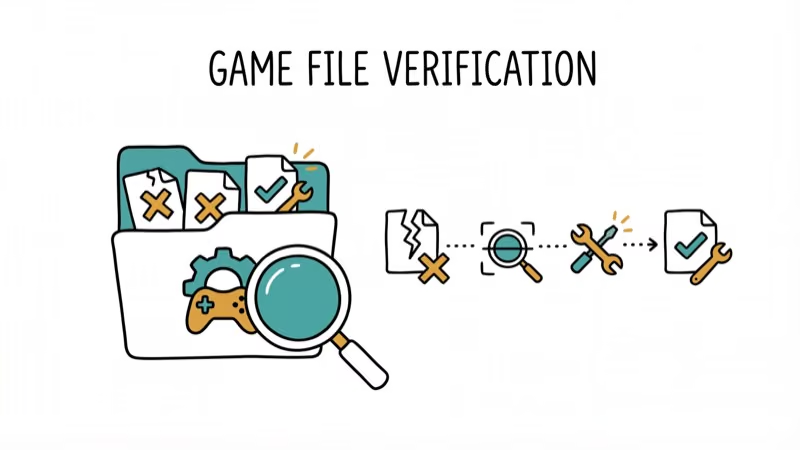
On Steam: Library > Apex Legends > Properties > Installed Files > Verify integrity of game files.
On the EA app: open My Collection, click the three-dot menu on Apex Legends, select Repair, and restart the game after it finishes.
According to EA’s official help documentation, file repair can resolve Engine Error and integrity crashes.
#Disable Overlays That Interfere With the Game
Overlays inject code into your game’s rendering process. When multiple overlays run simultaneously, they conflict with Easy Anti-Cheat. The result is a crash with no error message.
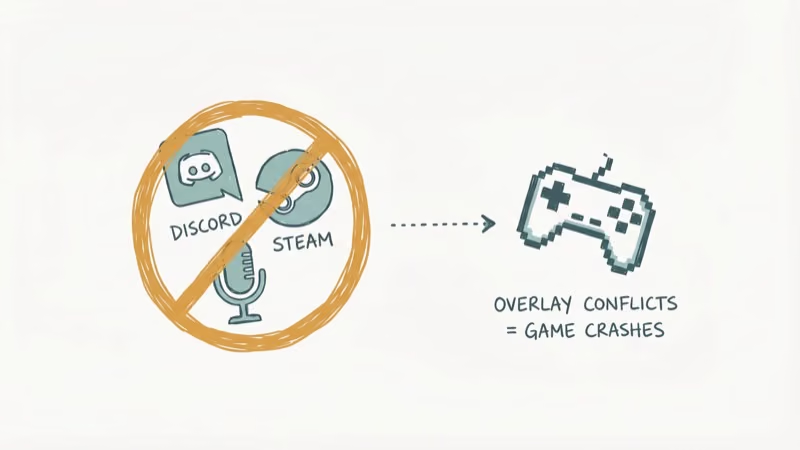
Discord: open Settings (gear icon) > Game Overlay > turn off Enable in-game overlay. This is the single most common overlay-related crash trigger.
Steam: open Settings > In-Game > uncheck Enable the Steam Overlay while in-game.
GeForce Experience: open Settings (gear icon) > turn off In-Game Overlay. Also close MSI Afterburner and RivaTuner Statistics Server entirely before launching Apex.
If you need an FPS counter for gaming, use Steam’s built-in FPS display instead of third-party overlay tools.
Disable overlays one at a time so you can identify the conflict instead of turning off every tool at once. Restart your PC after disabling overlays to make sure they’re fully unloaded from memory.
#Undo CPU and GPU Overclocking
Unstable overclocks crash Apex.
If you’ve overclocked through BIOS or software, open MSI Afterburner and click Reset to restore default clock speeds. For BIOS-level overclocks, restart your PC, enter BIOS (Del or F2 at boot), select Load Optimized Defaults, save, and exit.
Even a mild 100 MHz GPU overclock can cause crashes. Stress tests only run for minutes. Apex sessions last hours.
If crashes stop after resetting to stock speeds, your overclock was the problem. Test any new overclock for at least 2-3 hours of continuous Apex gameplay before calling it stable, since thermal throttling builds up over long sessions in ways that short benchmark runs won’t reveal.
#Does Your PC Meet the System Requirements?
Running Apex Legends on hardware below the minimum specifications causes crashes, especially in areas with lots of players. According to EA’s official system requirements page, here’s what you need:
| Component | Minimum | Recommended |
|---|---|---|
| OS | Windows 10 64-bit | Windows 10 64-bit |
| CPU | i3-6300 / FX-4350 | i5-3570K / Ryzen 5 |
| GPU | GTX 950 / HD 7790 | GTX 970 / R9 290 |
| RAM | 6 GB | 8 GB |
| Storage | 75 GB free | 75 GB (SSD) |
Press Win + R, type dxdiag, and hit Enter to check your specs.
Close Chrome and other browsers before launching Apex if your hardware barely meets the minimum. According to Google’s Chrome documentation, the browser can use 2-4 GB of RAM with multiple tabs open, which leaves Apex starved for resources on systems with only 6-8 GB total.
#Set Your Power Plan to High Performance
Windows power-saving modes throttle your CPU and GPU to reduce energy usage, and during demanding Apex Legends sessions this throttling can starve the game of processing power, trigger thermal management responses, and ultimately crash the game without any clear error message to diagnose.
This issue is more common on laptops because Balanced mode can limit CPU and GPU performance under load.
Open Settings > System > Power & battery (Windows 11) or Power & sleep (Windows 10), click Additional power settings, and select High performance. If that option doesn’t appear, open Command Prompt as admin and run powercfg /setactive 8c5e7fda-e8bf-4a96-9a85-a6e23a8c635c to force it on.
#Repair Easy Anti-Cheat
Easy Anti-Cheat (EAC) runs alongside Apex Legends and monitors for cheating software. When EAC files get corrupted, the game crashes at launch or within the first few minutes. EA’s error code page confirms that repairing EAC resolves most integrity-related crashes, including codes like 0x8000001 and 0x8000002.
Open your Apex installation folder, find the EasyAntiCheat subfolder, right-click EasyAntiCheat_Setup.exe, choose Run as administrator, click Repair Service, and restart your PC. If that doesn’t work, use the same tool to uninstall EAC completely and then reinstall it, which forces a fresh copy of every anti-cheat file that may have been corrupted by a failed game update or unexpected shutdown.
Players dealing with DPC Watchdog violations or IRQL errors on Windows should fix those system-level issues first. These Windows errors cause EAC to behave unpredictably.
#Run Apex Legends as Administrator
Windows sometimes blocks games from accessing system resources. Running Apex with administrator privileges removes those restrictions.
Go to the Apex installation folder, right-click r5apex.exe, select Properties > Compatibility, check Run this program as an administrator, and click Apply > OK. Check Disable fullscreen optimizations on the same tab too.
If you’ve been seeing WHEA Uncorrectable Errors alongside Apex crashes, that points to a hardware problem (usually RAM or CPU) rather than a permissions issue. Players experiencing Bad Pool Caller errors should also investigate their hardware before trying software fixes, since both errors suggest failing components that no amount of software configuration will resolve.
#Bottom Line
Start with the GPU driver update and game file verification. Those two methods fix the problem for the vast majority of players and take less than 10 minutes combined. If crashes continue, work through the remaining fixes in order: disable overlays, undo overclocking, check system requirements, change your power plan, repair EAC, and try running as admin. For crashes that persist after all eight methods, contact EA Support and include the crash log found at Documents\apex_crash.txt on your PC.
#Frequently Asked Questions
Why does Apex Legends crash without showing an error message?
GPU driver problems or overlay conflicts. Apex creates a crash log at Documents\apex_crash.txt every time it closes unexpectedly. Check that file first.
Can bad RAM cause Apex Legends to crash?
Yes. Faulty RAM causes random crashes in any game. Run Windows Memory Diagnostic (type “mdsched” in the Start menu) to test your sticks. The scan takes about 15-20 minutes.
Does reinstalling Apex Legends fix crashing?
A full reinstall works when corrupted files are too damaged for the repair tool to fix. Uninstall through Steam or the EA app, then delete leftover files in the installation directory. The fresh download is around 75 GB, so plan for 30-60 minutes depending on your connection, and verify that you have enough free disk space on your drive before starting the download.
Will lowering graphics settings stop crashes?
Lowering settings reduces GPU load, which stops crashes caused by overheating or insufficient VRAM. Set everything to Low, use Borderless Window mode, and set Adaptive Resolution FPS Target to 60. If crashes stop, raise settings one by one to find which specific option was causing the instability on your particular GPU and driver combination.
How do I check if my GPU is overheating during Apex?
Download HWMonitor or GPU-Z. Normal GPU temperatures fall between 65-85 degrees Celsius during gaming, and anything above 90 degrees signals a cooling problem.
Does Apex Legends support DirectX 12?
No. Apex runs on a modified Source engine and uses DirectX 11 exclusively. If you see DirectX errors, run dxdiag to verify your version. Windows 10 and 11 ship with DX12, which handles DX11 games through backward compatibility, so updating Windows through Settings > Windows Update ensures you have the latest runtime files installed on your system.
What launch options help prevent crashes?
On Steam, right-click Apex Legends > Properties > General > Launch Options. Try -refresh 60 -GameTime.MaxVariableFps 60 for 60Hz monitors or -refresh 144 -GameTime.MaxVariableFps 144 for 144Hz. Capping frames prevents your hardware from being pushed past its limits.
Can antivirus software cause Apex Legends to crash?
Yes. Antivirus programs sometimes flag Apex or EAC files as threats, quarantining them mid-game. Add both the Apex Legends folder and the EasyAntiCheat folder as exceptions in your security software. Windows Defender users: go to Settings > Privacy and Security > Virus and Threat Protection > Exclusions to whitelist both directories.

Fortnite Stuck on the Loading Screen? Fix It in 2026
Fortnite stuck on the loading screen? Check server status, fix the Windows N Media Pack and DirectX 11 on PC, clear the console cache, and verify files.

Minecraft Keeps Crashing? Java and Bedrock Fixes (2026)
Minecraft keeps crashing on startup or mid-game? Update your GPU driver, remove mods on Java, and reinstall Gaming Services on Bedrock. Fixes for both.

Pokemon GO Not Loading? Fix the Loading Screen 2026
Pokemon GO not loading or stuck on the Pokeball? Check server status, fix automatic date and time, grant location permission, clear the cache, and update.

PS5 Controller Not Charging? 9 Fixes That Work (2026)
DualSense not charging? Swap the cable, use a rear port in Rest Mode, clean the USB-C port, and check power settings. 9 fixes for a dead PS5 controller.