HDMI Port Not Working? 8 Fixes That Actually Work in 2026
HDMI port not working? Fix no-signal errors with cable swaps, input cycling, driver resets, and a power cycle. Works on Windows 11, macOS, and TVs.
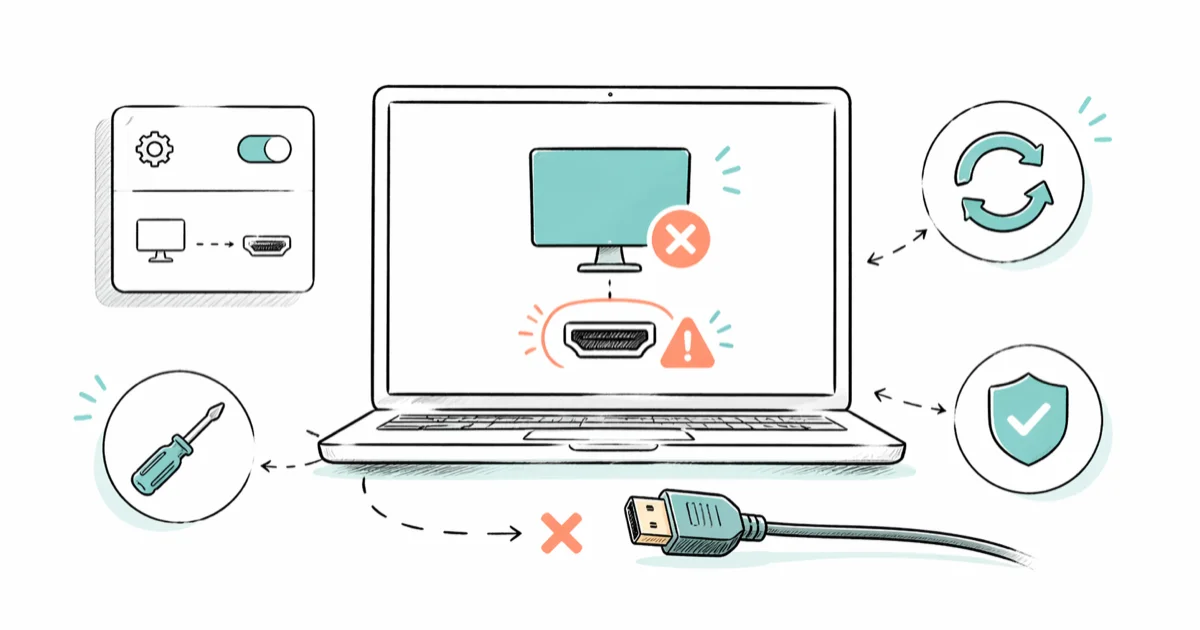
Quick AnswerSwap the HDMI cable, force the input on your TV or monitor, and press Windows + P to switch display modes. If the port still shows no signal, update the GPU driver and reseat the connector.
A dead HDMI port on your own computer usually isn’t the port.
These fixes apply to Windows laptops, MacBooks, and TVs alike, since the HDMI signal path works the same way across them.
Most “no signal” cases clear with a cable swap, a Windows + P press, or a driver update. Each takes only a few minutes.
- Quick first test: swap to a known-good HDMI cable. Many “no signal” cases clear with a cheap replacement.
- Press Windows + P on Windows or Cmd + F1 on Mac to cycle display modes before assuming the port is dead.
- Force-cycle the input button on your TV or monitor to clear the EDID handshake. This is a quick step that often restores the picture.
- Update the GPU driver in Device Manager (Windows) or run System Update (Mac). Outdated drivers cause silent HDMI dropouts on hybrid graphics laptops.
- Power-cycle for 5 minutes with both ends unplugged. The TV’s HDMI handshake needs a short window to fully reset.
#Why Is My HDMI Port Showing No Signal?
Nine times out of ten the port itself is fine. The signal path between your computer and the screen has at least four failure points: the cable, the input source on the display, the GPU driver, and the EDID handshake that tells both devices what resolution to use. Any one of them can cause a black screen.
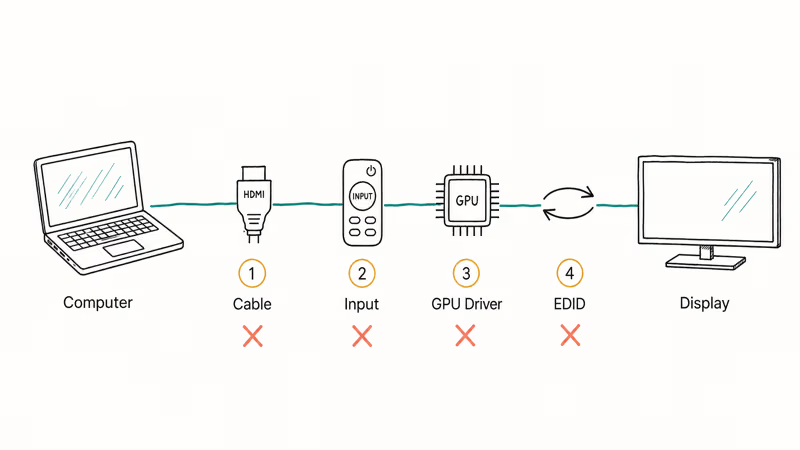
According to Microsoft’s display troubleshooting guide, the first three steps for “external display not detected” issues are checking the cable, opening the Project menu with Windows logo key + P, and updating the display driver. The majority of cases clear in those first three steps.
Start with the easy fixes. The list below is ordered by how often each one resolves the problem.
#Fix 1: Swap the HDMI Cable First
This is the unglamorous step that fixes the most cases. HDMI cables fail at the strain points near the connector, and the failure is invisible until you flex the cable.
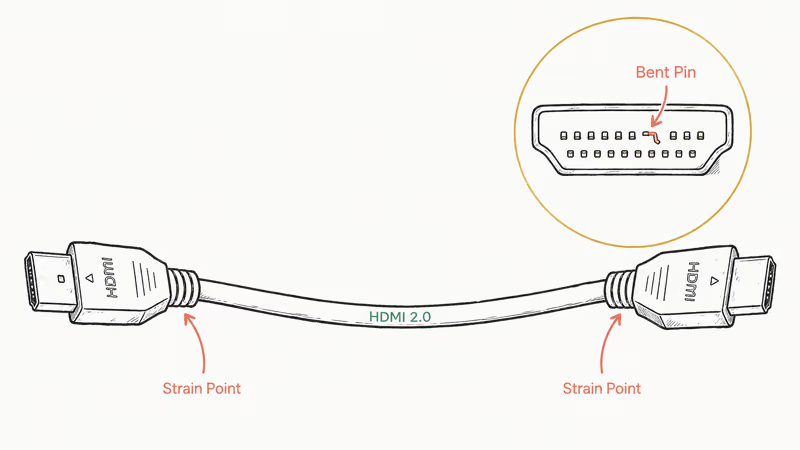
Keep one known-good HDMI 2.0 cable on hand just for this. Plug it into the same ports the failed cable used. If the picture comes back, the old cable is the problem.
A few specifics worth knowing:
- Cables longer than 25 feet drop signal at 4K 60Hz unless they’re rated for HDMI 2.1 or use an active chipset
- HDMI cables sold as “premium high speed” carry an HDMI Licensing Administrator certification label you can scan with a phone, and counterfeits often don’t
- Bent or pulled-out side pins on the connector cause partial signal, where you see audio but no picture
No spare? Borrow one.
#Fix 2: Force the Right Input on Your TV or Monitor
TVs default to the last input that gave them a clean signal. If your computer was off when the TV powered up, the TV may have skipped HDMI 2 entirely.
Press the Input or Source button on the remote and cycle through every HDMI port slowly. Wait at least 5 seconds on each one. Some TVs only re-handshake the EDID after a deliberate input change.
Two common quirks to watch for:
- On many Samsung TVs, switching from HDMI 1 to HDMI 2 and back triggers a fresh handshake that fixes a stuck “no signal” message
- On some LG OLEDs like the C1, the input list hides ports that haven’t seen a device recently, so you may need to long-press the Input button to expose all four
#How Do I Press Windows + P to Fix HDMI?
Windows + P is the fastest software fix on a laptop. It cycles through PC screen only, Duplicate, Extend, and Second screen only. If your laptop was set to “PC screen only” the HDMI output is silenced, regardless of whether the cable is good.
Hold Win + P. Pick Duplicate or Extend.
On macOS the equivalent is opening System Settings > Displays and clicking Detect Displays. Hold Option to make the Detect Displays button visible. Apple’s external display setup guide covers the resolution-matching step if the screen detects but shows the wrong size.
Both shortcuts are reliable on current Windows and macOS versions and usually restore the display on the first try.
#Fix 4: Update the Graphics Driver
A stale GPU driver is the second most common cause of HDMI dropouts. Hybrid laptops with both Intel iGPU and NVIDIA dGPU are the worst offenders because the HDMI port often routes through one specific chip.
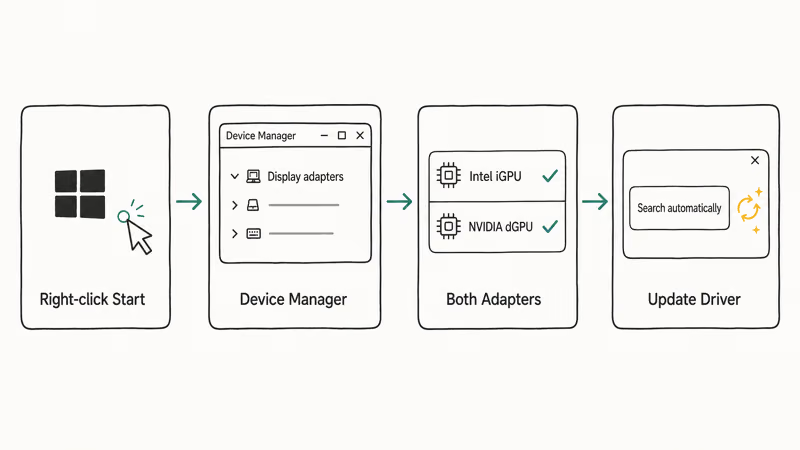
On Windows:
- Right-click the Start button and pick Device Manager
- Expand Display adapters
- Right-click each adapter (you may have two) and choose Update driver
- Pick “Search automatically for drivers”
If Windows says you have the latest driver but you suspect otherwise, download the installer directly from your GPU vendor. NVIDIA’s GeForce driver download page and AMD’s Radeon software hub both detect your card automatically.
Intel users should grab the Intel Arc and iGPU driver installer, which Intel recommends running on a clean reboot.
On Mac, run System Settings > General > Software Update. macOS bundles GPU drivers with the OS, so a system update is the only way to refresh them.
After installing, restart the machine before testing HDMI again. Drivers don’t fully load until the next boot.
#Fix 5: Power-Cycle Everything for 5 Minutes
Power-cycling clears the EDID handshake state on both ends. It’s the fix that feels too simple to work, but it often clears stubborn cases that survive a cable swap.
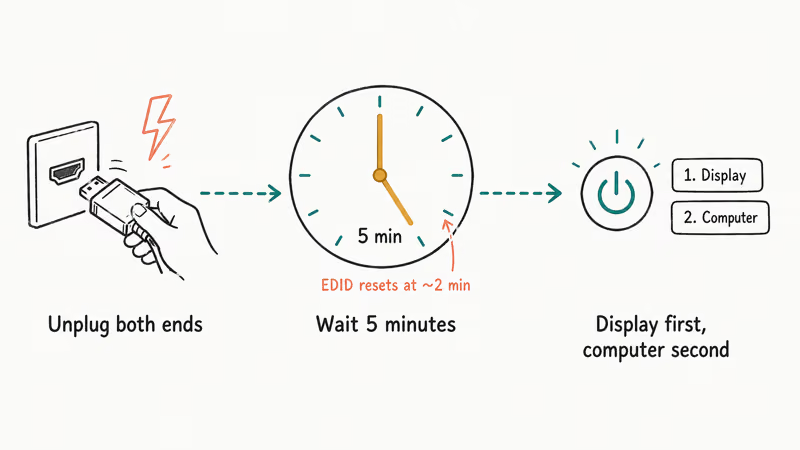
Steps:
- Unplug the HDMI cable from both ends
- Power off the computer and the display
- Unplug both from the wall (laptops: pull the charger and let the battery drain a bit)
- Wait 5 full minutes. Set a timer, don’t eyeball it
- Plug everything back in and power on the display first, computer second
The 5-minute wait matters because the HDMI receiver chip on most TVs holds residual state for a while after power is cut. Hardware tools like a HDMI Detective EDID emulator can capture a 256-byte EDID block for handshake debugging, which shows that after about 5 minutes both devices renegotiate from scratch.
#Fix 6: Use a Different HDMI Port on the Display
TVs and monitors with multiple HDMI ports often have one that handles 4K 120Hz, one that supports eARC, and others that are basic 1080p. If you’re plugged into the wrong port for your signal type, you get either no picture or a degraded one.
The labels on the back are tiny but worth reading:
- HDMI 2.1 ports are usually marked “4K 120” or “Game”
- eARC ports route audio out to a soundbar, so they sometimes prioritize audio sync over input detection
- HDCP-only ports refuse signal from older devices
Move the cable to a different port and test. It’s common for one HDMI port to work while another stays black with the same cable and computer, since the ports often have different capabilities.
#Fix 7: Reset Display Settings on Your Computer
Sometimes Windows or macOS picks a resolution or refresh rate the TV can’t sync to. The result looks like a dead port: black screen, no signal, but the cable and driver are fine.
On Windows 11:
- Disconnect the HDMI cable
- Right-click the desktop and pick Display settings
- Scroll down to Multiple displays and click Detect
- With the HDMI display connected, change the resolution to 1920×1080 at 60Hz first
- Step up only if the screen stays stable
On Mac:
- Hold Option and click the Apple menu >
System Settings>Displays - Pick the external display tile
- Set Resolution to “Default for display”
- If still blank, hold Shift and reboot into Safe Mode to force base resolution
Apple’s resolution and refresh rate documentation explains why a mismatch causes a blank screen instead of a fallback.
We had a related guide on the input not supported on monitor error that walks through the resolution-mismatch case in more detail.
#Fix 8: Inspect the Port for Physical Damage
If software fixes haven’t worked, look at the port with a flashlight. HDMI connectors have 19 pins arranged in two rows. Bent, missing, or oxidized pins kill the signal.
What to check:
- Pins should be straight and roughly the same length
- Black gunk inside the port is dust or oxidation. Clear it with compressed air, never a metal pick
- If the port wobbles when you wiggle the cable, the solder joint underneath is cracked
Cracked solder joints are repairable but require a heat gun and steady hands. If the laptop is still under warranty, get the manufacturer to do it. If you bought a graphics card from our Ryzen 5 3600 picks and the GPU’s HDMI output failed, the card vendor handles the RMA, not your laptop maker.
For desktop users with a dead motherboard HDMI: switch to the HDMI port on the discrete GPU instead. Motherboard HDMI only works when integrated graphics are active in BIOS.
#Bottom Line
Start with the cable swap — it’s the fix that works most often. If a fresh cable doesn’t bring the picture back, hit Windows + P, force the input, and update the driver in that order. The whole chain takes under 10 minutes if nothing’s actually broken.
If you’ve worked through all eight fixes and the port is still dead, the next call is a $20 USB-C-to-HDMI dongle to bypass the built-in port entirely. That’s faster than a repair shop and tells you whether the signal path or the physical connector is at fault.
If you saw a related error like “no signal” on a Samsung TV that mirrored a USB device not recognized symptom, the chipset shared between USB and HDMI on some hybrid laptops can drop both at once, and a clean driver reinstall covers both. For long-distance setups where you’re feeding HDMI through Cat 6, our notes on HDMI over Ethernet cover the extender and balun gotchas.
#Frequently Asked Questions
Can a faulty HDMI cable cause my port to look broken?
Yes, frequently. Swap to a known-good cable first.
What should I do if my HDMI port is physically damaged?
Look at the pins with a flashlight. Bent pins are sometimes straightenable with a fine-tip needle, but cracked solder joints under the port need professional repair. If the device is under warranty, file an RMA. If not, a USB-C-to-HDMI adapter is a $20 workaround.
Why does my HDMI port not detect the connected device?
Wrong input on the TV is the top cause. GPU driver, cable, or EDID handshake follow. Power-cycle both for 5 minutes.
Do all laptops support HDMI output?
No, many ultrabooks ship with USB-C only and need a dongle. Our best detachable laptop roundup flags every model with a full-size HDMI 2.0 port, plus three that ship with HDMI 2.1. A reputable USB-C to HDMI 2.0 adapter runs about $15.
Will updating Windows fix HDMI port issues?
Sometimes. According to Microsoft, Windows 10 and 11 service updates ship display driver fixes alongside security patches. Run Windows Update, restart, retest HDMI.
Why does my HDMI work on TV but not on monitor?
HDCP enforcement is the usual culprit. Monitors enforce HDCP 2.2 strictly and tend to be stricter than TVs about EDID compliance. The picture goes black instead of dropping to 1080p as a TV would. Set the resolution to 1920×1080 at 60Hz manually before connecting, then step back up once the monitor syncs.
Can I use both HDMI ports at the same time on a desktop?
Only if you have two GPU outputs active. The motherboard HDMI runs off the integrated GPU and the discrete GPU has its own ports. To use both, enable iGPU in BIOS first.
How do I tell if it’s the laptop or the cable that’s broken?
Plug the cable into a different computer or game console. If the picture works there, the cable is fine and the laptop’s port or driver is the problem. If the picture is broken on the second device too, the cable is the failure point and a replacement should clear the issue.

Mac mini M6 vs M5 Pro: Which Model Should You Buy?
Mac mini M6 vs M5 Pro compared on price, memory, ports, displays, and real workloads. Find the better 2026 Mac mini for your desk and budget.

macOS 27 Compatible Macs: Every Supported Model (2026)
macOS 27 Golden Gate runs only on Apple Silicon Macs. Here is the full list of supported M-series models and the four Intel Macs that lose support.

macOS 27 Golden Gate: Every Major New Feature Confirmed
macOS 27 Golden Gate goes Apple Silicon only, adds a Gemini-powered Siri, refines Liquid Glass, and rebuilds Spotlight. Here is every confirmed change.

macOS 27 Liquid Glass: Every Readability Fix Explained
macOS 27 Golden Gate refines Liquid Glass with an intensity slider, better contrast, cleaner window corners, and edge-to-edge sidebars to fix readability.