How to Delete a Steam Account Permanently (2026 Guide)
How to permanently delete a Steam account in 2026. Step-by-step guide covering what you lose, alternatives, and how to remove Steam from Windows and Mac.
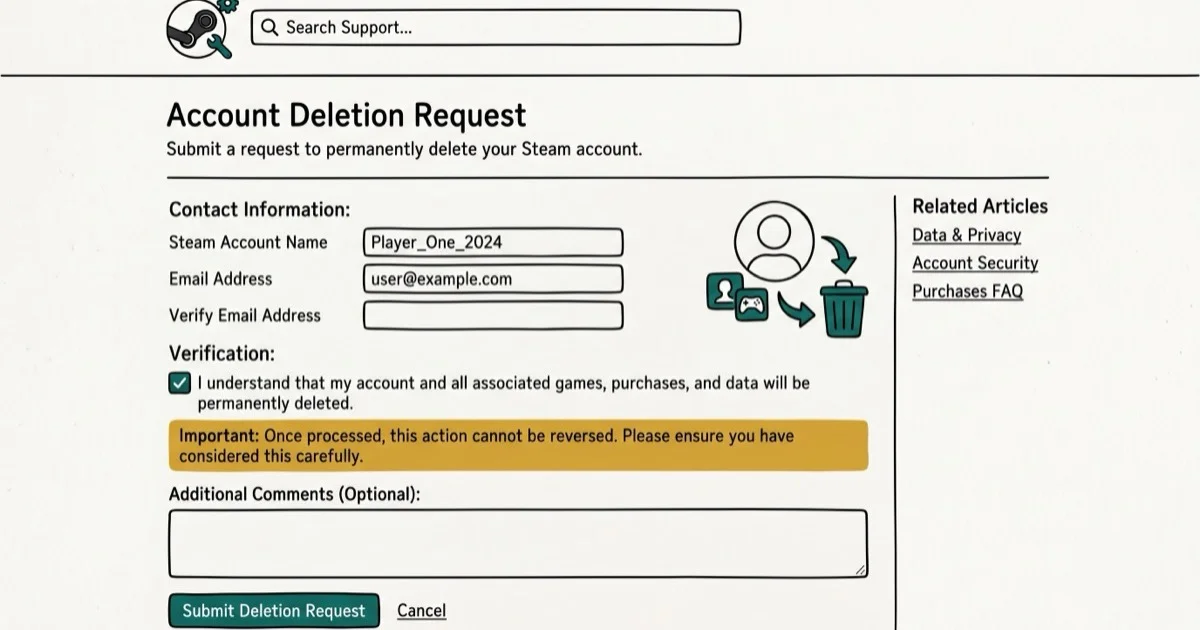
Quick AnswerGo to help.steampowered.com, sign in, select your account, click Delete my Steam account, then submit the form. Steam routes this to their support team, who processes the deletion after reviewing your request.
Deleting a Steam account is permanent and irreversible. Before you follow through, it’s worth knowing exactly what you lose and whether one of the simpler alternatives might solve the real problem without sacrificing your game library.
The steps below follow Steam’s support flow rather than the Steam client settings, because permanent account deletion has to go through Steam Support.
Delete a Steam account only after reviewing the official support option, Steam’s account-deletion page, and any refund or ownership rules that apply to your games. Account deletion can affect purchases, wallet balances, saved data, and community records, so keep the process within legal privacy boundaries and save any required receipts first.
- Steam account deletion is permanent: all purchased games, DLC, wallet funds, and friends are gone.
- Steam Support processes deletions manually and requires a verification form before proceeding.
- Accounts with recent purchases must wait before they can be deleted (typically 30 days)
- Uninstalling Steam from your PC is reversible; deleting the account is not.
- Steam Family Sharing lets you share your library with family members without deleting anything
#What Do You Lose When You Delete a Steam Account?
Deleting your Steam account removes everything tied to it permanently — every game you’ve purchased, all DLC and in-game items, your playtime history, screenshots, reviews, your friends list, and any Steam Wallet balance.
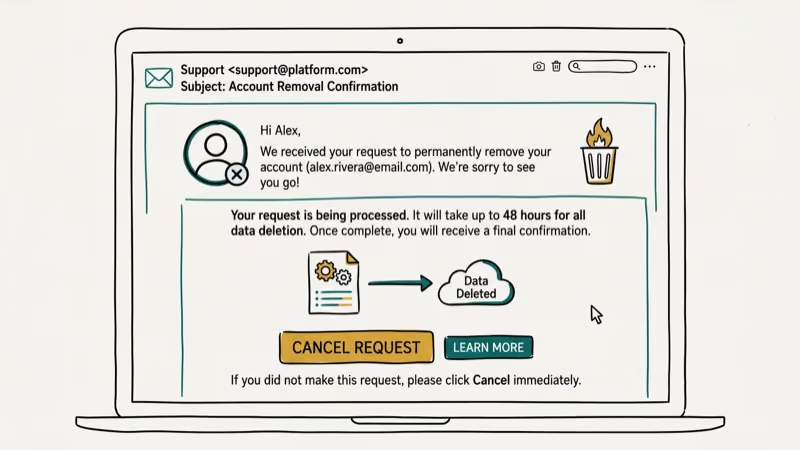
Steam’s account deletion FAQ states that games and purchases can’t be transferred to another account before deletion, and no refunds are issued for the library at closure. See Steam’s official deletion FAQ for details. If you’ve built up a collection of Steam screenshots, export them before proceeding.
Once deletion is finalized, access to the account’s games and purchase history is removed. There is no grace period where the library remains usable after the account is deleted.
#How Do You Delete Your Steam Account?
Steam doesn’t let you self-delete from within the client app. You have to go through Steam Support.
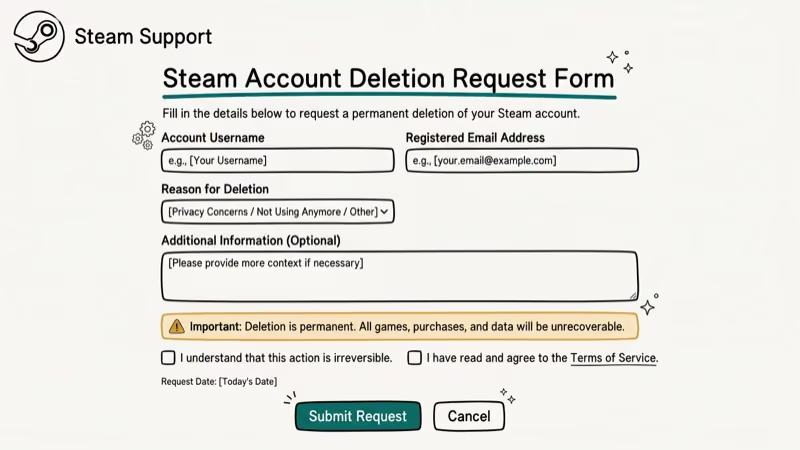
Go to help.steampowered.com and sign in. Select My Account > Data Related to Your Steam Account, then choose Delete my Steam Account. Complete the verification form, submit it, and wait for Steam Support to contact you with next steps.
Steam reviews deletion requests manually, so removal does not happen instantly. If your account has recent purchases or unresolved security checks, Steam may ask you to wait or complete additional verification before proceeding. You can cancel a pending deletion request by logging back into the account before it’s finalized.
#Uninstalling Steam vs. Deleting the Account
Most people who want to “get rid of Steam” actually just want to uninstall the app, not permanently delete the account. Uninstalling Steam from your computer removes the client and frees up disk space, while your account, games, achievements, and purchase history all stay fully intact on Valve’s servers. You can reinstall Steam a year later, log in with the same credentials, and start downloading any of your games immediately.
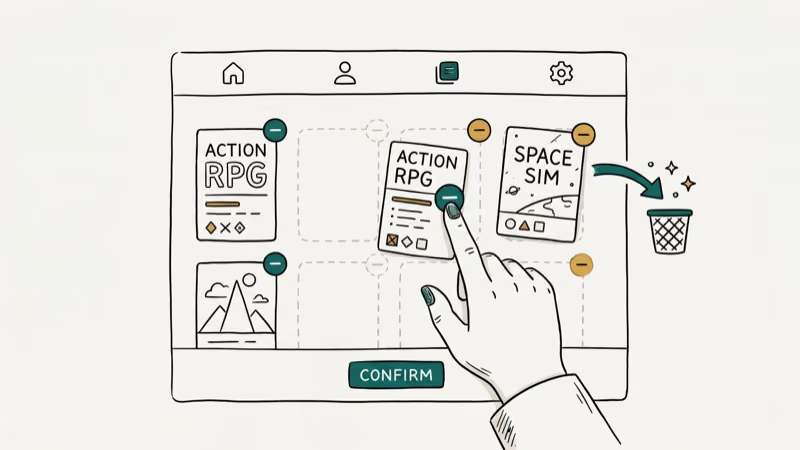
If Steam gets a disk write error or has persistent performance issues, uninstalling and reinstalling the client is a standard troubleshooting step that doesn’t require touching your account at all.
#Reasons Steam May Decline Your Deletion Request
Steam’s help center states that 4 conditions make accounts ineligible for deletion: a pending purchase within the last 30 days, an active Steam Guard block, an outstanding ban or hijacking investigation, or a current Steam subscription. If your request is declined, you’ll receive a specific reason in the response from Steam Support.
#How to Uninstall Steam on Windows
Go to Settings > Apps > Installed Apps, search for “Steam,” click it, and select Uninstall. Alternatively, open the Control Panel > Programs > Uninstall a Program, find Steam, and click Uninstall. The uninstaller runs and removes the Steam client and any games stored in the default installation directory. Games stored in a custom library folder are left untouched unless you manually delete that folder.
#How to Uninstall Steam on Mac
Open Finder, go to Applications, drag Steam to the Trash, then empty the Trash. Any leftover game data in ~/Library/Application Support/Steam/ needs manual removal.
#Alternatives to Deleting Your Account
Before going through with permanent account deletion, consider these options. According to Wikipedia’s overview of Steam, the platform had over 132 million monthly active users by 2021, and Valve’s support team handles deletion requests manually rather than through an automated system.
Remove games from your library. You can’t permanently remove purchased games from Steam, but you can hide them so they don’t appear in your library. Right-click any game and select Manage > Hide this game.
Use Steam Family Sharing. If your concern is sharing access with family members, Steam Family Sharing lets up to 5 people access the same game library from their own accounts. One person owns the games, everyone else can play them at no extra cost as long as the library owner isn’t currently playing. No deletion required.
Delete individual games. If storage space is the concern, right-click any game in your library and select Manage > Uninstall. The game stays in your library for free re-download anytime.
Sell cards and items. If recovering value matters, you can trade or sell unwanted in-game items and trading cards through the Steam Community Market before closing the account. See how to make money on Steam for tips on extracting value from your library. Even small amounts add up when clearing a large inventory across multiple games.
Change account details. If you want to start fresh with a different username, email, or persona, you can change all of those in Account Settings without deleting anything.
#Bottom Line
Uninstall Steam from your PC if you need a break. Only use the Steam Support deletion process if you’re certain you’ll never return, because there’s no recovery once it’s done. Your entire library, wallet balance, and account history disappear permanently. If you’re having technical issues like Steam download stopping or Steam error code 105, those are fixable without touching your account.
#Frequently Asked Questions
Can I recover my Steam account after it’s deleted?
No. According to Steam’s support documentation, once an account is fully deleted it can’t be recovered under any circumstances, including by Steam Support.
Will Steam refund my games when I delete my account?
No. According to Steam’s official refund policy, refunds are only available within 14 days of purchase and under 2 hours of playtime. Deleting your account is not grounds for a refund of your game library.
Does deleting my Steam account also delete my games from my computer?
Deleting the account removes your access to those games, but the game files themselves stay on your hard drive until you manually delete them from the Steam installation folder. Without an account, you can’t launch or verify those files, so they’re effectively unusable.
How long does Steam take to delete an account?
Steam Support reviews deletion requests manually, not through an automated queue. Accounts with extensive purchase history, active VAC bans, or recent activity may take longer to process or be flagged for additional verification before Steam proceeds with the removal.
Can I delete my Steam account without contacting support?
No. Steam requires you to go through the help.steampowered.com form, which routes your request to their support team. There is no self-service deletion option in the Steam client or settings.
What happens to my Steam Wallet balance when I delete my account?
Your Steam Wallet balance is forfeited permanently. Steam’s subscriber agreement confirms that wallet funds have no monetary value outside the platform and can’t be refunded or transferred to another account before deletion. If you have a significant balance, spend it on games or DLC before submitting the deletion request, since there’s no recovery option once the process begins.
Is there a way to pause or temporarily deactivate my Steam account?
Steam doesn’t offer a formal temporary deactivation option. The closest equivalent is simply not logging in and uninstalling the client from your devices. Your account remains fully intact and accessible whenever you decide to return.

Fortnite Stuck on the Loading Screen? Fix It in 2026
Fortnite stuck on the loading screen? Check server status, fix the Windows N Media Pack and DirectX 11 on PC, clear the console cache, and verify files.

Minecraft Keeps Crashing? Java and Bedrock Fixes (2026)
Minecraft keeps crashing on startup or mid-game? Update your GPU driver, remove mods on Java, and reinstall Gaming Services on Bedrock. Fixes for both.

Pokemon GO Not Loading? Fix the Loading Screen 2026
Pokemon GO not loading or stuck on the Pokeball? Check server status, fix automatic date and time, grant location permission, clear the cache, and update.

PS5 Controller Not Charging? 9 Fixes That Work (2026)
DualSense not charging? Swap the cable, use a rear port in Rest Mode, clean the USB-C port, and check power settings. 9 fixes for a dead PS5 controller.