How to Fix Disk Write Error on Steam: 8 Proven Solutions
Fix the Steam disk write error with 8 methods: verify game files, run as admin, clear cache, remove write protection, and check your hard drive for errors.
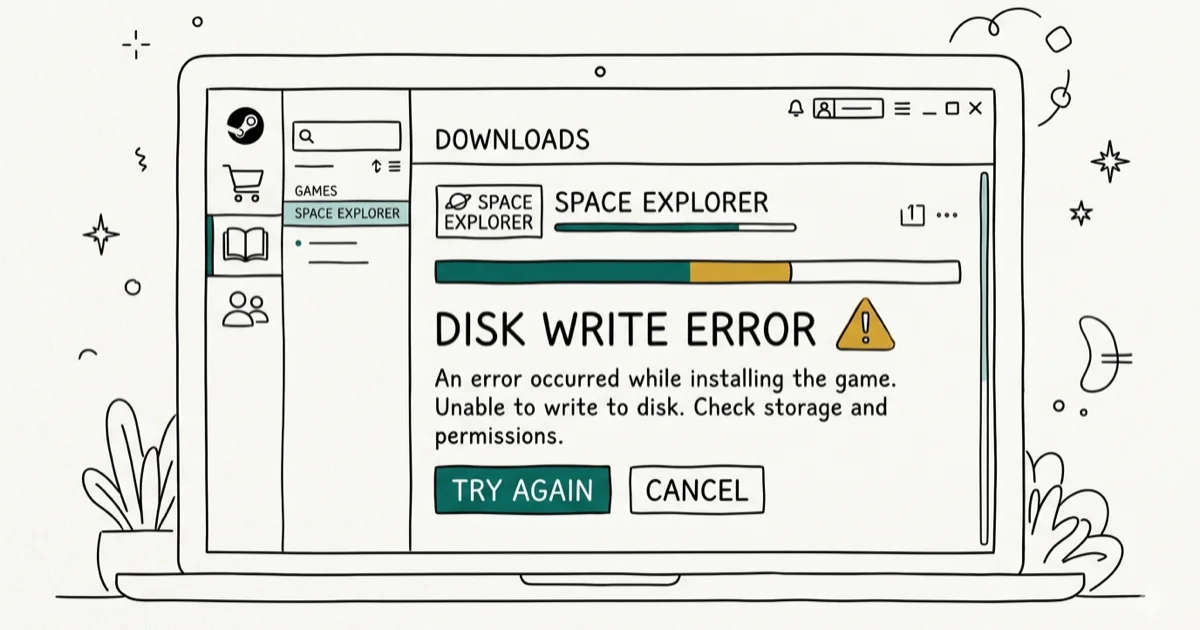
Quick AnswerThe most common fix for a Steam disk write error is to run Steam as administrator, then verify the integrity of game files in your library. If that fails, clear the Steam download cache, disable your antivirus temporarily, or change the download region.
The Steam disk write error stops game downloads and updates cold. The common causes are write-protected drives, corrupted download cache, antivirus interference, or a failing drive sector.
- Running Steam as administrator fixes most disk write errors caused by permission restrictions in protected Windows folders
- Verifying game file integrity through Steam clears mismatched or corrupted files that trigger write failures
- Clearing the download cache (steam://flushconfig) removes stale data that can block new writes without affecting your games
- Antivirus software frequently blocks Steam from writing to disk; adding Steam as an exception resolves the conflict
- A hard drive with bad sectors will cause persistent disk write errors regardless of software fixes; use CrystalDiskInfo to check drive health before trying other methods
#What Causes the Steam Disk Write Error?
The error message “An error occurred while updating [game] (disk write error)” appears when Steam can’t write game data to your hard drive. This happens for several reasons.
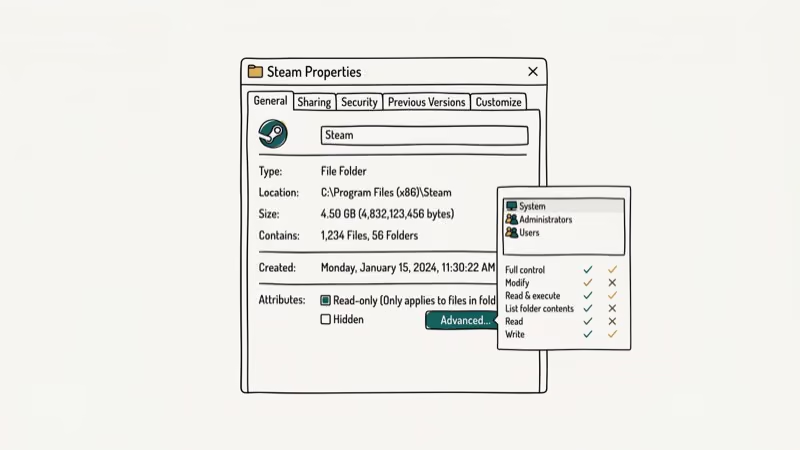
Write protection on the drive or the Steam folder blocks all write operations. Corrupted download cache files confuse Steam’s write process. Antivirus software treats Steam’s rapid file creation as suspicious and blocks it. Bad sectors on a mechanical hard drive physically prevent data from being written to specific areas.
According to Microsoft’s NTFS documentation, Windows Vista (2006) introduced mandatory integrity levels that block apps without admin rights from writing to protected directories. This restriction accounts for a large share of disk write errors on freshly installed Windows systems where Steam was installed without elevated permissions.
#How to Fix the Steam Disk Write Error
Start with the methods below, ordered from fastest to most involved.
#Method 1: Run Steam as Administrator
Right-click the Steam shortcut or executable and select Run as administrator. This grants Steam the permissions it needs to write to protected folders.
For a permanent fix, right-click Steam.exe, go to Properties, open the Compatibility tab, and check Run this program as an administrator. Click Apply. Steam will always launch with elevated permissions from now on.
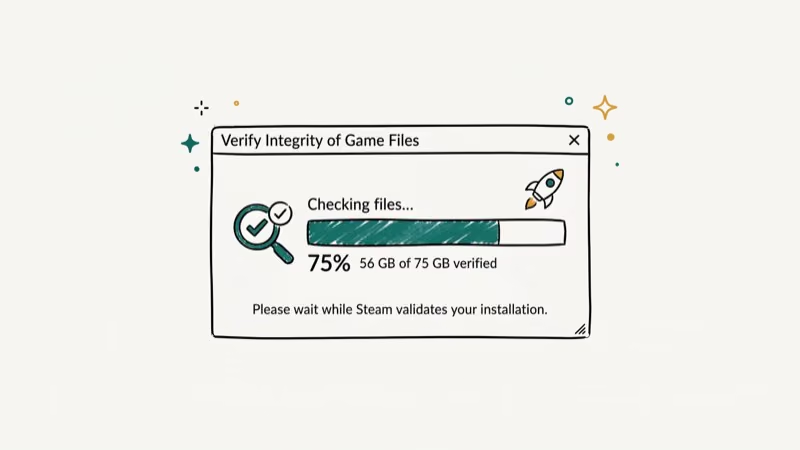
#Method 2: Verify Integrity of Game Files
- Open Steam and go to your Library.
- Right-click the affected game and select Properties.
- Click the Local Files tab.
- Click Verify integrity of game files.
Steam compares every installed file against its database and re-downloads any that are missing or corrupted. A few failures listed in the verification dialog are normal. Steam re-downloads those files automatically.
#Method 3: Clear the Steam Download Cache
Open Settings in Steam, go to Downloads, and click Clear Download Cache. Alternatively, press Windows + R and type steam://flushconfig, then press Enter.
This removes temporary download data without deleting your installed games. Clear the cache when verification doesn’t help, because stale download data can block new writes.
#Method 4: Delete Zero-Byte Files
Go to your Steam folder: C:\Program Files (x86)\Steam\steamapps\. Look for any file with a size of 0 KB and delete it. These empty stub files sometimes prevent Steam from writing the actual game data to disk.
#Method 5: Remove Drive Write Protection
If your drive is write-protected, Steam can’t save anything at all. To check and remove write protection:
- Press Windows + R, type
cmd, and run as administrator. - Type
diskpartand press Enter. - Type
list diskand press Enter. - Type
select disk [number](replace with your drive number) and press Enter. - Type
attributes disk clear readonlyand press Enter. - Type
exitand close the Command Prompt.
Restart Steam and attempt the download again.
#Method 6: Disable Antivirus Temporarily
Open your antivirus program and disable real-time protection, then retry the Steam download. If it succeeds, add the Steam folder as a permanent exception in your antivirus settings rather than leaving protection off.
Common antivirus programs that interfere with Steam include Windows Defender, Avast, and Norton. Each has a way to whitelist folders or applications in its settings.
#Method 7: Change the Download Region
- Go to Steam > Settings > Downloads.
- Under Download Region, select a different server location.
- Restart Steam and retry the download.
Overloaded or corrupted Steam CDN servers sometimes send incomplete data packets that cause write failures. Switching regions routes you to a different server.
#Method 8: Check Your Hard Drive for Errors
If none of the above methods work, run a drive health check. Press Windows + R, type cmd, and run as administrator. Type the following and press Enter:
chkdsk C: /f /rReplace C: with your Steam drive letter if different. The scan requires a restart and may take 30-60 minutes on a large drive. chkdsk identifies and marks bad sectors so Windows avoids them in future writes.
For a graphical view of drive health, CrystalDiskInfo is free and shows SMART data including reallocated sector counts and pending error counts. A “Caution” or “Bad” rating means the drive is failing and should be replaced. According to Wikipedia, NTFS has supported journaling and bad sector remapping since Windows NT 3.1 in 1993 (NTFS article). These features allow chkdsk to repair logical errors and mark bad sectors as unusable, preventing future write failures to those locations.
#Changing the Steam Library Folder to Fix Persistent Errors
If the same game keeps failing on the same drive, moving your Steam library to a different drive often resolves the issue permanently. Open Steam > Settings > Storage, click Add Drive, select a different drive, then move the game by right-clicking it in your Library and selecting Move install folder.
This approach works especially well when you have an SSD available. Steam installed on a secondary HDD sometimes inherits write-protection settings from older Windows configurations.
#Diagnosing Drive Health Before Trying Software Fixes
If the disk write error appears on multiple games or returns after every fix, suspect the drive itself. Download CrystalDiskInfo and run it before spending time on software troubleshooting. A drive showing “Caution” or “Bad” health status will keep failing regardless of Steam settings.
SMART data indicators to watch: Reallocated Sectors Count (C5/C6) above 0 on a mechanical drive signals imminent failure. On SSDs, check Total Bytes Written (TBW) against the manufacturer’s rated endurance. PCMag’s guide to hard drive health monitoring covers reading SMART data in detail.
#Why Does Steam Show Disk Write Errors More Than Other Apps?
Steam writes files rapidly and in large batches during game installation and updates. According to Valve’s Steamworks developer documentation, Steam verifies checksums for every file it writes to detect corruption early, which means any single failed write triggers the error immediately rather than silently skipping it. This makes disk write errors more visible in Steam than in most other applications.
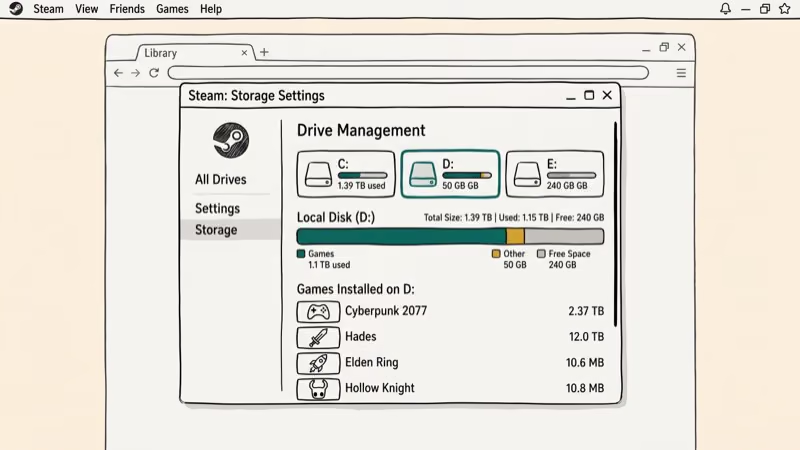
Steam also stores games in structured folders that Windows treats as protected locations. When Windows update files take up drive space, or when a drive nears capacity, Steam’s write buffer can overflow and produce this error even on healthy drives.
For related storage issues, see our guides on external hard drive recovery and best hard drives for gaming.
Steam-specific file locations are also covered in our walkthrough on where Steam saves screenshots, which helps when you suspect a folder permission conflict.
#Steam Error Logs: Finding the Root Cause
Steam writes detailed error logs to C:\Program Files (x86)\Steam\logs\. Open content_log.txt in a text editor and search for “failed to write” to find the specific file that triggered the error. The log entry often names the corrupted file or the drive path, pointing you directly at the root cause.
This saves time when dealing with errors on a single game; you can identify the exact file rather than running full verification on a 100+ GB installation.
#Bottom Line
Start with Method 1 (run as administrator) and Method 2 (verify game files); these resolve the majority of disk write errors. If you still see the error after both, clear the download cache and check your antivirus settings. Reserve the drive check for last since it takes the longest. If chkdsk reports bad sectors or CrystalDiskInfo shows a “Caution” rating, back up your data and plan to replace the drive. For the related Steam initialization error, our unable to initialize Steam API guide covers that companion issue.
#Frequently Asked Questions
Why does my Steam disk write error keep coming back?
Recurring disk write errors usually indicate a failing hard drive with bad sectors, an antivirus that re-enables itself after each session, or a Steam folder that loses its write permissions after Windows updates. Check drive health first, then verify your antivirus exception is still active.
Does the Steam disk write error delete game files?
No. The error prevents writing but doesn’t delete existing files. Any partially written files may be corrupted and need re-downloading, but your previously installed game data stays intact.
Can the Steam disk write error happen on SSDs?
Yes. SSDs can trigger disk write errors from permission issues, antivirus interference, or drive failure just like HDDs. Bad sectors are less common on SSDs but can occur on aging drives nearing end of life.
How long does verifying game files take?
Verification typically takes 1-5 minutes per game depending on file count and drive speed. A game with 50,000+ files on a slow HDD can take up to 20 minutes. SSD verification is usually under 2 minutes.
Does changing the download region affect download speed?
Yes, but not always negatively. Switching to a less-loaded server in a nearby region often improves both speed and reliability. Avoid regions geographically far from you to minimize latency.
What if the error only appears for one specific game?
A game-specific error usually means that game’s local files are corrupted. Verify that game’s file integrity first. If verification doesn’t help, try uninstalling and reinstalling just that title.
Is the Steam disk write error the same as a corrupt download?
Not exactly. A corrupt download is one cause of the error, but others (write protection, antivirus, bad drive sectors) produce the same message. Verify file integrity to determine if corruption is the specific cause.

Fortnite Stuck on the Loading Screen? Fix It in 2026
Fortnite stuck on the loading screen? Check server status, fix the Windows N Media Pack and DirectX 11 on PC, clear the console cache, and verify files.

Minecraft Keeps Crashing? Java and Bedrock Fixes (2026)
Minecraft keeps crashing on startup or mid-game? Update your GPU driver, remove mods on Java, and reinstall Gaming Services on Bedrock. Fixes for both.

Pokemon GO Not Loading? Fix the Loading Screen 2026
Pokemon GO not loading or stuck on the Pokeball? Check server status, fix automatic date and time, grant location permission, clear the cache, and update.

PS5 Controller Not Charging? 9 Fixes That Work (2026)
DualSense not charging? Swap the cable, use a rear port in Rest Mode, clean the USB-C port, and check power settings. 9 fixes for a dead PS5 controller.