CapCut App for PC & The Top Best CapCut Alternatives
Looking for CapCut for PC or alternatives? This guide covers the official CapCut desktop app plus 5 top alternatives with pricing and key features.
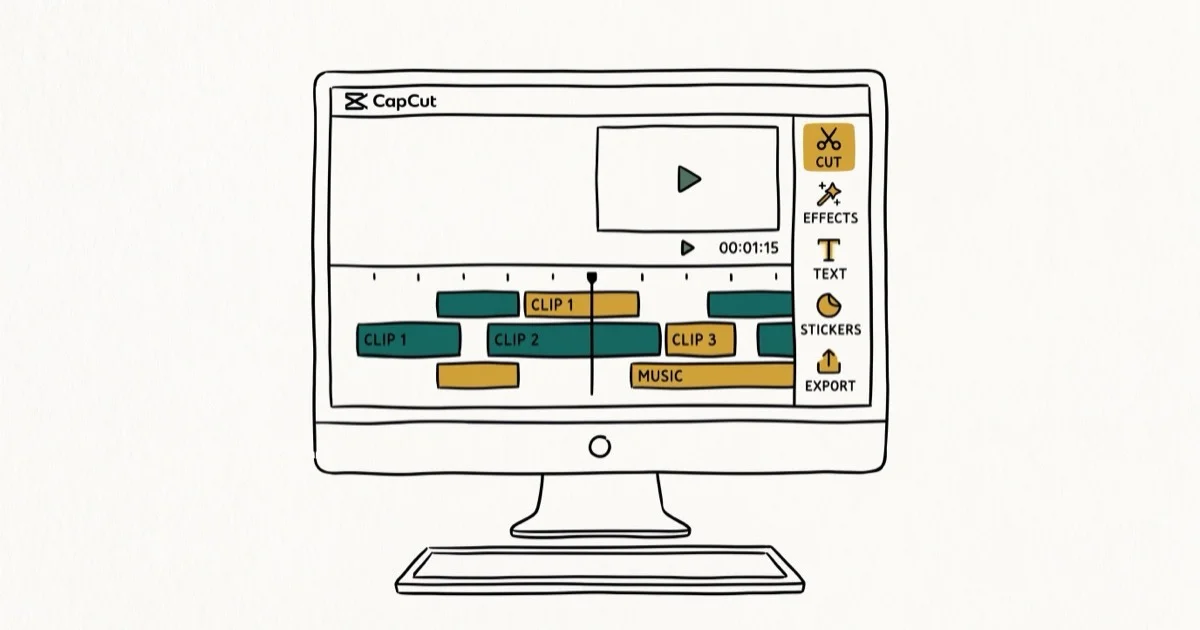
Quick AnswerCapCut has a native Windows PC app available at capcut.com/download, making it no longer necessary to use an Android emulator. If you prefer alternatives, Wondershare Filmora, DaVinci Resolve, and OpenShot are the top CapCut replacements for desktop editing.
CapCut is now available as a native PC app for Windows, eliminating the need to run it through an Android emulator. For users who want an alternative to CapCut entirely, Wondershare Filmora and DaVinci Resolve are the most capable desktop replacements.
This guide compares CapCut for PC with five alternatives across Windows and macOS, weighing export quality, template availability, ease of use, and price.
- CapCut for PC launched in 2022 as a free native Windows app (no emulator needed)
- CapCut’s PC version supports 4K export, auto-captions, background removal, and TikTok/YouTube integration.
- Wondershare Filmora starts at $49.99/year and is the best paid alternative for more templates than CapCut offers.
- DaVinci Resolve is free and professional-grade, but has a steeper learning curve than CapCut.
- OpenShot is fully free and open-source, ideal for budget users on Windows, Mac, or Linux.
#What Is CapCut and Is There a PC Version?
CapCut is a free video editor developed by ByteDance (the company behind TikTok). It was originally built for mobile (iOS and Android), but ByteDance released a Windows desktop app in 2022. A macOS version followed in 2023.
Making content specifically for TikTok? CapCut templates offer the most efficient workflow of any editor in this roundup, because the timing and effects are already matched to the format and you only swap in your own clips.
The PC version supports most features from the mobile app, plus desktop-specific additions: larger timeline, keyboard shortcuts, multi-track editing, and higher-resolution exports.
Wikipedia confirms that CapCut reached 200 million monthly active users by 2023, making it one of the fastest-growing video editors globally.
#CapCut PC vs. Mobile: Key Differences
The PC app adds features unavailable on mobile. You get a full multi-track timeline, keyboard shortcuts, and the ability to handle longer projects. The mobile app is faster for quick edits on the go, but the PC version is better for projects requiring precise cuts, text sync, or 4K output. For TikTok content creators, CapCut’s PC app integrates directly with TikTok for one-click publishing.
#CapCut PC Key Features
CapCut for PC ships with these core editing capabilities:
- 4K export at up to 60fps
- Auto-captions using AI speech recognition in 28 languages
- Background removal using AI in one click
- 700+ templates synced from the CapCut mobile library
- TikTok publishing directly from the editor
- Free with no watermark on exported videos (unlike some competitors)
These features match or exceed what most paid editors offer at CapCut’s price point of zero. The background removal tool alone saves significant time compared to manual masking.
#Installing CapCut on a Windows PC
Go to capcut.com/download and download the Windows installer. The file is about 150MB and installs in under 2 minutes. According to CapCut’s official download page, the app requires Windows 10 or later and at least 4GB of RAM.
Setup takes under 2 minutes at capcut.com/download.
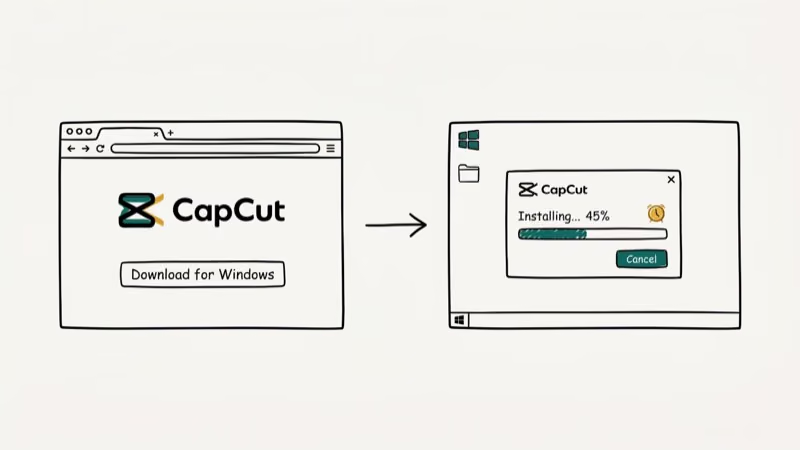
If you previously used Bluestacks or another Android emulator to run CapCut, you can uninstall it. The native Windows app is significantly faster and more stable than emulator-based setups, with noticeably shorter export times.
#Is CapCut for PC Good Enough for Professional Video Editing?
CapCut for PC handles most short-form content editing tasks well. For YouTube Shorts, TikTok, and Instagram Reels, it’s more than capable. For long-form content or professional broadcast work, it falls short.
Limitations of CapCut for PC compared to professional editors:
- No color grading curves or professional LUT support
- Limited audio mixing (2-3 tracks only vs. unlimited in DaVinci)
- No multi-camera editing
- Export formats limited to MP4, MOV, and GIF
- No project collaboration features
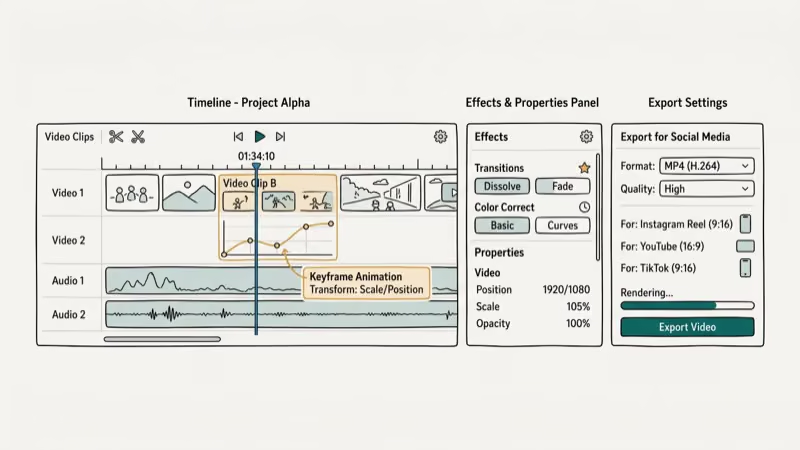
For most content creators making social media videos under 10 minutes, these limitations won’t matter. Our guide on the best laptop for video editing under $1000 covers hardware requirements for more demanding editors.
#Top CapCut Alternatives for PC
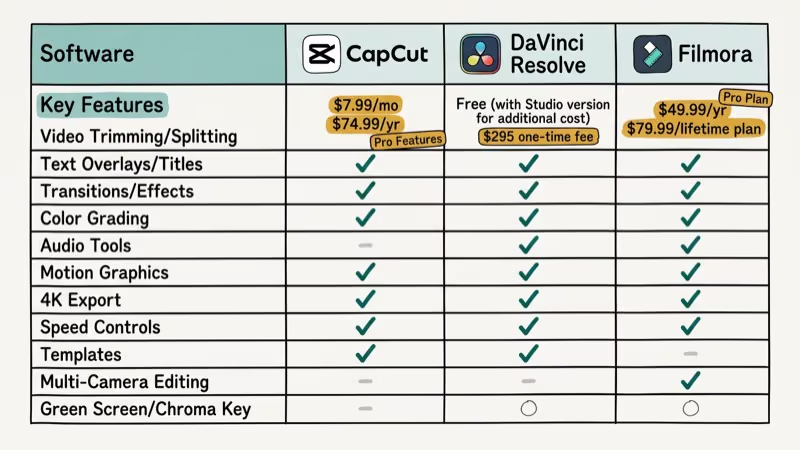
The best CapCut alternative depends on your priorities: budget, feature depth, or platform compatibility. Here’s how the top options compare.
#Wondershare Filmora
Wondershare Filmora is the closest CapCut alternative in terms of interface and template approach. Filmora 13 is roughly equivalent to CapCut in ease of use but more powerful in effects and transitions.
Pricing: Free version with watermark; Pro at $49.99/year or $79.99 one-time. According to Wondershare’s website, the free version includes all core editing features; only the watermark and some AI features are restricted.
Best for: Users who want CapCut’s ease of use with more professional templates and effects.
#DaVinci Resolve
DaVinci Resolve is the standard choice in professional film and television editing. It’s free and handles 4K editing on modest hardware. A 20-minute project runs smoothly on a mid-range Windows laptop even without paid hardware acceleration.
Pricing: Free version covers 90% of use cases. Studio version is $295 one-time.
Best for: Users willing to invest time in learning a professional tool. For a deeper look at how it stacks up against Adobe’s industry standard, see our DaVinci Resolve vs Premiere Pro breakdown.
#OpenShot
OpenShot is a free, open-source editor available on Windows, Mac, and Linux. Version 3.1 runs the same on Ubuntu and Windows. It’s simpler than CapCut in features but reliable for basic cuts and exports.
Pricing: Free. No watermark, no limitations.
Best for: Budget users who need basic editing without CapCut’s TikTok integration.
#iMovie (Mac Only)
For Mac users who don’t need CapCut’s template library, iMovie is a solid free alternative. Check our guide on Picture in Picture in iMovie for detailed feature tips. For a full comparison see our iMovie vs Final Cut Pro breakdown.
Phone-first creators can also compare iPhone CapCut replacements like VN and LumaFusion when mobile is the main editing workflow.
#Bottom Line
CapCut now has a fully functional native PC app that’s free and doesn’t add watermarks. For most TikTok and short-form video creators, it’s the best starting point. If you need more professional features, Filmora is the closest paid alternative; DaVinci Resolve is the best free professional option. Download CapCut from capcut.com/download and try it for 15 minutes before committing to any alternative.
#Frequently Asked Questions
Is CapCut for PC free?
Yes. CapCut for PC is completely free, including 4K export, and doesn’t add watermarks to exported videos. Some AI features like the background remover require a CapCut Pro subscription, which costs $7.99/month or $89.99/year.
Does CapCut work on Windows 10?
Yes. CapCut for PC requires Windows 10 (64-bit) or Windows 11. It doesn’t support 32-bit Windows or Windows 7/8. The minimum RAM requirement is 4GB, though 8GB is recommended for 4K editing.
Can I use CapCut templates on PC?
Yes. The CapCut PC app includes access to the same template library as the mobile app, including trending TikTok templates that get updated weekly with new themes. Templates can be customized by replacing the video clips while keeping the original timing, transitions, and effects. The library holds roughly 700 active templates spanning TikTok trends, lifestyle vlogs, food videos, gaming highlights, and tutorial intros, all browsable from the Templates tab on the left sidebar.
Is CapCut better than iMovie for TikTok?
For TikTok specifically, CapCut is better. It has direct TikTok publishing, TikTok-specific templates, and auto-captions optimized for short-form video. iMovie is stronger for general video editing and longer projects but lacks TikTok integration.
What’s the difference between CapCut and Filmora?
CapCut is free with no watermark and has better TikTok integration. Filmora offers more professional effects, better color grading tools, and more diverse templates across different niches beyond social media. Filmora’s paid version ($49.99/year) is worth it if you edit videos for clients or need features CapCut doesn’t offer.
Can CapCut handle 4K video?
Yes. CapCut for PC supports 4K video import and export at up to 60fps. On a laptop with a Core i5-12th Gen and integrated graphics, a short 4K export takes noticeably longer than the clip itself. A dedicated GPU cuts that significantly.

Google Messages Error 3100: Why RCS Is Broken on Galaxy
Google Messages RCS error 3100 hits Galaxy owners after phone or carrier switches. Google told 9to5Google a fix is coming. Here's what actually helps.

Is This Bank App Real? Spot a Fake App on Your Home Screen
A bank app can land on your home screen from a web page with no install warning. Learn the checks that tell a real banking app from a phishing web app.

Apps Crashing After iOS 27 Update? Fix Order (2026)
Apps crashing after the iOS 27 update? Update the app in the App Store first, then offload and reinstall to clear stale cache, then restart. The fix order.

Do AI Translation Earbuds Work Offline? What to Know
Do AI translation earbuds work offline? A few do with downloaded language packs, but most need the cloud. Here's what works offline and what you give up.