The Comprehensive CapCut Templates User Guide 2026
Learn how to find and use CapCut templates on TikTok and the CapCut app. Covers trending templates, how to apply them, and tips for best results.
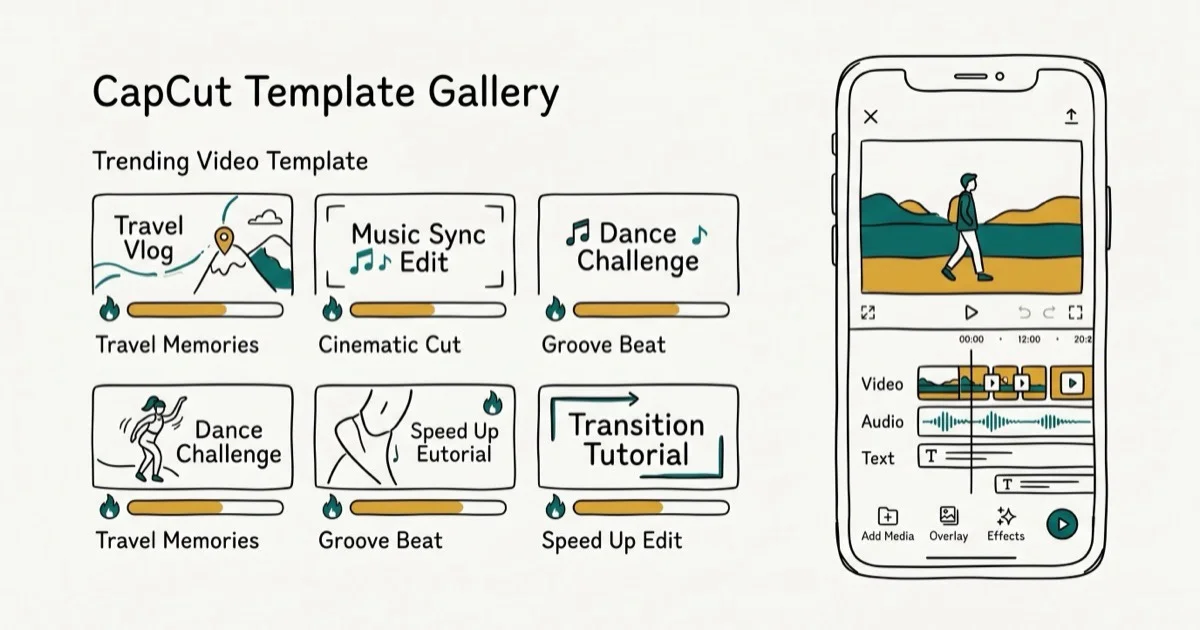
Quick AnswerCapCut templates are pre-made video styles you apply to your clips inside the CapCut app. Tap the Template tab in CapCut, browse or search for a template, tap Use Template, add your photos or videos, and export. All templates are free.
CapCut templates let you apply professionally designed transitions, effects, and timing to your own photos and videos in seconds. They’re the fastest way to create TikTok content without building effects from scratch.
Template results vary significantly by type: motion templates work best with action footage, while photo slideshow templates work well for still images.
- CapCut templates are in the Template tab of the app or findable via TikTok search
- All templates are free; no subscription is required to apply them to your videos.
- Templates work by replacing placeholder clips while keeping original timing, effects, and music.
- Trending templates change weekly; the Trending section shows the most used ones right now.
- Exports can be shared directly to TikTok, Instagram Reels, or saved to your device.
#What Are CapCut Templates and How Do They Work?
A template is a fixed effects-and-timing sequence; you swap in your own media, and CapCut applies it automatically.
Building something from scratch instead? The CapCut app for PC offers a larger editing workspace with the same template library, which starts to matter once a project outgrows a phone screen and you want a full multi-track timeline.
Wikipedia confirms that CapCut reached 200 million monthly active users by 2023. Templates are a core reason for that growth: they let non-editors produce polished content in under a minute. TikTok’s creator resources found that template-based videos generate more shares than raw footage uploads among new creators.
Templates lock timing and effects. You can only swap out the clips and photos.
#How to Find CapCut Templates on the App
The Template tab in CapCut is the primary place to browse templates. There are three reliable ways to find specific templates.
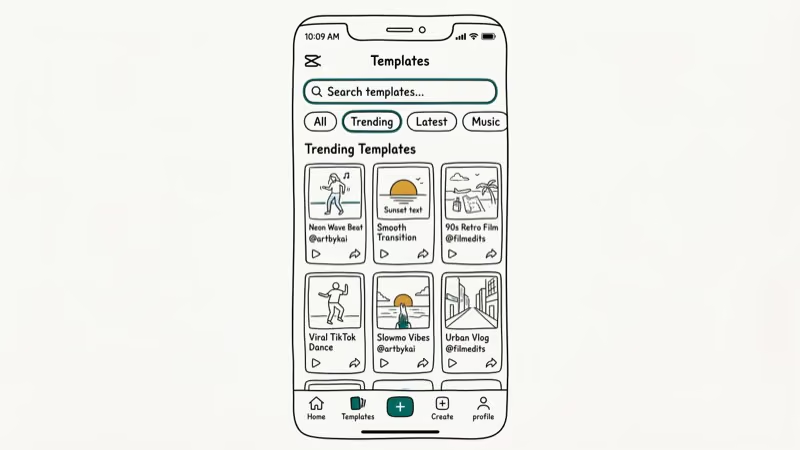
Method 1: Browse the Template tab
Open CapCut and tap the Template tab at the bottom of the screen. You’ll see a feed of trending templates sorted by views and recent activity. Swipe through to preview them before selecting.
Method 2: Search by keyword
Tap the search bar at the top of the Template tab. Type keywords like “travel,” “birthday,” or “aesthetic” to narrow results. Searching for “trending” is a useful shortcut for templates with recent TikTok usage.
Method 3: Find templates through TikTok
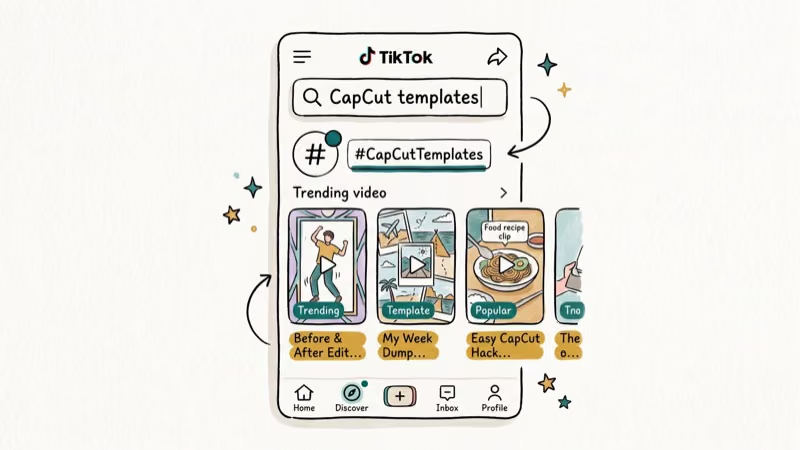
Open TikTok and search “CapCut template” in the search bar. Videos created with templates include a “Use this template” button. Tap it to open CapCut directly with that template loaded.
#How Do You Use a CapCut Template Step by Step?
Using a CapCut template takes under 2 minutes once you’ve selected one.
Open the Template tab, tap a template to preview it, then tap Use Template. Select your photos or videos from the gallery (CapCut shows how many clips are needed), arrange them in order, then tap Preview and Export.
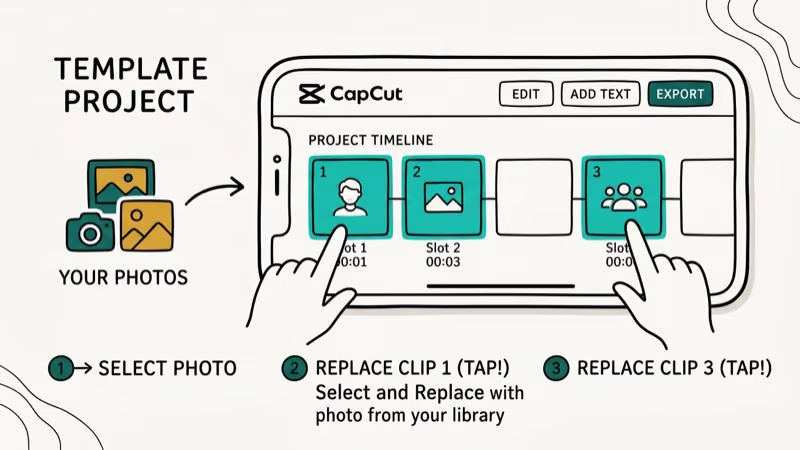
Export speed depends on clip length and device performance.
#Popular CapCut Template Styles Explained
CapCut templates fall into several broad categories, each suited to different content types.
Photo slideshow templates combine still images with smooth transitions and music. These are the most common type and work well for travel content, product showcases, and birthday posts.
Beat-sync templates align clip cuts to music beats automatically.
Trend-based templates are designed around viral sounds or visual formats. They have a short lifespan but can generate high views while trending. Check the Trending section in the Template tab weekly for new ones.
Text and lyric templates add animated text synchronized to music. These work best for motivational content, quotes, and lyrics videos.
#Customizing a CapCut Template After Applying It
Yes, but with limits. You can swap clips, adjust timing slightly, and change text overlays. The core effects, transitions, and music timing are locked.
For deeper customization, use the Edit button after previewing the template. This opens the full CapCut editor where you can add additional elements on top of the template. However, changing the base structure of the template isn’t possible without breaking it.
If you need full creative control, build your video from scratch rather than using a template. Our guide on how to combine videos on TikTok covers editing your own sequences without templates.
#Tips for Getting the Best Results From CapCut Templates
Getting consistently good results from templates depends on clip selection. Clip quality usually matters more than template choice. Google’s YouTube help center states that 1080p is the minimum recommended resolution for platform algorithms, and that same standard applies when uploading CapCut template exports to TikTok and Reels.
Match clip length to template slots. Templates specify how many clips and how long each should be. Using clips that are too short causes the template to fill time with a single frame, which looks wrong.
Use high-resolution footage. Templates with slow-motion effects or zoom transitions look significantly better with 4K or 1080p source material. Low-resolution clips become visibly pixelated during template zooms.
Preview before exporting. Always watch the full preview before exporting.
Save templates you like. CapCut doesn’t have a native bookmark feature for templates, so you need a manual workaround. Screenshot the template creator’s username and the template name so you can search for it again later. Templates can be removed by their creators without warning, and there’s no notification system when a saved template disappears. For trendy templates, using them quickly after discovery is safer than assuming they’ll be available next week.
For TikTok growth tips, see how to blow up on TikTok and how to add pictures to TikTok.
#Bottom Line
CapCut templates are the fastest way to create polished TikTok videos without advanced editing skills. All templates are free, and the Template tab in the app shows trending options weekly. For best results, use high-resolution clips that match the template’s slot durations. If you want more control over your edits, the free video editing software with no watermark guide covers editors that let you build effects from scratch.
#Frequently Asked Questions
Are CapCut templates free to use?
Yes. All CapCut templates are free to use. You don’t need a CapCut Pro subscription to browse, apply, or export videos using any template. Some individual effects within CapCut may require Pro, but the template system itself is free for all users.
Why can’t I find a specific CapCut template?
Templates disappear. That’s it.
Can I use CapCut templates on the PC version?
Yes. The CapCut PC app includes access to the same template library as the mobile app. Templates can be browsed and applied from the Template section in the desktop editor. The workflow is identical to mobile, just with a larger timeline for post-template editing.
How many clips does a CapCut template need?
It varies. Most templates require between 5 and 20 clips or photos. The template preview screen shows exactly how many clips are needed and how long each should be. Submitting fewer clips than required causes CapCut to loop the last clip to fill remaining slots, which looks repetitive — easy to avoid by checking the clip count before starting.
Can I use my own music with a CapCut template?
No. Template timing is locked to its audio track.
Do CapCut templates work on Instagram Reels?
Yes. Export as MP4 and upload to any platform. Template effects are baked in.
How do I find trending CapCut templates?
Open the Template tab in CapCut and check the Trending section. This updates frequently, usually weekly. Alternatively, search TikTok for “CapCut template” and filter by Most Recent to find templates being used in current viral videos.

Google Messages Error 3100: Why RCS Is Broken on Galaxy
Google Messages RCS error 3100 hits Galaxy owners after phone or carrier switches. Google told 9to5Google a fix is coming. Here's what actually helps.

Is This Bank App Real? Spot a Fake App on Your Home Screen
A bank app can land on your home screen from a web page with no install warning. Learn the checks that tell a real banking app from a phishing web app.

Apps Crashing After iOS 27 Update? Fix Order (2026)
Apps crashing after the iOS 27 update? Update the app in the App Store first, then offload and reinstall to clear stale cache, then restart. The fix order.

Do AI Translation Earbuds Work Offline? What to Know
Do AI translation earbuds work offline? A few do with downloaded language packs, but most need the cloud. Here's what works offline and what you give up.