How to Set Up 6 Monitors: Hardware and Config Guide
Set up 6 monitors on one PC with the right GPU, cables, and display settings. Hardware requirements, Windows config, and troubleshooting tips.
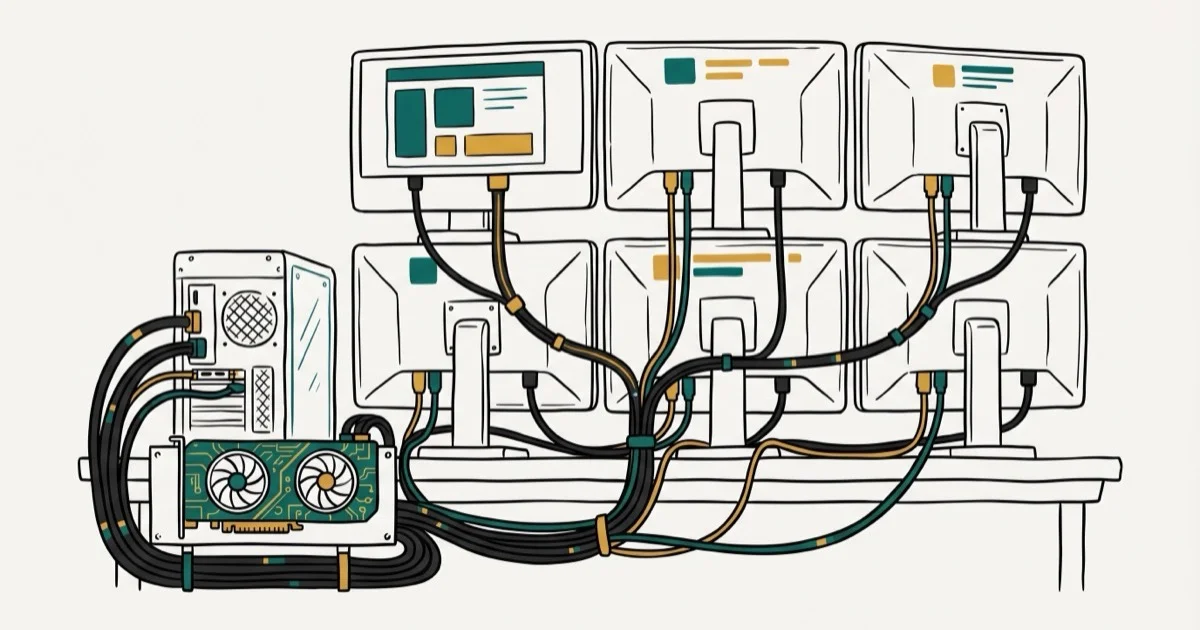
Quick AnswerA 6-monitor setup needs a GPU with enough outputs, or a second GPU plus integrated graphics. Most cards cap at 4 displays, so a DisplayPort MST hub or onboard graphics fills it.
A 6-monitor setup gives you enough screen space for trading, video editing, or running many apps without window switching. A 6-display config built around a discrete card like an RTX 4070 Ti, paired with integrated graphics such as Intel UHD 770 on Windows 11, can drive all six outputs once the monitors are wired and arranged.
- Most consumer GPUs cap out at 4 displays, so a second card or DisplayPort MST hub is needed
- Verify your GPU’s output count and port types before purchasing any monitors
- Windows 11 handles 6 displays natively through
Settings>System>Display - A 6-screen rig adds 50-100W to your power draw, so check your PSU wattage first
- DisplayPort daisy-chaining reduces cable count by letting monitors connect in sequence
#What GPU Setup Supports 6 Monitors?
Your graphics card determines how many monitors you can run. Most mid-range GPUs from NVIDIA and AMD top out at 4 simultaneous displays. According to Intel’s graphics support page, integrated Intel graphics handle up to 3 displays at once.
Here are three practical paths to 6 screens:
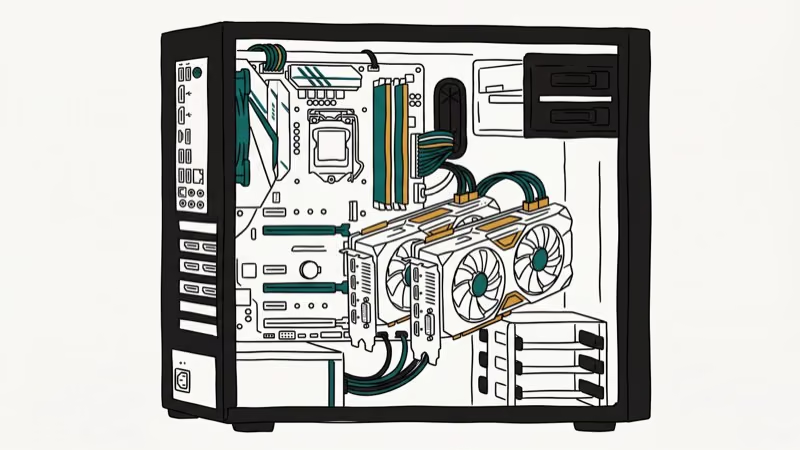
Discrete GPU plus integrated graphics. Enable “iGPU Multi-Monitor” in your BIOS, then split monitors between your dedicated card and the motherboard’s video outputs. Intel 12th-gen and newer CPUs with UHD 770 handle this reliably. A common split connects 4 monitors to a card like the RTX 4070 Ti and 2 to the motherboard’s HDMI and DisplayPort.
Two discrete GPUs. Install a second card in a free PCIe x16 slot and split your monitors between both cards. This works best in a full-size ATX case with adequate airflow for two heat-generating components stacked close together.
DisplayPort MST hub. One DP output splits into 2-3 extra displays for about $30-50.
Before buying anything, open Device Manager on Windows and note your GPU model. Then check the spec sheet on NVIDIA’s GeForce product pages for exact display output counts. The whole lookup takes under 2 minutes.
#How Do You Configure 6 Displays in Windows?
Once all monitors are physically connected, right-click the desktop and select Display Settings.
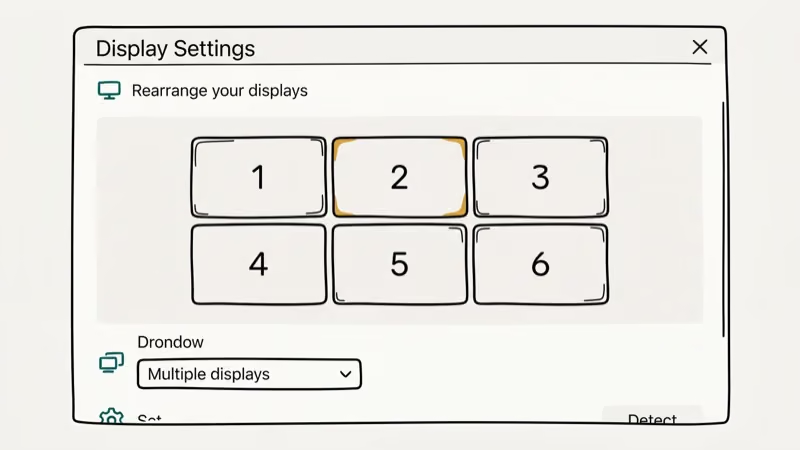 Windows 11 shows numbered rectangles for each detected screen.
Drag these rectangles to match your physical layout. Misalignment means your cursor jumps to unexpected positions when crossing screen edges.
Set each monitor’s resolution individually. Mixing 4K and 1080p panels works, but the cursor can feel “sticky” at resolution boundaries. Grouping same-resolution screens next to each other usually eliminates that stickiness.
If Windows doesn’t detect a monitor, try a different port on the GPU first. For persistent HDMI port problems, reseating the cable and updating your GPU drivers resolves the issue in most cases.
#Extend vs. Duplicate
Extend gives each monitor its own workspace. Pick this for productivity.
Duplicate mirrors one screen onto another. Useful for presentations, but pointless on a 6-monitor rig.
You can mix both modes. Set 5 displays to Extend and duplicate one onto a TV for reference. Windows lets you configure this per-display through the “Multiple displays” dropdown.
#Picking the Right Monitors for a 6-Screen Desk
Matching panel types isn’t required, but it reduces eye strain over long sessions. IPS panels deliver the widest viewing angles and most accurate colors. TN panels cost less but wash out when viewed from the side.
For office, coding, and trading setups, 24-inch 1080p IPS monitors hit the sweet spot at around $120-150 each in 2026. Six of them fit on a standard hex monitor arm. If color accuracy matters for design or video work, a monitor built for color grading is worth the upgrade on your primary screen.
Bezels add up fast with 6 panels. A 10mm bezel on each side creates a 20mm gap between screens. According to Tom’s Hardware’s monitor buying guide, the thinnest consumer bezels in 2026 measure about 6-7mm. Look for models labeled “frameless” or “borderless,” though true zero-bezel panels don’t exist yet.
#Mounting and Cable Management
Six monitors on individual stands consume your entire desk.
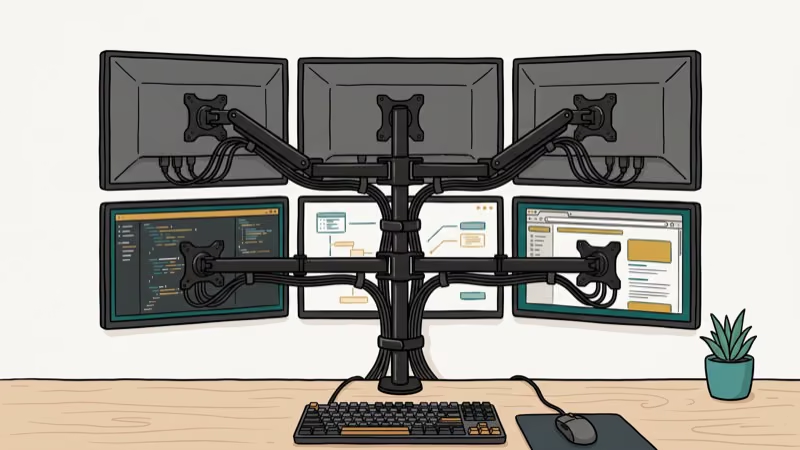
A dedicated hex monitor arm (3-over-3 or 6-across layout) solves this by clamping to the desk edge.
Measure your desk before ordering. Six 24-inch screens in a 3x2 grid need roughly 60 inches of width and 30 inches of depth. Confirm that each monitor supports VESA 100x100 mounting, which is standard on screens 22 inches and larger.
Cable management takes real effort at this scale. You’ll deal with 6 video cables, 6 power cables, and possibly USB cables for built-in hubs. Velcro ties and an under-desk cable tray keep things organized.
If your GPU throws errors after connecting everything, our guide on fixing NVIDIA display settings errors covers driver-level troubleshooting.
#Cable and Port Types
| Port | Max Res | Use Case |
|---|---|---|
| DisplayPort 1.4 | 4K 120 Hz | Primary for multi-monitor |
| HDMI 2.1 | 4K 120 Hz | Gaming and TVs |
| HDMI 2.0 | 4K 60 Hz | Older monitors |
| USB-C / Thunderbolt | 4K 60 Hz+ | Laptop docks |
| DVI-D | 2560x1600 60 Hz | Legacy only |
Skip VGA entirely. Analog output produces blurry text on modern panels.
#Gaming Across 6 Monitors
Gaming on 6 displays is demanding. Six 1080p screens combine to over 12 million pixels per frame, which is more than a single 4K panel.
A high-end GPU like the RTX 3090 or RTX 4080 handles most titles across multiple displays, though expect lower FPS than single-screen gaming. Spreading a demanding title across three 1080p panels can cut frame rates by roughly half compared to a single screen, and pushing to six displays drops them further still.
Not every game supports multi-monitor natively. NVIDIA Surround and AMD Eyefinity merge displays into one virtual ultra-wide resolution. Open NVIDIA Control Panel and go to Display > Set Up Surround, or use Display > Eyefinity in AMD Radeon Software. The setup process takes about 5 minutes.
FOV needs adjustment. Start at 90-100 degrees.
For competitive gaming, a single high-refresh 1440p display usually beats six panels at reduced frame rates. Check our best GPU picks for 1080p 144Hz gaming if you’re weighing performance against screen count. Multi-monitor gaming works best in sim racers, flight sims, and strategy titles where peripheral vision adds immersion without needing twitch-level responsiveness.
#Troubleshooting Common 6-Monitor Issues
Monitor not detected. Swap the cable to a different GPU port. If the monitor works there, the original port has hit its display limit. Also confirm that your BIOS has iGPU multi-monitor enabled if you’re using onboard graphics alongside a discrete card. This is the most commonly missed step when the sixth display refuses to appear.
Flickering on one display. Lower that monitor’s refresh rate from 60 Hz to 50 Hz in Display Settings. According to NVIDIA’s multi-display documentation, mixing DisplayPort and HDMI on the same card sometimes causes sync conflicts.
Cursor gets lost. Press CTRL to highlight your pointer location (enable this under Mouse Properties > Pointer Options).
Performance drops. Close GPU-heavy content on secondary screens. A 4K YouTube video on one monitor while gaming on others will tank your frame rate. If you see an “input not supported” error, the resolution or refresh rate exceeds what that particular display accepts.
If you’re running into AMD driver issues specifically, our guide on fixing missing AMD graphics drivers walks through reinstallation steps that resolve the problem in about 10 minutes.
#6-Monitor Setup: Value and Real-World Productivity
For traders and data analysts, a 6-screen rig pays dividends immediately. CNET’s productivity monitor guide found that adding 2-3 extra displays delivers measurable productivity gains, with the biggest improvements for financial analysis and software development roles.
Power users who run stock tickers, code editors, chat clients, and reference docs simultaneously get the most value. Casual users who mostly browse and stream can save money by sticking to 2-3 monitors. The hardware cost for a full 6-display setup runs $1,000-1,600 not counting the PC itself — a figure that makes sense for professional workstations but less so for casual home setups.
#Bottom Line
Start with your GPU’s spec sheet. If it supports 4 displays and your motherboard has onboard graphics, enable iGPU multi-monitor in BIOS and you’re most of the way to 6 screens without buying a second card. Budget about $1,000-1,600 total for monitors, arms, cables, and a second GPU if needed. A solid graphics card for your CPU paired with 6 displays pays for itself in productivity within weeks.
#Frequently Asked Questions
Can any PC run a 6-monitor setup?
No. Your PC needs a GPU (or GPU plus integrated graphics) that supports 6 simultaneous display outputs. Most consumer cards cap at 4. You’ll need a second GPU, a DisplayPort MST hub, or a workstation card like the AMD Radeon Pro W6800 to reach 6.
Do all 6 monitors need to be the same size or brand?
They don’t. Windows and macOS handle mixed sizes, resolutions, and brands without issues.
How much does a complete 6-monitor setup cost?
Expect $700-900 for six 24-inch 1080p IPS panels at 2026 prices. A hex monitor arm runs $80-150, cables add $30-60, and a second GPU costs $200-500 if your current card lacks enough outputs. The total ranges from $1,000 to $1,600 not counting the PC itself.
Does running 6 monitors slow down my computer?
Desktop tasks like browsing, email, and spreadsheets barely touch your GPU even across 6 screens. Gaming is the exception, because six 1080p displays push over 12 million pixels per frame, which significantly reduces frame rates compared to a single monitor.
Is DisplayPort better than HDMI for multi-monitor setups?
DisplayPort wins because it supports Multi-Stream Transport (MST), which lets you daisy-chain monitors from a single port. HDMI doesn’t have MST at all, so you lose that daisy-chaining capability on any HDMI connection. Use DisplayPort wherever your monitors support it and fill remaining connections with HDMI 2.1 monitors. One DP 1.4 port can drive three 1080p panels through an MST hub, which alone covers half of a 6-screen setup.
Can I use a laptop for a 6-monitor setup?
Technically yes, but most laptops support only 2-3 external displays. Reaching 6 requires a Thunderbolt dock with MST or a USB DisplayLink adapter.
What’s the best monitor arm for 6 screens?
A hex arm in a 3-over-3 configuration. Look for arms rated for at least 15 lbs per screen with VESA 100x100 compatibility. Brands like VIVO and WALI offer hex arms in the $80-150 range.
How do I arrange 6 monitors in Windows 11?
Right-click the desktop, select Display Settings, and scroll to the monitor layout diagram. Drag the numbered rectangles to match your physical setup. Click each display and choose “Extend desktop to this display” from the dropdown. Windows saves these positions across reboots, so you only configure this once.

Best Laptop for Running LLMs in 2026: Memory Comes First
The best laptop for running LLMs is a memory purchase first. Compare MacBook unified memory against NVIDIA laptop VRAM, and see what each tier really runs.

How to Run a Local LLM on Windows: A 2026 Setup Guide
Run a local LLM on Windows with LM Studio or Ollama. Pick a model that fits your GPU memory, keep every prompt offline, and skip the monthly bill.

Bluetooth Not Working on Snapdragon X? Fixes for 2026
Bluetooth not working on your Snapdragon X Copilot+ PC? Generic audio, mice, and keyboards work, but vendor apps often lack an ARM build. Fixes inside.

Docker Desktop and WSL2 Not Working on Snapdragon X? Fix It
WSL2 runs fine on Snapdragon X, but Docker Desktop ARM is Early Access and throws WSL errors. Use WSL2 plus native ARM64 Ubuntu and Docker Engine.