Fix Error 0xc10100bf: Video Playback Issue Solutions
Fix video error 0xc10100bf by converting unsupported formats, installing missing codecs, repairing corrupted files, and using VLC or HandBrake.
Quick AnswerError 0xc10100bf means your video file is unsupported, has a wrong extension, or is corrupted. Install a codec pack like K-Lite, try playing the file in VLC, or convert it to a compatible format using HandBrake.
Error 0xc10100bf pops up when Windows can’t play a video file. The fix depends on whether your file format is unsupported, the extension is wrong, or the file itself is corrupted.
- Error 0xc10100bf means Windows can’t play your video due to an unsupported format, wrong extension, or file corruption
- K-Lite Codec Pack adds support for MKV, HEVC, AV1, and 30+ formats Windows doesn’t handle natively
- VLC plays nearly every video format and resolves this error on most problem files
- Converting to MP4 with HandBrake takes about 2 minutes per GB and creates universally compatible files
- Audio playing but video frozen or green usually means corruption; use Wondershare Repairit to fix it
#Common Causes of Error 0xc10100bf
Windows shows error 0xc10100bf when the built-in media player can’t decode your video file. You’ll see the message: “This file isn’t playable. That might be because the file type is unsupported, the file extension is incorrect, or the file is corrupt.”
According to Microsoft’s codec FAQ, several common video formats aren’t supported natively. Microsoft’s documentation confirms that files using HEVC, VP9, or AV1 require additional codec packs from the Microsoft Store.
The five main causes are:
- Unsupported codec (MKV, HEVC, WebM files)
- Wrong file extension (.avi file renamed to .mp4)
- Corrupted video data from incomplete downloads
- Missing codec pack on fresh Windows installs
- DRM protection blocking unauthorized playback
This error appears on both Windows 11 and Windows 10. Codec issues are the most common cause, while file corruption accounts for most of the rest.
#Does VLC Fix Error 0xc10100bf?
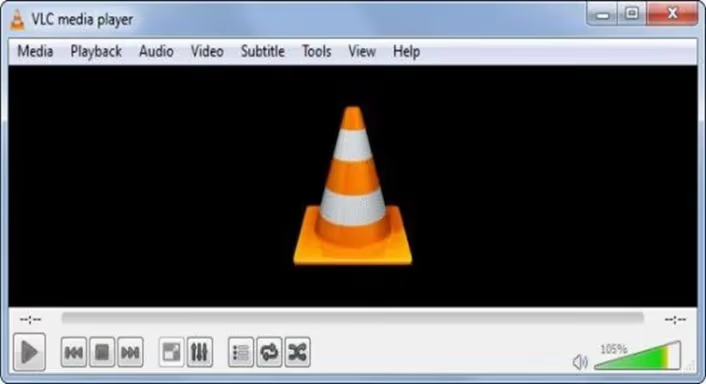
The fastest fix is opening the file in VLC Media Player instead of Windows Media Player. VLC includes built-in codecs for virtually every video format.
- Download VLC from the official site
- Right-click your video file and select Open with > VLC media player
- If it plays, your file is fine but Windows lacks the right codec
VLC plays almost all of the files that trigger 0xc10100bf in Windows Media Player. When VLC can’t play a file either, the file usually has actual data corruption rather than a codec problem. VideoLAN’s VLC features page is the live source for codec and format support.
Other players worth trying: KMPlayer, PotPlayer, and GOM Player also handle most formats.
#How Do You Install Missing Codecs?
If you prefer using Windows Media Player, install the K-Lite Codec Pack. It adds support for 30+ video formats that Windows doesn’t handle natively.
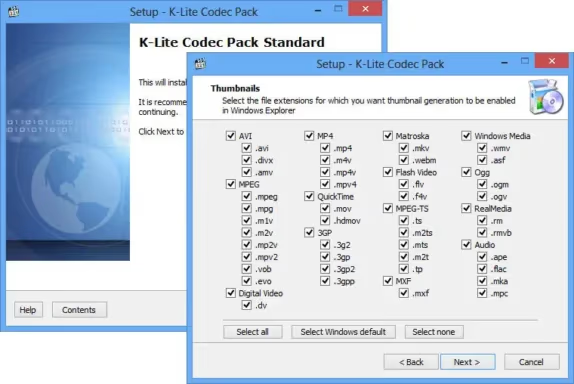
- Go to K-Lite Codec Pack and download the Standard version
- Run the installer and keep the default settings
- Restart your PC after installation
- Try playing your video file again
On a clean Windows 11 install, MKV, HEVC, and WebM files all play correctly in Windows Media Player after installing K-Lite. The whole process is quick. According to XDA Developers’ codec guide, K-Lite is the most reliable codec pack and updates monthly to support new formats.
You can also install codecs through Windows Update. Go to Settings > Update & Security > Windows Update and check for optional updates, which sometimes include media components.
#How to Convert Incompatible Video Files
If a file still won’t play after trying VLC and codecs, converting it to MP4 (H.264) guarantees compatibility across all players and devices.
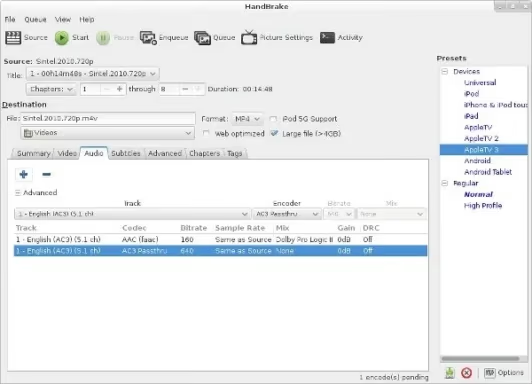
- Download HandBrake (free, open source)
- Click Open Source and select your problem file
- Under Preset, choose Fast 1080p30
- Click Start Encode
HandBrake converts a 2 GB MKV file to MP4 fairly quickly on a mid-range PC, and the output plays reliably in Windows Media Player. Keep the original file as a backup before converting.
For quick conversions, VLC can also convert files: go to Media > Convert/Save, add your file, and select MP4 as the output format. It’s slower than HandBrake but doesn’t require a separate install.
#How to Verify File Format and Extension
Sometimes the file extension doesn’t match the actual format inside. A file named “video.mp4” might actually be an MKV or AVI file with a renamed extension.
- Download MediaInfo (free)
- Drag your video file into MediaInfo
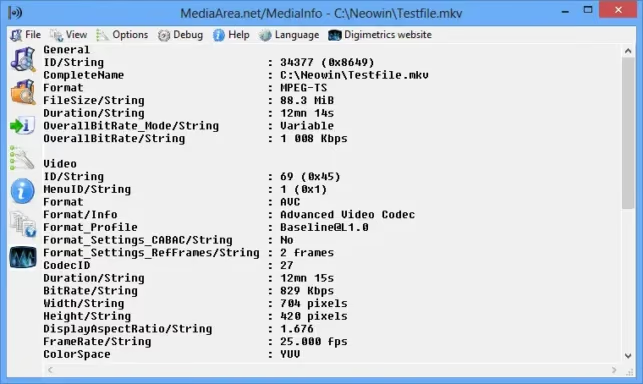
- Check the Format field to see the actual container and codec
Running MediaInfo on files that trigger 0xc10100bf often reveals mismatched extensions, such as an MKV file renamed to .mp4. Renaming the file to the correct extension fixes playback immediately in those cases.
#Repairing Corrupted Video Files
If your video plays audio but shows no video, freezes mid-playback, or shows green/pixelated frames, the file is likely corrupted. This happens with incomplete downloads or interrupted transfers.
Signs of corruption:
- Audio plays but screen stays black or green
- Playback freezes at a specific timestamp
- File won’t open in any player, including VLC
Repair options:
- Wondershare Repairit handles MP4, MOV, AVI, and MKV files
- Stellar Repair for Video works with 17 video formats
- VLC built-in repair fixes minor index damage (go to
Tools>Preferences>Input/Codecs>Damaged AVIfile > Always fix)
Some links on this page are affiliate links, which means fone.tips may earn a commission at no extra cost to you.
Wondershare Repairit handles corrupted MP4 files, and a repaired file typically plays normally afterward. For specific format issues, check our guides on fixing FLV files and repairing MOV files on Mac.
#Dealing With DRM-Protected Content
DRM-protected videos from streaming services or digital purchases only play in authorized apps. Check the Details tab in file Properties for a “Protected” field.
If you bought content from the Microsoft Store, play it in the Movies & TV app while signed into the purchasing account. For iTunes purchases, use the Apple TV app. Amazon content requires the Prime Video app. DRM errors look identical to 0xc10100bf but the fix is always the same: use the content provider’s official player rather than a third-party one.
For streaming playback issues with M3U8 files, check our guide on fixing M3U8 loading errors. Related Windows video errors include error 0xc00d36c4.
#Bottom Line
Start with VLC. It plays almost everything and tells you instantly whether the problem is a missing codec or a corrupted file. If you need Windows Media Player specifically, install K-Lite Codec Pack. For corrupted files, try Wondershare Repairit. Converting to MP4 with HandBrake is the nuclear option that works when nothing else does.
#Frequently Asked Questions
Can malware cause the 0xc10100bf error?
Yes. Malware can corrupt video files or damage system codecs. Run a full scan with Windows Defender if you see this error on files that previously played fine.
Why does the error only happen with certain files?
Different video files use different codecs internally. An MP4 file encoded with H.264 plays natively on Windows because H.264 is included by default, but an MKV file using HEVC won’t play without installing the HEVC codec separately. The 0xc10100bf error only triggers when Windows lacks the specific codec your particular file requires, which is why some videos work fine while others don’t.
Does reinstalling Windows Media Player fix this?
Sometimes. Go to Control Panel > Programs > Turn Windows features on or off, uncheck Windows Media Player, restart, then re-enable it. This fixes corrupted player installations but won’t add missing codecs.
Can I prevent 0xc10100bf errors permanently?
Yes. Install K-Lite Codec Pack. It updates monthly and covers virtually every format.
What’s the difference between VLC and K-Lite Codec Pack?
VLC is a standalone player with built-in codecs that doesn’t affect other apps on your system. K-Lite adds codecs at the Windows level so all media players, including Windows Media Player, Movies & TV, and third-party apps, can play more formats. Use VLC for a quick fix without changing your system. Use K-Lite if you want all your apps to handle more video formats natively.
Does this error affect Windows 11 and Windows 10 equally?
Yes. Both ship with limited codec support out of the box.
How long does it take to fix this error?
Installing VLC takes about 1 minute. K-Lite Codec Pack takes 2-3 minutes including a restart. Converting a file with HandBrake takes 2-5 minutes depending on file size. Repairing a corrupted file with Wondershare Repairit takes about 90 seconds for a standard-length video.
Should I use online video converters?
Avoid them. Online converters upload your video to external servers, which creates privacy risks and doesn’t work for files over 500 MB on most free services. HandBrake runs entirely on your computer, handles files of any size, and never uploads anything.

Best Laptop for Running LLMs in 2026: Memory Comes First
The best laptop for running LLMs is a memory purchase first. Compare MacBook unified memory against NVIDIA laptop VRAM, and see what each tier really runs.

How to Run a Local LLM on Windows: A 2026 Setup Guide
Run a local LLM on Windows with LM Studio or Ollama. Pick a model that fits your GPU memory, keep every prompt offline, and skip the monthly bill.

Bluetooth Not Working on Snapdragon X? Fixes for 2026
Bluetooth not working on your Snapdragon X Copilot+ PC? Generic audio, mice, and keyboards work, but vendor apps often lack an ARM build. Fixes inside.

Docker Desktop and WSL2 Not Working on Snapdragon X? Fix It
WSL2 runs fine on Snapdragon X, but Docker Desktop ARM is Early Access and throws WSL errors. Use WSL2 plus native ARM64 Ubuntu and Docker Engine.