How to Repair a Corrupted MOV File: 6 Proven Methods
Repair corrupted MOV files with VLC conversion, QuickTime, FFmpeg, online tools, and Stellar Video Repair. Step-by-step fixes for broken videos.
Quick AnswerRepair a corrupted MOV file by opening it in VLC and saving as MP4, rebuilding the container with FFmpeg, or running Stellar Video Repair for severe damage. Always work on a copy of the original.
MOV file repair usually means fixing one specific structure inside the container: the moov atom that tells your media player where each video frame lives. Different repair methods address different kinds of damage, from a broken index to missing metadata. This guide walks through a practical order: free tools first, paid software only when the file matters and free has failed.
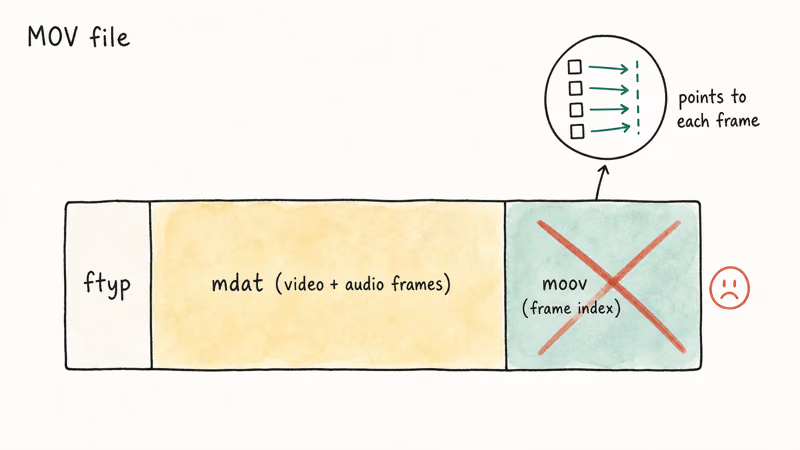
- MOV corruption usually breaks the “moov” atom (the index listing each frame’s location), which makes the file unplayable even when the video stream itself is intact.
- VLC’s Convert/Save fixes minor index errors in 2-3 minutes per file and runs on macOS, Windows, and Linux at zero cost.
- FFmpeg rebuilds the container with one command (ffmpeg -i broken.mov -c copy fixed.mov) without re-encoding, so original quality stays intact.
- Online repair services have small free upload caps, so most 4K phone footage needs a desktop tool instead.
- Always copy the corrupted MOV to a separate folder before any repair attempt; many tools overwrite the source file on failure.
#What Causes a MOV File to Get Corrupted?
Five common things break MOV files:
- Interrupted writes. The camera battery dies mid-recording, or you yank a USB drive while a transfer is running. The file gets a header but no closing index.
- Bad sectors on storage. A failing SD card or external SSD writes garbage bytes into the middle of the stream.
- Software crashes during export. Final Cut, Premiere, or DaVinci Resolve quit while writing the final atoms, leaving an incomplete container.
- Codec mismatch. Some MOV files use Apple ProRes or HEVC; if the codec isn’t installed, the file looks broken when it’s actually fine.
- Network transfer drops. A flaky FTP or Dropbox sync stops partway through a multi-gigabyte file.
Apple’s QuickTime File Format Specification confirms that every MOV file is a tree of atoms organized under 4-byte type identifiers, and the moov atom must be readable for the file to play. When that atom gets cut off or overwritten, the player sees the file size correctly but can’t locate a single frame.
#Diagnosing MOV File Corruption Before You Repair
Before assuming corruption, rule out a missing codec. A file can look broken without the right codec support.
- Open the file in VLC. VLC bundles its own decoders, so a file that won’t play in QuickTime but plays in VLC has a codec issue, not corruption.
- Check the file size. A 30-minute 4K iPhone clip should be 5-15 GB. If yours is 200 MB, the recording cut off before the moov atom got written.
- Try a different player. PotPlayer on Windows and IINA on macOS handle some malformed containers more gracefully than the system default.
Symptoms that point to real corruption: error messages mentioning “moov atom not found,” audio playing without video (or vice versa), playback freezing at the same timestamp every time, or a file size of zero bytes. Running ffprobe -v error -show_streams broken.mov can show which track or atom is unreadable before you commit to a repair tool.
#Method 1: Convert the File With VLC Media Player
VLC’s Convert/Save feature re-multiplexes the file from scratch.
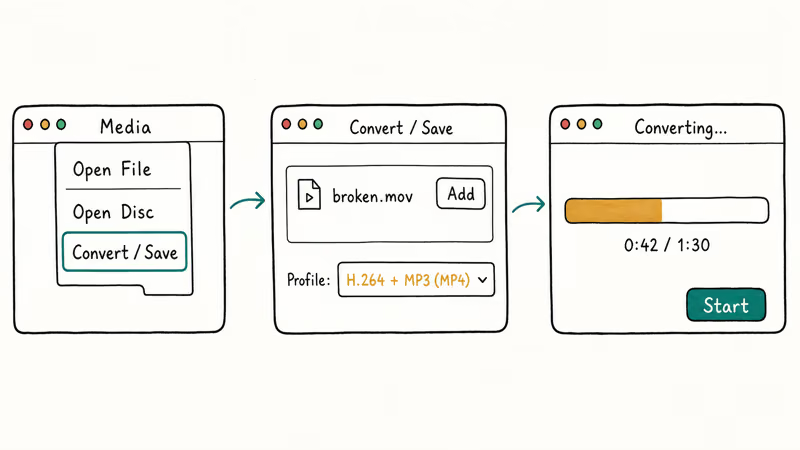
- Open VLC and go to
Media>Convert/Save. - Click Add and select your corrupted MOV.
- Click Convert/Save at the bottom.
- Set the profile to Video - H.264 + MP3 (MP4) and pick a destination folder.
- Click Start.
VLC can produce a playable MP4 when the video stream is intact but the container index is broken. If the original recording cut off before the audio atom finished writing, the repaired copy may still lose the audio track.
If VLC refuses the file, move on to FFmpeg.
#Method 2: Use QuickTime Player Repair on macOS
QuickTime Player has a hidden “Open Image Sequence” mode that some people use for MOV repair. It works only when the corruption sits in the trailing atoms and the video stream itself is intact.
- Move the corrupted MOV into an empty folder.
- Open QuickTime Player.
- Go to
File>Open Image Sequence. - Select the folder containing the MOV.
- Choose a frame rate (24 or 30 fps for most consumer footage).
- Click Open.
QuickTime tries to reconstruct playback from raw frame data. Save the result as a new MOV through File > Export As.
If QuickTime shows “The file is not compatible with QuickTime Player,” move on to FFmpeg.
#Method 3: Rebuild the Container With FFmpeg
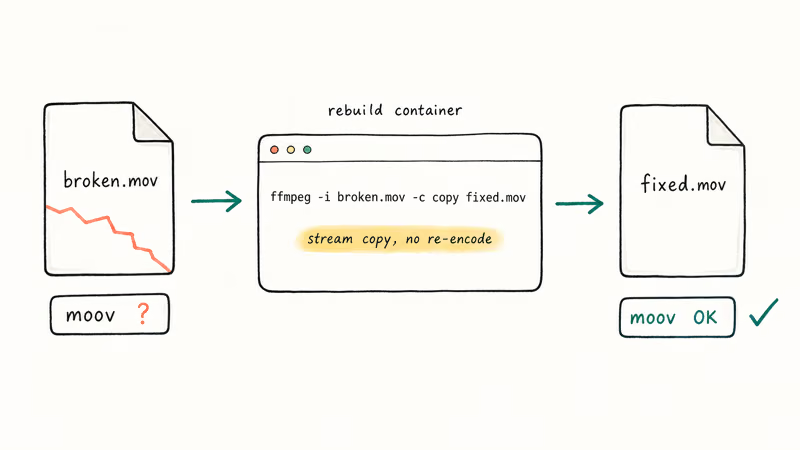
FFmpeg is the next tool to try when VLC and QuickTime both give up. It can copy the streams into a new container without re-encoding, so the output keeps the original bitrate and quality.
Install FFmpeg first. On macOS with Homebrew: brew install ffmpeg. On Windows: download a static build from the FFmpeg downloads page. On Ubuntu: sudo apt install ffmpeg.
The basic repair command:
ffmpeg -i broken.mov -c copy fixed.movThis stream-copies the file into a fresh container, regenerating the moov atom in the process. No re-encoding means no quality loss, and the conversion finishes in under a minute for most files.
When the moov atom is missing entirely (not just misplaced), try the “untrunc” tool. It uses a healthy reference file from the same camera to reconstruct the broken file’s index.
For files that play but have audio-video sync issues:
ffmpeg -i broken.mov -c:v copy -af "aresample=async=1000" fixed.movThe async=1000 option lets the audio drift up to 1 second to realign with the video.
#Method 4: Try an Online Repair Service
Online tools handle small files without any installation. They’re useful when you need a quick fix on a borrowed computer or a Chromebook.
Common options include:
- EaseUS Fixo Online. Has a free tier for small files, with a preview before paying for the full result.
- Wondershare Repairit Online. Comparable free quota, with a higher cap on the paid plan.
- Restore.Media. Targets professional codecs like ProRes; it costs more but handles broken cinema camera files.
EaseUS confirms that the online version uses the same repair engine as the desktop product, just with a file-size cap on free uploads. Read our EaseUS safety review before uploading anything sensitive.
The download link usually expires within 24 hours, so save the repaired file immediately. None of these services handle long 4K phone footage on the free tier, since a single minute of iPhone 15 Pro 4K ProRes runs about 6 GB. For anything over the cap you need the desktop tools below.
#Method 5: Use Dedicated Software Like Stellar or Wondershare
Dedicated repair software is for important footage after free options fail.
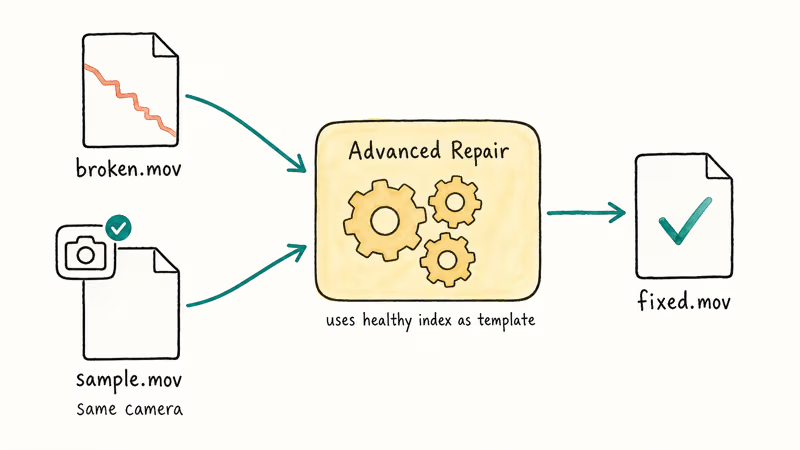
Stellar Repair for Video handles MOV, MP4, M4V, and 14 other formats. It runs on macOS and Windows, includes a free preview that shows whether the repair will succeed before you pay, and supports advanced repair using a sample reference file from the same camera.
Some links on this page are affiliate links, which means fone.tips may earn a commission at no extra cost to you.
Wondershare Repairit covers the same formats with a slightly different repair engine, so keep both tools in mind for severe cases.
Stellar’s article on MOV repair recommends trying their software’s “Advanced Repair” mode whenever standard repair fails. Advanced Repair takes a healthy file from the same camera as a template, then maps the broken file’s data onto the working structure. This is essentially what FFmpeg’s untrunc does, but with a graphical interface and a per-file payment instead of a free CLI.
#When Should You Pay for Professional Repair Software?
Pay for software only when:
- The footage is irreplaceable and the free tools have all failed.
- You need to repair more than 5 files at once and want batch processing.
- The corruption involves modern codecs like Apple ProRes 422 HQ, H.265 10-bit, or RAW formats that free tools don’t handle well.
- The file came from a camera or event you can’t reshoot (a one-time event, a deceased person’s footage, an out-of-warranty drive).
The same logic applies to MP4 video repair: free tools first, paid only when the footage matters and free has failed. If you are wondering which container to use going forward, our MP4 vs MOV breakdown covers the practical differences for editing, sharing, and long-term storage.
#Preventing MOV Corruption Going Forward
Once you have lost a file once, the prevention rules stick:
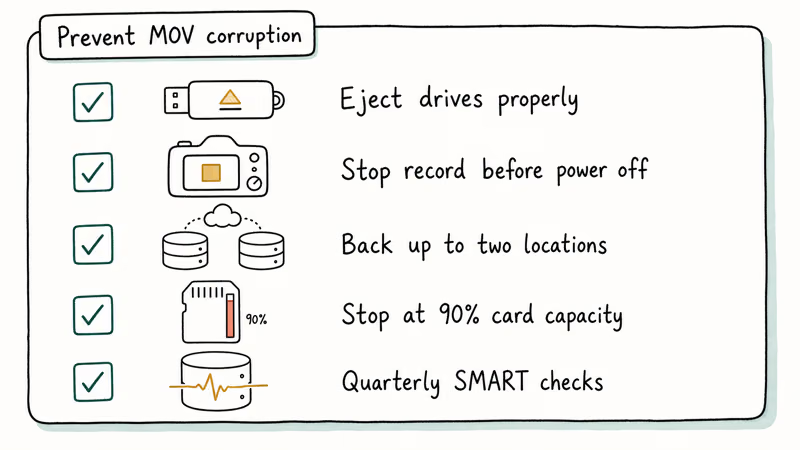
- Eject drives properly. Click the eject icon in Finder, or use “Safely Remove Hardware” on Windows. Pulling a drive mid-write is a common cause of corruption.
- Use the camera’s record-stop, not a power-off. Letting the camera run out of battery during recording can corrupt the moov atom.
- Back up to two locations. A local SSD plus a cloud sync (iCloud, Google Drive, or Backblaze) means a corrupted source file is recoverable from the backup.
- Avoid filling the card past 90%. Some cameras write trailing atoms after the recording stops, and a near-full card forces those writes to fail.
- Run SMART checks on external SSDs every quarter. Bad sectors are predictable from SMART data before they corrupt files.
For longer-term storage, MKV is more forgiving than MOV. MKV stores its index information at multiple points in the file, so a damaged section is easier to recover. Free MKV cutters can make it straightforward to repackage MOV content into MKV without re-encoding.
#Bottom Line
Start with VLC. If VLC fails, install FFmpeg and run ffmpeg -i broken.mov -c copy fixed.mov. That single command can fix many container-level MOV corruption cases.
Pay for Stellar Video Repair or Wondershare Repairit only when the file matters, the free tools have all failed, and you have a sample reference file from the same camera to feed the advanced repair mode. If your camera battery died mid-recording, run untrunc (or Stellar’s Advanced Repair) with a healthy file from the same device — that workflow recovers files the simpler tools can’t.
#Frequently Asked Questions
Will repairing a MOV file lower the video quality?
VLC and FFmpeg using -c copy rebuild the container without re-encoding, so the output is bit-for-bit identical to the original frames. Online tools and software like Stellar may re-encode in some advanced repair modes, which can introduce a small quality loss; check the output file’s bitrate against the original to confirm.
Can every corrupted MOV file be repaired?
No. If the actual video stream is overwritten with zeros, which is common after a full disk format or a card-level firmware wipe, no tool on the market can recover the frames. Repair tools work when the data is present but the index is broken; the raw bytes still sit on disk, and only the lookup table is missing. A repair tool’s free preview mode tells you up front whether a fix is possible before any payment is required.
Are online MOV repair tools safe to use?
Reputable services like EaseUS Fixo and Wondershare Repairit use HTTPS uploads and automatic deletion after 24 hours, but you are still trusting a third party with your footage. Skip online tools for confidential or sensitive content and stick with desktop software instead.
How can I tell if my MOV file is corrupted versus missing a codec?
Open the file in VLC. VLC bundles its own decoders, so a file that plays in VLC but not in QuickTime has a codec issue, not corruption. If VLC also refuses to play the file or shows an error like “moov atom not found,” the file is actually damaged.
What is the moov atom and why does it matter?
The moov atom is the index inside a MOV file that tells the player where every video and audio frame begins. Without a readable moov atom, the player sees the file size but can’t locate a single frame to display. Most MOV repair work boils down to rebuilding or relocating that one structure, which is why a quick stream-copy in FFmpeg fixes so many files.
Does FFmpeg work on Windows for MOV repair?
Yes. Download a static build from the FFmpeg downloads page, extract it, and add the bin folder to your system PATH. The repair command is identical on Windows, macOS, and Linux: ffmpeg -i broken.mov -c copy fixed.mov. No GUI is required.
Will the same methods work for repairing MP4 files?
Mostly yes. MP4 and MOV share nearly the same container structure, since MP4 was based on the QuickTime format, so VLC, FFmpeg, and Stellar all handle both. The exception is Apple ProRes inside a MOV; some MP4 tools strip the ProRes track on conversion, so use FFmpeg with stream copy to keep the codec intact.

Best Laptop for Running LLMs in 2026: Memory Comes First
The best laptop for running LLMs is a memory purchase first. Compare MacBook unified memory against NVIDIA laptop VRAM, and see what each tier really runs.

How to Run a Local LLM on Windows: A 2026 Setup Guide
Run a local LLM on Windows with LM Studio or Ollama. Pick a model that fits your GPU memory, keep every prompt offline, and skip the monthly bill.

Bluetooth Not Working on Snapdragon X? Fixes for 2026
Bluetooth not working on your Snapdragon X Copilot+ PC? Generic audio, mice, and keyboards work, but vendor apps often lack an ARM build. Fixes inside.

Docker Desktop and WSL2 Not Working on Snapdragon X? Fix It
WSL2 runs fine on Snapdragon X, but Docker Desktop ARM is Early Access and throws WSL errors. Use WSL2 plus native ARM64 Ubuntu and Docker Engine.