Fix Error 0x80070780: File Cannot Be Accessed by System
Fix error 0x80070780 when Windows says a file can't be accessed by the system. Covers admin permissions, SFC scan, CHKDSK, and clean boot fixes.
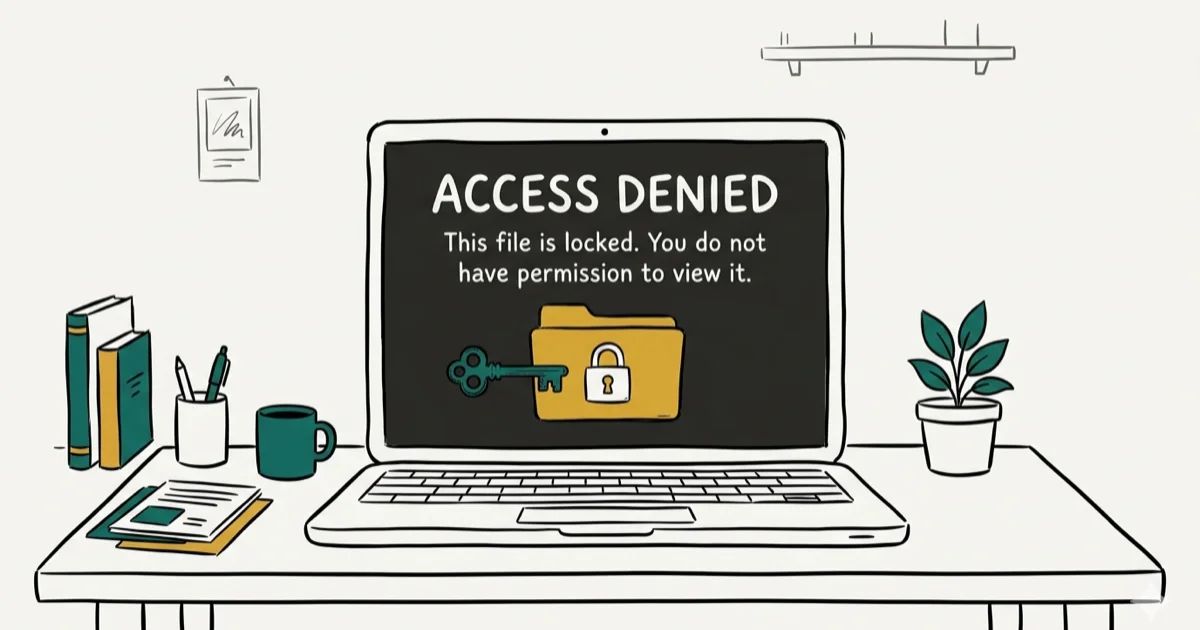
Quick AnswerError 0x80070780 means Windows can't access a file due to permission issues, corrupted system files, or disk errors. Fix it by switching to an admin account, running SFC and CHKDSK, or performing a clean boot.
Error 0x80070780 appears with the message “The file can’t be accessed by the system” when you try to copy, move, or delete a file in Windows. It shows up on Windows 10 and Windows 11, and switching to an admin account resolves the error in many cases.
- Error 0x80070780 means Windows lacks the permissions or system resources to access a specific file on your drive
- Converting your user account to Administrator resolves permission-related access blocks without data loss
- Running DISM followed by “sfc /scannow” in an admin Command Prompt repairs corrupted system files in most cases
- CHKDSK with the /f and /r flags identifies and fixes bad sectors that make files inaccessible
- A clean boot isolates third-party software conflicts by disabling all non-Microsoft startup services
#What Causes the “File Can’t Be Accessed” Error?
Error 0x80070780 shows up across Windows 7, 8, 10, and 11. The cause traces back to one of four sources: a permissions block, system file corruption, a failing disk, or third-party software locking the file. Microsoft’s Windows troubleshooting guidance covers the update and file-access repair tools that address these causes.
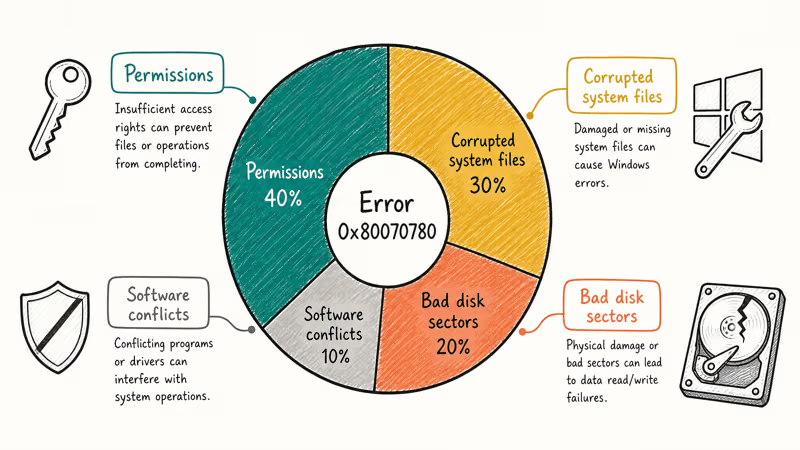
The most common triggers:
- Permission blocks where your account doesn’t have admin rights to the file
- Corrupted system files that Windows needs to process the file operation
- Bad disk sectors on HDDs or failing SSDs that make file data unreadable
- Third-party software (antivirus, backup tools) locking the file
Permission issues are the most common cause, followed by corrupted system files and then disk errors.
#How Do You Fix Permission Issues for Error 0x80070780?
The simplest fix is making sure your account has administrator privileges. Standard user accounts can’t access certain system-protected files.
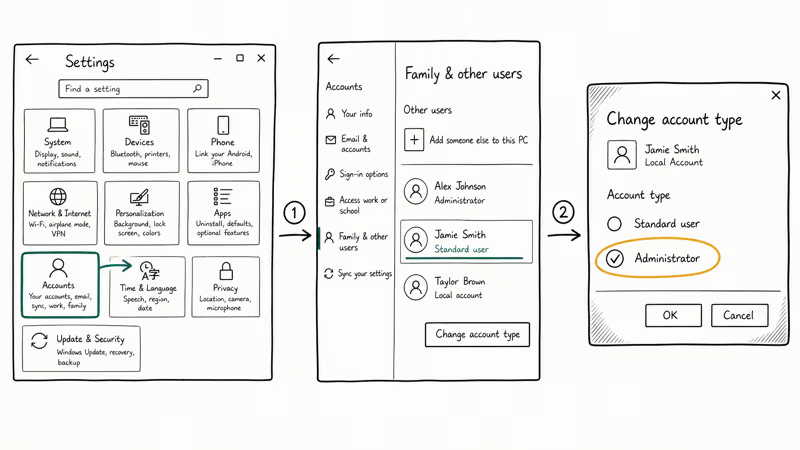
- Open Settings (Windows key + I)
- Go to
Accounts>Family &other users - Select your account and click Change account type
- Choose Administrator and click OK
A common case is a standard user account that can’t copy files from Program Files, where switching to Admin lets the copy operation complete without issue. If you’re working in a server environment, check our guide on changing passwords on Windows Server 2012.
#Run SFC and DISM to Repair System Files
Corrupted Windows files can prevent normal file operations. The System File Checker (SFC) paired with DISM repairs these files. According to Microsoft’s sfc command documentation, sfc /scannow scans the integrity of all protected system files and replaces incorrect versions with correct copies from the cached store.
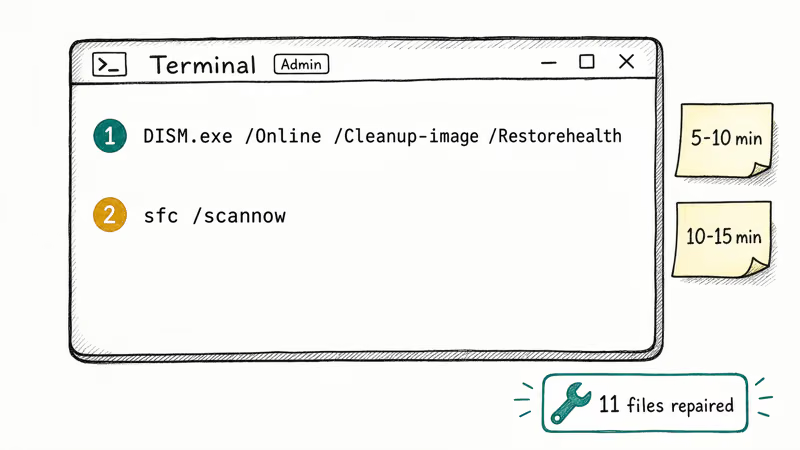
- Right-click the Start button and select Terminal (Admin)
- Type
DISM.exe /Online /Cleanup-image /Restorehealthand press Enter - Wait for it to finish (takes about 5-10 minutes)
- Type
sfc /scannowand press Enter (takes 10-15 minutes)
SFC often finds and repairs the corrupted files behind a persistent 0x80070780 error, and after restarting all file operations work normally. If SFC itself throws an error like 0x80246007, you may need to reset Windows Update components first.
#Perform a Clean Boot
Third-party software (especially antivirus and backup tools) can lock files and trigger error 0x80070780. A clean boot starts Windows with only essential Microsoft services.
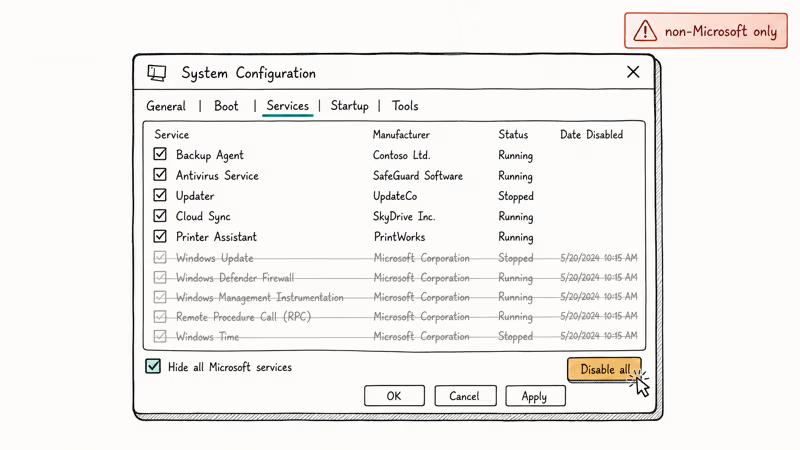
- Press Windows key + R, type
msconfig, and press Enter - Go to the Services tab and check Hide all Microsoft services
- Click Disable all
- Go to the Startup tab, click Open Task Manager, and disable all startup items
- Restart your PC and test the file operation
If the error disappears in clean boot, re-enable services one at a time to find the culprit. Security suites like Norton 360 are a frequent offender because they lock backup files, and disabling the suite resolves the error immediately in that case.
#Run CHKDSK to Fix Disk Errors
Bad sectors on your hard drive can make specific files inaccessible. CHKDSK scans the entire disk and repairs damaged areas. Microsoft’s chkdsk command reference states that the /r parameter locates bad sectors and recovers readable information, and includes the full functionality of /f.
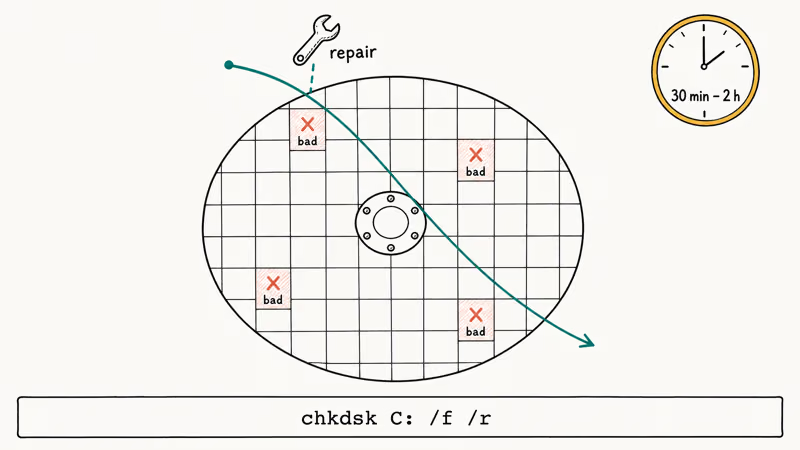
- Open Command Prompt as administrator
- Type
chkdsk C: /f /rand press Enter - Press Y to schedule the scan at next restart
- Restart your PC (the scan runs before Windows loads)
CHKDSK with /r can take 30 minutes to 2 hours depending on drive size. On a typical HDD, it can find and fix the bad sectors that cause the 0x80070780 error. If CHKDSK doesn’t help, you may be dealing with hardware failure. Check our guide on what to do when your PC needs to be repaired.
#Enable Volume Shadow Copy
The Volume Shadow Copy service creates backup snapshots of files. If it’s disabled, some file operations fail with error 0x80070780.
- Press Windows key + R, type
services.msc, and press Enter - Find Volume Shadow Copy in the list
- Double-click it, set Startup type to Automatic
- Click Start if the service isn’t running, then click OK
According to Windows 10/11 update troubleshooting, volume Shadow Copy service failures are a known cause of file access errors in Windows 10 and 11.
#Clean Up System Restore Points
Old restore points can consume disk space and occasionally lock file resources. Cleaning them up frees space and can resolve access issues.
- Type Disk Cleanup in the search bar and open it
- Select your system drive (usually C:) and click OK
- Click Clean up system files
- Go to the More Options tab
- Under System Restore and Shadow Copies, click Clean up
This can free up a large chunk of space. While not a direct fix for 0x80070780, freeing disk space helps when the error is caused by resource constraints. For file-locking issues, see our guide on what to do when a file is open in system.
#Bottom Line
Start by switching to an admin account. That resolves the most common permission-related 0x80070780 errors. If permissions aren’t the problem, run DISM + SFC to fix corrupted files, then CHKDSK to check for bad disk sectors. A clean boot isolates third-party software conflicts.
For persistent errors on older hard drives, consider backing up your data and running a full CHKDSK /r scan overnight.
#Frequently Asked Questions
Can error 0x80070780 cause data loss?
The error itself doesn’t delete data. It just blocks file operations. But if the cause is bad disk sectors, your drive may be failing, so back up important files as soon as possible.
Is it safe to change my account to administrator?
Yes. Admin accounts have full system access, which is normal for a personal PC. Just be careful not to delete system files or approve unknown software installations. On shared computers, keep separate standard accounts for other users.
How long does a CHKDSK scan take?
It depends on drive size and the number of errors. A 256 GB SSD takes about 15-20 minutes. A 1 TB HDD can take 2-4 hours. Schedule the scan overnight if you have a large drive.
Will a clean boot delete my files?
No. A clean boot only temporarily disables startup programs and non-Microsoft services. All your files stay exactly where they’re stored. Restarting normally brings everything back.
Can antivirus software cause error 0x80070780?
Yes. Antivirus programs like Norton, McAfee, and Bitdefender can lock files they’re scanning or quarantining. Temporarily disable your antivirus to test. If that fixes the error, add the affected file or folder to your antivirus exclusion list.
What if none of these fixes work?
If error 0x80070780 persists after trying all methods, the file itself may be permanently corrupted. Try restoring it from a backup. As a last resort, running an in-place Windows upgrade reinstalls Windows while keeping your files and apps intact. For related disk errors, see our guide on error 0x8007139f.

Best Laptop for Running LLMs in 2026: Memory Comes First
The best laptop for running LLMs is a memory purchase first. Compare MacBook unified memory against NVIDIA laptop VRAM, and see what each tier really runs.

How to Run a Local LLM on Windows: A 2026 Setup Guide
Run a local LLM on Windows with LM Studio or Ollama. Pick a model that fits your GPU memory, keep every prompt offline, and skip the monthly bill.

Bluetooth Not Working on Snapdragon X? Fixes for 2026
Bluetooth not working on your Snapdragon X Copilot+ PC? Generic audio, mice, and keyboards work, but vendor apps often lack an ARM build. Fixes inside.

Docker Desktop and WSL2 Not Working on Snapdragon X? Fix It
WSL2 runs fine on Snapdragon X, but Docker Desktop ARM is Early Access and throws WSL errors. Use WSL2 plus native ARM64 Ubuntu and Docker Engine.