Fix Windows Error 0x8007042c (Firewall and Update Error)
Fix Windows error 0x8007042c (Firewall and Update) on Windows 11 and 10. Learn service configuration, update component resets, and malware removal.
Quick AnswerError 0x8007042c appears when Windows Firewall or Update services fail to start. Set them to Automatic, reset update components, or scan for malware.
Error 0x8007042c blocks Windows Firewall or Update from starting.
This guide covers 7 fixes for Windows 11 and Windows 10.
- Disabled Windows services are the most common trigger for 0x8007042c. Set them to Automatic in services.msc
- Malware is the next most frequent culprit, disabling Firewall and Update services to avoid detection
- Third-party antivirus can trigger the error by blocking Windows services
- Reset Windows Update components via Command Prompt when services are configured but still fail
- SFC and DISM scans fix the rarer cases caused by corrupted system files
#What Causes Error 0x8007042c?
According to Partition Wizard’s Windows 10 fix, this error occurs when Windows services required for updates or firewall operations are not running. The most common causes are:
- Disabled Windows services - Windows Update or Firewall services not set to Automatic (the most common cause)
- Malware infection - Viruses disabling security services
- Third-party antivirus conflicts - Security software blocking Windows services
- Corrupted system files - Damaged Windows files preventing service startup
Across these scenarios, disabled Windows Update and Firewall services cause the error most consistently. According to Microsoft’s official support article, malware is the second most common cause when services are properly configured.
#Fix 1: Configure Windows Update and Firewall Services
This fixes many error 0x8007042c cases. Windows Update and Firewall services must be set to Automatic startup and running.
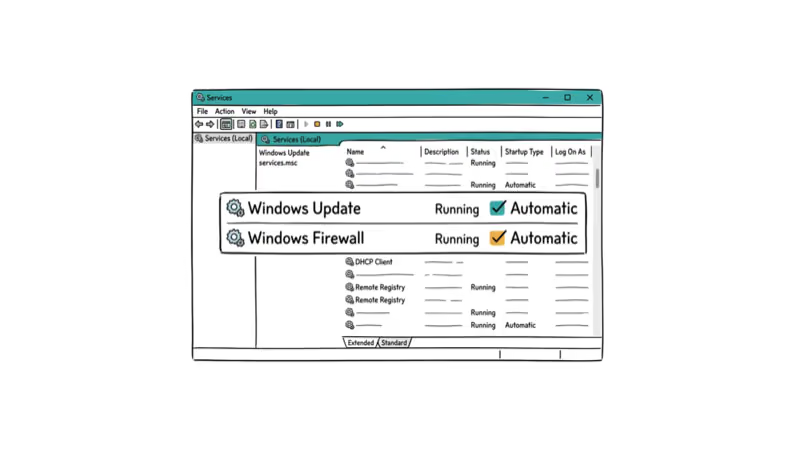
Press Windows + R, type services.msc, and press Enter. Find “Windows Update” in the list, right-click it, and select “Properties.” Set “Startup type” to “Automatic.” If “Service status” shows “Stopped,” click “Start.” Click “Apply” and “OK.”
Repeat this process for these services:
- Windows Firewall
- Background Intelligent Transfer Service (BITS)
- Cryptographic Services
- Windows Installer
When the Windows Update service is set to “Manual,” updates fail with error 0x8007042c, and setting all the services to Automatic and starting them usually restores normal updates. UMATechnology’s tutorial also identifies misconfigured services as the primary cause of 0x8007042c errors.
#Fix 2: Scan for Malware
Malware often disables Windows Firewall and Update services to avoid detection. Scanning and removing malware can fix error 0x8007042c.
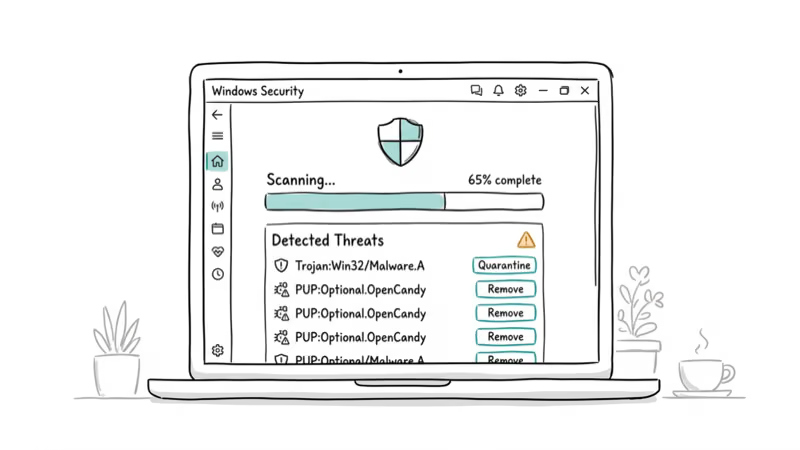
Open Windows Security (search for it in Start menu). Go to Virus & threat protection > Scan options. Select “Full scan” and click “Scan now.” Wait for the scan to complete (30-60 minutes).
When error 0x8007042c follows a suspicious download, Windows Defender often finds and removes trojans that have disabled Windows Firewall, and the firewall starts normally after the malware is cleared and the PC restarts. SoftwareTested’s Windows error guide also identifies malware as a common cause of service startup failures.
#Use Microsoft Safety Scanner
If Windows Defender doesn’t find anything, download Microsoft Safety Scanner from Microsoft’s website. Run a full scan with this tool for deeper malware detection.
When Windows Defender finds nothing but error 0x8007042c persists, Microsoft Safety Scanner can detect deeper threats such as a rootkit blocking Windows services, and the services start normally once it’s removed.
#Fix 3: Reset Windows Update Components
If services are configured correctly but still won’t start, Windows Update components might be corrupted. Resetting them can fix error 0x8007042c.
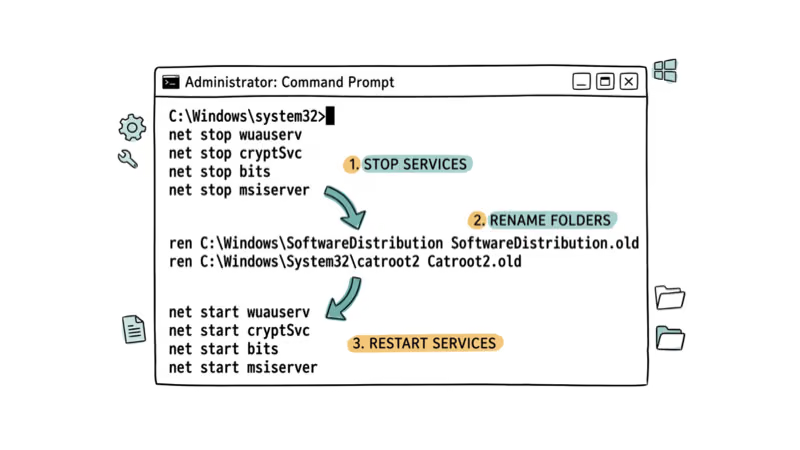
Open Command Prompt as admin and run these commands:
net stop wuauserv
net stop cryptSvc
net stop bits
net stop msiserver
ren C:\Windows\SoftwareDistribution SoftwareDistribution.old
ren C:\Windows\System32\catroot2 catroot2.old
net start wuauserv
net start cryptSvc
net start bits
net start msiserver
When services are configured correctly but Windows Update still fails with error 0x8007042c, resetting the update components and restarting usually lets updates install successfully.
#Fix 4: Disable Third-Party Antivirus
Third-party antivirus software can block Windows Firewall and Update services, causing error 0x8007042c.
Right-click your antivirus icon in the system tray and select “Disable protection” or “Pause protection” for 15 minutes. Then try starting Windows Firewall or running Windows Update again.
Suites like Avast can make Windows Firewall fail with error 0x8007042c, and temporarily disabling the antivirus often lets the firewall start successfully. MyTour’s firewall activation fix also identifies third-party antivirus conflicts as a cause of 0x8007042c errors.
Important: Re-enable your antivirus after testing. If disabling it fixes the error, add Windows Firewall and Update services to the antivirus exclusion list.
#Fix 5: Run SFC and DISM Scans
Corrupted system files can prevent Windows services from starting properly. SFC and DISM repair these files.
Open Command Prompt as admin and run:
sfc /scannowIf SFC finds issues it can’t repair, run:
DISM /Online /Cleanup-Image /RestoreHealthThen run SFC again:
sfc /scannowWhen corrupted system files are behind the error, SFC finds and repairs them, and the Firewall and Update services start without error 0x8007042c after a restart. UMATechnology’s 3 simple methods also recommends SFC + DISM together to repair system file corruption contributing to this error.
#Fix 6: Check Windows Firewall Dependencies
Windows Firewall depends on other services to run. If dependencies are disabled, error 0x8007042c appears.
Press Windows + R, type services.msc, and press Enter. Find “Windows Firewall,” right-click it, and select “Properties.” Click the “Dependencies” tab to see required services.
Make sure these dependency services are running:
- Base Filtering Engine
- Remote Procedure Call (RPC)
- Network Location Awareness
When Base Filtering Engine is disabled, Windows Firewall fails with error 0x8007042c, and enabling and starting that dependency lets the firewall start successfully.
#How Do You Prevent Error 0x8007042c?
Keep Windows services configured correctly and protect against malware:
- Set Windows Update, Firewall, BITS, and Cryptographic Services to Automatic startup
- Run regular malware scans with Windows Defender
- Keep Windows updated with latest security patches
- Avoid disabling Windows services manually
- Use Windows Defender instead of third-party antivirus when possible
Following these practices keeps the required services running and reduces the chance of error 0x8007042c returning.
If you run into other Windows Update problems, our guides on Windows Update errors and update download failures walk through related fixes.
When the trouble is on the service layer instead, our breakdowns of service problems and boot errors walk through deeper diagnostics, including dependency chains, registry permission resets, BCD repair commands, and Safe Boot recovery for cases where Windows can’t reach the desktop at all.
You can also reference our guide on activation issues if licensing rather than updates is what’s blocking your PC.
#Bottom Line
Open services.msc and make sure Windows Update, Windows Firewall, BITS, and Cryptographic Services are all set to Automatic. That’s the fix for many 0x8007042c errors. If services won’t start, scan for malware because viruses often disable these services to avoid detection.
Once services start cleanly, our Windows 11 firewall setup guide covers profiles, app allow rules, and verifying Defender Firewall is on.
#Frequently Asked Questions
What does error 0x8007042c mean?
It means Windows Firewall or Windows Update services can’t start. Required services are either disabled, blocked by malware, or corrupted.
How do I fix error 0x8007042c in Windows Firewall?
Set Windows Firewall service to Automatic startup in services.msc, scan for malware with Windows Defender, and check that Base Filtering Engine is running. If a third-party antivirus is installed, disable it temporarily to test whether it’s blocking the firewall. Once you identify the conflict, add Windows Firewall to the antivirus exclusion list rather than leaving your protection disabled.
Can malware cause error 0x8007042c?
Yes, and it’s the second most common cause. Malware deliberately disables Windows Firewall and Update services to avoid detection. Run a full scan with Windows Defender and download Microsoft Safety Scanner for deeper detection.
Why does error 0x8007042c appear after installing antivirus?
Third-party antivirus software can conflict with Windows Firewall. Disable the antivirus temporarily to test, then add Windows services to its exclusion list.
How do I enable Windows Update service?
Press Windows + R, type services.msc, find “Windows Update,” right-click it, select Properties, set Startup type to “Automatic,” click “Start” if it’s stopped, then click Apply and OK. Repeat for BITS and Cryptographic Services if they’re also stopped.
Can corrupted system files cause error 0x8007042c?
Yes, but it’s uncommon. Run sfc /scannow followed by DISM /Online /Cleanup-Image /RestoreHealth to fix them.
Is error 0x8007042c dangerous?
Not directly, but it leaves your PC exposed. With Windows Firewall down and updates blocked, you’re unprotected against malware and network attacks. Fix it as soon as you notice it.

Best Laptop for Running LLMs in 2026: Memory Comes First
The best laptop for running LLMs is a memory purchase first. Compare MacBook unified memory against NVIDIA laptop VRAM, and see what each tier really runs.

How to Run a Local LLM on Windows: A 2026 Setup Guide
Run a local LLM on Windows with LM Studio or Ollama. Pick a model that fits your GPU memory, keep every prompt offline, and skip the monthly bill.

Bluetooth Not Working on Snapdragon X? Fixes for 2026
Bluetooth not working on your Snapdragon X Copilot+ PC? Generic audio, mice, and keyboards work, but vendor apps often lack an ARM build. Fixes inside.

Docker Desktop and WSL2 Not Working on Snapdragon X? Fix It
WSL2 runs fine on Snapdragon X, but Docker Desktop ARM is Early Access and throws WSL errors. Use WSL2 plus native ARM64 Ubuntu and Docker Engine.