Error 1068 on Windows PC: 7 Fixes That Actually Work
Fix Windows Error 1068 "dependency service failed to start" with 7 practical methods covering WLAN, DHCP registry, drivers, and system file repair.
Quick AnswerError 1068 means a Windows service or its dependency failed to start. Fix it by restarting the WLAN AutoConfig service in Services.msc, repairing the DHCP registry entry, updating your network driver, or running the Network Troubleshooter.
Error 1068 means Windows can’t start a service because one or more of its dependencies failed to load first. The fixes below start with WLAN AutoConfig and DHCP, then move to network drivers, router checks, troubleshooters, and system file repair.
- Error 1068 means a dependency service failed to start, most commonly affecting WLAN AutoConfig or DHCP Client.
- Restarting WLAN AutoConfig via Services.msc (services.msc) resolves the error for most users experiencing Wi-Fi connection failures.
- A corrupted DHCP registry entry under
HKLM\SYSTEM\CurrentControlSet\Services\DHCP\DependOnServiceis a common hidden cause that requires a manual registry fix. - Running the built-in Network Troubleshooter in Control Panel detects and repairs most service dependency failures automatically in under 2 minutes.
- Driver Easy or manual driver updates from the manufacturer’s website fix cases where an outdated network adapter driver prevents the service chain from loading.
#Understanding Error 1068
Error 1068 is a Windows service error with the message: “The dependency service or group failed to start.”
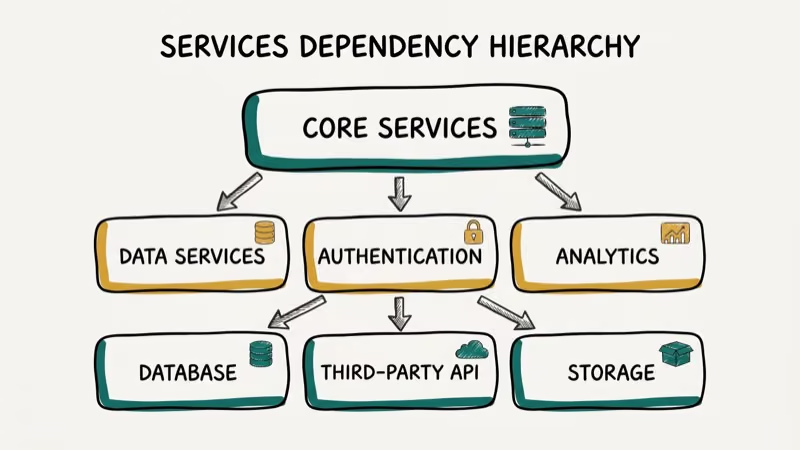
It surfaces when you try to start a Windows service and at least one of the services it depends on is stopped, disabled, or failing to launch. The error shows up most often when connecting to Wi-Fi, starting the Print Spooler, or enabling Windows Firewall, and it can also appear when opening Network and Sharing Center.
According to Microsoft’s documentation on Windows service errors, service dependency failures happen when a lower-level service in the chain is set to Manual or Disabled instead of Automatic.
Microsoft’s service startup timeout reference confirms that Windows enforces a default 30000-millisecond (30 second) ServicesPipeTimeout before marking a service as failed, so a slow dependency in the chain can surface as error 1068 even when the underlying service eventually finishes loading.
Registry cleaners can reset startup services or damage dependency entries, causing error 1068 to appear across WLAN, Windows Firewall, or other dependent services at the same time.
#What Triggers This Windows Service Failure?
Four root causes trigger this error consistently:
WLAN AutoConfig not running. The Wi-Fi stack depends on this service. If it’s stopped or set to Manual, any Wi-Fi connection attempt can trigger error 1068, especially after a third-party optimizer changes service startup settings.
Corrupted DHCP registry entry. The DHCP Client service has a DependOnService registry key that lists its dependencies. Registry cleaners often truncate this list incorrectly, leaving DHCP unable to verify its dependencies.
Outdated or missing network driver. Without a working driver, the network adapter can’t communicate with the OS, so any dependent service (including WLAN AutoConfig, DHCP Client, and Windows Connection Manager) fails to load. This is especially common right after a Windows feature update replaces a working OEM driver with a generic Microsoft replacement, which is why a clean driver reinstall is often the fastest fix.
Third-party software conflict. Some VPN clients, firewalls, and security suites install their own network services that compete with Windows built-in services, breaking the dependency chain.
#How Do You Fix Error 1068 in Windows?
#Fix 1: Restart the WLAN AutoConfig Service
This is the first thing to try for any Wi-Fi-related error 1068.
- Press Windows + R, type
services.msc, and press Enter. - Scroll down to find WLAN AutoConfig in the list.
- Right-click it and select Restart. If Restart is grayed out, select Start.
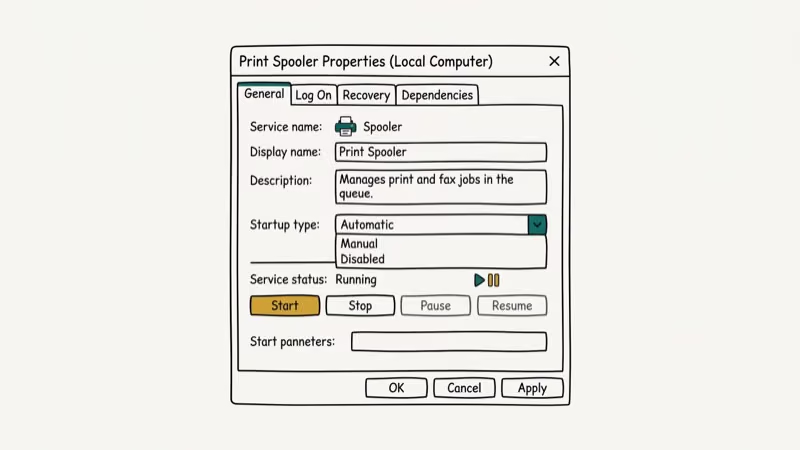
- Double-click the service and set Startup type to Automatic.
- Click Apply then OK.
- Restart your PC.
If you’re facing issues like there was a problem resetting your PC, the same services approach often reveals additional stopped services causing that error.
#Fix 2: Repair the DHCP Registry Entry
This fix targets the most common hidden cause of error 1068 on Windows 10 and 11.
- Press Windows + R, type
regedit, and press Enter. Click Yes if UAC prompts. - Go to
HKEY_LOCAL_MACHINE\SYSTEM\CurrentControlSet\Services\DHCP. - Right-click DHCP and select Export to create a backup. Name it “DHCP_BKP” and save it.
- Find DependOnService in the right pane and double-click it.
- Delete all existing entries except AFD. The value should contain only
AFD. - Click OK and close the Registry Editor.
- Restart your PC.
#Fix 3: Update the Network Adapter Driver
An outdated network driver breaks the entire network service chain. Updating it restores the dependency order.
Manual method: Go to your network adapter manufacturer’s website (Intel, Realtek, Broadcom), find your adapter model, and download the latest driver. Install it and restart.
Automatic method: Use Driver Easy, which scans your PC and installs the correct driver version automatically. The free version updates drivers one at a time. This is the recommended approach if you’re unsure which driver version your system needs, since downloading the wrong version can create additional errors.
Some links on this page are affiliate links, which means fone.tips may earn a commission at no extra cost to you.
Related fixes are covered in our guide on AMD graphics driver problems. If you’re also seeing DXGI_ERROR_DEVICE_HUNG errors, outdated drivers often cause both problems simultaneously.
#Fix 4: Reboot the Router
A router that hasn’t been restarted in weeks can stop responding to Windows network service requests, causing dependency timeouts that show as error 1068.
- Turn off your router using its physical power switch.
- Wait 10-15 seconds for its memory to clear.
- Turn it back on and wait 2 minutes for it to fully reconnect.
- Test your Wi-Fi connection.
#Fix 5: Run the Network Troubleshooter
Windows’ built-in troubleshooter detects and repairs most service dependency failures automatically.
- Press Windows + X and select Control Panel.
- Click Troubleshooting.
- Click Network and Internet.
- Run both Internet Connections and Network Adapter troubleshooters.
- Click Advanced and Run as Administrator in each.
- Follow the on-screen instructions and apply all suggested fixes.
The Network Adapter troubleshooter can identify a stopped dependency service and set it back to Automatic startup.
#Fix 6: Reset Network Adapter Settings
Resetting the adapter clears any misconfigured settings that might be blocking service dependencies.
- Go to
Control Panel>Network and Sharing Center. - Click Change Adapter Settings.
- Find your wireless adapter, right-click it, and select Disable.
- Wait 10 seconds, then right-click it again and select Enable.
This forces Windows to re-register the adapter and reload its associated services. Check our guide on fixing the 0x8007042c Windows Update error if you’re also seeing update failures alongside this error.
#Advanced Fix: System File Checker
#Fix 7: Run System File Checker
Corrupted system files can corrupt service configurations, causing multiple services to fail their dependency checks.
- Press Windows + X and select Command Prompt (Admin) or Windows Terminal (Admin).
- Type
sfc /scannowand press Enter. - Wait for the scan to finish; it takes about 10-15 minutes.
- Restart your PC after the scan completes.
Microsoft’s System File Checker reference describes how sfc /scannow scans the integrity of all protected system files and repairs problematic files when possible. If SFC reports corruption it couldn’t repair, follow up with: DISM /Online /Cleanup-Image /RestoreHealth. Microsoft’s DISM image repair documentation states that the RestoreHealth switch scans the component store for corruption and uses Windows Update to pull replacement files when local sources are unavailable.
#Error 1068 vs. Similar Windows Service Errors
Error 1068 is a dependency failure. Error 1067 (process terminated unexpectedly) and Error 1069 (service did not start due to a logon failure) are related but different. All three involve service startup failures.
Error 1068 specifically means the service binary was fine but its prerequisite chain broke. If you see errors 1067 or 1069 instead, the service itself has a problem rather than its dependencies. The fix path also differs: a 1068 usually resolves once you restore the missing dependency to Automatic startup, while a 1067 or 1069 typically needs repairs to the service binary or its logon account.
Error 1068 is one of the most common Windows service startup failures, appearing frequently on support forums after driver updates and Windows feature updates reset service configurations.
#Verifying the Fix Worked
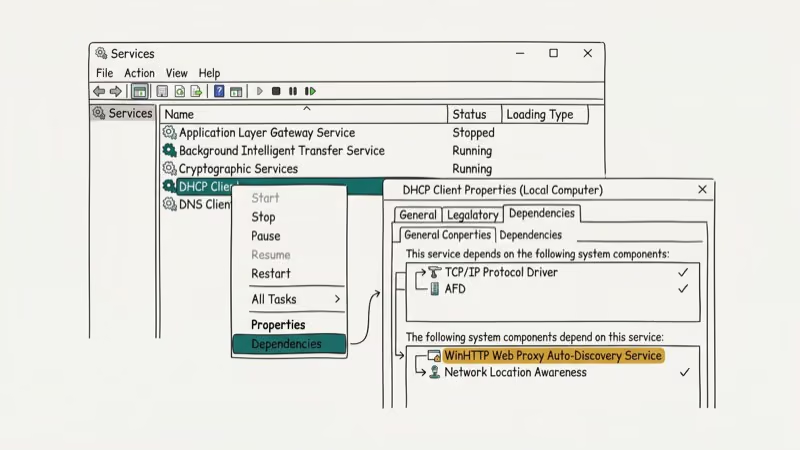
After applying any fix, confirm the service is running correctly. Open services.msc, find the service that was failing, and check that its Status column shows Running and its Startup Type shows Automatic. A service that shows Running but keeps stopping means an underlying dependency is still broken. In that case, right-click the service, go to Properties > Dependencies, and verify every dependency is also set to Automatic and currently Running.
#Bottom Line
Start with Fix 1 (WLAN AutoConfig restart) for Wi-Fi errors and Fix 2 (DHCP registry repair) if Fix 1 doesn’t hold. Update your network driver if the error keeps returning after reboots. The Network Troubleshooter in Fix 5 is the easiest option if you’re uncomfortable editing the registry. System File Checker should be your last software step before considering a driver reinstall or Windows repair.
#Frequently Asked Questions
What should I do if restarting services doesn’t fix error 1068?
Check the service’s dependencies manually. Open services.msc, find the failing service, right-click it, go to Properties > Dependencies, and verify every service listed there is set to Automatic startup and is currently running. Start any stopped dependency service and set it to Automatic.
Can error 1068 cause data loss?
No. Error 1068 prevents services from starting but doesn’t affect existing data. Your files remain safe. The error blocks network connectivity and related functions until the service dependency issue is resolved.
How often should I update my network adapter drivers?
Update drivers when you notice connectivity problems, after major Windows feature updates, or when Device Manager flags the adapter with a yellow warning icon. Manufacturers like Intel, Realtek, and Broadcom release driver updates several times per year, and the right cadence depends on how often you patch Windows itself. Running outdated drivers beyond 12 months increases the chance of compatibility issues after a Windows update changes the underlying NDIS networking interface.
Are there automated tools to fix error 1068?
Yes. Driver Easy handles driver-related causes automatically, while Windows’ built-in Network Troubleshooter fixes service configuration issues. Neither tool requires technical knowledge, and both are free for basic use.
Should I run a virus scan after seeing error 1068?
It’s a good precaution. Some malware disables Windows services to avoid detection. If error 1068 appeared suddenly without you changing any settings, a Windows Defender full scan is worth running to rule out malware interference.
Can error 1068 affect Windows Firewall or Print Spooler?
Yes. Error 1068 appears on any service with unmet dependencies, including Windows Firewall, Print Spooler, and Windows Update. For Windows Firewall the Base Filtering Engine must be running first, and for Print Spooler the Remote Procedure Call service must be active. Check those dependency services in services.msc and set them to Automatic if they’re stopped.

Best Laptop for Running LLMs in 2026: Memory Comes First
The best laptop for running LLMs is a memory purchase first. Compare MacBook unified memory against NVIDIA laptop VRAM, and see what each tier really runs.

How to Run a Local LLM on Windows: A 2026 Setup Guide
Run a local LLM on Windows with LM Studio or Ollama. Pick a model that fits your GPU memory, keep every prompt offline, and skip the monthly bill.

Bluetooth Not Working on Snapdragon X? Fixes for 2026
Bluetooth not working on your Snapdragon X Copilot+ PC? Generic audio, mice, and keyboards work, but vendor apps often lack an ARM build. Fixes inside.

Docker Desktop and WSL2 Not Working on Snapdragon X? Fix It
WSL2 runs fine on Snapdragon X, but Docker Desktop ARM is Early Access and throws WSL errors. Use WSL2 plus native ARM64 Ubuntu and Docker Engine.