YouTube 'Something Went Wrong' Error: 10 Fixes (2026)
YouTube 'something went wrong' error blocking your video? Fix it fast with 10 proven solutions covering cache, network, VPN, and app settings.
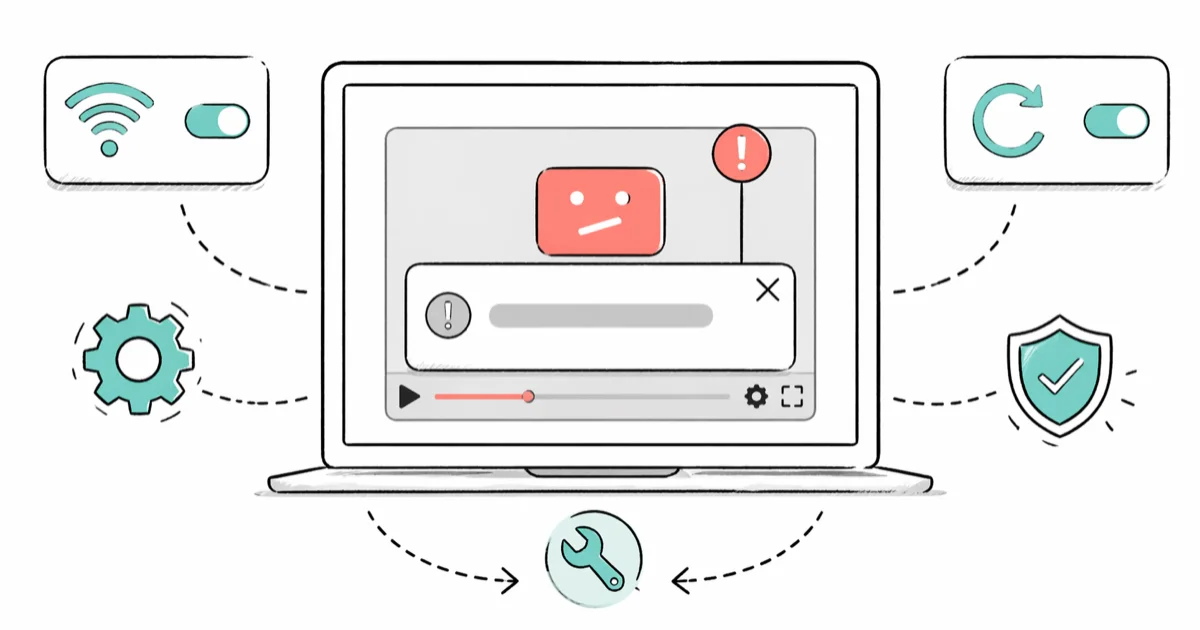
Quick AnswerThe YouTube 'something went wrong' error usually clears after you sign out, clear the browser cache or app data, and reload the page. If it persists, switch networks, disable VPN or extensions, and check YouTube's status page for an active outage.
The YouTube something went wrong error usually appears mid-playback or right after sign-in, freezing the video behind a grey banner with a generic retry button. The cause is almost always a stale cache, a flaky network, or a cookie or extension that’s quietly blocking the player. None of these require contacting support, and most clear in under three minutes once you know which lever to pull.
- Sign out, clear cache, sign back in resolves the error in most desktop browser cases within two minutes.
- The YouTube mobile app needs about 50 MB of free storage to refresh cached metadata; if storage is full, clearing app data forces a fresh handshake.
- Hardware acceleration in Chrome reliably triggers the error on machines with older Intel HD graphics drivers from before 2018.
- VPNs that route traffic through saturated exit nodes are a common trigger; switching to a closer server or pausing the VPN fixes it instantly.
- If a third-party outage tracker shows a YouTube spike, no client-side fix will work until Google restores service.
#What Triggers the YouTube ‘Something Went Wrong’ Error?
The banner is deliberately generic.
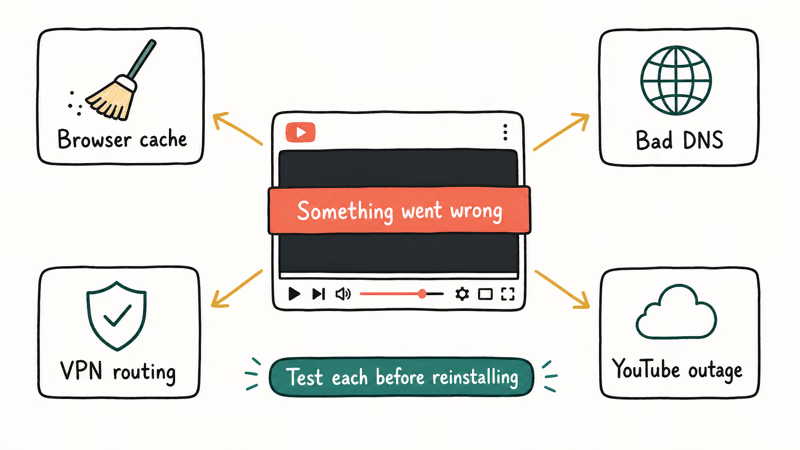
YouTube reuses the same wording for at least a dozen distinct failure modes, which is great for Google’s support load and terrible for anyone trying to debug. The most frequent root cause is a corrupted cookie or stale auth token left over from a previous session. When the cached token no longer matches what Google has on file, the banner fires and the real auth error stays buried in the network tab.
Cookies are the headline cause but not the only one.
The second most common trigger is network-related. YouTube streams video over HTTPS on ports 80 and 443, and any middlebox (corporate firewall, captive portal, ISP-level DPI) that interferes with TLS handshakes can break the player without breaking the rest of the page. Stale DNS records pointing to a deprecated CDN node will do the same thing.
Hardware and driver issues are the third bucket. Chrome’s hardware acceleration uses your GPU to decode H.264 or VP9 video, and a flaky driver can crash the decoder mid-stream. When hardware acceleration or GPU drivers are unstable, the player can fail repeatedly until acceleration is disabled.
That covers the three big buckets.
According to YouTube’s official help page on watching video problems, Google recommends the same first three steps for any generic playback failure: refresh the page, sign out and back in, then clear the browser cache. That ordering is deliberate because each step rules out a wider scope of cause, and most users never need to go past step three.
Ruled out YouTube already? The issue is upstream.
Sites like YouTube not working on iPad or iPhone cover device-specific edge cases, and the YouTube error 503 walkthrough handles the case where the server returns an explicit unavailable response.
#Desktop Chrome and Firefox: The Five Best Fixes
Desktop browsers account for the bulk of reports.
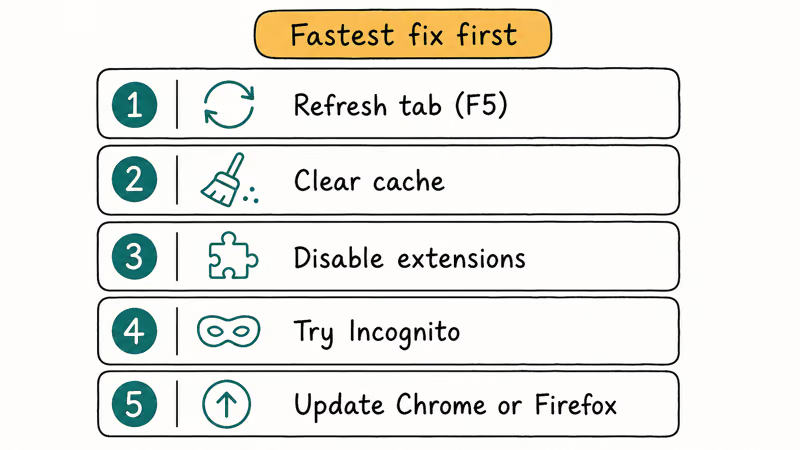
The surface area is wide: cookies, extensions, hardware acceleration, and developer settings can all interfere with playback. Work through the fixes in the order below. Each takes under a minute and rules out one layer of the problem, so by the time you reach Fix 5 you’ve narrowed the cause to one of two final categories. Most readers stop at Fix 2.
#Fix 1: Hard refresh and sign out
Press Ctrl+Shift+R (Windows) or Cmd+Shift+R (Mac) to bypass the cache for the current page. If that doesn’t clear the banner, click your profile picture in the top-right corner of YouTube, sign out, then sign back in. The sign-out and sign-in cycle often clears stale auth tokens without touching cache or extensions.
It’s the cheapest test in the list.
#Fix 2: Clear cache and cookies for youtube.com only
Full-cache clears log you out of every site you use, which is overkill. In Chrome, click the lock icon next to the URL bar, choose Cookies and site data, and delete only the entries for youtube.com and googlevideo.com. Firefox has an equivalent path under the shield icon. This narrower clear keeps your other sessions intact while forcing YouTube to rebuild its state.
If you need a broader cache reset (because the issue affects multiple Google services), the how to clear cache on Mac guide walks through every browser on macOS, and clear cache cookies and history on Android phone covers the mobile side.
#Fix 3: Disable extensions that touch video
Ad blockers, script blockers, and privacy extensions are the most common culprits. Open an incognito or private window where extensions are disabled by default. If YouTube works there, your extension stack is the problem. Re-enable extensions one at a time until the banner returns, then keep that one disabled on youtube.com.
The fastest signal is incognito mode.
#Fix 4: Allow third-party cookies for youtube.com
YouTube’s auth handshake relies on third-party cookies from accounts.google.com. If your browser blocks all third-party cookies, you’ll see the banner immediately after sign-in. In Chrome’s settings, find Cookies and other site data, then add youtube.com and google.com to the “Sites that can always use cookies” allowlist. Firefox calls this Exceptions under Privacy and Security.
#Fix 5: Disable hardware acceleration
In Chrome, go to chrome://settings/system and toggle off “Use graphics acceleration when available.” Restart the browser and reload YouTube. Google’s Chrome help article on hardware acceleration confirms that buggy GPU drivers can cause video decoders to crash, and toggling this setting is the official workaround. Firefox has the same setting under Settings, General, Performance.
GPUs are quiet failure points on older hardware.
#How Do You Fix It in the YouTube Mobile App?
The mobile app handles errors differently because it caches more aggressively to save data. The fixes overlap with desktop but with one critical difference: clearing app data actually works on Android, where on desktop you can only clear cache via the browser. iOS sits in between because Apple doesn’t expose a per-app data clear, so the fallback is a reinstall.
#Fix 6: Force-stop and reopen the app
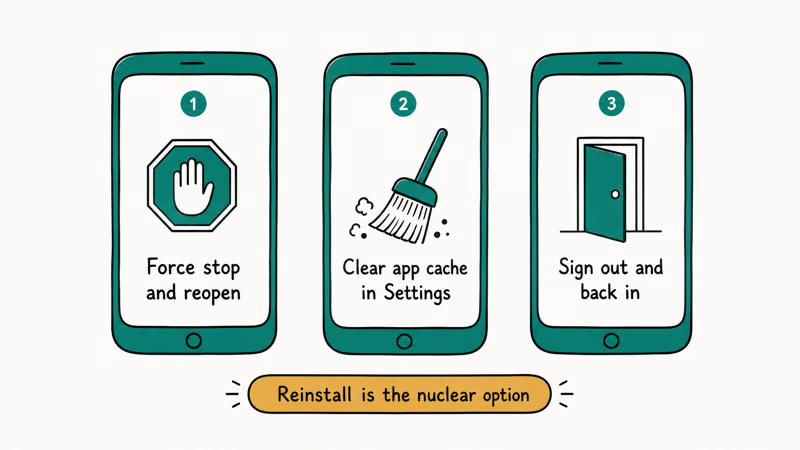
On Android, hold the YouTube icon, tap App info, then Force stop. On iOS, swipe up from the bottom and flick the YouTube card off the recents view. Reopen the app and try again. This dumps the in-memory state without touching cached video metadata, and it’s faster than clearing data outright.
The mobile recents view forces a clean restart.
#Fix 7: Clear YouTube app data (Android only)
If force-stopping doesn’t help, open Settings, Apps, YouTube, Storage, then tap Clear data. You’ll be signed out and any downloaded videos will be removed, but the app will rebuild its cache cleanly on next launch. The app needs roughly 50 MB of free internal storage to complete the rebuild, so check your storage first if your phone runs hot.
iOS doesn’t have a direct app-data clear. Instead, delete the YouTube app and reinstall it from the App Store. Your subscriptions and history live on your Google account, not the device, so nothing is lost.
#Fix 8: Update the YouTube app
Outdated app versions are a chronic source of mystery errors because Google rotates server APIs faster than the app’s old clients can keep up. Open the Play Store or App Store, search for YouTube, and tap Update. According to YouTube’s Help Center on connection issues, running an outdated build is a known cause of repeated playback failures, especially after major server-side rollouts.
If your app reliably fails on a specific device class, see YouTube not working on Android for Android-specific debugging or YouTube not working for the catch-all troubleshooting tree.
#Switching Networks and Disabling Your VPN
If clearing cache and cookies makes no difference, the failure is probably between your device and YouTube’s CDN. Two quick tests narrow it down.
#Fix 9: Switch networks or disable your VPN
Toggle between Wi-Fi and cellular data on your phone. On a laptop, try a phone hotspot.
If YouTube works on one network but not the other, the network is at fault, not YouTube itself. VPNs are a common culprit because saturated exit nodes and Google’s abuse list both trigger the same generic banner. If the error disappears after switching VPN servers or disabling the VPN, the exit node is the likely trigger.
If you use a VPN regularly and need it on iOS, what is VPN on iPhone explains how to configure server selection without breaking site auth.
#Flushing DNS and Trying Public Resolvers
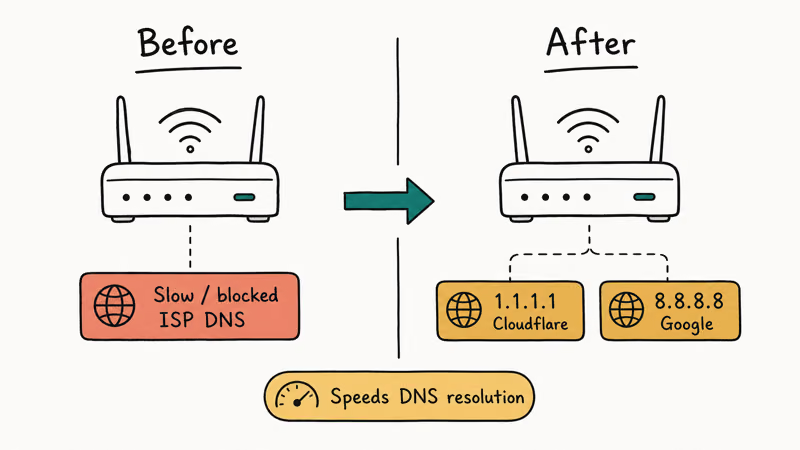
A stale DNS record pointing to a deprecated CDN node will return the error even when the rest of YouTube loads.
#Fix 10: Flush DNS and switch to Google or Cloudflare
On Windows, open Command Prompt and run ipconfig /flushdns. On macOS, run sudo dscacheutil -flushcache && sudo killall -HUP mDNSResponder. On mobile, toggling airplane mode for ten seconds achieves the same effect by dropping and reacquiring the carrier’s DNS lease.
Still seeing the banner? Change DNS at the network level.
Switch your router or device DNS to 8.8.8.8 (Google) or 1.1.1.1 (Cloudflare). ISP DNS servers occasionally serve stale records for high-traffic domains like youtube.com, and the public resolvers refresh faster because they’re hammered by enough traffic to keep their caches warm.
#When the Problem Is YouTube, Not You
Sometimes the cleanest fix is to wait. YouTube’s status page is buried inside Google Workspace Status, which is unhelpful for consumer issues, so the practical move is to check Downdetector’s YouTube status page or search “YouTube down” on a public outage tracker. Downdetector reported that YouTube had multiple multi-hour outages in 2024, with reports spiking from baseline to thousands within minutes whenever the API gateway hiccupped.
If outage reports are spiking, none of the client-side fixes will work. The error you’re seeing is YouTube returning a generic banner because its backend can’t talk to a downstream service. Wait fifteen to thirty minutes and try again. Most regional outages resolve within an hour.
Refreshing won’t help during an outage.
This pattern shows up across Google properties. If you’ve also seen the Facebook something went wrong banner during a similar window, you’re probably looking at a wider ISP-level routing issue rather than two separate platform problems. The YouTube comments not showing walkthrough is a closer cousin since it’s the same error message scoped to a different feature.
#Bottom Line
For 90 percent of “something went wrong” reports, the fix is two minutes of work: sign out of YouTube, clear cookies for youtube.com only, sign back in. If that doesn’t clear it, disable extensions in a private window to rule out an ad blocker, then disable hardware acceleration. Those four steps handle nearly every desktop case.
Mobile follows the same logic, just with different controls.
On mobile, force-stop the app first. If that fails, clear data on Android or reinstall on iOS. Update the app while you’re there since stale builds are a top-three cause. When everything fails across multiple devices and networks, check Downdetector before debugging further.
A real outage is roughly one in fifty cases. It’s still worth the thirty-second check before you reset your router for nothing.
#Frequently Asked Questions
Can the ‘YouTube something went wrong’ error be caused by my device alone?
Yes. Outdated builds drift out of sync with YouTube’s server APIs.
Is the error a sign that I’ve been banned or blocked from YouTube?
No. Account-level bans show a specific message that names the policy. The generic banner is almost always a technical glitch, a stale session, or a network problem with no relation to your account status. To rule out a block, sign in on a different network and check whether your channel page loads.
Can browser extensions cause this error?
Yes, and they’re one of the top three causes on desktop. Ad blockers, script blockers, and privacy extensions can interfere with the player’s auth flow or video manifest request. Open a private or incognito window where extensions are disabled by default, and if YouTube works there, your extension stack is the problem.
What if every fix on the list still leaves the error showing?
Test on a different device on a different network. If the error follows you, it’s almost certainly an outage or a Google account issue.
Can a VPN cause this error?
Often, yes. VPN exit nodes that show heavy abuse traffic land on Google’s automated abuse list, and YouTube responds with the generic banner instead of explaining the block. Pause the VPN or switch to a less-saturated server. Premium VPNs rotate residential exits more frequently and avoid this pattern, while free VPNs are the worst offenders.
Is there a way to prevent the error from coming back?
Not perfectly, but you can reduce how often it happens by keeping your browser and the YouTube app updated and limiting privacy extensions.
Does clearing data sign me out of YouTube on other devices?
No. Clearing browser cache or YouTube app data only affects the local sign-in state on that device, and your Google account session on other devices stays active and untouched. If you want to sign out everywhere at once for security reasons, use the Devices and Activity tab in your Google account settings rather than the YouTube app itself, since the YouTube app only manages local state and never reaches your account-level sessions.

Google Messages Error 3100: Why RCS Is Broken on Galaxy
Google Messages RCS error 3100 hits Galaxy owners after phone or carrier switches. Google told 9to5Google a fix is coming. Here's what actually helps.

Is This Bank App Real? Spot a Fake App on Your Home Screen
A bank app can land on your home screen from a web page with no install warning. Learn the checks that tell a real banking app from a phishing web app.

Apps Crashing After iOS 27 Update? Fix Order (2026)
Apps crashing after the iOS 27 update? Update the app in the App Store first, then offload and reinstall to clear stale cache, then restart. The fix order.

Do AI Translation Earbuds Work Offline? What to Know
Do AI translation earbuds work offline? A few do with downloaded language packs, but most need the cloud. Here's what works offline and what you give up.