How to Transfer Photos From iPhone to PC Windows 10 (5 Ways)
Transfer photos from iPhone to Windows 10 using Microsoft Photos, File Explorer, iCloud, OneDrive, or email, with fixes for Trust prompts and HEIC.
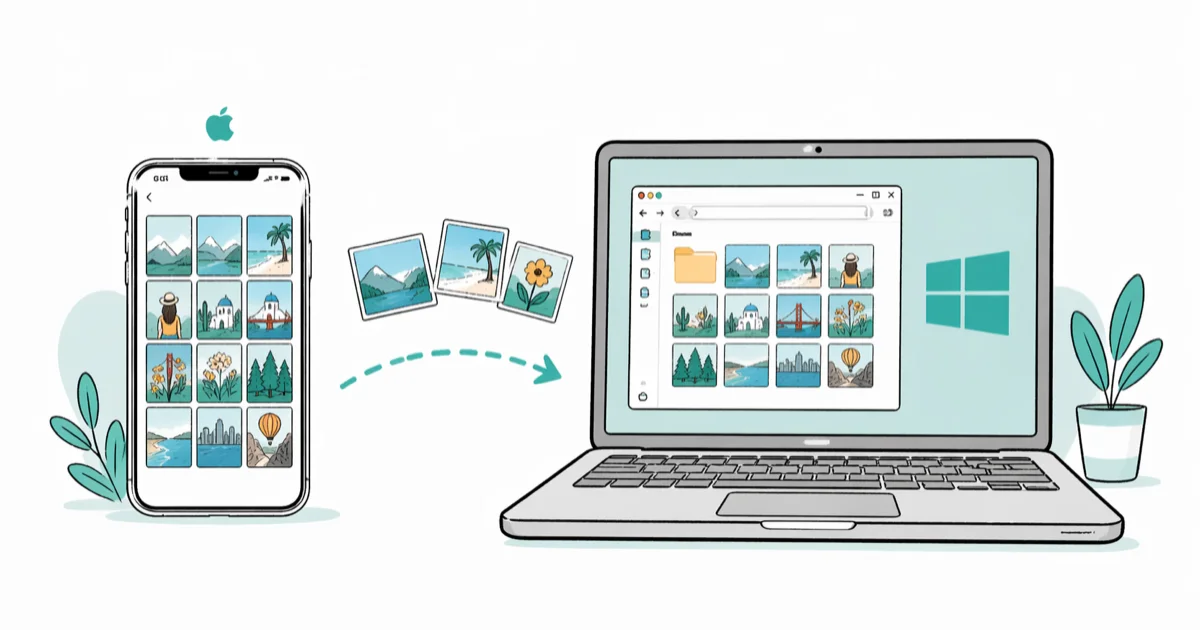
Quick AnswerInstall Apple Devices on the PC, connect and unlock the iPhone, tap Trust, then open Microsoft Photos and choose Import from the connected device.
You can transfer photos from iPhone to PC Windows 10 in five ways. Use them only with your own phone or the owner’s explicit permission.
- Microsoft Photos provides a guided USB import and lets you choose which items to copy and where to save them
- File Explorer works when the Photos app freezes; copy from the DCIM folder directly without any third-party software
- iCloud for Windows exposes your iCloud Photos in File Explorer or Microsoft Photos after you sign in and turn on Photos
- HEIC and HEVC files may need Microsoft’s current media extensions before Windows 10 can open them
- Keep the iPhone unlocked and respond to the Trust prompt when Windows asks for access
#Why Won’t Windows 10 See My iPhone Photos?
Three checks come before the import itself: install the current Apple Devices app, use a cable that supports data, and keep the iPhone unlocked so you can respond to the Trust prompt.
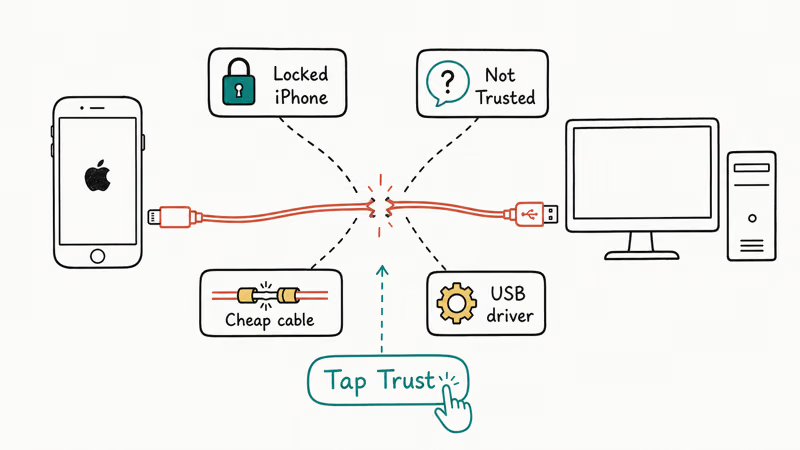
Start with the cable. According to Apple’s current device-recognition guide, the cable must support both data and charging. Apple also recommends checking the iPhone’s port for debris, trying another data-capable cable, and testing a different USB port or computer.
The Trust prompt is next.
When iOS shows “Trust This Computer?”, tap Trust and enter your passcode. If the prompt doesn’t appear, use the Location & Privacy reset in the FAQ below after completing the cable and software checks. Only approve Trust on a computer you control. If it isn’t your iPhone, the owner’s consent is required before you access or copy any photos.
Last, install and open Apple Devices from the Microsoft Store. Apple’s current Windows transfer instructions make that the first PC step before connecting the iPhone and opening Microsoft Photos. If Apple Devices doesn’t recognize the phone, update Windows, iOS, and the installed Apple software before returning to the import.
#Method 1: Use the Photos App for Batch Imports
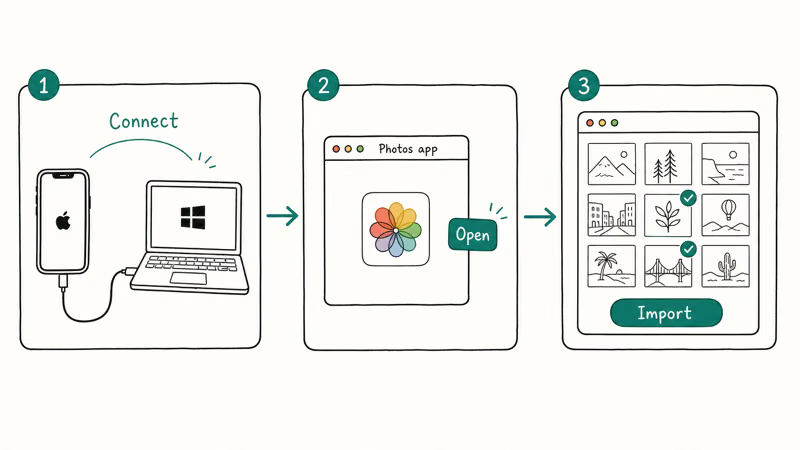
The Photos app provides a guided USB import with item selection and a destination choice.
Import speed depends on the cable, USB port, library size, and file formats. Review the destination before repeating an import; Microsoft’s current documentation doesn’t promise automatic duplicate prevention.
- Plug your iPhone into the Windows 10 PC with a Lightning cable.
- Sign in on the iPhone and tap Trust on the prompt that appears.
- Open the Photos app from the Start menu.
- Select Import, then select the connected iPhone.
- Wait for Windows to scan the camera roll; larger libraries can take longer to index before thumbnails appear.
- Use Select all or click individual thumbnails, then click Import to selected.
- Choose the destination folder and start the import.
If the Photos app shows no new items, don’t look for a Windows entry under the iPhone’s app-level Photos permissions; that control doesn’t exist. Microsoft’s current iPhone import page says direct import may miss photos that exist in iCloud but aren’t stored on the device. Use iCloud for Windows, or download the originals to the iPhone before trying the USB import again.
Moving photos as part of an upgrade? Our guide on how to transfer data to a new iPhone covers the cross-device path. For viewing imported HEIC files later, our best photo viewers for Windows 10 roundup picks the apps that render iPhone photos without re-encoding.
#Method 2: Drag Photos From File Explorer
File Explorer is the fallback when the Photos app crashes, freezes mid-import, or returns zero results despite a healthy iPhone connection. It lets you copy directly from the iPhone’s DCIM folder after Windows recognizes the device.
- Connect the iPhone, sign in on the device, and tap Trust.
- Open File Explorer (Win + E).
- Click This PC in the left sidebar.
- Double-click the iPhone icon under Devices and drives.
Open Internal Storage>DCIM.- Open the DCIM subfolders that contain the photos and videos you want; the folder layout can vary by library.
- Open any folder, select the photos you want (Ctrl + A for all, or Ctrl + click for individual files), then drag them to your desktop or a Pictures subfolder.
The DCIM view isn’t as convenient as the Photos app for choosing items by date. Large folders can also take time to populate over USB, so let File Explorer finish reading the folder before you disconnect the iPhone or assume that it’s empty. If you need the guided selection screen, use Method 1 instead.
#Method 3: Sync With iCloud for Windows
iCloud for Windows is the right choice when the originals are already in iCloud or you want access without a USB import.
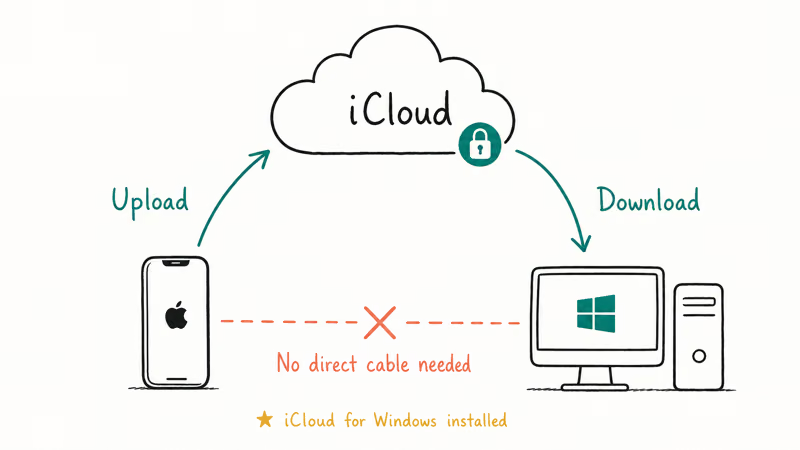
- Download iCloud for Windows from the Microsoft Store (it’s free and Apple-published).
- Sign in with your Apple ID and the password tied to the iPhone’s account.
- Turn on iCloud Photos in the iCloud for Windows app.
- Open iCloud Photos in File Explorer or Microsoft Photos.
Apple’s current iCloud download guide confirms that signed-in Windows users can find iCloud Photos in File Explorer or Microsoft Photos. Sync time depends on the library, connection, and whether the originals have finished uploading from the iPhone; Apple doesn’t publish a universal completion time there.
Two gotchas to plan around.
First, iCloud for Windows can only expose items that have reached iCloud. If an item exists in iCloud but not locally on the iPhone, use iCloud for Windows instead of expecting a direct USB import to retrieve the cloud-only copy. If the iPhone still shows a stuck upload before any files reach Windows, clear that blocker with our iCloud Photos upload guide rather than reinstalling the Windows app.
Second, photos and videos use your iCloud storage. Apple’s transfer page recommends checking whether the account has enough room for the full collection and upgrading only if needed; plan sizes and prices can change by region. If you’ve forgotten the Apple ID password, our walk-through on recovering an iCloud login when you can’t remember the email helps before you start the install.
#Method 4: Upload Through OneDrive
OneDrive ships preinstalled on Windows 10 and gives you a wireless transfer path that doesn’t depend on iCloud or Apple’s drivers. It’s the right pick if your PC already lives on the Microsoft 365 ecosystem.
- Install the OneDrive app on the iPhone from the App Store.
- Sign in with the same Microsoft account that’s signed into your Windows 10 PC.
- Open the OneDrive app’s settings and turn on Camera Upload.
- On the PC, open OneDrive in File Explorer or connect OneDrive in Microsoft Photos.
Microsoft’s current Photos documentation says the latest photos and videos begin uploading after Camera Upload is enabled and then appear in Microsoft Photos when OneDrive is connected. The first upload can take longer for a large library; Microsoft doesn’t promise a fixed completion time.
Camera Upload depends on available OneDrive storage. Check the account’s current quota before starting a large library; if you only want a one-time copy, stick with the USB methods.
#Method 5: Email a Small Selection
For a small selection of photos, email can be simpler than setting up USB or cloud sync.
Open Photos on the iPhone, select the items, tap Share, and choose your mail app. Send them to an account you can open on the PC, then download the attachments. Attachment limits vary by provider, and the mail app may resize media, so use USB or cloud storage when you need originals or large videos.
Phone Link isn’t an iPhone photo-transfer method. Microsoft’s current Phone Link requirements list messages, calls, contacts, and notifications for iPhone; the recent-photo workflow on that page is for Android.
If Photos, File Explorer, iCloud, and OneDrive still don’t complete the transfer, AnyTrans is a paid third-party fallback. Review its current subscription terms and privacy policy before granting access to the photo library.
Some links on this page are affiliate links, which means fone.tips may earn a commission at no extra cost to you.
#What Should You Do When the Import Includes HEIC Files?
iOS saves photos as HEIC by default starting with iOS 11. Some Windows 10 installations need Microsoft’s HEIF and HEVC extensions before Photos or File Explorer can open those files correctly.
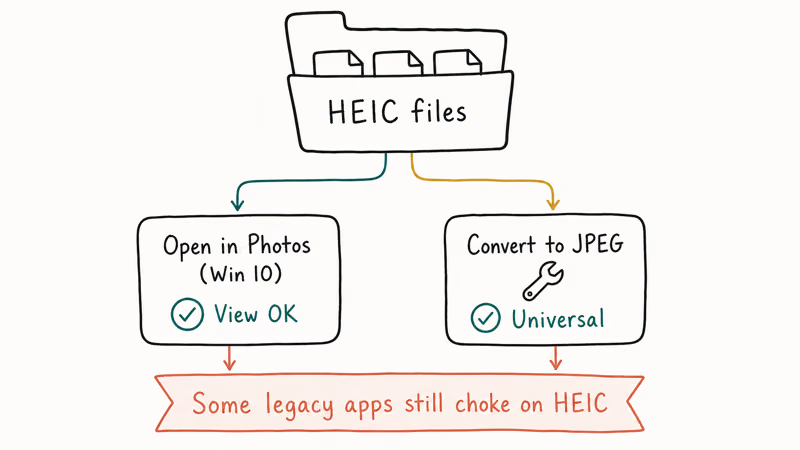
First, install the HEIF Image Extensions and HEVC Video Extensions from the Microsoft Store. According to Microsoft, HEVC costs $0.99 in its current US support listing. The same page lists HEIF as free, but verify the price shown in your region before buying. Restart Photos after installation.
Second, change the iPhone’s capture format going forward. Open Settings > Camera > Formats and pick Most Compatible, and from then on the iPhone shoots JPEG and H.264, which Windows reads natively without any extensions. Existing HEIC photos stay HEIC; only new shots change. Our deeper guide on how to view HEIC photos on Windows walks through the conversion options if the extensions don’t render correctly on your build.
For batch conversion of a HEIC archive you’ve already imported, our HEIC to JPEG conversion guide covers the free converters that handle 1,000-plus files in one pass.
#Bottom Line
Use the Photos app for a guided USB import. If Photos throws an error, confirm the iPhone appears in Apple Devices, then switch to File Explorer and copy from DCIM if needed. For ongoing wireless access, use iCloud for Windows when the library is already in iCloud or OneDrive when Camera Upload fits your account. Install the HEIF and HEVC extensions only if Windows can’t open the imported formats.
#Frequently Asked Questions
How long does it take to transfer 1,000 photos from iPhone to Windows 10?
There is no reliable universal estimate for 1,000 photos. Total file size, video clips mixed into the selection, cable and port speed, cloud-only originals, and the PC’s storage performance all change the result; wireless options also depend on upload and download speed.
Can I transfer photos without iTunes installed?
Yes. Apple’s current Windows instructions use the Apple Devices app, not iTunes: install Apple Devices from the Microsoft Store, connect and unlock the iPhone, respond to Trust, and then import through Microsoft Photos. iTunes is an older supported device-management path, not a requirement for this workflow.
Why are my iPhone photos not showing in File Explorer?
First confirm that the iPhone is unlocked, the cable supports data, and you approved Trust. Then open Apple Devices: if the phone doesn’t appear there, follow Apple’s cable, USB-port, Windows/iOS update, and driver checks before troubleshooting File Explorer itself.
Will transferring photos delete them from my iPhone?
USB import, File Explorer copy, OneDrive Camera Upload, and email don’t require deleting the originals. iCloud Photos is a synced library, so a deletion can propagate across devices. Open several copied files on the PC before removing anything from the iPhone or cloud library.
Do these methods work for video files too?
Microsoft Photos, File Explorer, iCloud Photos, and OneDrive can handle videos, subject to codec support and available storage. Email is suitable only when the provider accepts the attachment size; use USB or cloud storage for larger videos.
What if the Trust prompt never appears on my iPhone?
Restart the iPhone and reconnect the cable. If it still does not appear, Apple’s current device-recognition guide says to reset Location & Privacy at Settings > General > Transfer or Reset iPhone > Reset > Reset Location & Privacy. Reconnect, unlock the iPhone, and respond to the Trust prompt again. Try Apple’s cable, USB-port, and software-update checks before using the reset.
Can I transfer photos to PC over Wi-Fi without iCloud?
Yes. OneDrive Camera Upload provides a wireless path without iCloud, while email works for a small selection that fits the provider’s attachment limit.
Are HEIC photos converted to JPEG during transfer?
Conversion isn’t guaranteed across every transfer path. For future captures, Apple recommends Settings > Camera > Formats > Most Compatible, which records JPEG and H.264. For existing iCloud Photos items, Apple documents a Most Compatible choice in the download options on iCloud.com; otherwise, install the Windows extensions instead of assuming that email or USB will convert the files.

Mac mini M6 vs M5 Pro: Which Model Should You Buy?
Mac mini M6 vs M5 Pro compared on price, memory, ports, displays, and real workloads. Find the better 2026 Mac mini for your desk and budget.

Apple Siri Settlement: Who Qualifies and How to Claim
Apple's $250 million Siri settlement covers iPhone 15 Pro and iPhone 16 models bought June 2024 to March 2025. See who qualifies and how claims work.

iOS 26.6.1 Security Update: What Apple Fixed and Who Gets It
Apple released iOS 26.6.1 on August 17 with 29 security fixes, including an IPSec interception bug. See what it patches, who gets it, and how to update.

iPhone Adaptive Power: How It Works and When to Use It
Learn how iPhone Adaptive Power works, which models support it, what it changes, and when Low Power Mode is still the better battery-saving choice.