Folder Access Denied on Windows: 8 Fixes That Work in 2026
Folder Access Denied on Windows? Take ownership, fix permissions with icacls, or reset UAC using documented fixes for Windows 10 and 11 PCs.
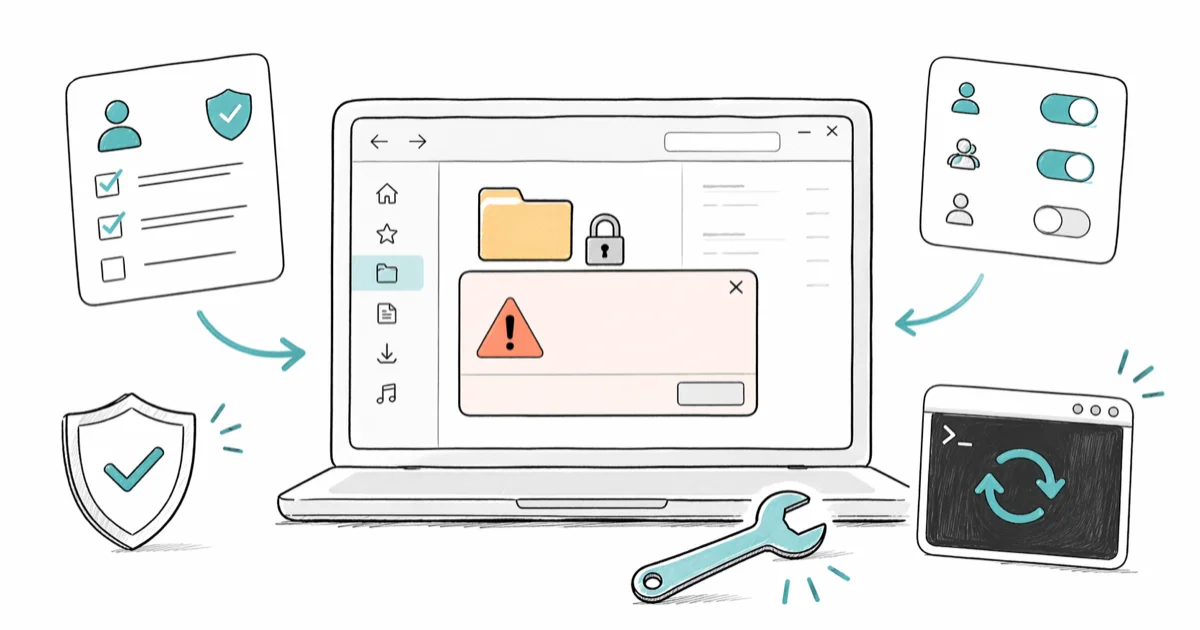
Quick AnswerTake ownership through the Security tab, grant your account Full Control, or run icacls /reset from an elevated Command Prompt. One of those three resolves most Folder Access Denied errors on Windows 10 and 11.
Folder Access Denied errors on Windows almost always trace back to one of four things. The folder has a different owner, your user account lacks the right permission, the file is encrypted with EFS, or a file-system flag is blocking the path. Start with the first three fixes because they address the most common permission-chain failures.
- Start with Fix 1 (take ownership). It directly repairs the owner field that blocks many locked folders.
- If taking ownership alone doesn’t restore access, pair it with Fix 2 and grant your account Full Control under the Security tab; ownership and permissions are separate ACL entries.
- Use icacls /reset from an elevated Command Prompt as a single-command reset for entire folder trees; Microsoft documents this flag as the default-inheritance restorer.
- Never disable User Account Control as a fix; UAC is a Windows security boundary, not a permission filter, and disabling it rarely changes the error outcome.
- If the folder contains important data you can’t recover, back up files first with a tool like Tenorshare 4DDiG before running chkdsk or secedit, since both can modify on-disk structures.
#What Triggers a Folder Access Denied Error?
The error means one thing in plain English. The Windows security subsystem checked your access token against the folder’s access control list (ACL), and the two didn’t match. That mismatch comes from five specific causes, and each has a different fix path.
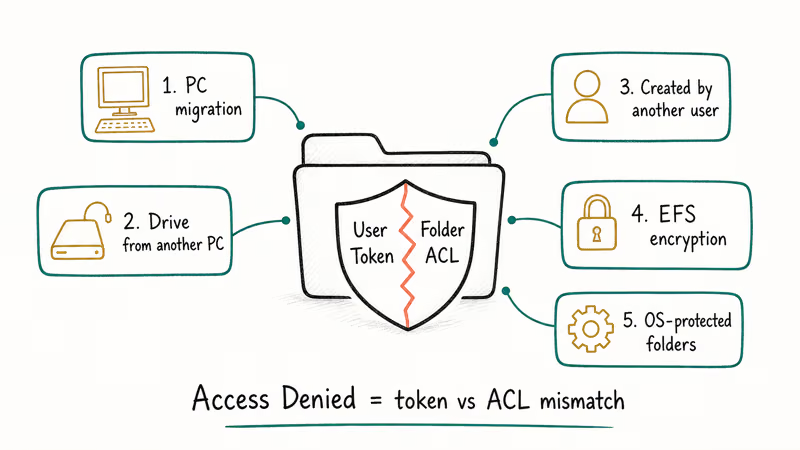
On a clean Windows install, your user owns the folders under C:\Users\YourName\, and inherited permissions grant Full Control. When that chain breaks, the error appears.
Five scenarios cause the break: PC migration, a drive from another machine, a folder created by a different user, EFS encryption, and OS-protected folders like System Volume Information and WindowsApps.
A closely related variant is the You Need Permission to Perform This Action error. It shows up during copy or delete operations with the same root cause but a slightly different dialog. The fix overlap is roughly 80%. If icacls /reset resolves one, it usually resolves the other too.
User Account Control is not the cause. According to Microsoft’s User Account Control documentation, UAC issues a consent or credential prompt when a process needs the administrator access token. Access Denied is a separate check that happens against the ACL after UAC decides whether to grant elevation. Turning UAC off doesn’t rewrite ACLs, so it won’t fix the underlying permissions gap.
#Fix 1: Take Ownership Through the Security Tab
Taking ownership reassigns the folder’s Owner SID to your account. Windows then allows you to modify permissions on the folder. That’s the next step.
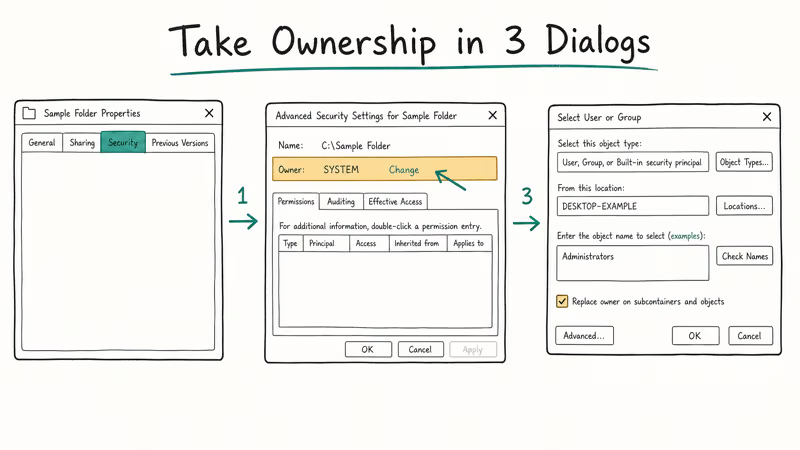
- Right-click the folder and select Properties.
- Open the Security tab and click Advanced.
- Next to Owner, click Change.
- In the Select User or Group dialog, type your Windows username or
Administrators, click Check Names, and click OK. - Tick Replace owner on subcontainers and objects, then Apply and OK.
Taking ownership can finish quickly on a small folder tree, but system paths such as C:\Windows can take several minutes because Windows has to enumerate inherited ACEs on every child object.
After ownership transfers, you still need to grant your account access rights.
#Fix 2: Grant Your Account Full Control
Ownership alone doesn’t let you read or write. You also need a matching entry in the folder’s Discretionary Access Control List (DACL).
- Back in
Properties>Security, click Edit. - Click Add, type your username, click Check Names, and click OK.
- Select your name in the Group or user names list.
- Tick Full control under Allow.
- Click Apply and OK.
No Edit button? The volume is probably FAT32 or exFAT. Convert it with convert X: /fs:ntfs from an elevated prompt, then retry.
#Fix 3: Reset Permissions With icacls /reset
When the ACL is scrambled across dozens of subfolders, the fastest fix is a command-line reset. According to Microsoft’s icacls command reference, the /reset flag replaces ACLs with the default inherited ACLs for all matching files. That rebuilds the permission chain from the parent container down.
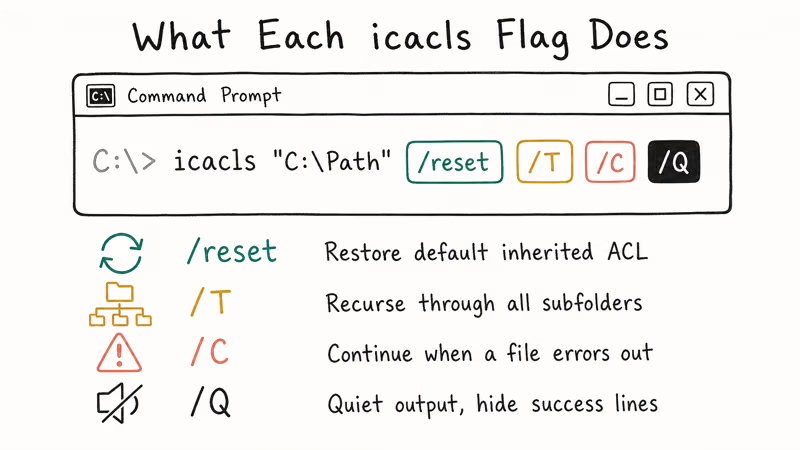
Open Command Prompt as administrator. On Windows 11, right-click Start and choose Terminal (Admin). On Windows 10, choose Windows PowerShell (Admin). Then run:
icacls "C:\Path\To\Folder" /reset /T /C /QThe flags do specific things. /T recurses through all subfolders and files. /C continues even if a single file errors out. /Q suppresses success messages so the console stays readable.
On modest folder trees, this usually completes quickly and rebuilds the inherited permission chain across nested items.
For stubborn cases where even /reset fails, pair it with takeown first:
takeown /F "C:\Path\To\Folder" /R /D Y
icacls "C:\Path\To\Folder" /reset /T /C /Q
Per Microsoft’s takeown command reference, /R recurses. /D Y auto-answers Yes when Windows can’t read a subdirectory listing mid-walk.
#Fix 4: Decrypt an EFS-Protected Folder
If the folder name shows in green in File Explorer, it’s encrypted with the Encrypting File System. Your current user account doesn’t hold the decryption certificate, so Windows reports Access Denied instead of a crypto error.
- Log in as the user who originally encrypted the folder, if possible.
- Right-click the folder and open
Properties>General>Advanced. - Untick Encrypt contents to secure data.
- Apply changes, choose Apply changes to this folder, subfolders, and files, and click OK.
No original user, no exported certificate? The data is gone. Restore from backup.
#Why Won’t Disabling UAC Fix This?
UAC controls token elevation. Access Denied fires later, during the ACL check. Disabling UAC does nothing to the folder’s permissions.
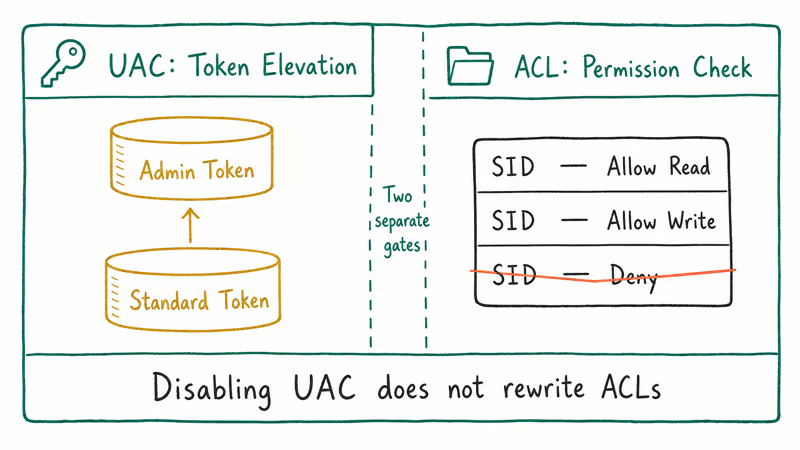
Microsoft’s UAC article states that Windows creates two access tokens when an administrator signs in: one standard, one administrator. Apps run under the standard token until UAC elevates them.
The standard token always gets checked against the ACL. If your SID isn’t on the ACL with the right permissions, you get Access Denied. UAC state doesn’t matter.
Leave UAC at its default level. Fix permissions at the source with ownership and ACL edits instead.
#Fix 5: Add Your Account to the Administrators Group
Some folders only allow members of the local Administrators group. If your everyday account is a Standard user, Windows will deny access to system folders and folders created by other administrator accounts.
- Press Windows + X and select Computer Management.
- Go to
System Tools>Local Users and Groups>Users. - Double-click your account, open the Member Of tab, and click Add.
- Type
Administrators, click Check Names, and click OK. - Sign out and sign back in so the group membership applies to your access token.
On Windows 10 and 11 Home editions, the Local Users and Groups console isn’t available. Open an elevated Command Prompt and run net localgroup administrators YourUserName /add instead, then sign out and sign back in so the new group membership applies.
For admin account recovery, see how to reset an admin password in Windows 10.
#Fix 6: Check for File System Errors With chkdsk
Sometimes the ACL on disk is intact but the surrounding NTFS metadata has gotten corrupted. Microsoft’s chkdsk command reference states that 4 distinct exit codes indicate chkdsk’s verdict: 0 for clean, 1 for errors found and fixed, 2 for cleanup performed, and 3 for errors not fixed. That exit code tells you whether chkdsk rebuilt the file-system metadata Windows uses to resolve permissions.
Open Command Prompt as administrator and run:
chkdsk C: /f /rReplace C: with the drive letter holding the stuck folder. If the volume is the system drive, Windows schedules the scan for the next restart.
Chkdsk can take minutes on a healthy SSD and much longer on a large or failing hard drive. Don’t interrupt it. Microsoft’s docs warn that canceling chkdsk shouldn’t worsen corruption, but it also doesn’t finish the repair.
If chkdsk reports that it found and fixed errors (exit code 1), retry the folder before moving on. Repaired NTFS metadata can be enough to restore access when permissions look correct but the file-system record is damaged.
#Fix 7: Boot Into Safe Mode
Safe Mode loads only the minimum drivers and services.
- Open
Settings>System>Recovery(Windows 11) orSettings>Update & Security>Recovery(Windows 10). - Under Advanced startup, click Restart now.
- After the reboot, choose
Troubleshoot>Advancedoptions >Startup Settings>Restart. - Press F4 to boot into Safe Mode, or F5 for Safe Mode with Networking.
In Safe Mode, retry the original operation. If the folder opens, a third-party driver or service is the culprit. Run the Autoruns tool from Microsoft Sysinternals to find and disable the offender.
Antivirus suites are the usual suspect. Dropbox, OneDrive, and Google Drive sync clients on actively mirrored folders come second.
#Fix 8: Reset Windows Security Policies
If the local security policy database has drifted, ACL inheritance can break for folders created after the drift. This often happens after a failed Windows Update or a cancelled domain-join. The secedit command rewrites the policy from the default template.
Open Command Prompt as administrator and run:
secedit /configure /cfg %windir%\inf\defltbase.inf /db defltbase.sdb /verboseLet it finish (usually 30 to 90 seconds) and restart. This is the most invasive fix in this guide. It resets local security policy, audit settings, and user rights assignments to Windows defaults. Don’t run it on a domain-joined work laptop without the IT team’s sign-off, since it can overwrite policies pushed from Active Directory.
After the restart, retry ownership and ACL steps from Fix 1. Most of the time, Fix 3’s icacls /reset now succeeds where it failed before.
#When All 8 Fixes Fail: Try Data Recovery
Stop fighting the folder. Recover the data instead.
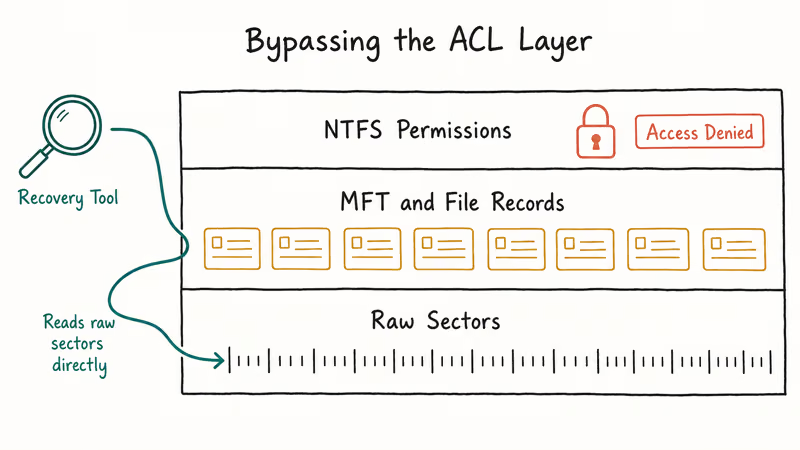
If all 8 fixes fail, the NTFS layer is probably damaged, or a corrupted MFT entry has orphaned the files inside. At that point, the smart move is to skip the permission struggle and pull the data out with a recovery tool.
Tenorshare 4DDiG reads the raw disk directly. It bypasses NTFS permissions entirely.
Tenorshare 4DDiG can scan a drive at the raw-disk level when Windows reports Access Denied. Preview recovered files before paying, and expect damaged media files to need manual repair if the underlying disk is failing.
Some links on this page are affiliate links, which means fone.tips may earn a commission at no extra cost to you.
Get Tenorshare 4DDiG from the linked recovery section above.
The free version scans and previews. Pay only after you’ve confirmed your files open.
For comparison, our separate guide on Windows File Recovery covers Microsoft’s own command-line recovery tool. It’s free but recovers fewer file types. For broader data-loss scenarios, see how to recover files from an external hard drive that’s not detected.
#Bottom Line
Start with Fix 1 and Fix 2. Together they clear most Folder Access Denied errors in under five minutes. Reach for Fix 3 (icacls /reset /T) when the problem spans a folder tree and you don’t want to click through dozens of sub-dialogs.
Save Fix 8 (secedit) for the rare case where local security policy has drifted, and don’t touch it on work machines without IT approval. If the folder itself is damaged and files are at risk, run Tenorshare 4DDiG against the drive before chkdsk or secedit. Both can modify on-disk structures that a recovery tool needs to read.
Skip the “disable UAC” and “disable antivirus” steps that older guides push. Neither addresses the permissions layer where this error actually lives, and on a modern Windows 10 or 11 install they trade away security for zero real benefit.
#Frequently Asked Questions
Why do I get Folder Access Denied even as administrator?
Administrators aren’t automatic owners of every folder. When a folder was created by another account, or migrated from a different PC, its ACL may not grant your admin user any rights at all. You still have to take ownership through the Security tab or with the takeown command before Windows will let you read or modify the contents.
Can I fix the error without losing my files?
Yes, in almost every case. Taking ownership, granting permissions, resetting ACLs with icacls, and running chkdsk all preserve the underlying data. The only fixes that touch file contents are decrypting EFS folders (which is safe if you have the key) and secedit (which touches policy, not files). If you’re worried about data, copy the folder contents to another drive before running chkdsk /r on a drive showing any signs of hardware failure.
Is disabling User Account Control a safe fix?
No. UAC is a security boundary that separates standard user activity from administrator operations. Disabling it doesn’t fix permission errors because the ACL check happens after UAC elevation. You’ll weaken the security model without solving the problem, so leave UAC at its default Notify level.
Does the icacls command work on Windows 11 the same way?
Yes. icacls is part of Windows Server and Windows client builds from Windows 7 onward, and Microsoft’s reference article covers the same syntax for Windows 10, Windows 11, and Windows Server 2022. The /reset /T /C /Q combination works identically across versions. The only caveat: some Windows 11 22H2 and later system folders under C:\Windows\SystemApps are protected by TrustedInstaller and won’t respond to a regular admin account’s reset attempt.
What’s the difference between taking ownership and granting permissions?
Ownership and permissions are two separate ACL fields. Ownership says “this SID owns the object and can always change its ACL.” Permissions (ACEs) say “this SID can read, write, or execute the object.” Taking ownership lets you edit the permissions list, but it doesn’t automatically add your user to that list. You have to do both. That’s why Fix 1 and Fix 2 are paired.
Can antivirus software cause this error?
Occasionally, yes. Real-time AV filters sometimes lock files mid-scan and the lock surfaces as Access Denied. If the error flashes then resolves on retry, AV is likely the cause.
Should I use a third-party unlocker tool?
Skip Unlocker, IObit Unlocker, and LockHunter for permission errors. They’re built for file-in-use locks, not ACL mismatches, and they inject drivers that linger after uninstall.
Reserve third-party unlockers for the rare case where a specific process holds a file handle and won’t release it. Our guide on fixing the Requested Resource Is in Use error covers that scenario with a Process Explorer workflow.
How long does icacls /reset take to run?
It depends on folder size and storage speed. Small folders can finish quickly on an SSD. A much larger folder tree with thousands of files takes noticeably longer because Windows has to inspect every child item.
On a SATA spinning disk, multiply by roughly 4x. For a full system drive reset (which you should almost never run), expect 30 minutes to several hours depending on capacity and health.

Best Laptop for Running LLMs in 2026: Memory Comes First
The best laptop for running LLMs is a memory purchase first. Compare MacBook unified memory against NVIDIA laptop VRAM, and see what each tier really runs.

How to Run a Local LLM on Windows: A 2026 Setup Guide
Run a local LLM on Windows with LM Studio or Ollama. Pick a model that fits your GPU memory, keep every prompt offline, and skip the monthly bill.

Bluetooth Not Working on Snapdragon X? Fixes for 2026
Bluetooth not working on your Snapdragon X Copilot+ PC? Generic audio, mice, and keyboards work, but vendor apps often lack an ARM build. Fixes inside.

Docker Desktop and WSL2 Not Working on Snapdragon X? Fix It
WSL2 runs fine on Snapdragon X, but Docker Desktop ARM is Early Access and throws WSL errors. Use WSL2 plus native ARM64 Ubuntu and Docker Engine.