Unable to Verify App on iPhone: Legitimate Causes and Fixes
Fix the iOS Unable to Verify App error on your own iPhone using Apples trust prompt, the System Status page, iOS updates, and developer contact paths.
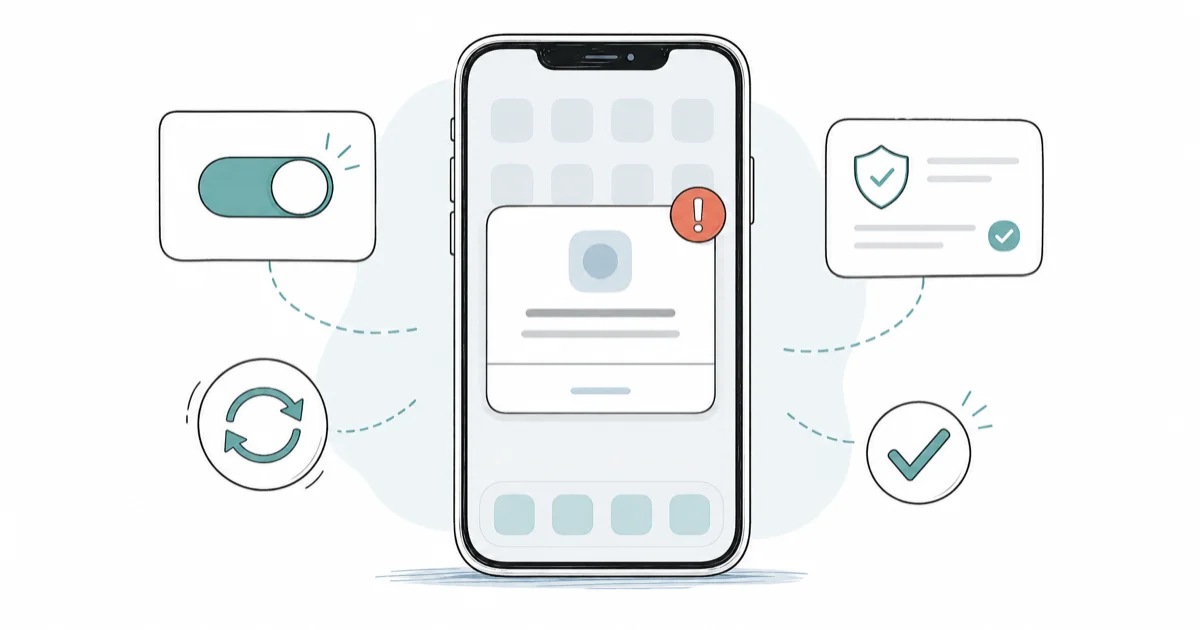
Quick AnswerOn your own iPhone, open Settings then General then VPN and Device Management, tap the developer profile, choose Trust, and confirm the developer name matches the one you authorized to install the app.
The “Unable to Verify App” alert on your own iPhone or iPad almost always points at one of three things. Most cases boil down to a flaky network at install time, an Apple verification server hiccup, or a developer certificate that’s lapsed since you trusted it. This guide walks through the legitimate use cases, the official Apple paths to fix it, and the security reasons iOS shows the prompt in the first place.
- The error appears on your own device when iOS can’t reach Apple’s verification servers to confirm the developer certificate attached to a sideloaded enterprise, developer, or EU-distributed app.
- Apple’s documented fix is Settings, General, VPN and Device Management, tap the developer profile, then Trust, and only after you confirm the developer name matches what you authorized.
- Check the Apple System Status page first when multiple users at your company or in your TestFlight cohort see the prompt at the same time, since a Developer ID notarization outage will block trust for everyone.
- iOS 16 and later renamed the menu to VPN and Device Management, and certificate-based distribution remains a privileged install path that Apple can revoke for policy or security reasons.
- The right next step when a sideloaded app refuses to verify is to contact the app’s developer or your company IT team, not to look for cert-bypass tools, which is a separate copyright and security topic.
#When Does the “Unable to Verify App” Error Show Up?
Apple shows this prompt in three legitimate scenarios on a device you own. The first is a developer installing an in-progress app to a personal iPhone via Xcode or TestFlight, where the 7-day free Apple ID cert needs to re-verify. The second is an employee opening an internal app distributed under their employer’s Apple Developer Enterprise Program certificate. The third is an EU user installing an app from an alternative marketplace under the Digital Markets Act.
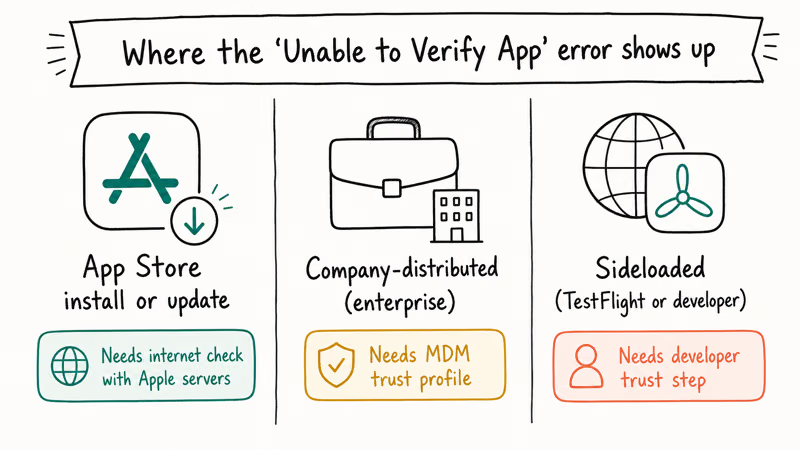
In all three cases Apple still notarizes the binary, even though the App Store isn’t the only distribution path anymore.
In every case the device tries to phone home to Apple. The prompt appears when that call fails. According to support article 118110 from Apple’s developer documentation, iOS requires an active internet connection the first time you launch an in-house app, and Apple confirms that subsequent launches re-validate the certificate at set intervals.
A common pattern looks like this: opening a freshly installed internal app on a flaky guest Wi-Fi triggers the prompt almost immediately, and switching to a stable network and tapping Verify clears it on the first try. The certificate was valid the whole time. The device just couldn’t reach Apple’s server.
If your iPhone also has trouble with general storage refresh issues, the iPhone storage not loading fix covers a separate Settings glitch that can interact with app installs.
#Quick Fixes to Try First on Your Own iPhone
Most “Unable to Verify App” prompts clear within three minutes of basic checks before you need to touch any profile screens.
#Confirm a Stable Internet Connection
Apple verification needs a working TLS connection to ppq.apple.com and adjacent endpoints. Open Settings, then Wi-Fi or Cellular, and confirm the device shows a real connection with bars or a Wi-Fi indicator. On captive-portal networks (hotel, airport, coffee shop), open Safari first and complete the sign-in before re-launching the app.
Toggle Airplane Mode on for 10 seconds and back off if the connection feels stuck.
#Force Quit and Reopen the App
Swipe up from the bottom of the screen and pause to bring up the app switcher, then swipe the app card up to force quit. Reopen from the home screen. iOS retries the verification handshake on a fresh launch, and this clears transient failures without changing any settings.
#Restart the iPhone
A standard restart cycles the cellular modem and Wi-Fi stack and gives iOS a clean state to re-verify the app.
Press and hold the side button and a volume button until the power slider appears. Drag to power off, wait 15 seconds, then power back on. Try the app again once the device returns to the lock screen.
#Update to the Latest iOS
Apple ships verification-stack bug fixes in point releases. Open Settings, General, then Software Update and install any pending update. Plug into power and use Wi-Fi for the download.
A point release can silently fix a recurring verification failure on a TestFlight build, which is why an iOS update is worth trying even when the cause isn’t obvious.
#How Do I Trust a Developer Certificate on iPhone?
If basic connectivity is healthy and the error sticks around, confirm Apple’s trust prompt has actually run.
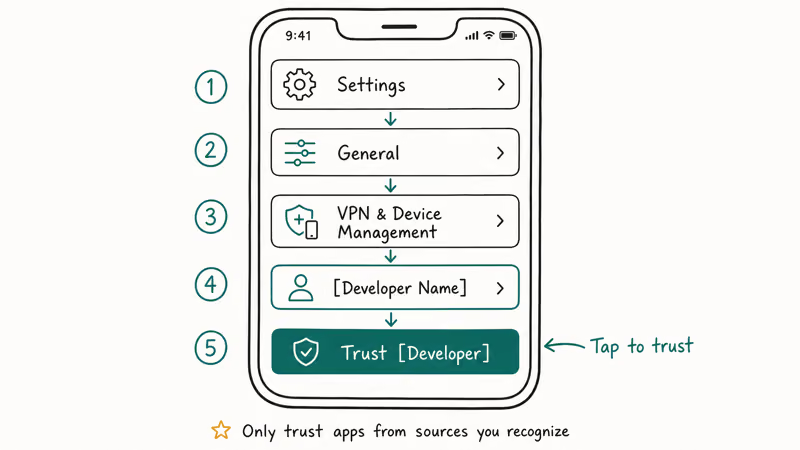
This applies to apps installed via TestFlight invites, Apple Developer Enterprise (in-house) distribution, or EU alternative marketplace channels under the DMA.
Open Settings, tap General, then scroll to VPN and Device Management. You should see the developer or enterprise profile listed under “Enterprise App” or “Developer App”. Tap the profile, then tap Trust and confirm in the dialog. The dialog will show the developer or organization name, and you should only tap Trust if you recognize that name and you authorized the installation, whether that’s your own Apple Developer account, your employer, or a marketplace you opted into.
According to Apple’s support article on opening enterprise apps, the system won’t let you launch a third-party developer app until you complete this manual trust step. Apple states that this is a deliberate security barrier so profiles can’t silently authorize themselves without user interaction.
If the profile isn’t listed at all, the install never completed and you should remove the app and re-install it from the original source. If the Trust button is greyed out, see the certificate revocation section below.
#Apple’s System Status Page Is the First Thing to Check When Multiple Users See the Error
If your whole team, classroom, or TestFlight cohort sees “Unable to Verify App” within the same hour, the failure is almost certainly on Apple’s side, not yours.
The Apple System Status page tracks Developer ID Notary Service, App Store, and TestFlight as 3 separate rows. An amber or red dot next to any of them is your signal to wait it out.
An unannounced Developer ID notarization slowdown can block trust prompts for an extended stretch before Apple posts the incident publicly. The right move when the status page shows an active incident is to stop troubleshooting individual devices, post a heads-up to your team, and re-test after Apple marks the service green.
The same advice applies to TestFlight beta apps. Apple states on its TestFlight overview that builds expire after 90 days and require the tester to re-launch the TestFlight app to refresh the cert. If your tester cohort all hit the error at once, check whether the build is past its 90-day window before chasing individual fixes.
#Reset Network Settings and Date if Trust Still Fails
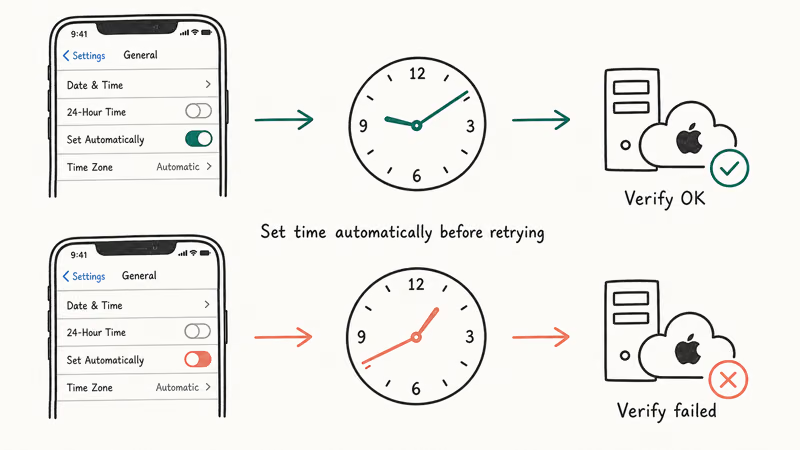
When the trust prompt works but iOS still refuses to launch the app, the device may have cached stale credentials or have a clock that drifted enough to break the certificate validity window.
Reset network settings via Settings, General, Transfer or Reset iPhone, then Reset, then Reset Network Settings. This clears Wi-Fi passwords and VPN configs along with the certificate-trust cache, so you’ll need to reconnect to known networks. After the reboot, try the app again.
Confirm the date and time are set automatically via Settings, General, Date and Time, and toggle Set Automatically on. A device with a wrong date can fall outside a certificate’s validity window and refuse to verify it. This is more common after a battery-dead restore than during normal use.
If you also see the accountsd wants to use the login keychain prompt on a paired Mac during this process, that’s a separate keychain unlock issue worth resolving in parallel.
#Enterprise App Suddenly Stops Verifying Across Your Whole Company
If your employer-issued internal app worked yesterday and shows “Unable to Verify App” today across multiple employees, the enterprise certificate has likely expired or been revoked by Apple. Enterprise certificates are valid for 1 year and require annual renewal. Apple will revoke a cert that the program holder fails to maintain or that violates the Apple Developer Enterprise Program agreement.
The fix isn’t on the device. Your IT team needs to re-sign the app with a current Apple Developer Enterprise Program certificate, re-distribute the IPA via the same MDM or web link your company uses, and have employees re-install. Apple notes in its Apple Developer Enterprise Program documentation that the program serves 1 audience only: employees of the program holder, and compliance with the agreement is what keeps the cert active.
Revoked certs typically need a separate Apple developer relations contact before re-issuing.
Open a ticket with your IT help desk and include three details: the exact error text, the date and time you first saw it, and the app name. That information lets IT confirm whether the cert is the cause and whether a fix is already in flight.
#Sideloaded Apps From Outside the App Store
There are legitimate non-App-Store install paths on iOS in 2026, and they have different verification stories worth understanding.
EU users on iOS 17.4 and later can install apps from alternative marketplaces under the Digital Markets Act. Apple notarizes those apps for malware and basic platform integrity before distribution.
A verification failure on a DMA-marketplace app usually means a notarization recheck failed. Re-open the marketplace app, confirm your iOS version is current, and follow the marketplace’s own retry path. According to Apple’s EU Digital Markets Act compliance overview, notarization for alternative-marketplace apps is 1 basic security review, not a content review, and stays an active runtime check.
Apple developers can install their own apps via Xcode using a free Apple ID. That produces a cert that expires every 7 days and needs the device to re-verify against Apple. If you’re testing your own build, the fix is to re-build and re-deploy from Xcode rather than tap Trust repeatedly.
Educational and small-business apps distributed via Apple Business Manager or Apple School Manager flow through Apple-managed distribution and inherit the standard App Store-style verification. A persistent error there is almost always a network or Apple-side issue, and the same trust-prompt and system-status checks above apply.
A note on cracked or pirated apps that float around revoked-cert-bypass sites: distributing or installing apps via stolen or rotated enterprise certificates is a violation of Apple’s developer agreement and runs into US copyright law, specifically the DMCA anti-circumvention provisions at 17 USC 1201. This article is about your own legitimate installs, and bypass workflows are out of scope.
#Mac-Specific Verification Errors
macOS uses a different but related system called Gatekeeper.
The Mac equivalent of “Unable to Verify App” usually reads as a message saying the app can’t be opened because Apple was unable to check it for malicious software. On a Mac you own, Control-click the app in Finder, choose Open, and confirm. If the developer is one you trust (your own build, your company’s internal tool, a vendor you signed up with), this clears the block.
For a deeper Gatekeeper override, go to System Settings, Privacy and Security, scroll to the Security section, and click Open Anyway for the specific app. Apple states in its macOS Gatekeeper documentation that this override is one-time per app and is logged so you know which apps you exempted.
If you start running into broader keychain or Apple ID prompts on the same Mac, the Apple ID verification troubleshooter covers the credential side of the same trust chain.
#Prevent This Error in the Future
The most reliable prevention is to keep your iOS version current, install apps only from sources you actively authorize, and treat the trust prompt as a security checkpoint rather than a nuisance.
Turn on automatic iOS updates via Settings, General, Software Update, Automatic Updates, and enable both Download iOS Updates and Install iOS Updates. Keep automatic date and time on. If you sideload through TestFlight regularly, re-launch the TestFlight app weekly to refresh builds before the cert expires.
For company-issued devices, ask your IT team when the enterprise cert is up for renewal so you can plan around the re-install window.
Cert renewals usually need a coordinated re-distribution, and knowing the date in advance avoids the surprise outage. If you’re concerned about whether unfamiliar profiles have appeared on your device, the iPhone spyware detection guide walks through Settings audits that surface unexpected configuration profiles. The Face ID not working troubleshooter is also worth a look if your iPhone’s biometric stack feels generally unstable around the same time.
#Contact the App’s Developer or Apple Support
If trust, network, system-status, and OS-update paths all check out and the app still refuses to verify, the issue is upstream of your device.
Reach out to the app’s developer first. For TestFlight builds, message the developer through the TestFlight app feedback option. For App Store apps, use the support link on the App Store product page. For enterprise apps, your internal IT team is the right contact.
If multiple Apple services on your device feel unstable at once, Apple Support handles individual account and device cases through a chat or phone session, usually within 20 minutes for an active issue.
Bring your device model, iOS version, the exact error text, and a screenshot if possible. An Apple advisor can also confirm whether an account-level flag is blocking verification, which is rare but does happen.
#Bottom Line
For an iPhone you own, the practical first move on an “Unable to Verify App” prompt is to confirm a stable internet connection.
Then open Settings, General, VPN and Device Management, tap the developer profile, confirm the name matches what you authorized, and tap Trust. If that doesn’t clear it, check the Apple System Status page for a current Developer ID notarization incident before changing anything else. The certificate trust model exists because sideloaded distribution is a privileged install path with real security stakes, and the prompt is iOS asking you to take ownership of that decision on your own device.
#Frequently Asked Questions
Why does the developer profile keep disappearing from my iPhone?
iOS removes the profile when the certificate is revoked or expires, which is normal for free Apple Developer accounts because the cert lasts 7 days. Re-install the app from the original source to register a new profile. If you’re on a paid Apple Developer account or enterprise program, expiration is yearly and your IT or developer team handles the renewal.
Can I bypass the Unable to Verify App error without trusting the developer?
No. The trust prompt is iOS’s way of forcing you to consciously authorize a developer who isn’t on the App Store. Skipping that step would defeat the entire reason Apple makes the prompt visible. If the developer name doesn’t match anything you recognize, don’t tap Trust, and delete the app instead.
Does Unable to Verify App mean my iPhone has a virus?
No, the error is about a certificate verification handshake, not a malware detection. iOS shows it when it can’t confirm an app’s certificate signature with Apple’s servers. That can happen because of network issues, server-side Apple issues, expired certs, or revoked certs. If you’re worried about unauthorized profiles, audit Settings, General, VPN and Device Management and remove anything you didn’t install.
Why does the Trust button stay greyed out for an enterprise app?
A greyed-out Trust button means iOS already knows the certificate is invalid or revoked and refuses to even offer the option. The most common cause is that Apple revoked the underlying enterprise certificate. Contact whoever distributed the app, your IT team for internal apps or the app’s developer for third-party tools, and ask whether the cert is being re-issued.
Will resetting my iPhone fix Unable to Verify App?
A full factory reset usually clears it because it wipes the stored certificate cache, but a reset is overkill for what’s normally a quick fix. Try the trust prompt, network reset, and iOS update first. Only consider a reset if Apple Support specifically recommends it after walking through the other steps with you.
Is sideloading apps legal in the United States?
Yes for apps you have the right to install, including your own developer builds, your company’s internal apps, and TestFlight betas you were invited to. Sideloading apps from alternative marketplaces is currently limited to the EU under the Digital Markets Act and isn’t available in the US App Store ecosystem in 2026. Installing pirated apps via revoked enterprise certificates is a separate copyright issue and isn’t covered by this guide.
What is the difference between Unable to Verify App and Untrusted Developer?
“Untrusted Developer” appears the first time you launch a manually distributed app and prompts you to trust the certificate via Settings. “Unable to Verify App” appears later, after you already trusted it, and signals a verification check that failed at runtime. The fixes overlap, but Untrusted Developer is a one-time setup screen while Unable to Verify App points at a network or server failure during the recheck.

Apple Siri Settlement: Who Qualifies and How to Claim
Apple's $250 million Siri settlement covers iPhone 15 Pro and iPhone 16 models bought June 2024 to March 2025. See who qualifies and how claims work.

iOS 26.6.1 Security Update: What Apple Fixed and Who Gets It
Apple released iOS 26.6.1 on August 17 with 29 security fixes, including an IPSec interception bug. See what it patches, who gets it, and how to update.

iPhone Adaptive Power: How It Works and When to Use It
Learn how iPhone Adaptive Power works, which models support it, what it changes, and when Low Power Mode is still the better battery-saving choice.

How to Transfer Data to a New iPhone Without iCloud
Move everything to your new iPhone without iCloud: Quick Start device-to-device transfer, wired migration, and encrypted Finder or iTunes backups.