How to Use Focus Mode on iPhone: The Complete Guide
Set up Focus modes on iPhone with allowed people, app filters, schedules, and Home Screen pages so the right alerts get through while the rest stay quiet.
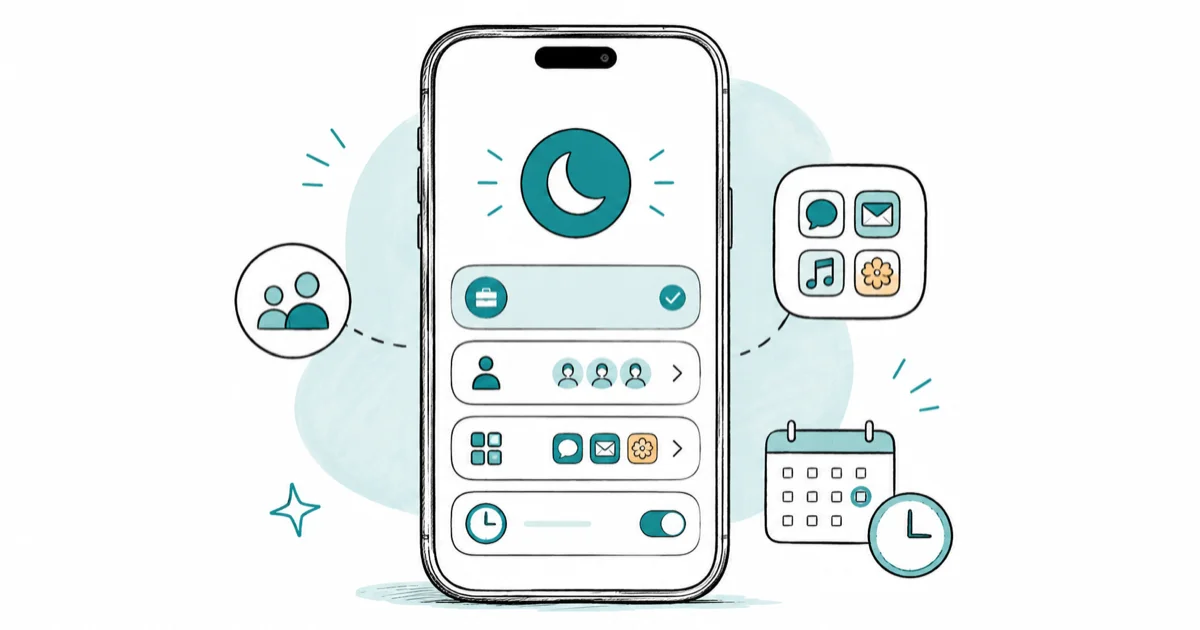
Quick AnswerOpen Settings, tap Focus, and pick a mode like Work or Sleep. Choose which people and apps can still notify you, then add a schedule so it turns on automatically.
Focus mode on iPhone silences the right notifications without muting the people who matter. You build rules: who can reach you, which apps can ping you, and when it switches on. A Focus is selective quiet, not a blackout.
- Focus lives in Settings, and “Do Not Disturb” is just one built-in Focus among several.
- The Allowed People and Apps lists decide who can still reach you while a Focus is on.
- A schedule turns a Focus on by time, location, or when you open a certain app.
- Focus filters hide distracting content, like a work email account or a personal calendar.
- Turn on Share Across Devices so the same Focus applies to your iPad and Mac too.
#What Is the Difference Between Focus and Do Not Disturb?
People mix these up constantly. Apple’s notification-silencing guide confirms that “Do Not Disturb” is a Focus option in iOS 15 and later, which means it’s one Focus among many, not a separate system.
Think of Focus as the umbrella. “Do Not Disturb” is the simplest Focus under it.
The difference matters because you don’t have to settle for the blunt all-off switch. You can build a Work Focus that still lets your manager through, or a Sleep Focus that allows your partner’s calls but nothing else. That selective control is the whole point, and it’s why a custom Focus beats plain “Do Not Disturb” for most people.
#How to Create and Customize a Focus
Setup starts in one place. Apple’s Focus setup guide states that you go to Settings, tap Focus, then pick a mode like Work, Personal, or Sleep, or tap the plus sign to build your own.
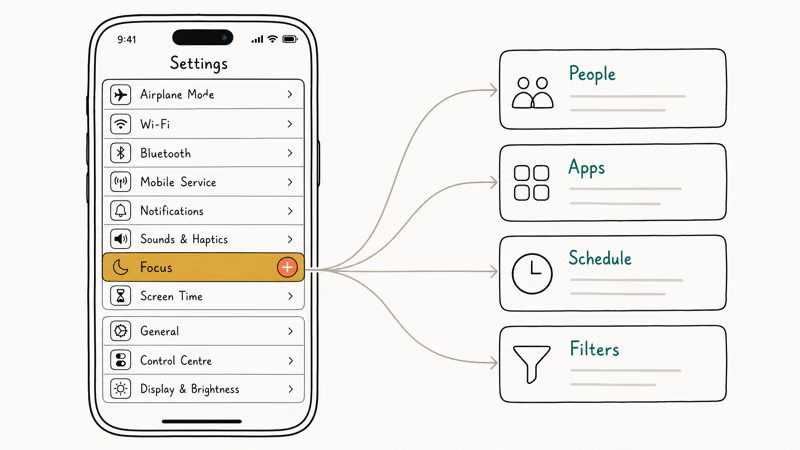
Give it a name and an icon, and you’ve got a blank Focus ready to shape.
From there, every Focus has the same building blocks: allowed people, allowed apps, a schedule, and filters. You don’t have to fill them all in at once. Start with a practical mode, such as Work, and a small allowed list so the setup stays manageable. If your alerts already feel broken, the guide to notifications not coming through covers the cross-platform basics.
#Allowing the Right People and Apps Through
This is where Focus earns its keep. Tap People inside a Focus, choose Allow Notifications From, and pick the contacts who should always reach you.
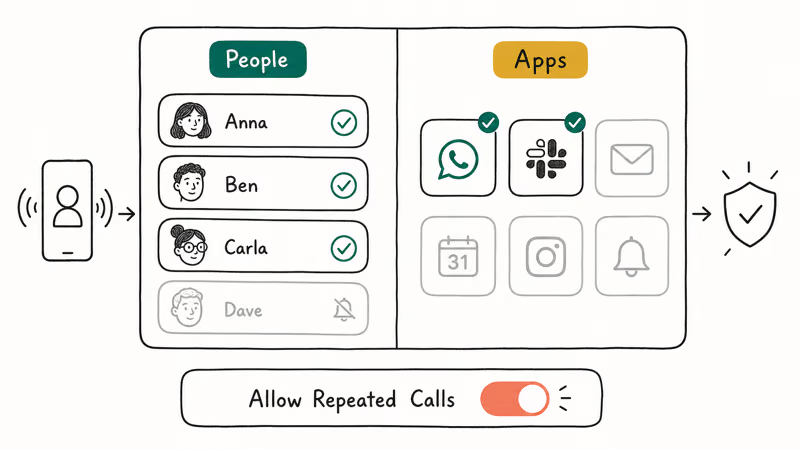
You can also allow calls separately.
According to Apple’s notification allowances guide, you can allow repeated calls so a second call from the same person within 3 minutes always rings, which is a smart safety net for emergencies. The Apps list works the same way: allow the few apps tied to your task and silence the rest. For a Work Focus, keep the allowed-app list limited to task-critical apps like calendar and messaging so routine distractions stay quiet.
#How Do Focus Filters and Schedules Work?
Filters are the underrated half of Focus. A Focus filter changes what an app shows, not just whether it notifies you, so a Work Focus can hide your personal email account or switch your calendar to the work one.
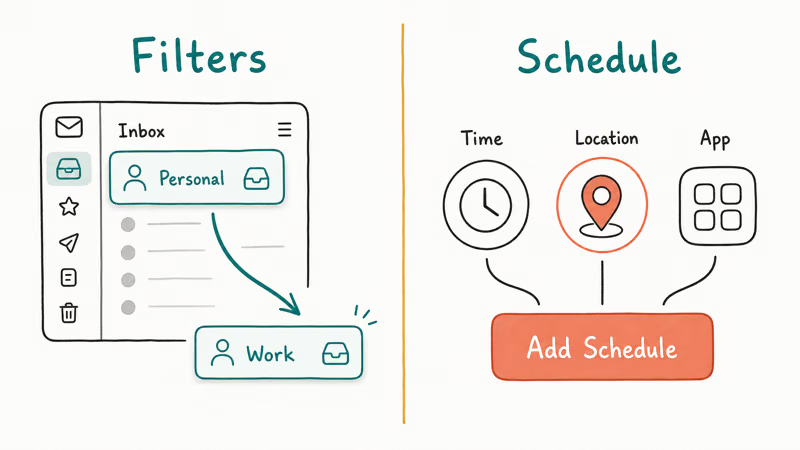
Schedules handle the automation.
You can have a Focus turn on by time, by location, or when you open a specific app, so a Sleep Focus starts at bedtime and a Reading Focus starts when you open Books. Tap Add Schedule and pick the trigger.
Pair a Focus with a custom Home Screen page so your phone shifts modes. Watch for overnight battery drain.
#Sharing a Focus Across Your Apple Devices
A Focus doesn’t have to stop at your phone. Turn on Share Across Devices in the Focus settings, and the same mode applies wherever you’re signed in with the same Apple Account.
So a Work Focus on your iPhone also quiets your iPad and Mac.
This keeps you from dodging a notification on one device only to get hit by it on another. It also powers the status others see when they message you, which is covered separately in Focus status on iPhone. If you’ve just switched platforms, the guide to transferring data from Android to iPhone covers the wider setup.
#Common Focus Problems and Fixes
A few issues come up again and again. The most common one is apps still notifying you, which almost always means they’re on the Allowed list, so reopen Apps and trim it.
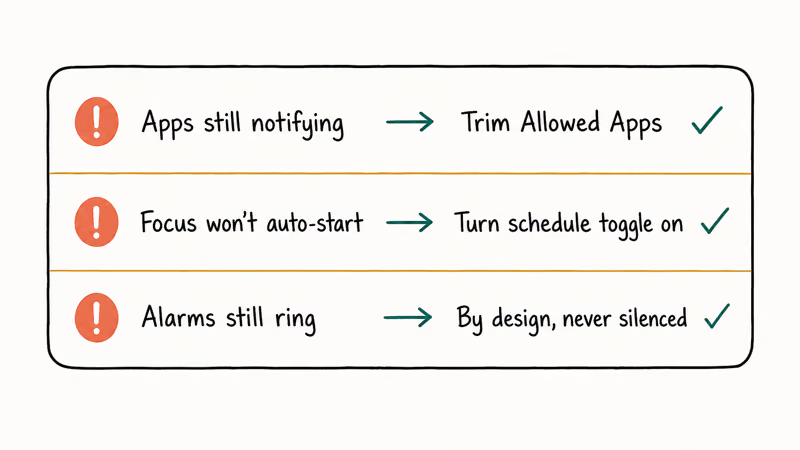
Focus not turning on by itself? Check the schedule.
A schedule that’s added but toggled off won’t fire, so confirm both the schedule and its switch are active. Another classic: alarms still sound during a Focus, which is intentional, since Focus and “Do Not Disturb” never silence the Clock app’s alarms. To learn more about the standby clock display that pairs nicely with a Sleep Focus, that feature is covered separately.
#Bottom Line
Build two Focus modes first, Work and Sleep, and spend your effort on the allowed-people list rather than the silencing. The point of Focus is selective quiet, not total blackout, so a Focus that still lets your partner and your calendar through beats one that hides everything and makes you check the phone anyway. Turn on Share Across Devices so the rules follow you, and add a schedule so you never have to remember to flip it.
#Frequently Asked Questions
What is the difference between Focus and Do Not Disturb?
“Do Not Disturb” is one of the built-in Focus modes. Focus is the broader system that lets you create custom modes with their own allowed people, apps, and schedules.
Can I let calls from family through while a Focus is on?
Yes. Inside the Focus, tap People, then Allow Notifications From, and select the family members you want to reach you. You can also turn on the option to allow repeated calls, so a second call from the same person within a few minutes rings even if they’re not on the allowed list. That combination keeps genuine emergencies from being silenced while everything else stays quiet.
Do Focus modes sync to my iPad and Mac?
They can. Turn on Share Across Devices in Settings, then Focus, and any Focus applies to every device signed in with the same Apple Account.
Why are some apps still notifying me during a Focus?
Those apps are on the Focus’s Allowed Apps list. Open the Focus, tap Apps, and remove the ones you don’t need during that mode. If notifications still slip through, check whether Time Sensitive notifications are allowed, since some apps mark certain alerts as urgent and those can break through unless you turn that option off.
Can a Focus turn on by itself?
Yes, through a schedule. Add one under the Focus settings and choose a time, a location, or an app that triggers it. Just make sure the schedule’s toggle is switched on, because an added-but-disabled schedule won’t activate.
Does Focus stop alarms from going off?
No. Alarms set in the Clock app still sound even when a Focus or “Do Not Disturb” is active. Focus silences notifications and calls based on your rules, but it never overrides an alarm, so a Sleep Focus won’t make you oversleep.

Apple Siri Settlement: Who Qualifies and How to Claim
Apple's $250 million Siri settlement covers iPhone 15 Pro and iPhone 16 models bought June 2024 to March 2025. See who qualifies and how claims work.

iOS 26.6.1 Security Update: What Apple Fixed and Who Gets It
Apple released iOS 26.6.1 on August 17 with 29 security fixes, including an IPSec interception bug. See what it patches, who gets it, and how to update.

iPhone Adaptive Power: How It Works and When to Use It
Learn how iPhone Adaptive Power works, which models support it, what it changes, and when Low Power Mode is still the better battery-saving choice.

How to Transfer Data to a New iPhone Without iCloud
Move everything to your new iPhone without iCloud: Quick Start device-to-device transfer, wired migration, and encrypted Finder or iTunes backups.