iPhone Calendar Not Syncing? 8 Fixes That Actually Work
iPhone Calendar not syncing? Find which account owns the missing event first, then fix iCloud, Google, and shared-calendar toggles before any reset.
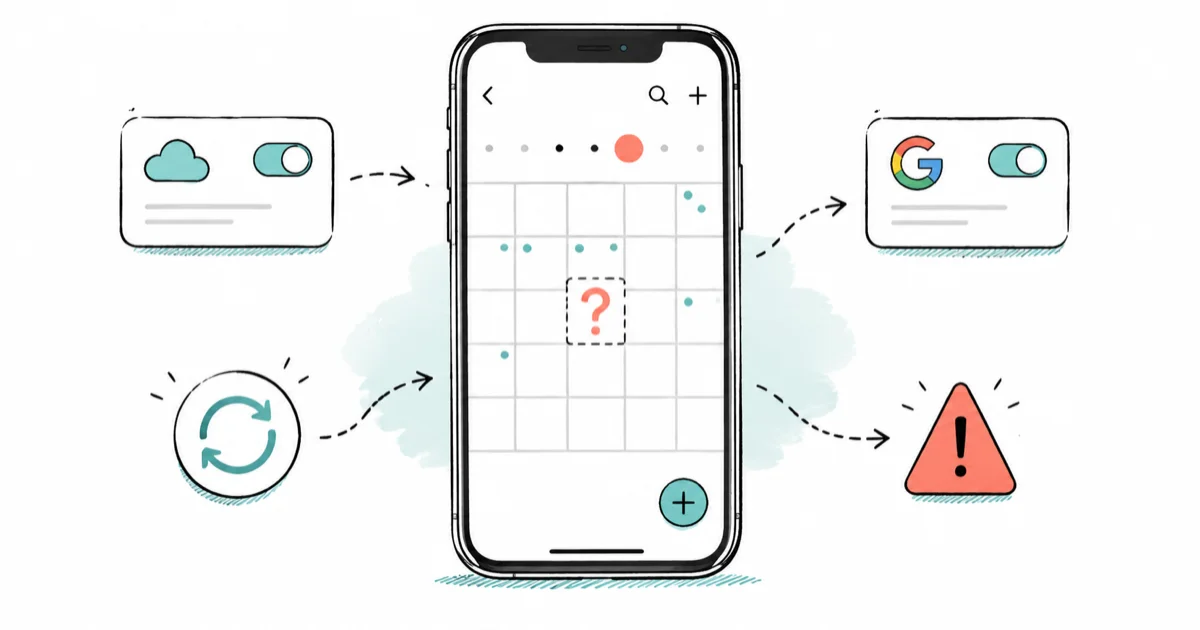
Quick AnswerFind which account owns the missing event before you touch any sync setting, because if it lives in Google, toggling iCloud Calendar won't help. Most sync problems are visibility or default-calendar mistakes.
iPhone Calendar not syncing almost always traces back to one question most fixes skip: which account actually owns the event you’re missing? An event created in Google Calendar won’t appear just because you toggle iCloud. Answer that first, and the fix is usually two taps away.
- The missing event lives in one account (iCloud, Google, or Exchange), and the fix changes depending on which one
- A grayed-out or unchecked calendar in the visibility list hides events without deleting them
- The Default Calendar setting decides where new events you create are saved, which is why some events vanish from the calendar you expect
- Shared-calendar invites need the owner’s permission level to match what you’re trying to do, so a read-only share won’t show your edits
- Reset Network Settings and account removal are last resorts, not first moves, because they wipe saved data you may not have backed up
#Why Is iPhone Calendar Not Syncing?
Calendar sync failures sort into four buckets, and naming the bucket before you act saves you from chasing the wrong fix.
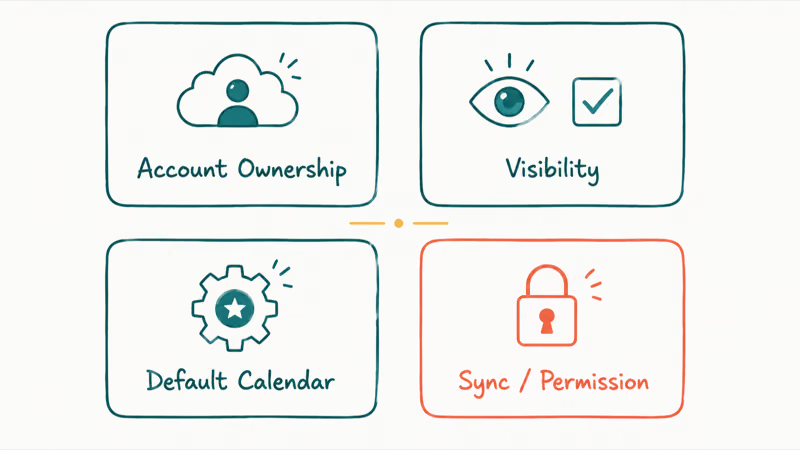
The first bucket is account ownership: the event lives in a calendar account your iPhone isn’t displaying. The second is visibility, where the calendar exists but its checkbox is off in the list. The third is the Default Calendar mismatch, where new events save to an account you don’t watch.
The fourth bucket is a real sync or permission failure on a shared calendar. Only that last one needs anything close to a reset.
This ownership-first approach matters because a missing event can sit in the right account while that calendar is hidden in the list. No reset will surface the event until the owning calendar is visible.
According to Apple, 4 baseline checks come before anything device-specific: confirm iCloud system status, verify the latest iOS is installed, make sure the same Apple Account is signed in on every device, and validate the date and time settings. Apple’s iCloud Calendar sync guide lists those baseline steps ahead of any reset, because most failures clear at this stage.
#Find Which Account Owns the Missing Event
Open the Calendar app and tap Calendars at the bottom. You’ll see every account grouped under its own header: iCloud, Gmail, Exchange, or a shared calendar. This list is your map.
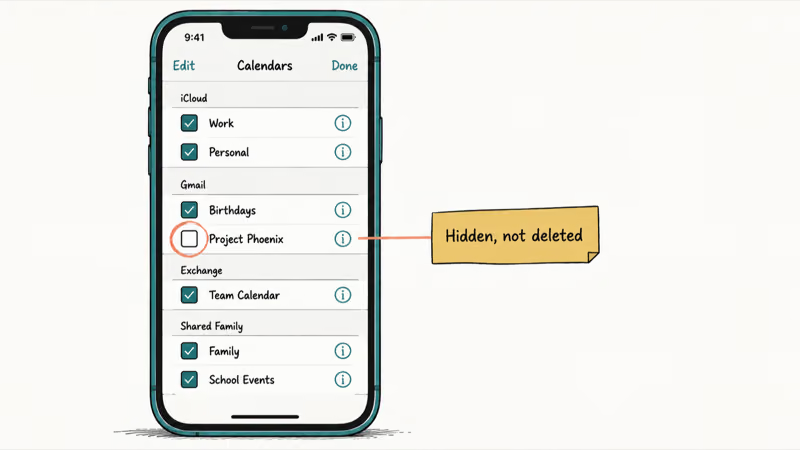
Look for the specific calendar that should hold the event. An empty checkbox means the calendar is hidden, not broken, so tap it to show those events again. If you’re not sure which account the event belongs to, check it on a second device or at the account’s web portal first.
Here’s the part most guides miss. The same event can only live in one account at a time. If you created it on a friend’s invite that came through Gmail, it’s a Google event, and iCloud sync settings are irrelevant to it. Confirming ownership now is what stops you from spending 20 minutes toggling the wrong switches.
#Check iCloud, Google, or Exchange Calendar Toggles
Once you know the owning account, confirm that account’s Calendar sync is actually switched on.
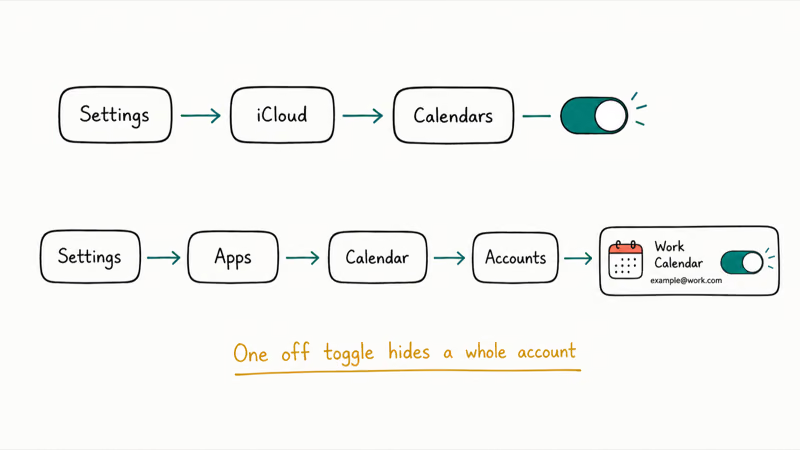
For iCloud, go to Settings > [your name] > iCloud > Show All > Calendars and make sure the toggle is green. For Google or Exchange, go to Settings > Apps > Calendar > Calendar Accounts, tap the account, and verify Calendars is enabled there. A single off toggle is the most common cause of a whole account’s events vanishing at once.
This can also happen after restoring from backup, because one account’s Calendar toggle can be off while Mail and Contacts are still on. Turn the calendar toggle back on, then wait for the account to resync. If toggling on doesn’t help, sign out and back into that one account rather than resetting the whole phone.
#What If Shared Calendars or Invites Do Not Update?
Shared calendars add a permission layer, and that layer is where most invite problems hide.
When someone shares a calendar with you, they set your access to either view-only or edit. If you try to add or change events on a view-only share, your changes won’t stick. That looks like a sync failure when it’s really a permission boundary.
Ask the owner to confirm your access level. For invites that never showed up at all, check that the invite went to the email address tied to your iCloud or Google account, not an old one.
Apple’s shared iCloud calendar guide confirms that shared calendars carry per-person permissions and that a participant has to accept the share before events appear. If you declined or missed the original invite, the calendar won’t sync until you accept a fresh one. This is also why a shared calendar that works for one family member fails for another, since each person’s acceptance is tracked separately. The same per-service behavior is why Freeform isn’t syncing for some accounts and not others.
#Refresh Calendars Without Deleting Events
If the right account is on and visible but events still lag, force a refresh before deleting anything.
In the Calendar app, pull down on the calendar list to trigger a manual refresh. On a Mac, the equivalent is opening Calendar and choosing View > Refresh Calendars, a step Apple documents directly. A manual refresh pushes a fresh sync request without removing a single event, so it’s always safe to try. If you suspect the issue is similar to what happens when your iCloud notes won’t sync, the same refresh-first, delete-last logic applies across Apple’s sync services.
You can also adjust how far back the Calendar app syncs. Go to Settings > Apps > Calendar > Sync and change it from a limited window like “Events 1 Month Back” to All Events. An older event that fell outside your sync window will reappear once you widen it. This single setting explains a surprising number of “my old appointments disappeared” reports.
#Fix Default Calendar and Time Zone Mistakes
The Default Calendar setting decides which account new events save to, and a mismatch here is sneaky.
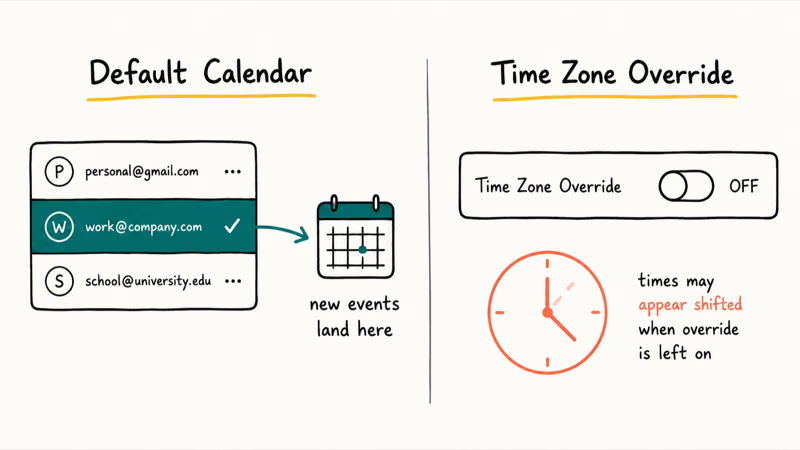
Go to Settings > Apps > Calendar > Default Calendar and check which account is selected. If your default is set to an account you rarely open, every event you create lands somewhere you don’t watch, then looks “missing” when you check your usual calendar. Set the default to the account you actually live in day to day.
Time Zone Override is the other quiet culprit. Go to Settings > Apps > Calendar > Time Zone Override. When this is on and set to a city you no longer live in, events display at shifted times that can make them look skipped or doubled. Turn it off so events follow your phone’s current time zone.
If you’ve also noticed that your iPhone Mail is not updating on the same account, a single re-authentication often fixes both Calendar and Mail together, since they share the account login.
#Reset or Re-Add the Account as a Last Resort
Resets and account removal sit at the bottom of the ladder, used only after the toggle, visibility, and permission checks have all failed.
If a single account refuses to sync after everything above, remove and re-add just that account in Settings > Apps > Calendar > Calendar Accounts. This rebuilds the connection without touching your other accounts. Reset Network Settings (Settings > General > Transfer or Reset iPhone > Reset > Reset Network Settings) is worth trying only if sync fails across every account at once, which points to a connection problem rather than a calendar one.
For a Google account specifically, the re-add step is often the real fix. Google’s Calendar sync help states that the device needs the account fully re-authenticated for CalDAV sync to resume. The same channel pattern shows up when iCloud Contacts aren’t syncing, since Contacts and Calendar ride the same iCloud sync path.
Export before you delete. Deleting a calendar removes its events permanently, with no undo. If you’re seeing sync trouble across several Apple services at once, the broader steps for a stuck iPhone updating iCloud settings can clear the underlying account hang.
#Bottom Line
Find the account first. If the missing event lives in Google, no amount of iCloud toggling will surface it; if it lives in iCloud, fix the iCloud status and the Calendar toggle before you delete anything. Check the visibility list, set the right Default Calendar, and force a manual refresh before you ever consider a reset. Save account removal for the rare case where every account fails at once, and always export a calendar before deleting it.
#Frequently Asked Questions
Why is my iPhone Calendar not syncing?
Most often, the event lives in an account whose calendar is hidden, switched off, or set to a limited sync window. Less commonly, a shared calendar’s permission level blocks your changes, or your Default Calendar quietly saves new events to an account you never open. The fix depends entirely on which of those is true, which is why finding the owning account first matters so much before you change any setting.
What should I check first?
Open the Calendar app, tap Calendars, and confirm the calendar holding the missing event has a filled checkbox.
Can an iOS update cause Calendar sync problems?
Yes. A major update or a restore from backup can leave the iCloud Calendar toggle switched off even when Mail and Contacts come back on. Re-enabling it in Settings usually resyncs everything within about a minute. Make checking that toggle your first move after any big iOS update, since it’s a known restore side effect.
Will resetting settings delete my calendar events?
No, Reset Network Settings only clears Wi-Fi passwords, Bluetooth pairings, and VPN configs. Deleting an actual calendar is the dangerous action, since that permanently removes its events with no undo.
When should I contact official support?
Reach out to Apple or your provider if a single account still won’t sync after you’ve toggled it, re-authenticated, and removed and re-added it. Persistent failure on one account after all those steps usually points to a server-side or account-specific issue that only support has the visibility to diagnose and fix.
How do I keep this from happening again?
Set your Default Calendar to the account you use most, and keep the sync window on All Events so old appointments stay visible.

Apple Siri Settlement: Who Qualifies and How to Claim
Apple's $250 million Siri settlement covers iPhone 15 Pro and iPhone 16 models bought June 2024 to March 2025. See who qualifies and how claims work.

iOS 26.6.1 Security Update: What Apple Fixed and Who Gets It
Apple released iOS 26.6.1 on August 17 with 29 security fixes, including an IPSec interception bug. See what it patches, who gets it, and how to update.

iPhone Adaptive Power: How It Works and When to Use It
Learn how iPhone Adaptive Power works, which models support it, what it changes, and when Low Power Mode is still the better battery-saving choice.

How to Transfer Data to a New iPhone Without iCloud
Move everything to your new iPhone without iCloud: Quick Start device-to-device transfer, wired migration, and encrypted Finder or iTunes backups.