iPhone Bluetooth Not Finding Devices? 9 Fixes to Try
iPhone Bluetooth not finding devices? An ordered checklist that fixes pairing mode and old bonds before resetting iOS or blaming the accessory.
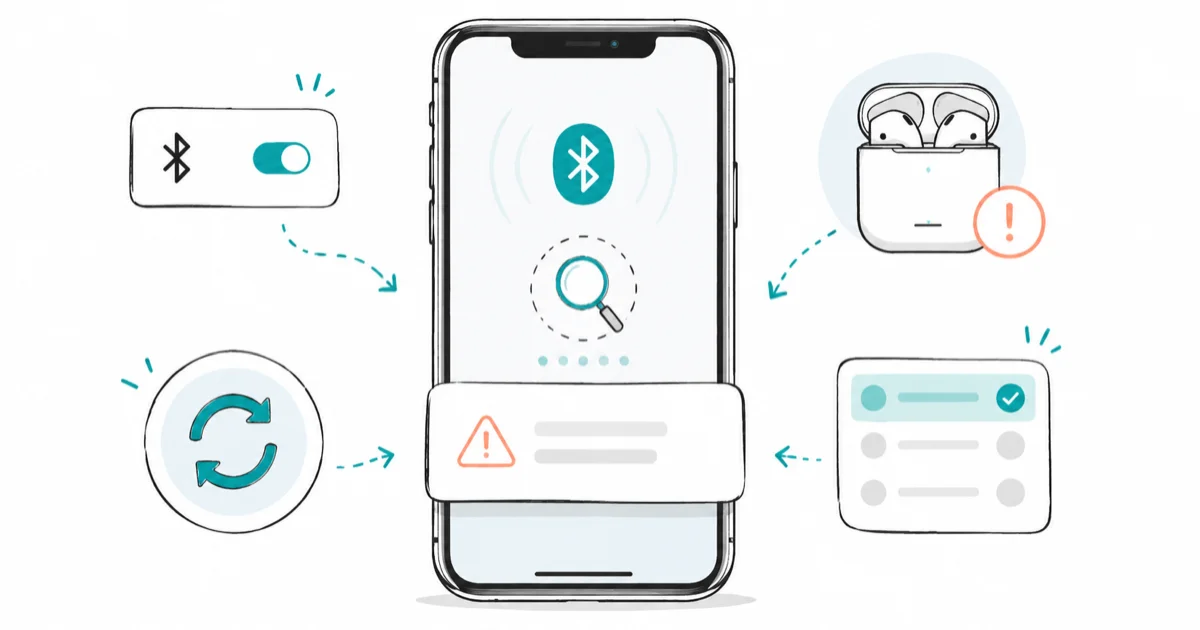
Quick AnswerWhen an iPhone never sees a Bluetooth accessory, it's almost always because the accessory isn't in pairing mode or is still bonded to another phone. Fix that before any iOS reset.
iPhone Bluetooth not finding devices usually means one of two things: the accessory isn’t truly in pairing mode, or it’s still bonded to another phone nearby. Both are quick to fix and far more common than an iOS bug. Sort out the accessory’s state first, then clear old pairings, and save any network reset for last.
- An accessory that’s merely powered on is not the same as one in pairing mode, which is the most common reason it never appears.
- A device already connected to another phone or laptop won’t show up for your iPhone until you disconnect it there first.
- Keep the accessory within about 33 feet of your iPhone, and charge it, since a low battery quietly blocks discovery.
- Use Forget This Device to clear a stale pairing record before you try connecting again.
- Save Reset Network Settings for last, and only after you’ve confirmed the accessory pairs with other phones.
#Why Is Your iPhone Not Finding Bluetooth Devices?
Because discovery is a two-sided handshake, and one side is almost always the problem. Your iPhone scans for accessories that are actively broadcasting, so if the accessory isn’t broadcasting, nothing shows up no matter how many times you toggle Bluetooth.
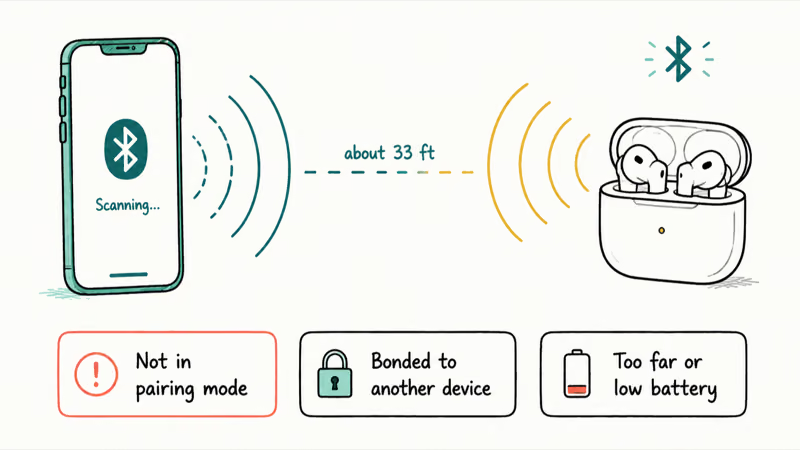
Three things break that handshake most often. The accessory isn’t in pairing mode, it’s still bonded to another device, or it’s too far away or too low on battery to broadcast. According to Apple’s Bluetooth accessory guide, you put the accessory in discovery mode first, then keep your iPhone within about 33 feet to pair, which tells you the accessory’s state and the distance matter more than anything on the phone.
Start there, not with a reset. Confirm Bluetooth is on under Settings > Bluetooth, then work through the accessory side before you touch iOS, because resetting the phone won’t help if the headphones were never broadcasting in the first place. If a specific AirPods issue is what brought you here, our guide on AirPods connection failed covers that exact error.
#Put the Accessory in Real Pairing Mode
Powered on and ready to pair are not the same thing. Most accessories need a deliberate action to start broadcasting, and skipping that step is the number-one reason an iPhone sees nothing.
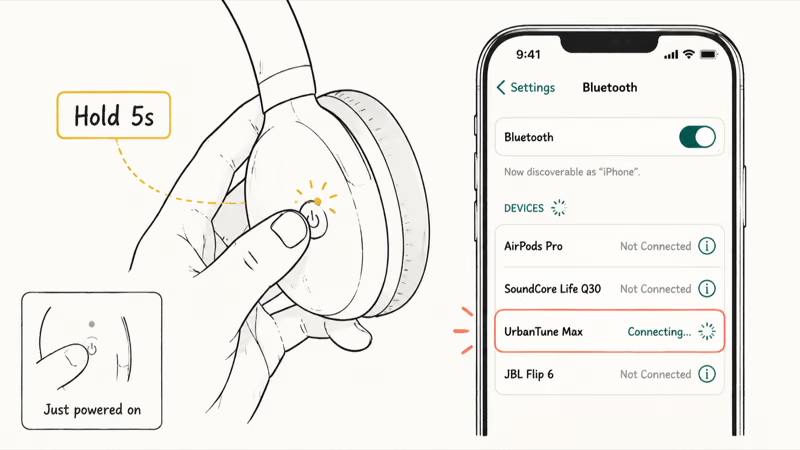
Check the manual for the exact step, since it varies by device. Many headphones need you to hold the power button until an LED blinks, often blue and white alternating; many speakers have a dedicated Bluetooth button to hold; a keyboard or controller usually has a tiny pairing button on the back. The blinking light is the signal that it’s actually discoverable, not just on.
Watch for that light, then check your iPhone’s Bluetooth screen while it blinks. If a quick press only turns the accessory on, hold the pairing control until the LED enters its discoverable pattern. If nothing blinks, the accessory may be asleep or out of charge.
#Forget Old Pairings and Clear the Accessory Memory
A stale pairing record is a quiet troublemaker. If your iPhone “remembers” the accessory from before but the bond has gone bad, it can fail to reconnect and never offer to pair fresh, which looks like the device has vanished.
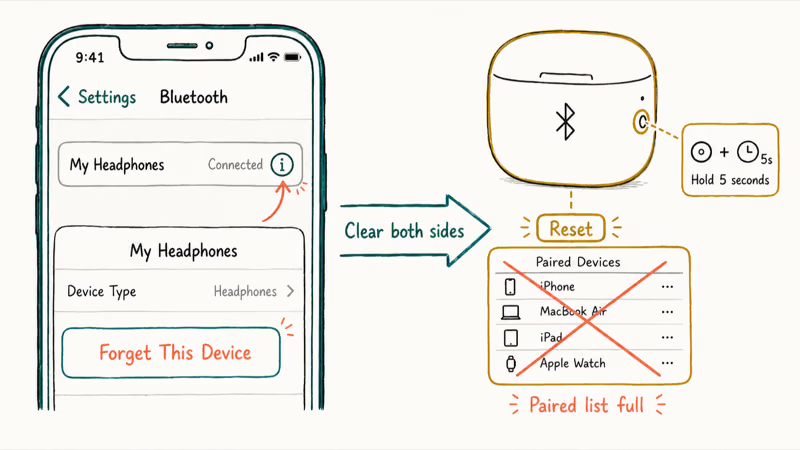
Clear it from the phone first. Open Settings > Bluetooth, tap the i next to the accessory’s name if it’s listed, and choose Forget This Device. Then restart Bluetooth by toggling it off and on, which often makes the accessory reappear cleanly.
Clear the accessory’s memory too. Many headphones and speakers hold a small list of paired devices and stop accepting new ones once that list is full, so a factory reset on the accessory, done with its own button combination from the manual, wipes that list and lets your iPhone in. This pair of steps, forget on the phone and reset on the accessory, resolves most “it used to work” cases.
#What If Bluetooth Finds Other Devices but Not This One?
This is the most useful test you can run. If your iPhone happily pairs with your car or your AirPods but refuses this one accessory, the iPhone’s Bluetooth is fine and the problem is the accessory or its current state.
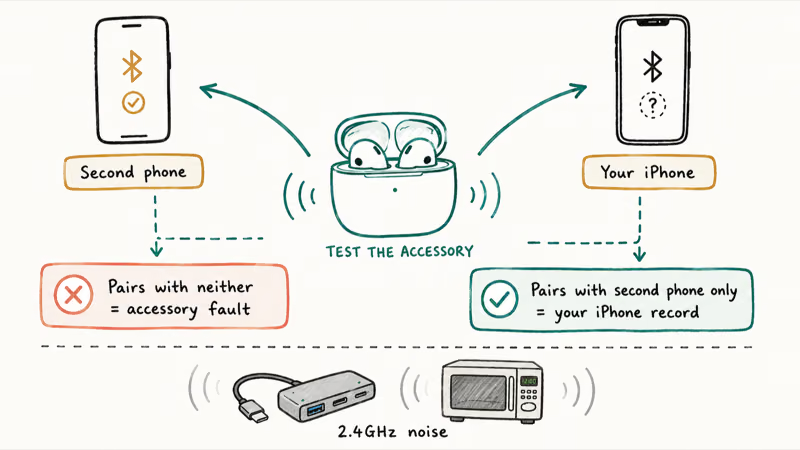
Try the accessory with a second phone. If it won’t pair with any device, it’s stuck, out of pairing mode, or faulty, so the fix is on the accessory side. If it pairs with another phone but not yours, the issue is specific to your iPhone’s record of that device, which is exactly what Forget This Device clears.
Rule out interference and distance, too. A crowded 2.4GHz area, a USB-C dock, or even a microwave can drown out a weak signal, so move within a few feet and away from other electronics. Our guide on AirPods connected but sound coming from the phone shows a related case where the link exists but behaves oddly.
#Update iOS and the Accessory Firmware
Outdated software on either side can break Bluetooth. A buggy iOS build occasionally disrupts the Bluetooth stack, and accessory firmware can drift out of compatibility, so bringing both current is worth the few minutes.
Update iOS first under Settings > General > Software Update, then restart the iPhone, which clears the temporary Bluetooth state that sometimes jams discovery. A restart alone fixes more pairing glitches than people expect.
Update the accessory next. Many earbuds, speakers, and wearables get firmware updates through their companion app, so install that app, connect if you can, and check for an update. If yours is an Apple accessory, our guide on why AirPods play in only one ear covers AirPods firmware quirks that overlap with these symptoms.
#Reset Network Settings as the Last Software Step
Reset Network Settings is powerful, which is exactly why it’s last. It clears all your Bluetooth pairings, saved Wi-Fi passwords, and cellular preferences at once, so you use it only after the targeted steps fail.
Confirm the scope first. According to Apple’s troubleshooting steps for Bluetooth accessories, you should make sure the accessory is nearby, powered on, and charged, and unpair it from other devices before going further, so run those checks before any reset. If the accessory pairs with a different phone but never yours after all that, a network reset is reasonable.
Apple’s guide to returning iPhone settings to their defaults states that Reset Network Settings lives under Settings > General > Transfer or Reset iPhone > Reset > Reset Network Settings. You’ll re-enter Wi-Fi passwords afterward, so have them handy.
Was Wi-Fi acting up alongside Bluetooth? Our guide on iPhone Wi-Fi not working covers that side, and iPhone personal hotspot not working handles a related connectivity reset.
#Bottom Line
When an accessory never appears, fix the accessory before the phone. Put it in real pairing mode, watch for the blinking light, and disconnect it from any other device it’s still bonded to. That single pair of checks solves most cases on its own, long before you ever need to think about resetting anything on the iPhone itself.
If it still won’t show, forget the stale pairing, reset the accessory’s memory, and test it against a second phone to learn which side is at fault. Reset Network Settings belongs last.
#Frequently Asked Questions
Why is my iPhone not finding Bluetooth devices?
Almost always because the accessory isn’t in pairing mode or is still connected to another device. Your iPhone only sees accessories that are actively broadcasting, so an item that’s merely powered on, low on battery, or bonded to another phone won’t appear until you fix its state first.
What should I check first?
Put the accessory into pairing mode and watch for its blinking light, then keep it within a few feet of your iPhone. Also confirm it isn’t already connected to another phone or laptop.
Can an iOS update cause this?
It can, occasionally. A buggy iOS build sometimes disrupts Bluetooth until it’s patched, so install the latest update under Settings, General, Software Update, then restart the phone. A restart on its own clears the temporary Bluetooth state that causes a surprising number of discovery glitches.
Will resetting network settings delete my data?
No, it won’t touch your photos, messages, or apps. It only clears saved Wi-Fi passwords, Bluetooth pairings, and cellular preferences, so just have your Wi-Fi passwords ready to re-enter.
When should I contact official support?
Reach out to the accessory’s manufacturer if it won’t pair with any phone, since that points to the accessory being faulty. Contact Apple if your iPhone can’t connect to any Bluetooth device at all, or if Bluetooth won’t even turn on, because that suggests an issue with the phone rather than one accessory.
How do I prevent this from happening again?
Keep both your iPhone and your accessories charged and updated, and forget devices you no longer use so the pairing list stays clean. When pairing something new, put it in pairing mode deliberately and stay close to the iPhone, which avoids most of the discovery failures that send people looking for a fix.

Apple Siri Settlement: Who Qualifies and How to Claim
Apple's $250 million Siri settlement covers iPhone 15 Pro and iPhone 16 models bought June 2024 to March 2025. See who qualifies and how claims work.

iOS 26.6.1 Security Update: What Apple Fixed and Who Gets It
Apple released iOS 26.6.1 on August 17 with 29 security fixes, including an IPSec interception bug. See what it patches, who gets it, and how to update.

iPhone Adaptive Power: How It Works and When to Use It
Learn how iPhone Adaptive Power works, which models support it, what it changes, and when Low Power Mode is still the better battery-saving choice.

How to Transfer Data to a New iPhone Without iCloud
Move everything to your new iPhone without iCloud: Quick Start device-to-device transfer, wired migration, and encrypted Finder or iTunes backups.