How to Use Your iPhone as a Webcam on Mac or Windows
Turn your iPhone into a high-quality webcam. Use built-in Continuity Camera on a Mac or a free app on Windows, plus mounting tips for clean video.
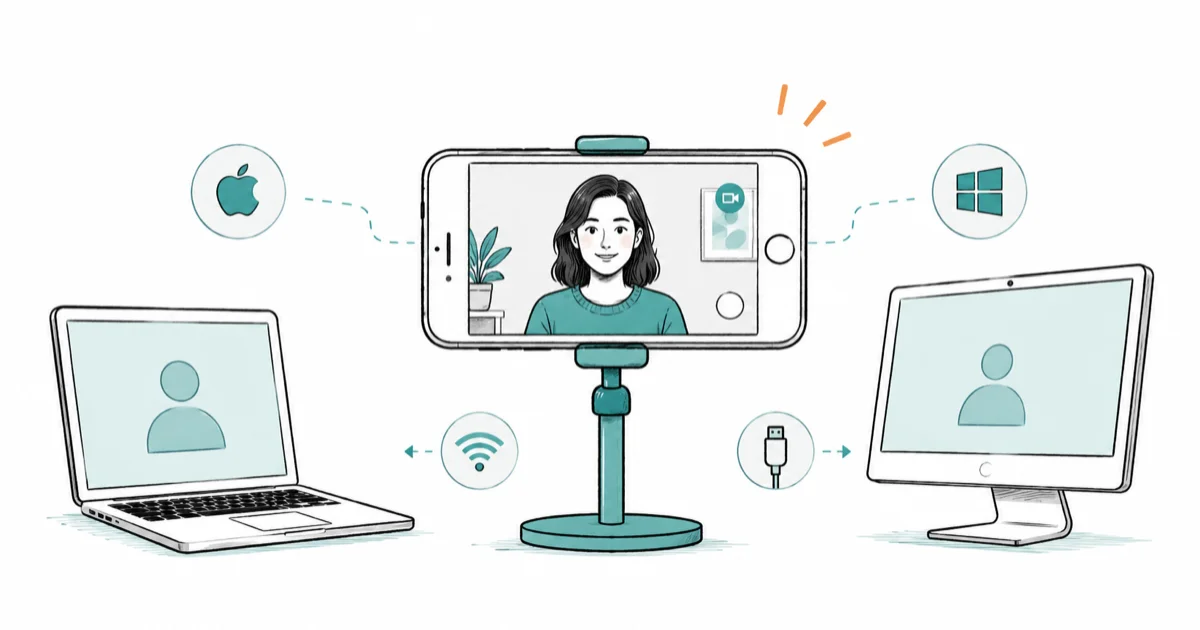
Quick AnswerOn a Mac, Continuity Camera lets you pick your iPhone as the webcam in any video app with no setup beyond the same Apple Account and Wi-Fi or a cable. On Windows you install a companion app like Camo or iVCam and connect by USB or Wi-Fi.
Your iPhone has a far better camera than the webcam built into most laptops. Apple knows it, which is why a Mac can grab your iPhone’s rear lens with zero setup. On Windows the path is different but still cheap. The basic choice is Apple’s built-in Continuity Camera on a Mac or a companion app such as Camo on Windows.
- On a Mac, Continuity Camera picks up your iPhone automatically with no app and no cable required
- It needs macOS Ventura 13 or later, iOS 16 or later, and the same Apple Account on both
- On Windows there’s no free Apple route, so a companion app like Camo over USB is the most reliable
- The rear camera beats the front camera for sharpness, so mount the phone facing you in landscape
- Keep the phone charging on long calls so it doesn’t overheat or throttle the video mid-meeting
#Why Use an iPhone Instead of Your Built-In Webcam?
Laptop webcams are an afterthought. Most still ship at 720p or a soft 1080p, while even an older iPhone shoots crisp, well-exposed video with proper depth.
The gap is obvious the moment you switch. Skin tones look natural and grainy low-light shots clean right up.
There’s a catch worth naming. An iPhone webcam ties up your phone during the call, so if you’re constantly on meetings, a dedicated webcam for Zoom might suit you better. The same Apple continuity that powers this trick is why FaceTime issues sometimes overlap with camera problems. For occasional calls, though, the phone you already own wins easily.
#How Do You Set Up Continuity Camera on a Mac?
This is the magic trick. You don’t install anything. According to Apple, Continuity Camera needs macOS Ventura 13 or newer on the Mac and iOS 16 on the phone. Apple’s Continuity Camera guide confirms that it works on any iPhone XR or later, meaning every model released since 2018.
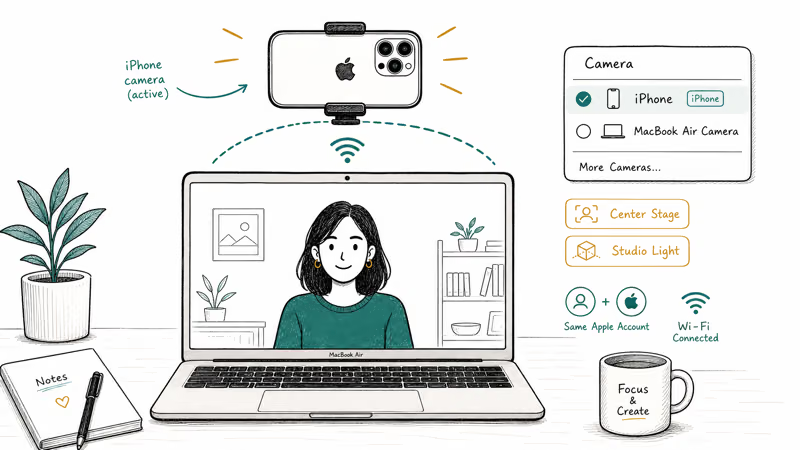
Only two things trip people up. Both devices must use the same Apple Account, and both need Bluetooth and Wi-Fi on. Miss either and the iPhone won’t appear.
Now open any video app, click its camera menu, and pick your iPhone. The phone wakes into webcam mode on its own. From there you get Apple’s extras, including Center Stage to keep you framed, Studio Light to brighten your face, and Desk View to show what’s on your desk. If the camera ever refuses to start, here’s how to fix a FaceTime camera that won’t work.
#Using Your iPhone as a Webcam on Windows
Windows has no Apple-blessed path, so you bridge the gap with a third-party app. The common picks are Camo, iVCam, and EpocCam, and Camo from Reincubate is the one most reviewers point to for reliability.
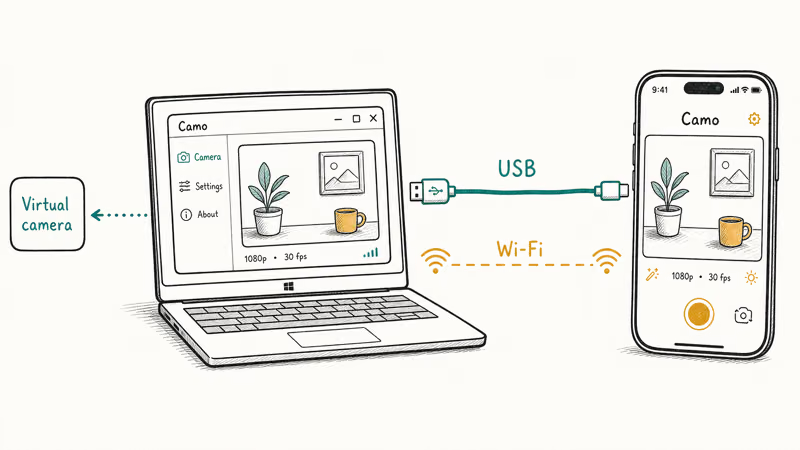
Each one follows the same pattern. You install a desktop client on the PC, install the matching app on the iPhone, then connect over USB or Wi-Fi. The PC app then shows up as a virtual camera that any video tool can select.
USB is the steadier choice, since Wi-Fi can stutter on a busy network. A wired Camo connection is the safer pick for Zoom or Teams calls, especially when other devices are using the same router. Most of these apps run a free tier that’s fine for basic calls, with a paid upgrade for higher resolution and no watermark.
Pick one and try the free version first. If your calls crash regardless of camera, that points at a different problem covered in why a computer crashes during Zoom.
#Mounting and Lighting for a Clean Shot
A great camera held badly still looks bad. The fix is cheap: a small clamp or a flexible tripod that grips the top of your monitor.
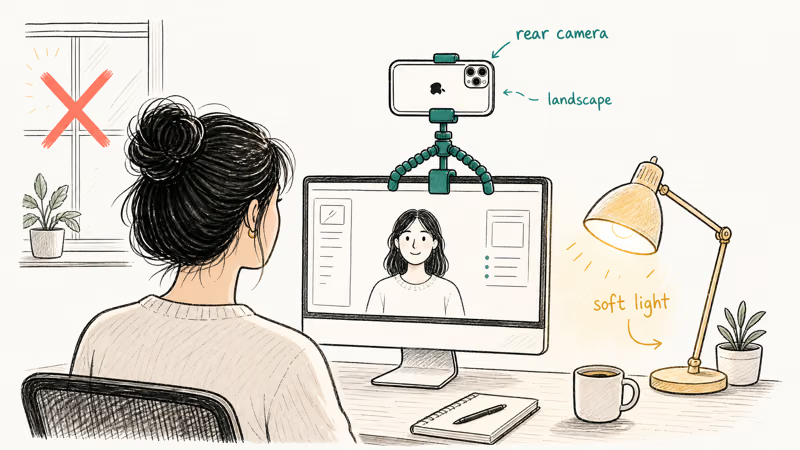
Always mount the phone in landscape with the rear camera facing you, never the selfie lens. The rear camera is meaningfully sharper, it handles light better, and landscape orientation matches the shape of a video window so you fill the frame instead of leaving black bars down the sides of everyone’s screen.
Then mind the light. Face a window or a lamp rather than sitting with one behind you, because backlight turns you into a silhouette. A single soft light in front beats any software touch-up, and it costs nothing if you just reposition your desk.
#Picking the iPhone Camera Inside Zoom, Teams, and Meet
Every app hides its camera selector in roughly the same spot. Find it once and the rest feel familiar.
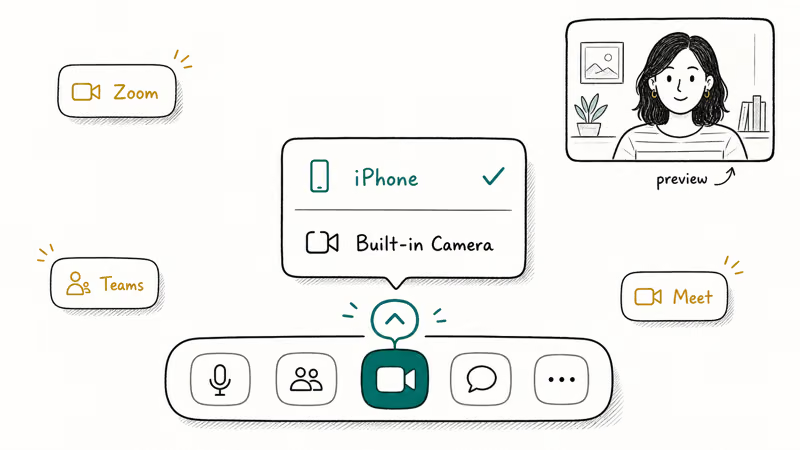
In Zoom, click the small up-arrow next to the video button to list every connected camera and pick your iPhone. Zoom’s video settings help confirms that you can also set a default under Settings and the Video tab, where a live preview shows what each camera sees before you ever join, so you can confirm the iPhone is framing you correctly ahead of the call rather than fumbling with it once everyone’s already watching.
Teams and Meet work the same way: open the in-meeting video settings and choose your iPhone from the camera dropdown.
#Continuity Camera vs a Dedicated Webcam
The iPhone route is free and looks great, but a standalone webcam never steals your phone for the duration of a call, and that single difference is the whole trade-off you’re weighing when you decide which way to go.
If you live on calls, a fixed camera that’s always plugged in beats unmounting your phone before every meeting. The best webcams for MacBook roundup covers solid options for that crowd. But Continuity Camera already brings the same Center Stage and Studio Light effects a pricey webcam charges extra for, so for occasional use the iPhone wins on value, and the only real cost is docking it before each call.
It comes down to volume. Heavy daily caller? Buy a webcam. Everyone else, use the iPhone you own.
#Bottom Line
If you have a Mac, Continuity Camera is the answer and it costs nothing. Mount the iPhone in landscape, rear camera facing you, then pick it in your video app.
On Windows there’s no free Apple path, so a companion app like Camo over USB is the most reliable route, and its free tier is enough to test before you pay. Whatever platform you’re on, keep the phone charging on long calls so it doesn’t throttle mid-meeting.
#Frequently Asked Questions
Do I need a cable to use my iPhone as a webcam on a Mac?
No, a cable is optional. Continuity Camera works wirelessly as long as both devices share the same Apple Account with Bluetooth and Wi-Fi on. That said, plugging in a USB cable does two useful things at once: it steadies the feed if your Wi-Fi is congested, and it keeps the phone charged so a long meeting doesn’t drain the battery or trigger thermal throttling partway through.
Can I use my iPhone as a webcam on Windows for free?
Yes, to a point. Apps like Camo, iVCam, and EpocCam each offer a free tier that’s good enough to test the setup and run basic calls. The paid versions unlock higher resolution and remove watermarks, so try the free tier first and upgrade only if you use it often.
Why doesn’t my iPhone show up as a camera option?
Usually a connection mismatch. On a Mac, make sure both devices use the same Apple Account and have Bluetooth and Wi-Fi on. On Windows, the desktop client must be running for the virtual camera to appear in your video app’s list.
Does the rear camera give better quality than the front?
Yes, noticeably. The rear camera system is sharper and handles light better than the selfie camera, so mount the phone with the back lens facing you.
Will long video calls drain or overheat my iPhone?
They can. Running the camera for an hour or more works the phone hard and warms it up, which can cause throttling. Keep it plugged in during long meetings to stay cool and topped up.
Which apps support Continuity Camera?
Most of them. FaceTime, Zoom, Teams, Meet, and Photo Booth all see the iPhone once it’s set up.

Apple Siri Settlement: Who Qualifies and How to Claim
Apple's $250 million Siri settlement covers iPhone 15 Pro and iPhone 16 models bought June 2024 to March 2025. See who qualifies and how claims work.

iOS 26.6.1 Security Update: What Apple Fixed and Who Gets It
Apple released iOS 26.6.1 on August 17 with 29 security fixes, including an IPSec interception bug. See what it patches, who gets it, and how to update.

iPhone Adaptive Power: How It Works and When to Use It
Learn how iPhone Adaptive Power works, which models support it, what it changes, and when Low Power Mode is still the better battery-saving choice.

How to Transfer Data to a New iPhone Without iCloud
Move everything to your new iPhone without iCloud: Quick Start device-to-device transfer, wired migration, and encrypted Finder or iTunes backups.