How to Add Widgets to Your iPhone Home Screen in 2026
Add, resize, and stack widgets on your iPhone Home Screen, use interactive widgets, and set up Smart Stacks that rotate the right info at the right time.
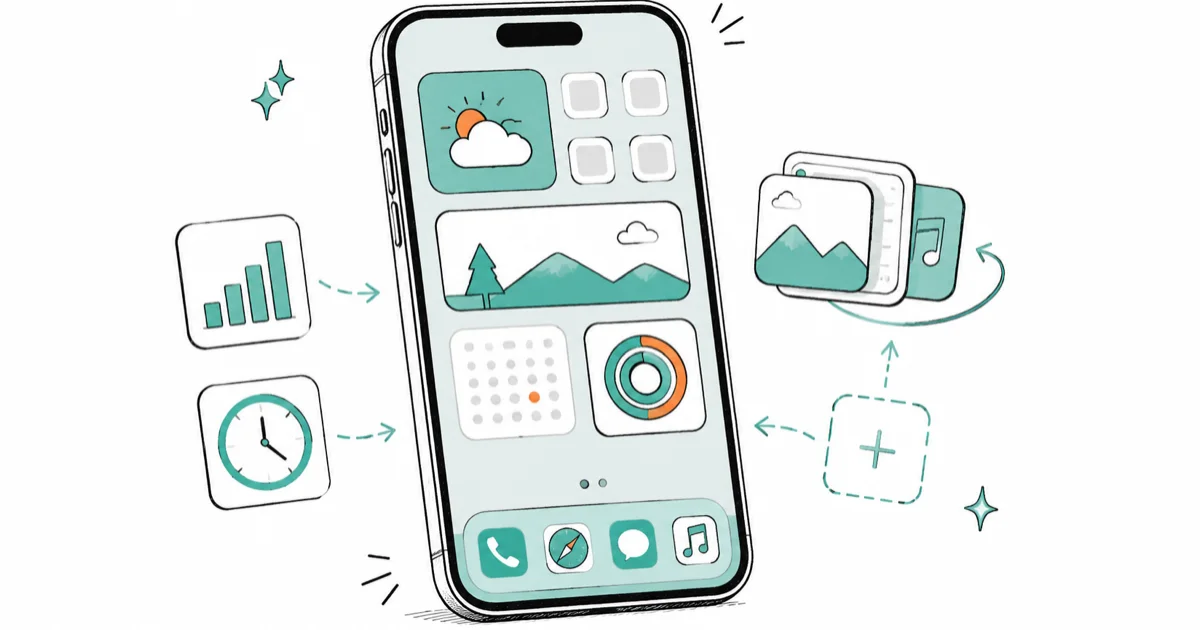
Quick AnswerTouch and hold an empty part of the Home Screen until the apps jiggle, tap Edit then Add Widget, pick a widget and size, and tap Add Widget. Drag one widget onto another to build a Smart Stack that rotates the right one automatically.
Adding widgets to your iPhone Home Screen turns a wall of app icons into a glanceable dashboard for weather, your calendar, and battery levels. The gallery is easy to miss, but once you know where to look, the flow is straightforward. A Smart Stack can rotate Weather, Calendar, and Batteries based on context, which is the trick most people miss.
This guide covers adding, resizing, and stacking widgets, plus the interactive ones you can tap without opening the app.
- Touch and hold an empty Home Screen area, tap Edit, then Add Widget to open the full widget gallery
- A Smart Stack holds up to 10 widgets and rotates the most relevant one based on time, location, and activity
- Interactive widgets let you tick a Reminder or toggle a smart-home device without opening the app
- Widget sizes range from small to large, and larger widgets show more detail at the cost of grid space
- You can drag any widget out of a stack or remove it entirely, so a cluttered stack is easy to trim
#What Can iPhone Widgets Actually Do?
A widget is a live tile that shows information from an app without you opening it. Weather shows the forecast, Calendar shows your next event, and Batteries shows the charge on your AirPods and Apple Watch.
They come in sizes. Small widgets fill a 2x2 block, medium widgets span the width of two app rows, and large widgets take a 4x4 chunk of the screen. The bigger the widget, the more it shows, so a large Calendar widget lists several upcoming events while a small one shows only the next.
The point is to cut taps. Instead of opening five apps to check the day, you read the Home Screen once and move on.
#How Do You Add a Widget to the Home Screen?
The add flow is the same on every recent iPhone. Touch and hold an empty area of the Home Screen until the apps start to jiggle, which signals edit mode.
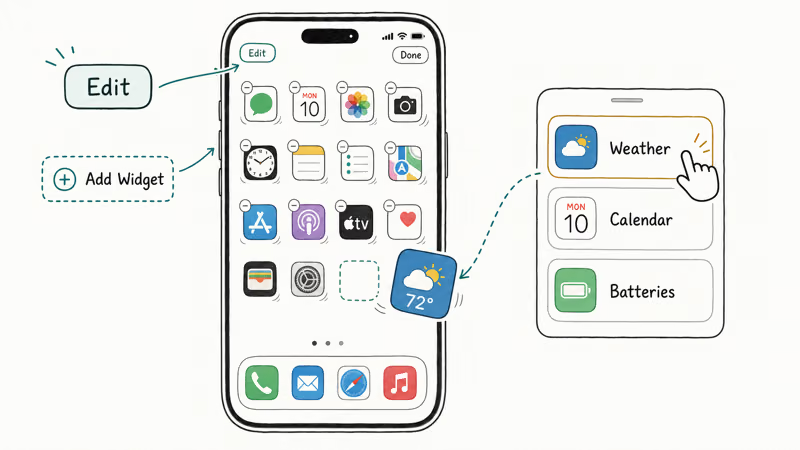
According to Apple’s widget guide, you then tap Edit in the upper-left corner, tap Add Widget, select a widget, choose a size, and tap Add Widget again. The widget drops onto the page, and you drag it wherever you want before tapping Done.
On some iOS versions that Edit step is a plus button instead of an Edit label. Look for whichever appears once the icons jiggle.
To resize or remove one later, touch and hold the widget itself. A menu appears with size options on some widgets and a Remove Widget choice that pulls it off the screen without deleting the app.
Missing a widget you expected? The app may not offer one, or you may need to open it once so iOS registers it. If the app itself has vanished, our guide to an iPhone app that disappeared helps you find it again.
#Building and Editing a Smart Stack
A Smart Stack is what makes widgets worth the space. One tile rotates through several widgets to surface the most useful one.
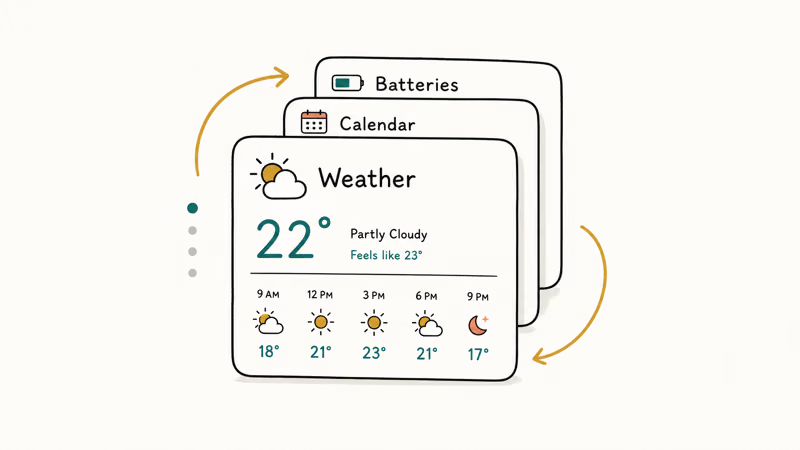
You can add Apple’s pre-built Smart Stack from the gallery, or build your own. To build one, drag any widget directly on top of another widget of the same size. iOS merges them into a single stack you swipe through, and from then on a small set of dots marks it as a stack rather than a plain widget, so you always know which tiles rotate and which sit still.
Apple’s guide notes you can stack up to 10 widgets in one tile. Touch and hold the stack and tap Edit Stack to reorder widgets, turn Smart Rotate on or off, and toggle Widget Suggestions, which surfaces a relevant widget at the right moment even if it isn’t in the stack. If you tie your Home Screen pages to different routines, our explainer on Focus status on iPhone shows how Focus modes can swap whole page sets to match.
#Interactive Widgets and Where They Help
Since iOS 17, many widgets are interactive. That means you act on them in place rather than being bounced into the app, so you can tick off a Reminder, play or pause music, or toggle a Home accessory straight from the Home Screen.
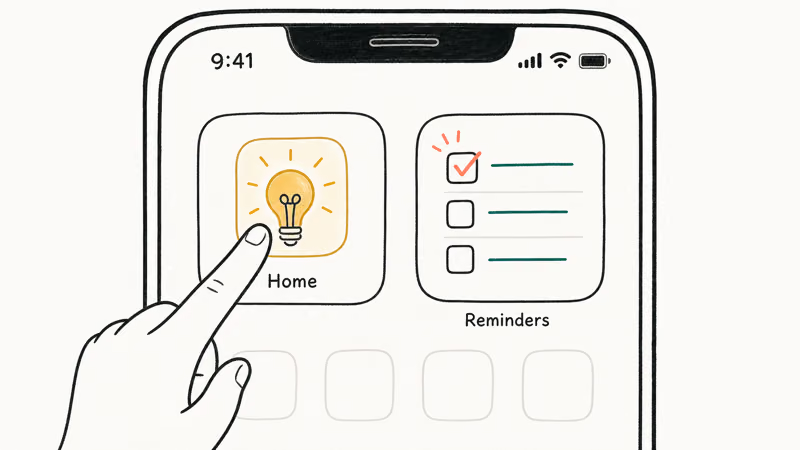
The Home app shows this off well. According to 9to5Mac’s interactive widgets hands-on, Apple’s own Home widget added a 2x2 tile that controls 4 HomeKit accessories and a larger one for up to 8, and tapping a square toggles a light or lock directly. That report also notes widgets first arrived in iOS 14 back in 2020, so it took several years for interactivity to land.
For example, a Reminder widget can mark an item complete in place, and a Home widget can toggle a supported light from the Home Screen.
Not every widget is interactive yet, because the feature depends on the app developer adding support, so a third-party widget may still just deep-link into the app when you tap it instead of acting in place. Stick with interactive widgets for the actions you repeat daily.
#Lock Screen and StandBy Widgets
Home Screen widgets aren’t the only kind. The Lock Screen and StandBy each hold their own.
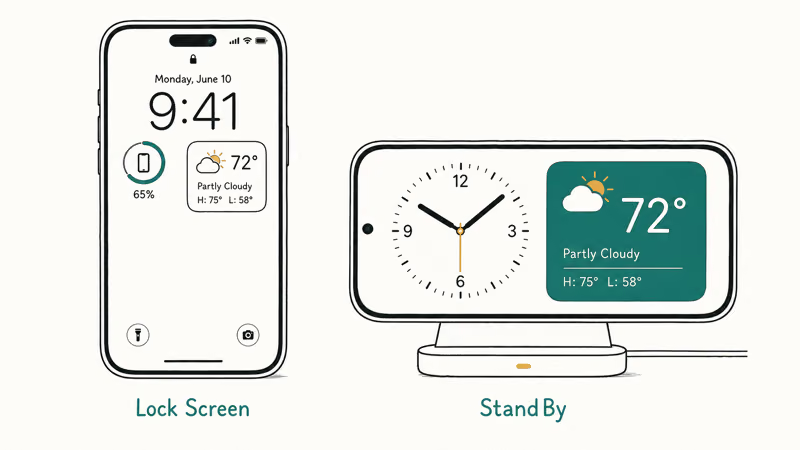
Lock Screen widgets are tiny and glanceable, good for a battery ring or the weather, and you add them by long-pressing the Lock Screen and tapping Customize. StandBy widgets appear when the phone charges horizontally, and they can run a full-screen Smart Stack.
Apple’s StandBy guide states that you can set the display to turn off automatically, stay on, or shut off after 20 seconds under Settings, StandBy, Display. If your iPhone drains overnight in StandBy, our guide to iPhone StandBy drain covers the settings that cause it.
For a dedicated clock face, a third-party option can look sharper than the built-in one. Our roundup of the best clock widget apps covers the standouts.
#The Widgets Worth Adding First
Start with the three that pay off daily: Weather, Calendar, and Batteries. They answer the questions you check most, and grouping them in a Smart Stack keeps them to one tile.
Add the Weather widget only if the app works for you. If yours shows stale data or a blank tile, our fix for the iPhone weather app not working sorts it out before you commit the space. After the essentials, add interactive widgets for the apps you act on most, and resist the urge to fill every page, since a wall of widgets is as cluttered as a wall of icons.
#Bottom Line
Build one Smart Stack for the widgets you check most, like Weather, Calendar, and Batteries, and let Smart Rotate surface the right one through the day so you reclaim Home Screen space. Add a couple of interactive widgets only if you actually use those actions, such as Reminders or a smart-home toggle, since those are the ones that truly save time. Leave decorative third-party widgets for last. They look nice, but they earn the least screen space.
#Frequently Asked Questions
How do I add a widget to my iPhone Home Screen?
Touch and hold an empty area until the apps jiggle, tap Edit in the top-left, then Add Widget. Pick a widget, choose a size, and tap Add Widget again.
What is a Smart Stack and how do I make one?
A Smart Stack is a single tile that holds several widgets and rotates to show the most relevant one based on time, location, and your activity. To make one, drag any widget on top of another widget of the same size, and iOS merges them into a stack you can swipe through and edit.
Can I interact with a widget without opening the app?
Yes, since iOS 17. Many widgets are now interactive, so you can tick a Reminder, play or pause audio, or toggle a smart-home device right from the Home Screen. Whether a specific widget supports this depends on the app developer.
Why can’t I find a widget for a certain app?
The app may not offer a widget at all, or you may need to open it once so iOS registers it before it shows in the gallery.
How do I remove or resize a widget?
Touch and hold the widget. A menu appears with a Remove Widget option, and on supporting widgets you’ll also see size choices. Removing a widget never deletes the underlying app.
What is the difference between Home Screen and Lock Screen widgets?
Home Screen widgets are larger tiles you tap or read at a glance among your apps. Lock Screen widgets are smaller and sit around the clock for quick info before you unlock. They’re set up separately, so adding one doesn’t add the other.

Apple Siri Settlement: Who Qualifies and How to Claim
Apple's $250 million Siri settlement covers iPhone 15 Pro and iPhone 16 models bought June 2024 to March 2025. See who qualifies and how claims work.

iOS 26.6.1 Security Update: What Apple Fixed and Who Gets It
Apple released iOS 26.6.1 on August 17 with 29 security fixes, including an IPSec interception bug. See what it patches, who gets it, and how to update.

iPhone Adaptive Power: How It Works and When to Use It
Learn how iPhone Adaptive Power works, which models support it, what it changes, and when Low Power Mode is still the better battery-saving choice.

How to Transfer Data to a New iPhone Without iCloud
Move everything to your new iPhone without iCloud: Quick Start device-to-device transfer, wired migration, and encrypted Finder or iTunes backups.