How to Set Up Find My iPhone the Right Way in 2026
Set up Find My iPhone correctly. Turn on Find My, the Find My network, and Send Last Location, and learn how each setting protects a lost or stolen phone.
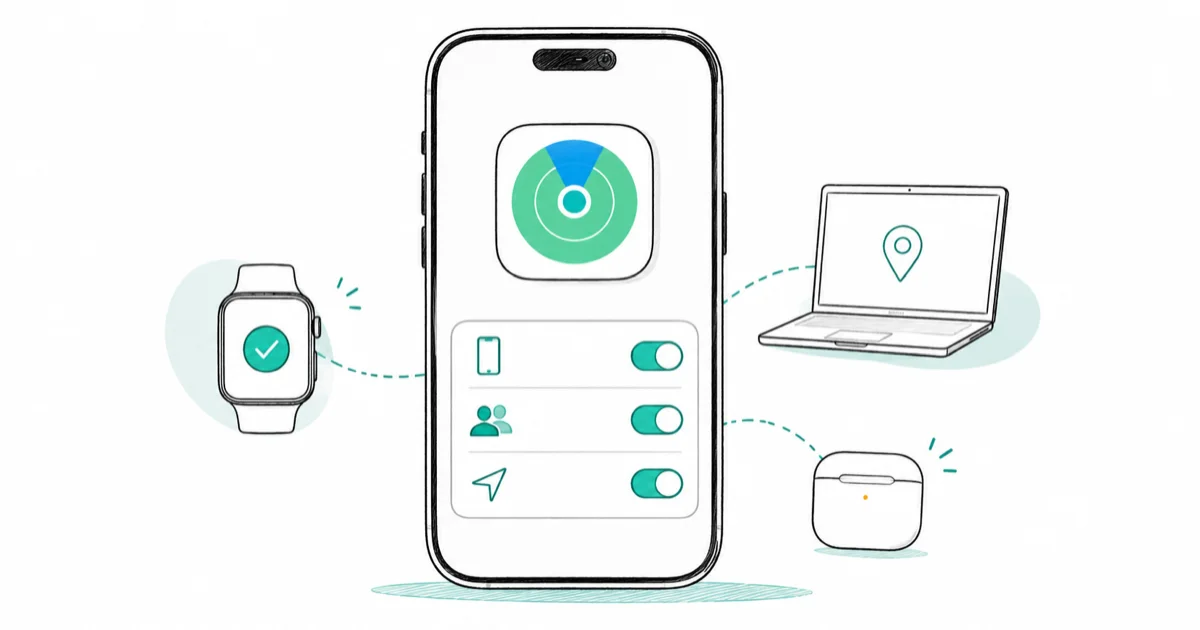
Quick AnswerOpen Settings, tap your name, then Find My, and turn on Find My iPhone along with the Find My network and Send Last Location. The Find My network lets nearby Apple devices help locate your iPhone even when it is offline or powered off.
Setting up Find My iPhone is the single most important thing you can do before your phone ever goes missing. The feature lets you locate, lock, or erase your iPhone from another device, and three sub-settings decide how well it works when the phone is offline or out of battery.
- Find My iPhone lives in Settings, under your name, then Find My, and should be on before anything goes wrong
- The Find My network uses a crowdsourced web of over a billion Apple devices to locate your phone even when it’s offline
- Send Last Location uploads your phone’s spot to Apple just before the battery dies
- Turning on Find My also enables Activation Lock, which stops a thief from wiping and reselling your phone
- Location Services must be on as well, or the map can’t show where your iPhone is
#What Find My iPhone Actually Does
Find My iPhone is Apple’s lost-device system. Once it’s on, you can sign in to another Apple device or iCloud.com and see your iPhone on a map, play a sound to find it nearby, mark it lost, or erase it remotely if it’s gone for good.
The reach is what makes it powerful. According to Apple’s Find My overview, the network spans “over a billion Apple devices” that detect a missing device over Bluetooth and report it back, encrypted and anonymous. Even a stranger’s passing iPhone can quietly help locate yours.
It also acts as a theft deterrent. Because Find My ties the phone to your Apple Account, a thief can’t simply wipe it and set it up as new, which kills most of the resale value of a stolen iPhone. This is also why a phone you buy secondhand should be checked for an existing lock, the situation the Find My iPhone checker walks through.
#How Do You Turn On Find My iPhone?
The setup is short. Open the Settings app, tap your name at the top, then tap Find My.
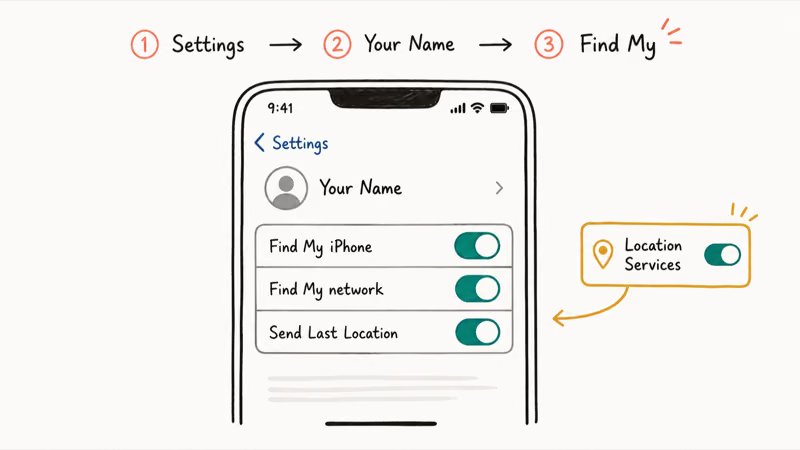
Apple’s guide to turning on Find My states the next steps plainly: “Tap Find My [device], then turn on Find My [device].” Below that switch you’ll find two more toggles, Find My network and Send Last Location, and both are worth enabling. Turn on all three.
One easy thing to miss is Location Services. Apple’s guide notes that to see your device on a map you should “make sure that Location Services is turned on” under Settings, Privacy and Security, Location Services. Without it, Find My still locks the phone but can’t pinpoint it.
#Find My Network and Offline Tracking
The Find My network is the setting that earns its keep when your phone is dead or offline. A traditional locator needs the lost phone to have power and a data connection. The Find My network sidesteps that by letting other people’s Apple devices detect your phone over Bluetooth and relay its rough location to you.
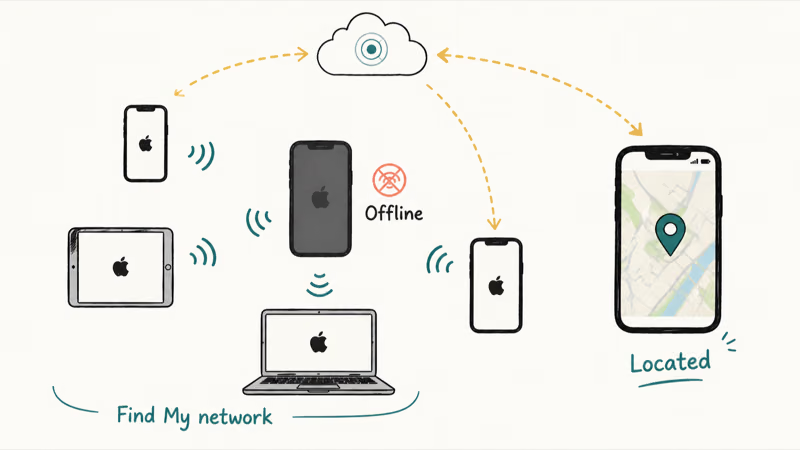
Apple confirms this network helps you “find your devices even if they’re powered off or disconnected.” That’s the whole difference between a phone you can still track and one that vanishes the instant its battery hits zero.
If your iPhone is already dead and you’re trying to find it right now, the offline behavior is covered in detail in the guide to finding an iPhone that’s turned off. For a phone that’s simply showing no signal rather than lost, iPhone no service is the relevant fix instead.
#Why Send Last Location Matters
Send Last Location is a battery-aware backup. Apple’s guide states that it sends your device’s location “to Apple when the battery is low,” so even if the phone dies before you start looking, you have a final known position to work from. Apple’s lost-iPhone guide explains how to track a missing device on iCloud.com after that final upload.
It costs you nothing in daily use. The upload happens once, in the moment before the battery gives out, rather than tracking continuously, so there’s no reason to leave the toggle off.
#Activation Lock and Selling Your Phone
Activation Lock is the security half of Find My, and it switches on automatically when you enable the feature. It binds the iPhone to your Apple Account, so a thief can’t erase and reactivate it without your password, which makes a stolen, locked iPhone close to worthless to resell and removes most of the incentive to grab one in the first place.
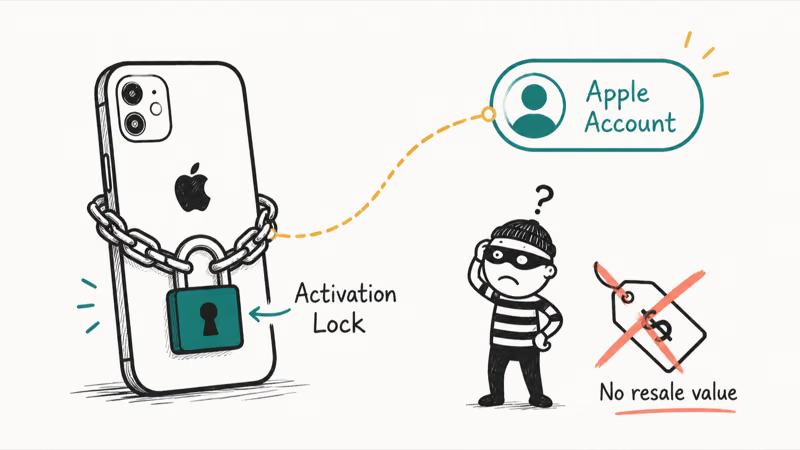
That lock is exactly why you must turn Find My off properly before selling a phone. Skip that step and the new owner inherits a locked device they can’t use, the headache Apple Watch Activation Lock covers. Sign out of iCloud and erase properly, and the lock releases cleanly.
#How Do You Locate a Lost iPhone?
When a phone goes missing, open the Find My app on another Apple device, or sign in at iCloud.com. Your devices appear on a map, and selecting the lost one reveals the action buttons.
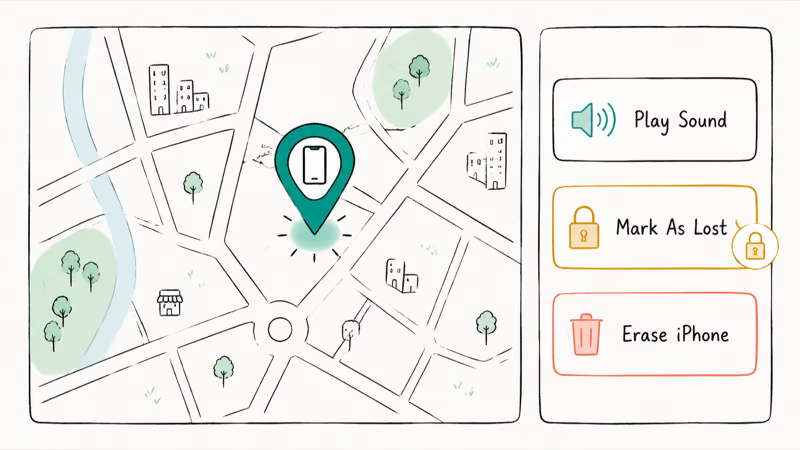
Play Sound is for a phone that’s nearby but buried in a couch. According to Apple’s lost-iPhone guide, Mark As Lost puts the device in Lost Mode, “locked with your passcode,” with Apple Pay suspended. Erase iPhone is the last resort once you’ve given up recovery.
Mark As Lost locks the phone with your passcode and can display your message on the lock screen. If you suspect the phone was taken rather than misplaced, the guide to tracking an iPhone covers the options. Always involve the police rather than confront a thief yourself.
Use Find My only for your own device or one you’re authorized to manage. Tracking a phone you don’t own without consent can break privacy law, so this locates your hardware, not other people.
#Bottom Line
Turn on all three switches today, plus Location Services, so the feature works whether your phone is online, dead, or hidden in a stranger’s pocket. The Find My network is the one that matters most, since it’s what locates a powered-off phone through the billion-device Apple web. Remember that enabling Find My also arms Activation Lock, so always sign out and erase properly before selling the device.
#Frequently Asked Questions
Does Find My iPhone work when the phone is off?
Yes, if the Find My network is enabled. Other nearby Apple devices detect your phone over Bluetooth and relay its location to you, so a powered-off or offline iPhone can still appear on the map. That’s the single biggest reason to leave the Find My network switched on, because without it a dead or disconnected phone simply disappears from the map until it comes back online, which a thief can prevent indefinitely.
Do I need Location Services on for Find My to work?
Yes, to see the phone on a map. Apple’s guide is explicit that Location Services must be turned on under Settings, Privacy and Security. Without it, Find My can still lock or erase the device remotely, but it won’t be able to show you the location on a map.
What is Activation Lock and how do I turn it off?
Activation Lock binds your iPhone to your Apple Account and switches on automatically when you enable Find My. It stops anyone from erasing and reactivating the phone without your password. To turn it off, sign out of iCloud on the device, or erase the phone the proper way through Settings, which releases the lock.
Will erasing my lost iPhone stop me from tracking it?
Yes. Erasing wipes the data and ends location tracking once it finishes. Use Mark As Lost first, since it locks the phone yet keeps it traceable.
Does Send Last Location use much battery?
No. It only acts once, sending the phone’s position to Apple in the brief window before the battery dies completely. It’s a one-time upload, not a constant drain, so there’s no reason to leave it off.
Can I use Find My iPhone from an Android phone?
Not through the app, but you can sign in to iCloud.com in a web browser on any device, including an Android phone or a Windows PC, and use Find My from there. The map, sound, lost mode, and erase options all work the same way through the browser.

Apple Siri Settlement: Who Qualifies and How to Claim
Apple's $250 million Siri settlement covers iPhone 15 Pro and iPhone 16 models bought June 2024 to March 2025. See who qualifies and how claims work.

iOS 26.6.1 Security Update: What Apple Fixed and Who Gets It
Apple released iOS 26.6.1 on August 17 with 29 security fixes, including an IPSec interception bug. See what it patches, who gets it, and how to update.

iPhone Adaptive Power: How It Works and When to Use It
Learn how iPhone Adaptive Power works, which models support it, what it changes, and when Low Power Mode is still the better battery-saving choice.

How to Transfer Data to a New iPhone Without iCloud
Move everything to your new iPhone without iCloud: Quick Start device-to-device transfer, wired migration, and encrypted Finder or iTunes backups.