How to Transfer Data From Android to an iPhone (2026)
Move photos, contacts, messages, and apps from Android to a new iPhone using Move to iOS, plus manual fallbacks for WhatsApp and what the app skips.
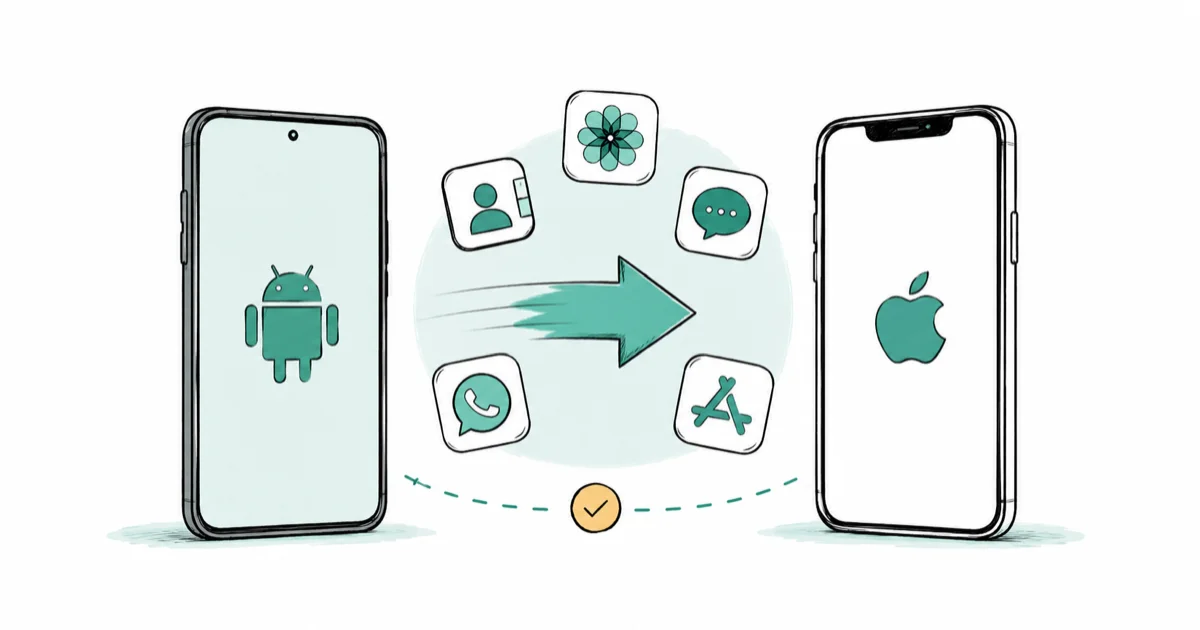
Quick AnswerDuring iPhone setup, use Apple's Move to iOS app to transfer photos, contacts, messages, and free apps over Wi-Fi. Move what it skips, like WhatsApp chats, manually afterward.
Transferring data from Android to iPhone is mostly a one-app job, thanks to Apple’s free Move to iOS app. It pulls your photos, contacts, messages, and free apps across during setup. The trick is knowing what it doesn’t carry, like WhatsApp chats and paid apps.
- Move to iOS transfers photos, contacts, message history, and matching free apps over Wi-Fi.
- It runs only during initial iPhone setup, from the Transfer Your Apps & Data screen.
- A 6-digit or 10-digit code pairs the two phones over a temporary private network.
- WhatsApp chats, paid apps, and DRM media don’t carry over, so move them manually.
- If you already finished setup, you can backfill with Google Photos and the App Store instead.
#What Does Move to iOS Actually Transfer?
This is the question that saves you grief later. Apple’s Move to iOS guide confirms that the two phones pair with a 6-digit or 10-digit code over a temporary Wi-Fi network, then copy your content across.
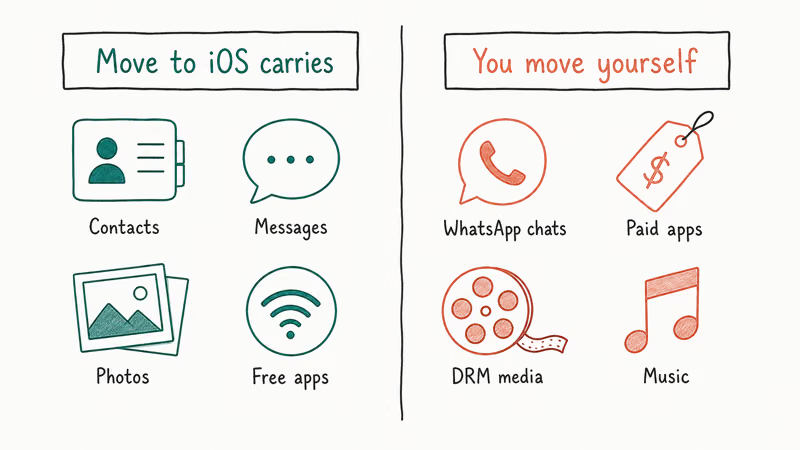
The list is generous: contacts, messages, photos and videos, albums, files, settings, bookmarks, mail accounts, even WhatsApp media.
But it isn’t everything.
Matching free apps reinstall from the App Store if they exist on both platforms, while music, books, and PDFs need a manual move. Knowing this split upfront is the whole game, because it tells you exactly what to handle yourself after the automated part finishes. If the app stalls midway, the Move to iOS not working guide covers the common fixes.
#Before You Start: Prepare Both Phones
Preparation prevents a failed transfer halfway through. Plug both phones into power, since the process can take a while and a dead battery cancels everything.
Connect both to Wi-Fi, or have a USB-C cable ready for a faster wired transfer.
Make sure your new iPhone has enough free storage for everything coming over, and update Chrome on the Android phone if you want bookmarks to carry. Keep both phones plugged into power, and use a cable if you want the most stable transfer path. It’s also smart to confirm your new iPhone can back up afterward, which the iPhone iCloud backup notes help with.
#How to Use Move to iOS Step by Step
The flow is built into iPhone setup, so timing matters. On the new iPhone, work through setup until you reach the Transfer Your Apps & Data screen, then tap Move Data from Android.
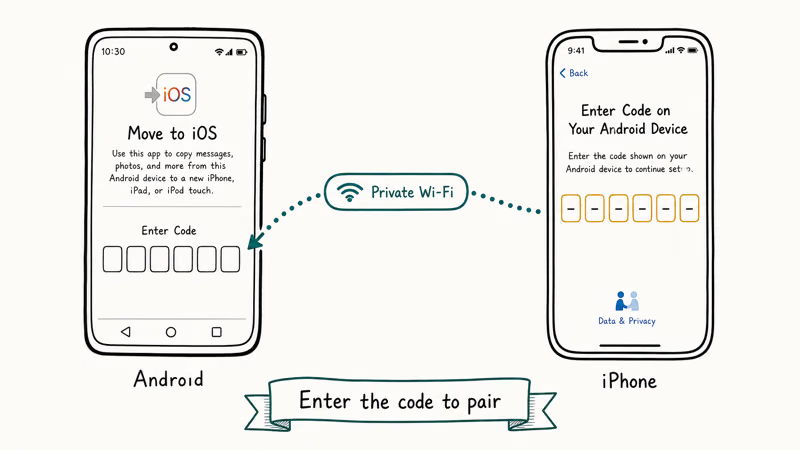
On the Android phone, install Move to iOS from the Play Store and open it.
Tap Continue on both devices, agree to the terms, and the iPhone shows a code. Enter that 6-digit or 10-digit code on the Android phone, and the two connect over a temporary private Wi-Fi network. Now pick what to transfer, photos, messages, contacts, and the rest, then tap and wait.
Leave both phones alone until the loading bar on the iPhone finishes, not the Android one.
The Android side can appear finished before the iPhone has completed the transfer, so don’t tap away early. Once the iPhone bar completes, set up the rest of your iPhone normally. From there, features like Focus mode on iPhone are worth configuring while everything’s fresh.
#What If You Already Finished iPhone Setup?
You don’t have to erase the iPhone and start over. Move to iOS only runs during initial setup, but the data it would have moved can be backfilled through cloud services and apps.
Start with photos.
According to Google Photos backup help, photos backed up to your Google account are accessible from any device where you sign in, which means installing the Google Photos app on the iPhone brings your whole library along. Contacts and calendar sync the same way: add your Google account in the iPhone’s Settings under Mail or Contacts, and they appear. For everything app-based, you simply reinstall from the App Store and sign in again.
#Moving What Move to iOS Skips
This is where most of the manual work lives, and WhatsApp is the headliner. WhatsApp’s Android-to-iPhone transfer guide states that you start the move during iPhone setup with both phones nearby and the same phone number.
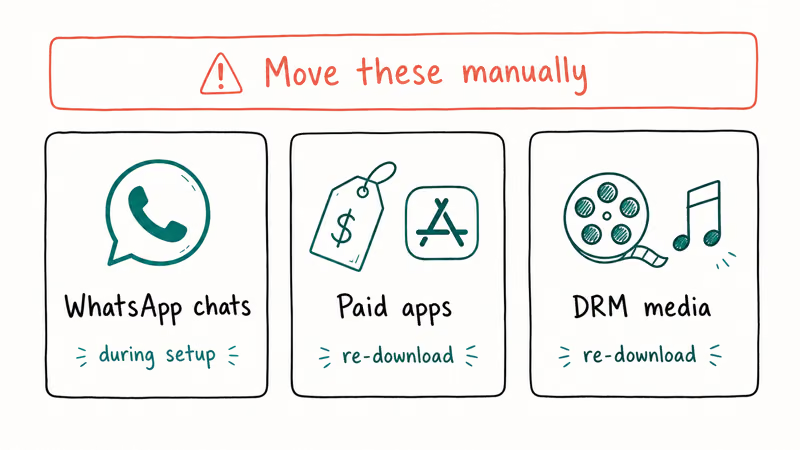
Miss that window and the chat history is hard to recover, so plan it deliberately.
Paid apps are the next gap: they don’t transfer as purchases, so you re-buy or re-download them from the App Store, where many honor an existing subscription once you sign in. DRM-protected movies and some music won’t carry over either, meaning you re-download them from their apps. If your new iPhone gets stuck during all this shuffling, the guide to an iPhone stuck on the Apple logo can help you recover.
If Move to iOS and the manual cloud routes still leave files behind, AnyTrans can copy selected data through a computer instead of restarting the whole migration.
Some links on this page are affiliate links, which means fone.tips may earn a commission at no extra cost to you.
#Reinstalling Apps and Wiping the Old Phone
Apps come over as reinstalls, not working copies. Move to iOS flags which of your Android apps have iPhone versions and queues the free ones from the App Store, but you still sign in to each.
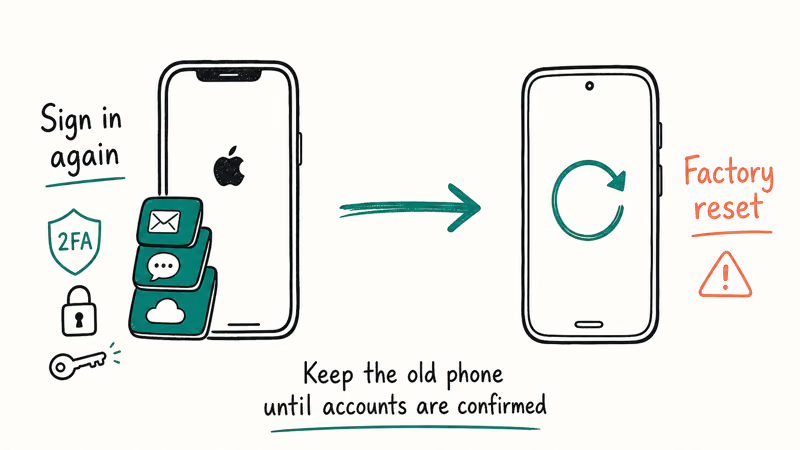
Budget time for logins and two-factor prompts.
Banking apps, authenticators, and anything with strong security will ask you to verify again, so keep your old phone handy until every important account is confirmed on the iPhone. Once you’re sure everything landed, sign out of accounts on the Android phone and do a factory reset before selling or recycling it. Switching back someday? The companion guide to transferring data from iPhone to Android covers the reverse trip.
#Bottom Line
Run Move to iOS during initial iPhone setup for the cleanest result, then treat WhatsApp, paid apps, and DRM media as separate manual jobs. If you already finished setup, you don’t have to erase the iPhone: use Google Photos, your Google account sync, and the App Store to backfill instead of redoing everything. Keep both phones charged and nearby, and let the iPhone’s progress bar finish before you move on.
#Frequently Asked Questions
Does Move to iOS transfer everything from Android?
No. It moves contacts, message history, camera photos and videos, albums, files, mail accounts, bookmarks, and WhatsApp data. It does not move paid apps, DRM-protected music or movies, or app login states, so you handle those manually afterward.
Can I use Move to iOS after I already set up my iPhone?
Not directly, since the app only runs during initial setup. You don’t need to erase the phone, though. Sign in to Google Photos for your pictures, add your Google account for contacts and calendar, and reinstall apps from the App Store. That backfill route reaches almost everything Move to iOS would have carried, just one service at a time instead of all at once.
How long does the transfer take?
It depends on your data size and connection. A light transfer finishes faster than a large photo library, and a cable is usually the fastest path.
Will my apps come over or do I reinstall them?
You reinstall them. Move to iOS identifies which Android apps have iPhone versions and lines up the free ones for download from the App Store, but they arrive as fresh installs. You then sign in to each, and paid apps may need to be re-purchased or restored through their own accounts.
How do I move WhatsApp chats to the iPhone?
Use WhatsApp’s official transfer during iPhone setup, with both phones nearby and the same number. The Move to iOS flow includes a WhatsApp step. Skip it and recovery is hard.
What happens to my data if the transfer is interrupted?
Nothing is lost from your Android phone, since Move to iOS copies rather than deletes. If the transfer drops partway, the iPhone may have incomplete data, so the safest fix is to erase the iPhone and run setup again, or backfill the missing pieces through Google Photos and the App Store. Your original phone stays untouched the whole time.

Apple Siri Settlement: Who Qualifies and How to Claim
Apple's $250 million Siri settlement covers iPhone 15 Pro and iPhone 16 models bought June 2024 to March 2025. See who qualifies and how claims work.

iOS 26.6.1 Security Update: What Apple Fixed and Who Gets It
Apple released iOS 26.6.1 on August 17 with 29 security fixes, including an IPSec interception bug. See what it patches, who gets it, and how to update.

iPhone Adaptive Power: How It Works and When to Use It
Learn how iPhone Adaptive Power works, which models support it, what it changes, and when Low Power Mode is still the better battery-saving choice.

How to Transfer Data to a New iPhone Without iCloud
Move everything to your new iPhone without iCloud: Quick Start device-to-device transfer, wired migration, and encrypted Finder or iTunes backups.