Transfer Music From iPod to Computer: 4 Easy Methods
Copy music from your iPod to PC or Mac with iMazing or dr.fone. iTunes blocks the transfer. 4 working methods with step-by-step instructions.
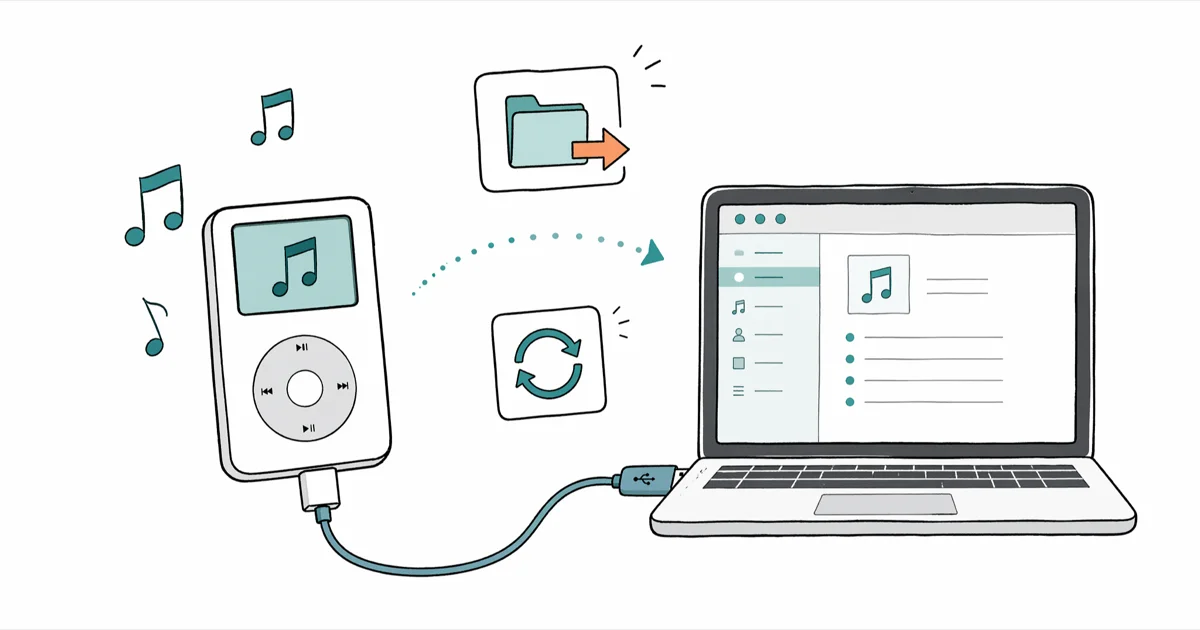
Quick AnswerUse iMazing to copy music from an iPod touch, classic, or nano to a PC or Mac. dr.fone is another option for supported iPod touch models, but its current specs don't list classic, nano, or shuffle.
iTunes blocks music transfers from iPod to computer. Apple built a one-way sync system, so music goes onto the iPod but won’t come back off. Four common workarounds can move music back to a computer, depending on your iPod model, library source, and OS.
- iMazing’s current guide covers iPod touch, classic, and nano, with free exports subject to feature limits
- dr.fone Phone Manager’s current specs cover iPod touch rather than every iPod family
- iTunes only transfers purchased tracks back to the original syncing computer
- iCloud Music Library syncs wirelessly with an Apple Music subscription, no cable needed
- Exported files keep their original format (M4A, MP3, FLAC) with zero quality loss
#Why Does iTunes Block Music Transfers From iPod?
Apple’s sync engine pushes music in one direction: computer to iPod. This restriction was intended as a copyright protection measure, preventing users from copying one person’s music library onto other machines.
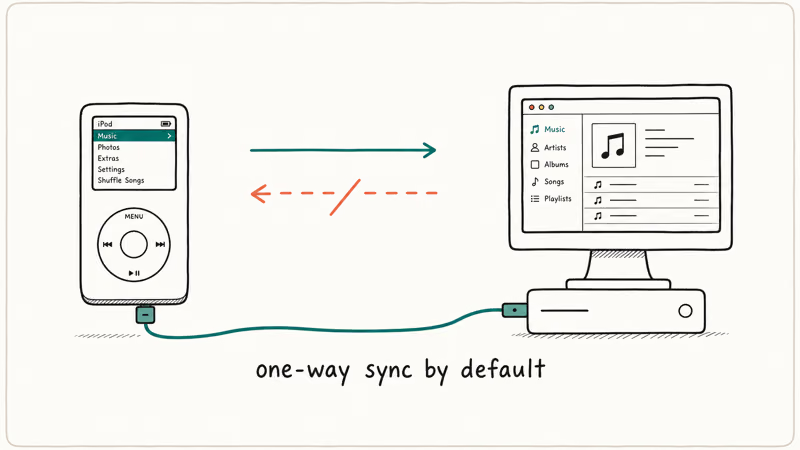
Every iPod model is affected. Touch, classic, nano, shuffle.
Third-party tools like iMazing and dr.fone work around this limitation by reading the iPod’s file system directly instead of going through the iTunes sync protocol. If your iPod Touch is locked and you can’t get past the passcode screen, start with our guide on resetting an iPod Touch passcode before attempting any music transfer.
#How Do You Use iMazing to Get Music off an iPod?
iMazing offers free music exports with feature limits, but it’s no longer a one-time-purchase product. According to iMazing’s licensing policy, Premium features now require a subscription that renews yearly, while free features remain accessible.
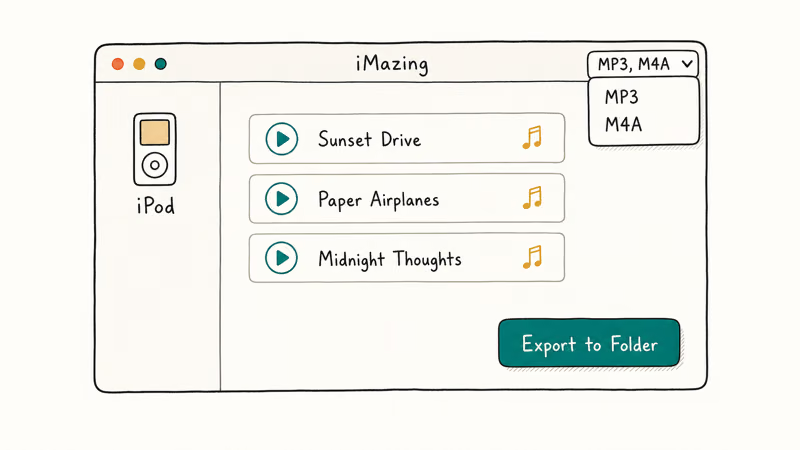
Step 1: Download iMazing. Get it from iMazing’s official site. It runs on Windows 10, Windows 11, and macOS 10.14 or later.
Step 2: Connect via USB. iMazing detects your iPod automatically.
Step 3: Select and export. Check the songs or albums you want, click Export to Computer, and pick a destination folder. Files arrive in their original format: M4A for iTunes purchases, MP3 for manually added tracks.
According to iMazing’s current transfer guide, it can export music from iPod touch, classic, and nano to Mac or PC while retaining track metadata. If iMazing won’t detect your iPod over USB, our guide on fixing iTunes Wi-Fi sync issues covers USB troubleshooting that works for third-party tools too.
#Method 2: dr.fone Phone Manager
dr.fone handles bulk transfers for supported iPod touch models. Don’t assume support for iPod classic, nano, or shuffle from its current specifications.
Some links on this page are affiliate links, which means fone.tips may earn a commission at no extra cost to you.
Step 1: Install dr.fone and connect your iPod. Launch the app and plug in via USB. Click Phone Manager on the home screen.
Step 2: Pick your songs. Click the Music tab to see tracks organized by artist, album, and playlist. Select individual songs or press Ctrl+A (Cmd+A on Mac) to grab everything, then click Export > Export to Computer.
According to Wondershare’s dr.fone tech specs, the current device list names iPod touch 6th and 7th generation alongside iPhone and iPad models.
#Method 3: iCloud Music Library (Wireless)
Got Wi-Fi and an Apple Music subscription? iCloud Music Library works without any cable.
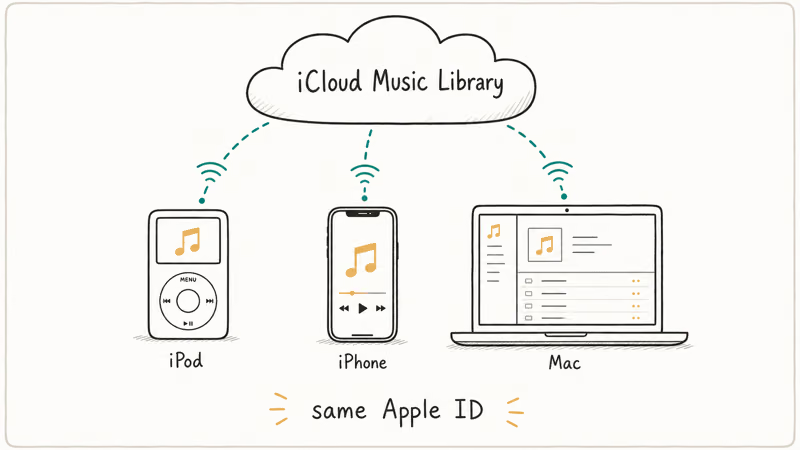
Go to Settings > Music > Sync Library on your iPod and turn it on. Your entire library uploads to Apple’s servers, and once you sign into Apple Music on your computer, every track shows up for download or streaming. According to Apple’s iTunes Match support page, an uploaded library is available on devices with Sync Library enabled; Apple also warns that iTunes Match is not a backup service.
Large libraries can take time to upload. Stick with a wired export tool if you don’t want to wait for cloud sync.
#Method 4: iTunes Transfer Purchases (Same Computer Only)
If you’re moving music back to the same computer that originally synced the iPod, iTunes has a built-in option. Connect your iPod, open iTunes (or the Music app on macOS Catalina and later), and go to Account > Authorizations > Authorize This Computer.
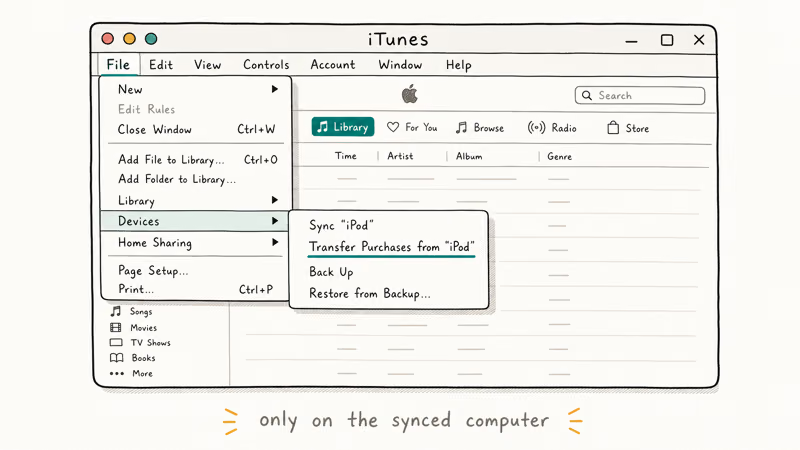
Click Transfer Purchases on your iPod’s Summary page. iTunes pulls back every track you bought from the iTunes Store.
Ripped CDs and imported MP3s won’t transfer this way, so for those you’ll need iMazing or dr.fone. If iTunes won’t launch at all, check our guide on fixing iTunes not opening on Windows 10. For lost backup passwords, we’ve got a walkthrough for recovering a forgotten iTunes backup password.
#Legality and Computer Sync Restrictions
Copying music from your own iPod to your own computer is legal for personal use. According to the Recording Industry Association of America’s FAQ, personal, non-commercial copying falls under fair use in the United States.
What’s not legal: copying someone else’s iPod library onto your machine, or distributing the extracted files to others.
iTunes also locks each iPod to one computer at a time. Connect to a different machine, and it gives you two options: erase or cancel. This DRM restriction is exactly why third-party tools exist. If your iTunes installation is corrupted, our guide on how to reinstall iTunes covers a clean install on Windows, and for iTunes sync errors the same fix process applies to iPods.
#Bottom Line
Start with iMazing if its free export limits cover your library; Premium features now require a yearly subscription. Use dr.fone for a supported iPod touch. Aiseesoft FoneTrans is another alternative that supports drag-and-drop transfers between iPod and computer. If your iPod still syncs to the same computer, try iTunes “Transfer Purchases” first.
#Frequently Asked Questions
Can you transfer music from an iPod to a computer for free?
Yes. iMazing’s free version exports music with batch size limits. For libraries under a few hundred songs, the free tier is enough. iCloud Music Library also works if you already pay for Apple Music, and the iTunes “Transfer Purchases” method is free for purchased tracks on the original syncing computer.
Does transferring music delete it from the iPod?
No. Both iMazing and dr.fone copy files rather than move them. Your songs stay on the iPod.
What audio formats does the export preserve?
The original format, always. No re-encoding happens. iTunes purchases export as M4A or M4P, and manually added files export as MP3, FLAC, AAC, or whatever codec you originally imported.
Can you transfer music from an iPod to a Mac?
Yes. iMazing and dr.fone both run on macOS. The process is the same as Windows.
What if the iPod screen is broken?
If the iPod powers on and the computer detects it over USB, iMazing and dr.fone can still access the music library. A cracked or dead screen doesn’t block file system access. The catch: if you’ve never connected this iPod to your computer, the “Trust This Computer” dialog needs a tap on the iPod’s display.
Can you transfer music from an iPod to an iPhone?
Not directly. Export to your computer first, then sync to iPhone via iTunes or Finder.
Do these methods work with iPod classic and iPod nano?
iMazing’s current guide explicitly covers iPod touch, classic, and nano. Wondershare’s current dr.fone specs list iPod touch 6th and 7th generation, so don’t assume dr.fone supports classic, nano, or shuffle. Cloud Sync Library applies only to iPod touch models that can run the required software.
What happens to DRM-protected songs?
iTunes purchases made before 2009 may have FairPlay DRM (M4P files). These export from the iPod, but they’ll only play on devices authorized with the same Apple ID. Post-2009 purchases are DRM-free M4A files that play anywhere. Check the file extension: M4P means DRM-locked, M4A means unrestricted.

Mac mini M6 vs M5 Pro: Which Model Should You Buy?
Mac mini M6 vs M5 Pro compared on price, memory, ports, displays, and real workloads. Find the better 2026 Mac mini for your desk and budget.

Apple Siri Settlement: Who Qualifies and How to Claim
Apple's $250 million Siri settlement covers iPhone 15 Pro and iPhone 16 models bought June 2024 to March 2025. See who qualifies and how claims work.

iOS 26.6.1 Security Update: What Apple Fixed and Who Gets It
Apple released iOS 26.6.1 on August 17 with 29 security fixes, including an IPSec interception bug. See what it patches, who gets it, and how to update.

iPhone Adaptive Power: How It Works and When to Use It
Learn how iPhone Adaptive Power works, which models support it, what it changes, and when Low Power Mode is still the better battery-saving choice.