How to Unlock an iPod Touch Without a Password (2026)
Forgot your iPod touch passcode? Follow Apple’s current Recovery Mode steps, understand what Restore erases, and recover only what a backup contains.
Quick AnswerFor an iPod touch you own, use Recovery Mode on a Mac or Windows PC, then choose Restore. This erases current device data; afterward, pass Activation Lock and restore only what a usable backup contains.
If you forgot the passcode for an iPod touch you own, Apple’s supported route is to erase it in Recovery Mode and set it up again. That removes the passcode and all current device data; a backup can return only the content it contains.
Use this guide only for an iPod you own or may legally reset. Erasing another person’s device can violate privacy laws.
- Apple’s forgotten-passcode route requires a Mac or Windows PC, a compatible cable, and Recovery Mode.
- The 72-hour Previous Passcode feature requires iOS 17 or later and does not apply to iPod touch.
- Hold Volume Down for iPod touch (7th generation) or Home for the 6th generation and earlier while connecting it.
- Choosing Restore deletes current device data and settings, including the passcode.
- Activation Lock can require the Apple Account used to set up the iPod after any erase.
#What Do You Need Before Resetting the iPod Touch?
According to Apple’s forgotten iPod touch passcode guide, this reset requires a Mac or Windows PC and a compatible cable. A Windows PC must run Windows 10 or later and have Apple Devices or iTunes installed; a current Mac uses Finder.
Confirm these items before crossing the erase boundary:
- The iPod touch and a cable that connects it to the computer.
- Finder, Apple Devices, or iTunes, depending on the computer.
- The Apple Account credentials associated with the iPod, in case Activation Lock appears.
- A usable iCloud or computer backup, if you expect to restore data.
Recovery Mode doesn’t create a new backup. Data stored only on the locked iPod won’t be copied out before the erase.
Our disabled-iPhone guide explains the same difference between a passcode reset, device erase, and later backup restore. The iPhone-only 72-hour exception discussed there does not carry over to iPod touch.
#The 72-Hour iPhone Route Does Not Apply
Apple’s discontinuation announcement states that iPod touch remained available only while supplies lasted in 2022.
The last model was the iPod touch (7th generation), and it didn’t receive iOS 17. According to Apple’s iOS 17 security release, that system was available for listed iPhones and iPads but not iPod touch. Passcode Reset requires iOS 17 or later, so the 72-hour Previous Passcode path must not be added to this iPod guide.
For a forgotten main passcode, use Recovery Mode below. If the forgotten code appears only inside Screen Time settings, use the separate Screen Time passcode recovery flow instead of erasing the iPod.
#Recovery Mode Buttons by iPod Model
The model check matters. Apple’s current instructions use these buttons:
- iPod touch (7th generation): hold Volume Down.
- iPod touch (6th generation or earlier): hold the Home button.
Follow this sequence:
- Disconnect the iPod touch if it’s already attached to the computer.
- Hold the Top button until the power-off slider appears, drag the slider, and wait for the iPod to shut down.
- Be ready to open Finder, Apple Devices, or iTunes on the computer.
- Hold the correct Recovery Mode button while immediately connecting the iPod to the computer.
- Keep holding until the connect-to-computer screen appears, then release the button.
- If the ordinary passcode screen appears, turn off the iPod and repeat the sequence.
Don’t use the old Top+Home timing recipe on a 7th-generation iPod. Apple specifies Volume Down while connecting that model.
#Restore the Locked iPod Touch
Once the connect-to-computer screen is visible:
- Select the iPod touch in Finder, Apple Devices, or iTunes.
- When the computer offers Restore or Update, choose Restore for a forgotten passcode.
- Let the computer download the software and complete the restore.
- If the download takes more than 15 minutes and the iPod leaves the connect-to-computer screen, let the download finish. Then turn off the iPod and enter Recovery Mode again.
- When the restore finishes, disconnect the iPod and follow Setup Assistant.
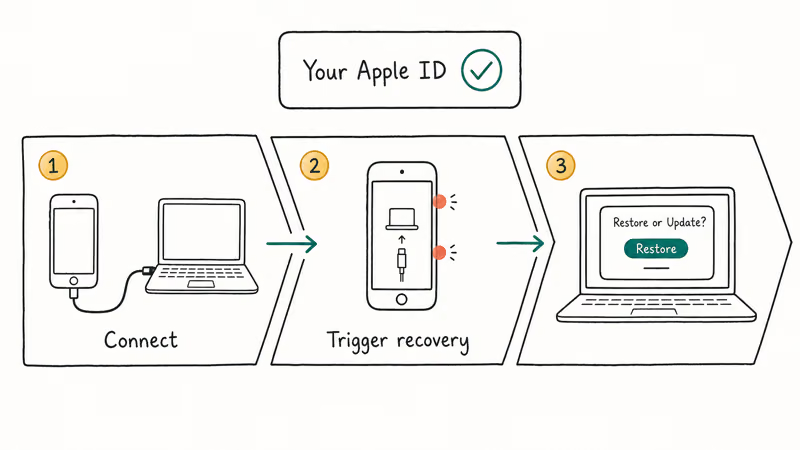
Apple doesn’t publish one fixed completion time for every connection, computer, and backup. Follow the state shown by Finder, Apple Devices, or iTunes instead of interrupting the restore after an unsourced estimate.
If you can’t borrow a computer, Apple directs you to an Apple Retail Store or Apple Authorized Service Provider. Service doesn’t turn the process into a data-preserving bypass; the documented forgotten-passcode reset still erases the iPod.
If Restore fails after you follow the official steps, use our Recovery Mode error checklist before changing cables, ports, or computers.
#Can Find My Erase the iPod Instead?
Yes, if Find My was turned on before the lockout. Apple’s Find My guide for iPod touch confirms that an offline request shows Erase Pending, starts the next time the iPod reaches Wi-Fi, and leaves Activation Lock on.
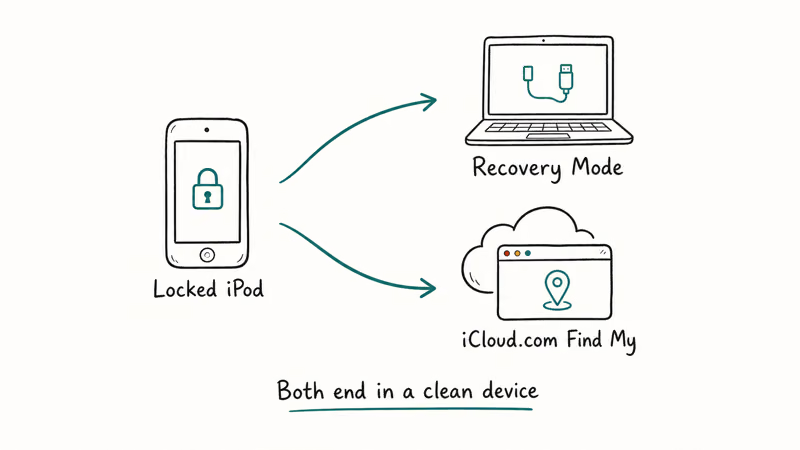
- On another Apple device, open
Find My>Devicesand select the iPod touch. You can also sign in at iCloud.com/find. - Tap Erase This Device, then continue.
- Enter the Apple Account password and confirm the erase.
- If the iPod is offline, leave the request pending until it reconnects to Wi-Fi.
Find My is an erase route, not a way to recover the forgotten passcode or copy unsynced data from the locked iPod.
#Activation Lock After the Erase
After either erase route, Setup Assistant may show Activation Lock. Apple’s Activation Lock instructions state that you should enter the Apple Account and password used to set up the device. A business- or school-owned iPod should go back to its IT administrator.
If account recovery fails, Apple accepts an Activation Lock support request with proof of purchase, but approval isn’t guaranteed.
Avoid software that promises to reveal the passcode, preserve unsynced data, or remove Activation Lock without the owning account. Those claims don’t change Apple’s erase and ownership checks. Our Apple Account lock guide covers a disabled account as a separate problem.
#Restore Only What the Backup Contains
A backup returns only what it contains. During setup, choose one only if you recognize its device and date. Apple says an erased iPod can restore a usable iCloud or computer backup; without one, set it up as new and download data already stored in iCloud.
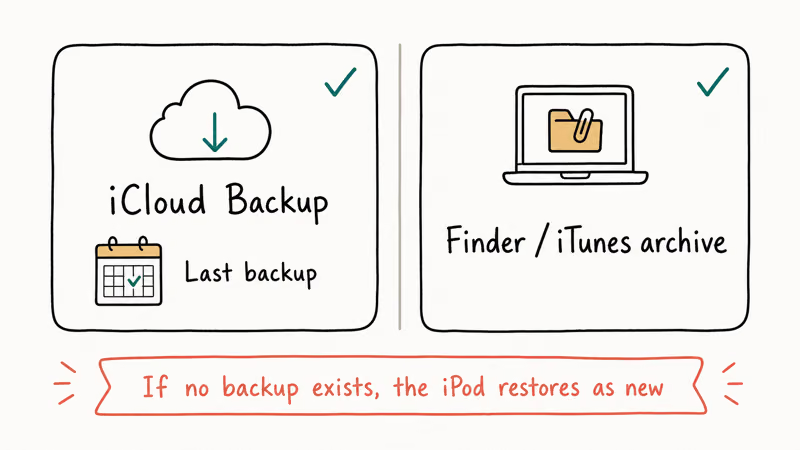
- iCloud backup: choose Restore from iCloud Backup during Setup Assistant.
- Computer backup: connect the erased iPod to the computer holding the backup, then choose Restore from this backup in Finder or iTunes. An encrypted backup requires its backup password.
- No backup: set up the iPod as new. Content already synced to iCloud can download after sign-in, but local-only photos, app data, settings, and messages won’t be reconstructed.
Our reset-and-backup explainer gives more detail about the difference between an erase, a backup, and separately synced iCloud data.
#Bottom Line
For a forgotten iPod touch passcode, use Apple’s model-specific Recovery Mode sequence and choose Restore. Hold Volume Down on the 7th generation or Home on the 6th generation and earlier.
The erase removes current device data. Afterward, satisfy Activation Lock and restore only from a backup you can verify. Don’t add the iPhone’s iOS 17 Previous Passcode route to this legacy device.
#Frequently Asked Questions
Can an iPod touch passcode be removed without erasing it?
Apple’s current forgotten-passcode process erases the iPod touch. It doesn’t document an in-place passcode removal route for a forgotten code.
Which button puts a 7th-generation iPod touch in Recovery Mode?
Hold Volume Down while connecting the powered-off iPod to the computer. Keep holding until the connect-to-computer screen appears.
Which button is used on a 6th-generation or older iPod touch?
Hold the Home button while connecting the powered-off device. Release it after the connect-to-computer screen appears.
Does Restore keep photos stored on the locked iPod?
No. Restore deletes current device data and settings. Photos return only if they’re in a usable backup or already synced to a service you can access after setup.
Will a Find My erase remove Activation Lock?
No. Activation Lock remains after remote erase and can require the associated Apple Account and password for reactivation.
What if the software download takes longer than 15 minutes?
If the iPod exits Recovery Mode, let the download finish, turn off the iPod, and repeat the model-specific steps. Apple includes this exception in its current guide.
What if I don’t have a computer?
Apple directs people who can’t borrow one to an Apple Retail Store or Apple Authorized Service Provider. The documented reset remains destructive.

Is This Bank App Real? Spot a Fake App on Your Home Screen
A bank app can land on your home screen from a web page with no install warning. Learn the checks that tell a real banking app from a phishing web app.

Passkeys Not Syncing Between iPhone and Windows? Read This
Passkeys not syncing between iPhone and Windows is by design, not a bug. Here is why iCloud passkeys skip Windows Hello and the three ways to fix it.

VPN Not Working on Snapdragon X? Why It Fails, How to Fix
Your VPN won't install or connect on a Snapdragon X Copilot Plus PC because Windows on ARM can't emulate the network driver. Here are the fixes that work.

How to Check If a Link Is Safe Before You Click It
Learn how to check if a link is safe with official-first steps: read the real domain, use the app instead, and treat scanners as a second opinion only.