Computer Crashes During Zoom: Causes and Solutions
Fix computer crashes during Zoom with practical checks for RAM, graphics drivers, cache files, overheating, updates, and virtual background settings.
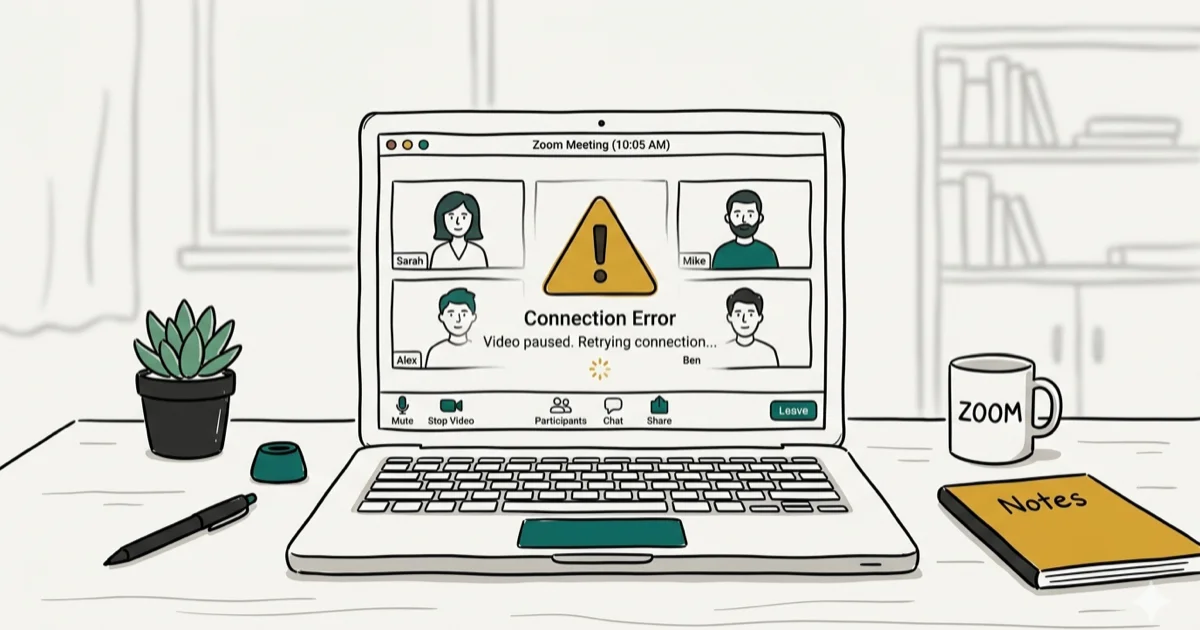
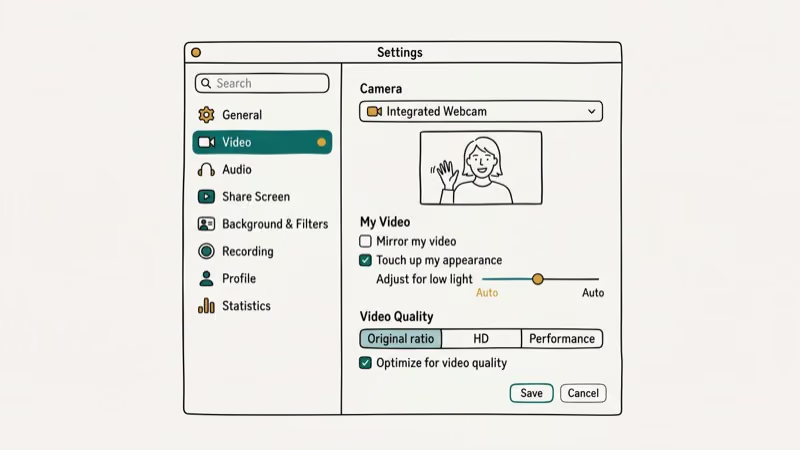
Quick AnswerZoom crashes are usually caused by outdated graphics drivers, low RAM, or GPU acceleration conflicts. Update drivers, close background apps, and turn off hardware acceleration in Zoom Settings > Video.
Your computer crashed in the middle of a Zoom meeting. Before you panic, the fix is usually something simple: outdated Zoom software, insufficient RAM, overheating, or a corrupted cache file.
- Zoom requires at least 4 GB of RAM for stable HD video calls; systems with 2 GB RAM crash frequently when screen sharing is enabled.
- Clearing Zoom’s cache resolves crashes caused by corrupted temporary files, which accumulates after weeks of daily use.
- Outdated Zoom versions cause compatibility errors with newer operating systems — check for updates before any troubleshooting.
- Virtual backgrounds use extra CPU and GPU resources, which can push an already-strained system past its limit.
- Zoom’s official minimum requirements specify 2.5 GHz dual-core processor, but the recommended spec is 2.8 GHz quad-core for screen sharing.
#What Causes Computer Crashes During Zoom?
Computer crashes during Zoom can generally be attributed to hardware or software issues. Here’s a breakdown of the most common causes. Screen sharing plus a virtual background can push CPU and GPU usage high, especially on older laptops. According to Zoom’s official system requirements documentation, the minimum 2 GB RAM spec is insufficient for simultaneous screen sharing and video, which requires at least 4 GB for reliable operation.

#Hardware Issues
Certain hardware issues can cause your computer to crash during Zoom meetings.
#● Insufficient RAM
One common hardware issue is insufficient RAM (Random Access Memory). When your computer doesn’t have enough RAM to support the Zoom application, it can become unresponsive or crash entirely.
#● Overheating
Overheating is another hardware issue that can lead to crashes. When your computer gets too hot, its performance can suffer, and it may even shut down to protect itself from damage.
#Software Issues
Software issues can also cause Zoom-related computer crashes.
#● Outdated Software
Running outdated software, including your operating system and Zoom itself, can lead to instability and crashes.
#● Conflicting Applications
Some applications running in the background may conflict with Zoom, causing your computer to crash during a meeting. If your email client is part of that background mix, our Outlook keeps crashing guide covers the specific fixes for that other common culprit.
#● Malware Infections
Malware infections can cause a range of problems, including computer crashes. In case your computer suffers from a malware infection, it could have difficulties running Zoom efficiently.
Besides, in this article, we will explain the fixes for the Apex Legends crash here for you. So, keep reading to know how to overcome this Apex Legends Crashing issue.
#How Do You Stop Zoom From Crashing Your Computer?
To prevent computer crashes during Zoom meetings, consider the following solutions:
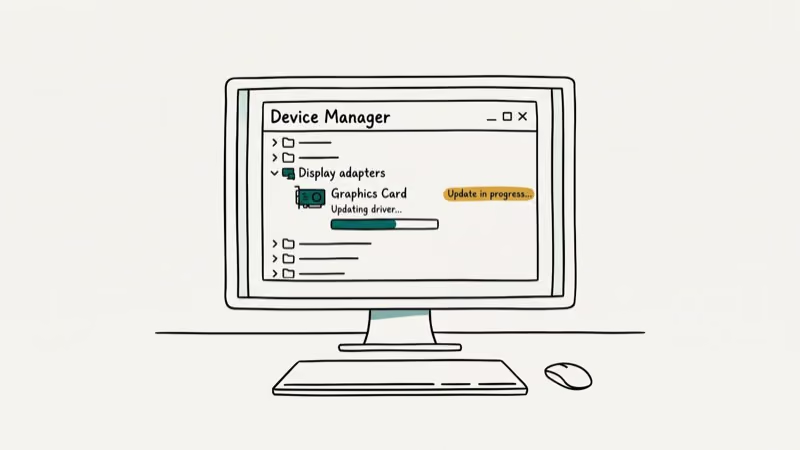
#Upgrade Your Hardware
If you’re experiencing crashes due to hardware issues, it may be time to upgrade. Add more RAM or invest in a more powerful CPU to improve your computer’s performance. If your PC is also showing general slowdowns outside of Zoom, our guide on fixing Windows 10 slowdowns covers broader performance optimization steps that complement the Zoom-specific fixes below.
#Keep Your Software Up-to-Date
Regularly update your operating system, Zoom application, and other software to ensure stability and prevent crashes. Software updates frequently encompass crucial bug resolutions and enhancements in performance.
#Updating Zoom to the Latest Version
An outdated Zoom application may cause compatibility issues and crashes. To ensure optimal performance, always update Zoom to the latest version. According to Google’s Chromebook compatibility guide, video conferencing apps including Zoom require frequent updates to maintain compatibility with the underlying OS as Chrome OS updates monthly. Here’s how to update:
-
Open the Zoom desktop client.
-
Click on your profile photo located in the upper-right corner.
-
Select “Check for Updates”.
-
If there is an available update, proceed with the on-screen directions to finish the process.
#Checking Your Internet Connection
A poor internet connection can lead to Zoom crashing. To test your connection:
-
Visit speedtest.net.
-
Click “Go” and allow the test to finish.
-
Compare your results to Zoom’s recommended minimum bandwidth requirements.
In case your internet speed falls short of the suggested requirements, consider upgrading your internet plan or using a wired connection for better stability.
#Closing Unnecessary Applications
Running multiple applications simultaneously can consume significant system resources, leading to Zoom crashing. Close any unnecessary programs to free up memory and improve performance.
-
Press Ctrl + Shift + Esc to open the Task Manager (Windows) or Cmd + Option + Esc to open the Force Quit menu (Mac).
-
Look for applications consuming high memory or CPU.
-
Right-click (Windows) or select (Mac) the application, then choose “End Task” (Windows) or “Force Quit” (Mac).
#Adjusting Your Computer’s Performance Settings
Optimizing your computer’s performance settings can prevent Zoom from crashing. Here’s how:
#Windows
-
Perform a right-click on the Start button and choose “System”.
-
Click on “Advanced system settings”.
-
Under the “Performance” section, click on “Visual Effects”.
-
Select “Adjust for best performance” and hit “OK”.
#Mac
-
Click the Apple menu and then tick “System Preferences”.
-
Go to “Energy Saver”.
-
Adjust the “Computer sleep” and “Display sleep” sliders to prevent your computer from sleeping during a Zoom meeting.
#Erase Zoom Cache and Data
Clearing Zoom cache and data can help resolve various issues, such as performance problems or login difficulties. Here’s a step-by-step guide on how to erase Zoom cache and data on different platforms:
#Mac
-
Close the Zoom application if it’s running.
-
Open a Finder window.
-
From the menu bar, click on ‘Go’ and select ‘Go to Folder’.
-
Type ~/Library/Caches into the text box and press ‘Enter’.
-
Locate the ‘us.zoom.xos’ folder and drag it to the Trash.
-
Empty the Trash to permanently delete the Zoom cache.
-
If you need to erase Zoom data, go to the Applications folder and drag the Zoom app to the Trash.
-
Empty the Trash to delete the app and its data.
#Windows
-
Close the Zoom application if it’s running.
-
Press ‘Win+R’ on your keyboard, which will bring up the Run dialog.
-
Type %appdata% into the text box and click ‘OK’.
-
In the ‘AppData\Roaming’ folder, locate the ‘Zoom’ folder and right-click on it.
-
Choose ‘Delete’ to remove the Zoom cache.
-
To erase Zoom data, go to the ‘Control Panel’ and click on ‘Uninstall a program’.
-
Locate Zoom in the list of installed programs, right-click on it, and select ‘Uninstall’.
-
Abide by the on-screen directions to eliminate the application along with its data.
#iOS
-
Locate the Zoom app on your home screen.
-
Tap and hold the Zoom app icon until a menu appears.
-
Select ‘Remove App’ and then ‘Delete App’ to confirm.
-
This will delete the Zoom app along with its cache and data.
-
To reinstall the app, go to the App Store, search for ‘Zoom’, and download it again.
#Android
-
Open the ‘Settings’ app on your Android device.
-
Swipe down and tap either ‘Apps’ or ‘Applications’.
-
Locate the Zoom app in the list and tap on it.
-
Tap on ‘Storage’.
-
To clear the cache, tap on the ‘Clear Cache’ button.
-
To erase Zoom data, tap on the ‘Clear Data’ or ‘Clear Storage’ button and confirm your action.
-
If you wish to uninstall the Zoom app, return to the app information page and tap ‘Uninstall’.
#Install Antivirus and Anti-Malware Software
To protect your computer from malware infections, use reputable antivirus and anti-malware software. Regularly scan your computer to detect and remove any threats that could cause crashes. For Windows computers with persistent background process issues, the WSAPPX high CPU guide covers how to identify and reduce system process overhead that competes with Zoom.
#Reinstalling Zoom
If the above solutions don’t resolve the issue, try reinstalling Zoom:
-
Uninstall Zoom from your computer.
-
Obtain the most recent version of Zoom by visiting the official Zoom website.
-
Install Zoom by following the on-screen instructions.
#Update Your Windows and MacOS
Keeping your operating system up to date is crucial for security, stability, and getting access to new features. Here’s a step-by-step guide on how to update your Windows and MacOS operating systems.
#Updating Windows
Follow these steps to update your Windows operating system:
Windows 10
-
Click on the ‘Start’ button (Windows icon) in the bottom left corner of your screen.
-
Select the ‘Settings’ gear icon to open the Settings app.
-
Click on ‘Update & Security’.
-
In the Windows Update tab, click on the ‘Check for updates’ button. Windows will search for available updates.
-
In case any updates are available, Windows will automatically start downloading and installing them. You can see the progress and details of the updates.
-
Once the updates are installed, you may be prompted to restart your computer. Save your work and click on ‘Restart now’ to complete the update process.
Windows 11
-
Right-click on the ‘Start’ button (Windows icon) in the bottom left corner of your screen.
-
Select ‘Settings’ to open the Settings app.
-
In the left sidebar, click on ‘Windows Update’.
-
Click on the ‘Check for updates’ button. Windows will search for available updates.
-
If updates are available, they will automatically start downloading and installing. You can see the progress and details of the updates.
-
Once the updates are installed, you may be prompted to restart your computer. Save your work and click on ‘Restart now’ to complete the update process.
#Updating MacOS
Follow these steps to update your macOS operating system:
MacOS Mojave and Later
-
Click on the Apple menu in the top left corner of your screen.
-
Select ‘System Preferences’.
-
Click on ‘Software Update’. MacOS will check for available updates.
-
If updates are available, click on the ‘Update Now’ or ‘Upgrade Now’ button to start the update process. You may need to enter your administrator password.
-
Wait for the updates to download and install. You can track the progress in the Software Update window.
-
Once the updates are installed, you may need to restart your computer. Save your work and follow the on-screen prompts to complete the update process.
MacOS High Sierra and Earlier
-
Select the Apple menu situated in the upper-left corner of your screen.
-
Select ‘App Store’.
-
Click on the ‘Updates’ tab in the App Store. MacOS will check for available updates.
-
If updates are available, click on the ‘Update’ or ‘Upgrade’ button next to the relevant update(s). It might be necessary to input your Apple ID credentials.
-
Wait for the updates to download and install. You can track the progress in the Updates tab.
-
Once the updates are installed, you may need to restart your computer. Save your work and follow the on-screen prompts to complete the update process.
Also, let’s learn how to use Zoom on Amazon Firestick with this easy guide. Get those Zoom sessions on big screens with the most practical way to do it.
#Contacting Zoom Support
If none of the above solutions resolve your Zoom crashing issues, it’s time to seek assistance from Zoom’s support team. You can contact them through:
-
The Zoom Support website: Submit a request detailing your issue.
-
Live chat: Accessible through the Zoom Help Center during their operating hours.
Make certain to offer ample details regarding your issue, including error messages, screenshots, and system specifications.
#Frequently Asked Questions
How can I check if my computer has enough RAM for Zoom?
Open Task Manager (Windows) or Activity Monitor (Mac) during a Zoom call to see live RAM usage. Zoom recommends at least 4 GB RAM for HD video with screen sharing. If your total RAM is under 4 GB, upgrading is the most reliable long-term fix.
What should I do if my computer is overheating during Zoom?
Ensure proper ventilation around your computer, clean dust from its vents and fans, and use a cooling pad for laptops. Overheating causes the CPU to throttle its speed, which directly reduces performance during demanding tasks like video calls.
How often should I update Zoom to avoid crashes?
Check for Zoom updates at least once a month. Zoom releases updates every 2-4 weeks, and some address specific crash bugs tied to OS updates. Enable auto-updates in Zoom’s desktop client settings to stay current automatically.
Can a slow internet connection cause a Zoom crash?
A slow connection causes lag and dropped calls, but rarely a full computer crash. However, Zoom’s network error handling can sometimes loop repeatedly on packet loss, consuming CPU until the system becomes unresponsive. Minimum bandwidth recommended by Zoom is 1.5 Mbps upload and download for HD video.
Does a virtual background increase Zoom crash risk?
Yes. Virtual backgrounds require the CPU or GPU to continuously process video frames in real time. If crashes occur only with virtual backgrounds, disable them before trying other fixes.
Can I recover a Zoom recording if my computer crashed?
Sometimes. Zoom saves recordings to a temp file before finalizing them. Check %AppData%\Zoom\data (Windows) or ~/Library/Application Support/zoom.us/data (Mac) for partial .tmp files. Zoom includes a built-in recording repair tool that runs automatically the next time you open the app if it detects an interrupted recording.
Why does Zoom crash on my computer but not Google Meet?
Different platforms use different amounts of resources. Zoom’s desktop client is generally more resource-intensive than browser-based tools like Google Meet. If only Zoom crashes, the issue is Zoom-specific rather than a general hardware problem.
#Bottom Line
Start with the simplest fix: update Zoom and clear its cache. Those two steps resolve the majority of crash reports. If crashes continue, check your RAM usage during a call using Task Manager (Windows) or Activity Monitor (Mac).
If you’re consistently above 80% RAM usage during Zoom, closing background applications or upgrading your RAM is the lasting fix. Virtual backgrounds are the first thing to disable when a meeting starts crashing.
For Zoom audio problems that occur separately from crashes, our guide on fixing Zoom on Amazon Firestick covers platform-specific connection issues.

Google Messages Error 3100: Why RCS Is Broken on Galaxy
Google Messages RCS error 3100 hits Galaxy owners after phone or carrier switches. Google told 9to5Google a fix is coming. Here's what actually helps.

Is This Bank App Real? Spot a Fake App on Your Home Screen
A bank app can land on your home screen from a web page with no install warning. Learn the checks that tell a real banking app from a phishing web app.

Apps Crashing After iOS 27 Update? Fix Order (2026)
Apps crashing after the iOS 27 update? Update the app in the App Store first, then offload and reinstall to clear stale cache, then restart. The fix order.

Do AI Translation Earbuds Work Offline? What to Know
Do AI translation earbuds work offline? A few do with downloaded language packs, but most need the cloud. Here's what works offline and what you give up.