Move to iOS Not Working? Safe Fixes for Stuck Transfers
Fix Move to iOS connection errors and stalled transfers using Apple’s current setup path, temporary Wi-Fi behavior, and safe retry options today.
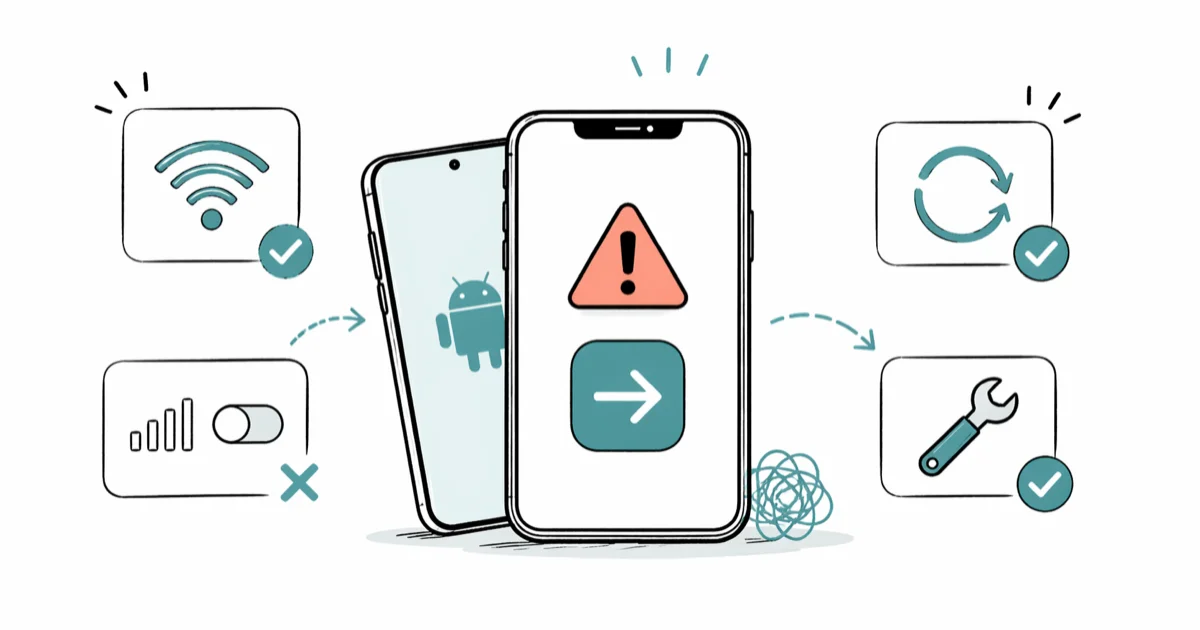
Quick AnswerKeep both phones nearby and powered. Leave Move to iOS open on Android with cellular data and automatic Wi-Fi switching off; the iPhone creates the transfer network, so matching home-network names isn’t required.
Move to iOS can stall at the pairing code or stop during preparation. Start with the reversible checks below; don’t leave setup for a network reset, and treat erasing the iPhone as a separate final choice.
Use these steps only on your own phone or with explicit consent; copying someone else’s data can be illegal.
- Keep both phones near each other, connected to power, and unused until the iPhone’s loading bar finishes
- Turn on Wi-Fi on Android; the iPhone creates a temporary network for the transfer, so matching home-network names is not required
- Leave Move to iOS visible on Android, and turn off cellular data or settings that automatically switch Wi-Fi networks
- On current iOS, start from
Transfer Your Apps & Data>From Android>Transferwith App; older setup screens may sayApps & Data>Move Datafrom Android - Confirm that everything on the Android phone, including an external memory card, fits on the iPhone
#Why Does Move to iOS Keep Disconnecting?
Move to iOS asks the Android phone to join a temporary Wi-Fi network created by the iPhone. A transfer can fail if Android leaves that network, the Move to iOS app is interrupted, or either device loses power before the iPhone’s loading bar finishes.
According to Apple’s current Move from Android instructions, both devices should remain near each other and plugged in until the transfer completes. Leave both devices alone, and keep Move to iOS onscreen on Android; opening another app or taking a call on that phone can prevent content from transferring.
Here’s what to check before anything else.
Restart both phones. Apple lists restarting both devices as a transfer retry step. Reopen setup on the iPhone and Move to iOS on Android after both devices are back on.
Keep Wi-Fi on, but don’t force a matching home-network SSID. The iPhone creates its own temporary Wi-Fi network and prompts Android to join it. If Android keeps switching away, turn off features such as Smart Network Switch and forget saved Wi-Fi networks before retrying, as Apple’s guide recommends.
Disable mobile data on Android. The menu name varies by manufacturer, but it’s usually under the phone’s network or SIM settings. Apple includes turning off the Android cellular connection in its retry steps.
Retry the transfer after those checks, and keep the phones connected to power while it runs.
#How Do You Fix Move to iOS Stuck on Preparing?
The amount of content and network conditions affect transfer time, so a slow estimate by itself does not prove that the process has failed. If the loading bar stops changing and the app reports an error, preserve the setup state and check the items below before restarting.
Three checks, in order:
Keep Move to iOS in the foreground on Android. Don’t open another app or answer a call until the iPhone’s loading bar finishes. If the app was interrupted, restart both phones and retry.
Turn off automatic network switching and cellular data on Android. Apple specifically recommends disabling settings that can move the phone away from the temporary Wi-Fi network. Manufacturer menu names differ, so use the Settings search field for terms such as “adaptive connectivity,” “smart network,” or “switch to mobile data.”
Make sure the content fits. Check the amount selected on Android against available iPhone storage. Include files on an external memory card; Apple doesn’t publish a universal extra-storage buffer.
#Fixing the Could Not Communicate With Device Error
This error can mean the iPhone isn’t in transfer setup or pairing was interrupted.
Move to iOS runs during initial iPhone setup. On the current screen, choose Transfer Your Apps & Data > From Android > Transfer with App. An older iOS setup screen may instead say Apps & Data > Move Data from Android. The code appears on the iPhone and is entered in the Android app.
If setup is already complete, Apple’s guide says you must either erase the iPhone and start setup again or move the content manually. An erase is destructive: back up anything already created on the iPhone first. The current reset path is Settings > General > Transfer or Reset iPhone > Erase All Content and Settings.
If erasing isn’t an option (you’ve already set up Face ID, restored apps, signed into iCloud), use iCloud for Android to move contacts, calendars, and photos manually instead. It’s slower but it doesn’t require wiping the iPhone.
If Android sees a weak-internet warning after joining the temporary network, Apple says that warning can be ignored. Don’t manually move the phone back to a home, school, or corporate Wi-Fi network during the transfer.
#What Move to iOS Transfers and What It Skips
Not every data type transfers automatically. Apple’s current Move from Android guide lists contacts, message history, SMS messages, camera photos and videos, photo albums, files and folders, mail accounts, WhatsApp messages and media, Voice Memos, call history, and calendars. It says some eligible free apps can also be matched.
| Data type | Transfers? | Notes |
|---|---|---|
| Contacts | Yes | Listed by Apple |
| Camera media | Yes | Apple lists camera photos, videos, and albums |
| WhatsApp chat | Yes | Apple lists WhatsApp messages and media |
| Message history / SMS | Yes | Listed by Apple |
| Calendars | Yes | Listed by Apple |
| Free apps | Partial | Eligible matches available in both stores |
| Music files | Manual | Use Apple’s manual transfer path |
| Paid apps | Check | Availability and purchases vary by store |
| Other app data | Varies | Check the app’s own migration support |
| Authenticator tokens | App-specific | Prepare the app’s recovery path before switching |
WhatsApp deserves a separate check because its history uses an app-specific migration flow. Apple’s current Move from Android page lists WhatsApp messages and media among transferable content, but app support and prerequisites can change. Verify the transferred chats before erasing either phone, and use WhatsApp’s in-app help for any current prerequisites.
If you missed that window, two fallback guides cover the recovery paths:
- Restore WhatsApp from Google Drive to iPhone when you have a recent backup.
- Transfer WhatsApp messages from Android to iPhone when Move to iOS skips them entirely.
#How to Transfer Data Without Move to iOS
When automated transfer keeps failing, Apple documents manual computer paths for some content. Support and results vary by platform, app, and data type, but these paths don’t depend on the Move to iOS pairing session.
Two paths, depending on your computer.
Windows users. Plug the Android phone into the PC with a USB cable. On the Android phone, choose its file-transfer USB mode, then copy the files you need to the PC. For content that can be synced to the iPhone, use Apple’s current Apple Devices app; iTunes applies only to older Windows setups. According to Apple’s manual Android-to-iPhone guide, mail, contacts, photos, music, books, documents, and apps use different supported paths.
Disconnect the Android before connecting the iPhone, and import or sync each content type with the matching supported app. Transfer time depends on the cable, computer, file count, and total data; there is no reliable minutes-per-gigabyte rule.
Mac users. Use the Android manufacturer’s supported file-transfer method or a cloud service for the Android side, then Finder for content that macOS can sync to the iPhone.
Copy the Android content to a local folder first. Then disconnect Android, connect the iPhone, open Finder, and select the iPhone in the sidebar. Some content types must be imported into Photos, Music, Books, or another compatible app before they can be synced.
If you’re switching from a Samsung Galaxy, Samsung Smart Switch may help stage supported content to a computer. Coverage and speed depend on the phone, content type, storage, cable, and Smart Switch version, so verify the files rather than treating it as a complete copy.
For SIM-related setup steps after the data transfer, the SIM card transfer from Android to iPhone walkthrough covers the carrier side of the move.
#Don’t Reset Network Settings From the Setup Flow
Apple’s current Move to iOS retry guidance doesn’t list Reset Network Settings. More importantly, the normal Settings app isn’t available while the iPhone is waiting at Transfer Your Apps & Data. Completing setup just to run a reset doesn’t return the phone to that transfer screen.
Stay in setup. Restart both devices, turn off Android cellular data and automatic network switching, forget conflicting saved networks, and rejoin the iPhone’s temporary network.
If you already completed setup, choose between Apple’s manual-transfer options and backing up anything new before erasing the iPhone to restart setup. Don’t confuse Reset Network Settings with that erase: it does not return the iPhone to the transfer screen.
If Move to iOS, Smart Switch, and manual transfer fail, AnyTrans can copy selected data through a computer.
Some links on this page are affiliate links, which means fone.tips may earn a commission at no extra cost to you.
#Bottom Line
Start with the basics: restart both phones, leave Wi-Fi enabled on Android, turn off Android cellular data or automatic network switching, and keep both phones near each other and connected to power. The iPhone supplies the temporary transfer network; matching the two home-network names is not a requirement.
If the app still won’t connect, try the transfer again from Transfer Your Apps & Data > From Android > Transfer with App. Stay in setup and use Apple’s reversible retry steps rather than leaving setup for a network reset.
If the selected content does not fit or repeated attempts fail, follow Apple’s manual-transfer paths and move each content type with its supported app or a computer. On Windows, use Apple Devices on current systems; on Mac, use Finder. You can also back up Android apps and files and move them by content type, or follow the new-iPhone setup transfer guide for the parts Move to iOS skips.
#Frequently Asked Questions
Does Move to iOS work after the iPhone is already set up?
No. Move to iOS is part of initial setup. Current iOS shows Transfer Your Apps & Data > From Android > Transfer with App; older releases may show Apps & Data > Move Data from Android. If setup is complete, back up anything you need before erasing the iPhone, or use Apple’s manual-transfer options instead.
How long does Move to iOS usually take?
It depends on the amount and type of content, device condition, and connection. Apple gives no universal completion time or timeout threshold. Watch the loading bar on the iPhone; if the app reports an error or progress stops, keep the devices powered, check available storage, and retry the official flow.
Can I use Move to iOS over mobile data instead of Wi-Fi?
No. The app uses a temporary Wi-Fi network created by the iPhone, so cellular data isn’t a substitute. Wi-Fi must be enabled on Android, but the phones don’t need to begin on the same home-network SSID.
Will I lose data on my Android phone after using Move to iOS?
No. Move to iOS copies data, it doesn’t move it.
What Android version do I need for Move to iOS?
Install the current Move to iOS release on Google Play and check its live compatibility listing for your Android device. Apple’s current guide also offers Transfer without App on supported newer Android devices; availability depends on the device and Android build, so a fixed version floor in an article can drift.
Why does Move to iOS say unable to migrate for some apps?
Apple says some free apps can be matched when they’re available in both stores and support the transfer feature. Availability, purchases, sign-in state, and in-app data are app-specific, so check the App Store and the developer’s migration instructions after the transfer.
Does Move to iOS transfer two-factor authentication codes?
Don’t assume they will. Authenticator apps use different cloud-sync, export, and recovery systems. Before switching, confirm each app’s current transfer method and save the account recovery options; never delete the old authenticator until the new phone can generate working codes.
Can I transfer data from Android to iPhone without any app?
Yes. On supported newer Android devices, Apple’s setup can show Transfer without App. If its QR code can’t be scanned, tap Other Options on the iPhone.
Apple’s current guide sends Android to Settings > Google Services > All Services > Pair with iPhone or iPad > Copy Data, then uses the session ID and pairing code shown on the iPhone. If that menu is absent, check with the Android manufacturer. You can also use Apple’s manual-transfer guide, Apple Devices on current Windows systems, or Finder on Mac.

Mac mini M6 vs M5 Pro: Which Model Should You Buy?
Mac mini M6 vs M5 Pro compared on price, memory, ports, displays, and real workloads. Find the better 2026 Mac mini for your desk and budget.

Apple Siri Settlement: Who Qualifies and How to Claim
Apple's $250 million Siri settlement covers iPhone 15 Pro and iPhone 16 models bought June 2024 to March 2025. See who qualifies and how claims work.

iOS 26.6.1 Security Update: What Apple Fixed and Who Gets It
Apple released iOS 26.6.1 on August 17 with 29 security fixes, including an IPSec interception bug. See what it patches, who gets it, and how to update.

iPhone Adaptive Power: How It Works and When to Use It
Learn how iPhone Adaptive Power works, which models support it, what it changes, and when Low Power Mode is still the better battery-saving choice.