How to Transfer WhatsApp Messages: Android to iPhone
Transfer WhatsApp from Android to iPhone using Move to iOS, MobileTrans, or email export. Step-by-step for chat history, photos, and voice notes.
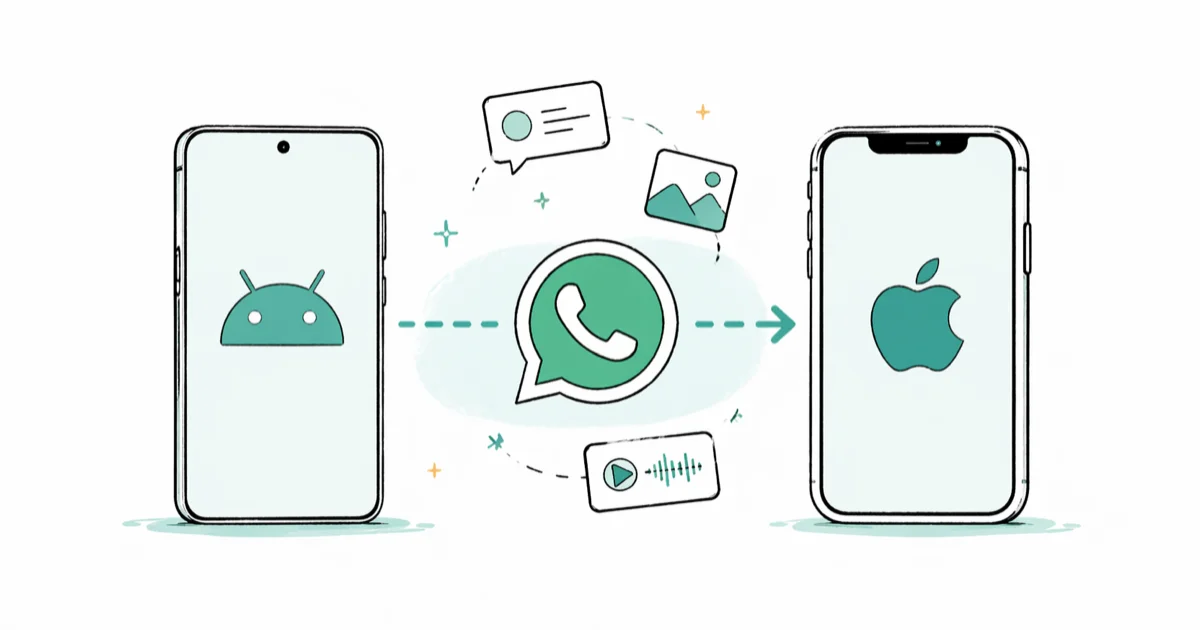
Quick AnswerUse Apple's Move to iOS app during iPhone setup. It transfers your full WhatsApp chat history, photos, and voice notes for free. Both phones need Android 10+ and the latest WhatsApp version.
WhatsApp transfer options work differently depending on whether your iPhone is new, already set up, or only needs a few conversations archived. Here’s what each method can and can’t do.
- Move to iOS is Apple’s free official transfer tool, but your iPhone must be in initial setup mode
- Android 10+ is required, and WhatsApp must be fully updated on both phones
- MobileTrans transfers WhatsApp without resetting your iPhone (needs a computer, about $30)
- Email Chat exports conversations as plain text that can’t be restored into WhatsApp
- Take a fresh WhatsApp backup on Android before transferring
#Method 1: Move to iOS (Free, Official)
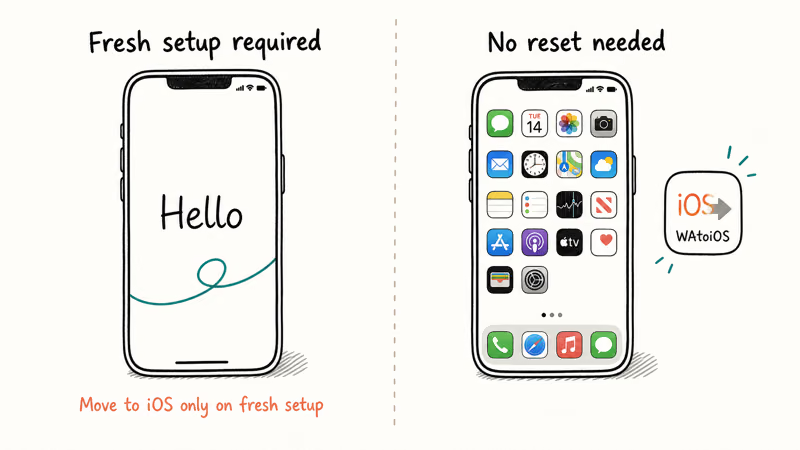
Move to iOS is Apple’s official migration tool. According to Apple’s Move to iOS support page, WhatsApp transfer requires Android 10 or later and both apps at their latest versions. The iPhone must be brand new or factory reset because Move to iOS only runs during initial device setup.
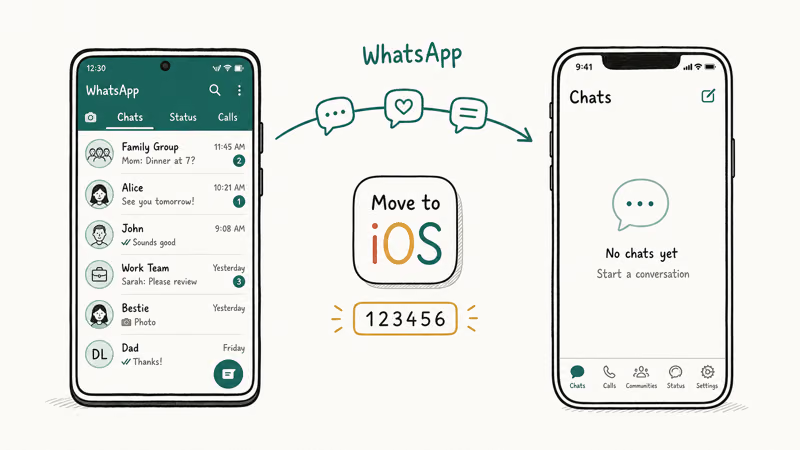
Charge both phones above 50% and connect them to the same Wi-Fi network before you start.
Start your iPhone setup, tap Move Data from Android on the Apps and Data screen, install Move to iOS from Google Play on your Android, open the app, and tap Continue. Your iPhone displays a 10-digit code. Enter that code into the Android app, make sure WhatsApp is checked on the transfer screen, then tap Start on the Android WhatsApp prompt.
WhatsApp builds a transfer package before the iPhone can restore the chat history.
WhatsApp creates a transfer package on your Android phone. Wait for it to finish, then complete iPhone setup. Install WhatsApp from the App Store, open it, and tap Start to restore the transferred data.
Move to iOS can carry chats, photos, and voice notes into WhatsApp during initial iPhone setup. The downside: your iPhone can’t already be set up, so if you’ve been using it for a while, you’ll need to factory reset it first or pick a different method entirely.
#Can You Transfer WhatsApp Without Resetting Your iPhone?
Yes. MobileTrans from Wondershare handles this without a factory reset. You’ll need a Windows or Mac computer.
Connect both your Android and iPhone via USB to your computer. Open MobileTrans, select WhatsApp Transfer, verify Android is set as source and iPhone as destination, then click Start. According to Wondershare’s MobileTrans documentation, the tool supports WhatsApp transfers between iOS and Android in both directions.
MobileTrans is built for direct WhatsApp migration between phones and can preserve existing iPhone WhatsApp data by default, so you won’t lose anything already on the device. The downside is cost: about $30 for a one-year license.
If you’re also dealing with Android file transfer issues on Mac, having MobileTrans installed can help with other data transfers too.
#Method 3: Transfer Without a Computer
The Mutsapper app on Google Play connects your Android and iPhone using a USB cable and moves WhatsApp data directly between phones. No computer required.
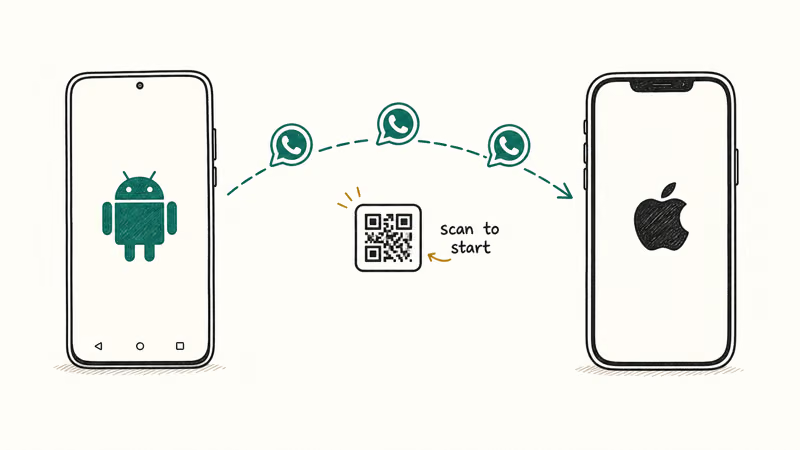
Download Mutsapper on your Android phone, select Android to iPhone, connect both phones with a USB-C to Lightning or USB-C to USB-C cable, log in to WhatsApp when prompted, and follow the on-screen steps. It works, but it’s noticeably slower than MobileTrans and the interface feels unfinished.
For non-WhatsApp content like contacts, photos, and media, Samsung Smart Switch handles that separately. Smart Switch doesn’t transfer WhatsApp data though, so you’ll still need one of the methods above for your chats.
#Exporting Individual Chats via Email
WhatsApp has a built-in Email Chat feature for saving specific conversations. This won’t restore chats into WhatsApp on your new phone, but it works for archiving important threads.
Open the chat on Android, tap the three-dot menu, go to More > Email Chat, choose whether to include media, and send the email to yourself. Open the email on your iPhone to read the conversation. The exported file is plain text.
Use this only if you need a few specific conversations saved as records. For full WhatsApp chat exports in readable format, there are tools that convert backup files into HTML or PDF. A WhatsApp backup extractor can parse your existing backup into browsable files without restoring them to any device.
#What Should You Do Before Starting the Transfer?
Three things matter before you begin. Skip any of these and you risk a failed transfer.
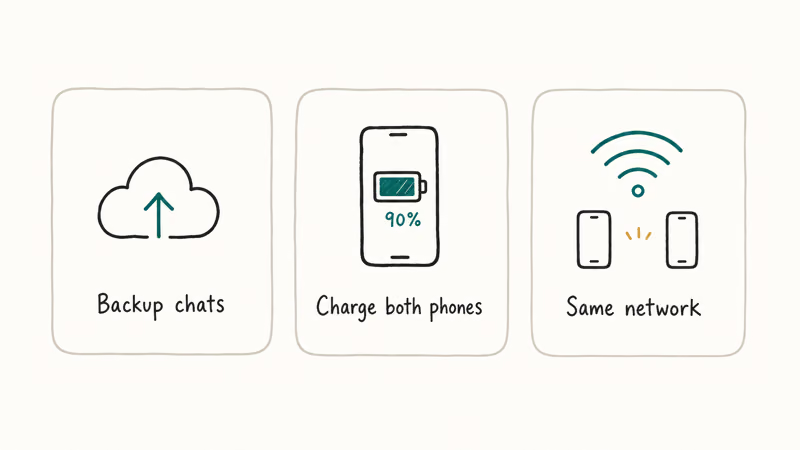
Use the same phone number on both devices. WhatsApp ties your account to your number. If you’re changing numbers, update it in WhatsApp on Android before transferring.
Take a fresh WhatsApp backup on Android. Go to WhatsApp > Settings > Chats > Chat Backup > Back Up Now. This gives you a fallback if the transfer fails midway. If you also want to back up your WhatsApp contacts separately, do that before starting.
Check your storage. Your iPhone needs at least as much free space as your WhatsApp data takes up. According to WhatsApp’s official transfer guide, Move to iOS is the recommended method for Android-to-iPhone transfers. For large chat histories, keep both phones plugged in and expect the process to take longer.
#Tips for Large WhatsApp Archives
Large archives need extra attention because Move to iOS has to package and copy more media before WhatsApp can restore it on the iPhone.
Keep both phones plugged in throughout the process. Don’t let either screen go dark. If your Android phone has battery saver enabled, turn it off since it can throttle the transfer speed.
If you’re also looking to back up WhatsApp messages on Samsung before switching, do that first. It gives you an independent copy on Google Drive in case something goes wrong during the cross-platform transfer. Based on Google’s Android backup documentation, Google Drive backups don’t transfer to iCloud, but they’re a safety net for your Android-side data.
#Bottom Line
Move to iOS is the best option if your iPhone is new or freshly reset. It’s free, official, and transfers everything including media and voice notes.
Use MobileTrans if your iPhone is already set up. If you need to restore WhatsApp from Google Drive to iPhone later, that’s a different process entirely with its own requirements. Whatever method you pick, take a fresh backup on Android before starting so you have a fallback ready.
#Frequently Asked Questions
Can I transfer WhatsApp from Android to iPhone without losing messages?
Yes. Both Move to iOS and MobileTrans transfer your complete message history including all media files. Email export is different: it saves chats as plain text that you can read but can’t restore into WhatsApp on the iPhone. For a full transfer, stick with Move to iOS or MobileTrans.
Does Move to iOS transfer WhatsApp photos and videos?
Yes. Photos, videos, voice notes, stickers, and documents can transfer when you use the official Move to iOS flow and meet WhatsApp’s requirements.
What if Move to iOS gets stuck during the transfer?
Make sure both phones stay on the same Wi-Fi network and neither screen goes dark. If the process stalls, restart both devices and try from the beginning. Also verify WhatsApp is updated to the latest version on Android. Older WhatsApp versions sometimes create incomplete transfer packages that cause the process to freeze.
Can I keep my existing iPhone data when transferring WhatsApp?
Not with Move to iOS, which only works during initial iPhone setup. MobileTrans is the alternative. It costs about $30 for a one-year license but preserves all your existing iPhone data while adding your Android WhatsApp chats on top. No factory reset needed, and your current apps, photos, and settings stay untouched throughout the process.
Does the transfer include group chats and broadcast lists?
Yes, all chat types transfer: individual, group, and broadcast. Group structure stays intact with full message history.
How long does the WhatsApp transfer take?
It depends on data size, media volume, cable or Wi-Fi stability, and phone battery state. Small chat histories are usually faster, while large media-heavy archives can take much longer.
What happens to WhatsApp on my old Android phone?
Your messages stay on the Android phone, but WhatsApp deactivates on that device once you verify your number on the iPhone. You can still scroll through old conversations on Android. You just won’t receive new messages there anymore.
Can I transfer WhatsApp back to Android if I change my mind?
Yes. The process works in reverse too. MobileTrans supports transfers in both directions. WhatsApp also added a built-in iPhone-to-Android transfer option that works through Samsung Smart Switch on Galaxy devices and through a direct QR code scan on other Android phones running Android 12 or later.

Mac mini M6 vs M5 Pro: Which Model Should You Buy?
Mac mini M6 vs M5 Pro compared on price, memory, ports, displays, and real workloads. Find the better 2026 Mac mini for your desk and budget.

Apple Siri Settlement: Who Qualifies and How to Claim
Apple's $250 million Siri settlement covers iPhone 15 Pro and iPhone 16 models bought June 2024 to March 2025. See who qualifies and how claims work.

iOS 26.6.1 Security Update: What Apple Fixed and Who Gets It
Apple released iOS 26.6.1 on August 17 with 29 security fixes, including an IPSec interception bug. See what it patches, who gets it, and how to update.

iPhone Adaptive Power: How It Works and When to Use It
Learn how iPhone Adaptive Power works, which models support it, what it changes, and when Low Power Mode is still the better battery-saving choice.